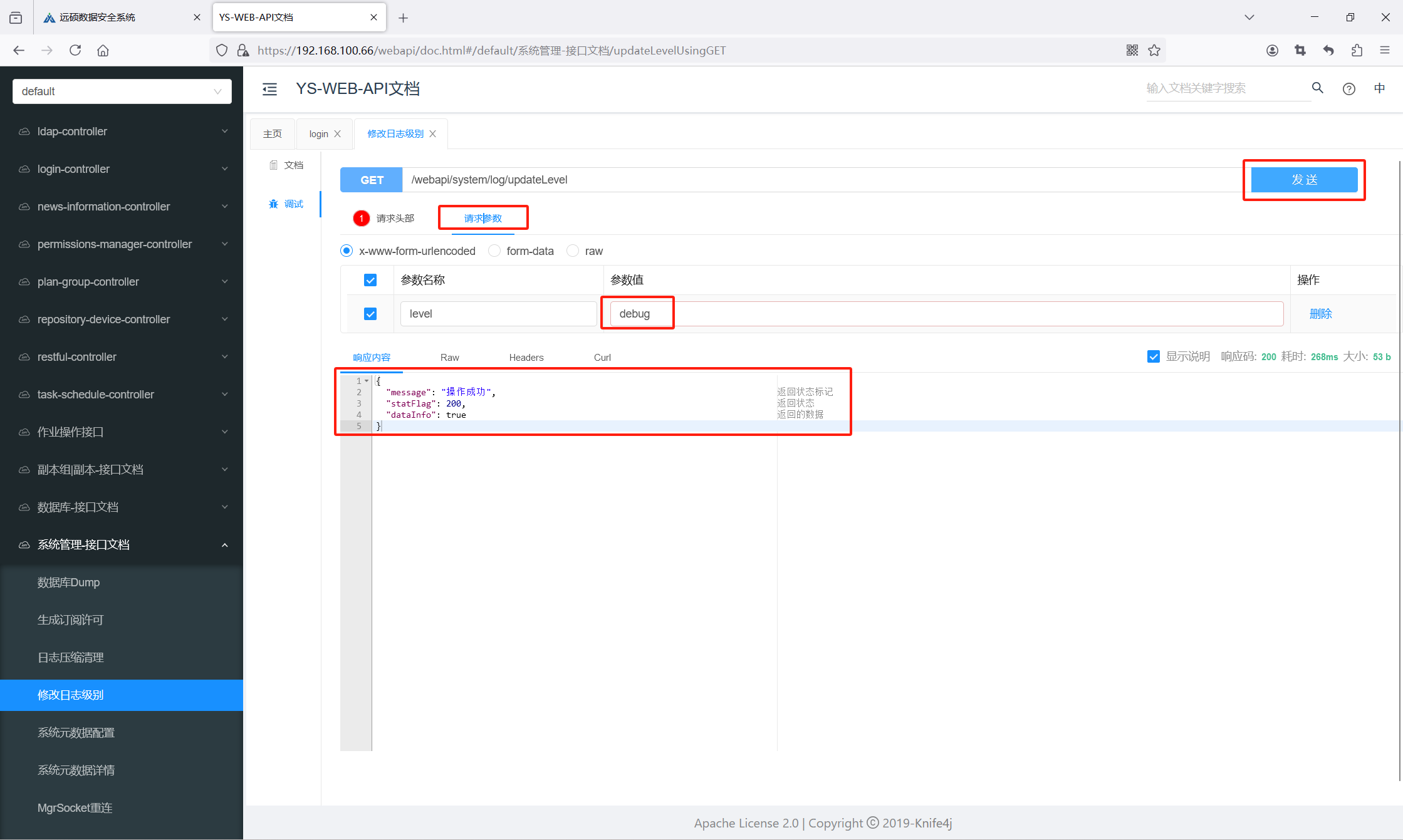
Changing the Log Level
The default UniSpace log level is "info". For troubleshooting, you may need to change it to "debug". Follow the steps below to update it.
Note: The "debug" level generates a large volume of logs. Please remember to switch it back to "info" once troubleshooting is complete.
1 Google Chrome Browser
1.1 Get Login Information
Open the UniSpace login page.
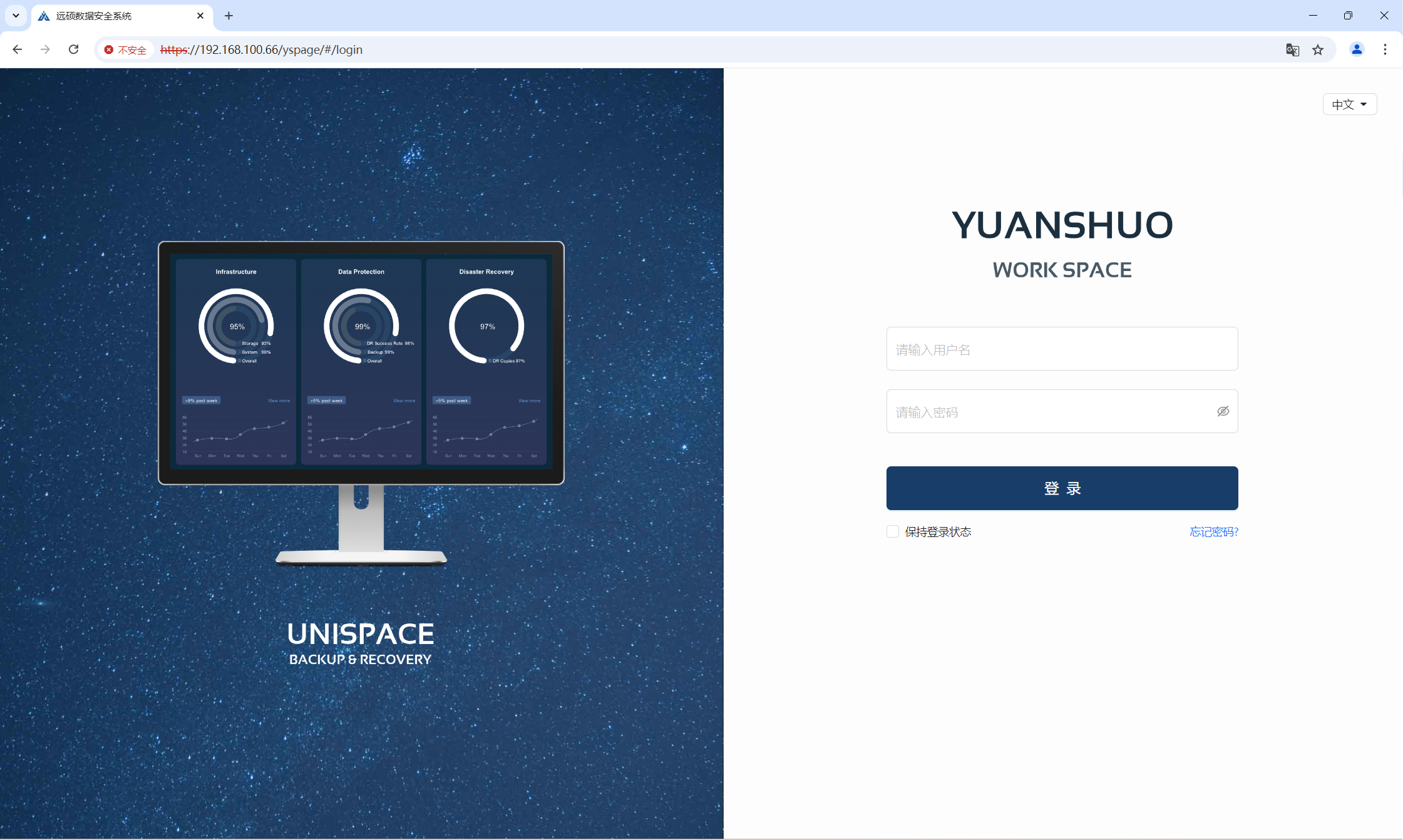
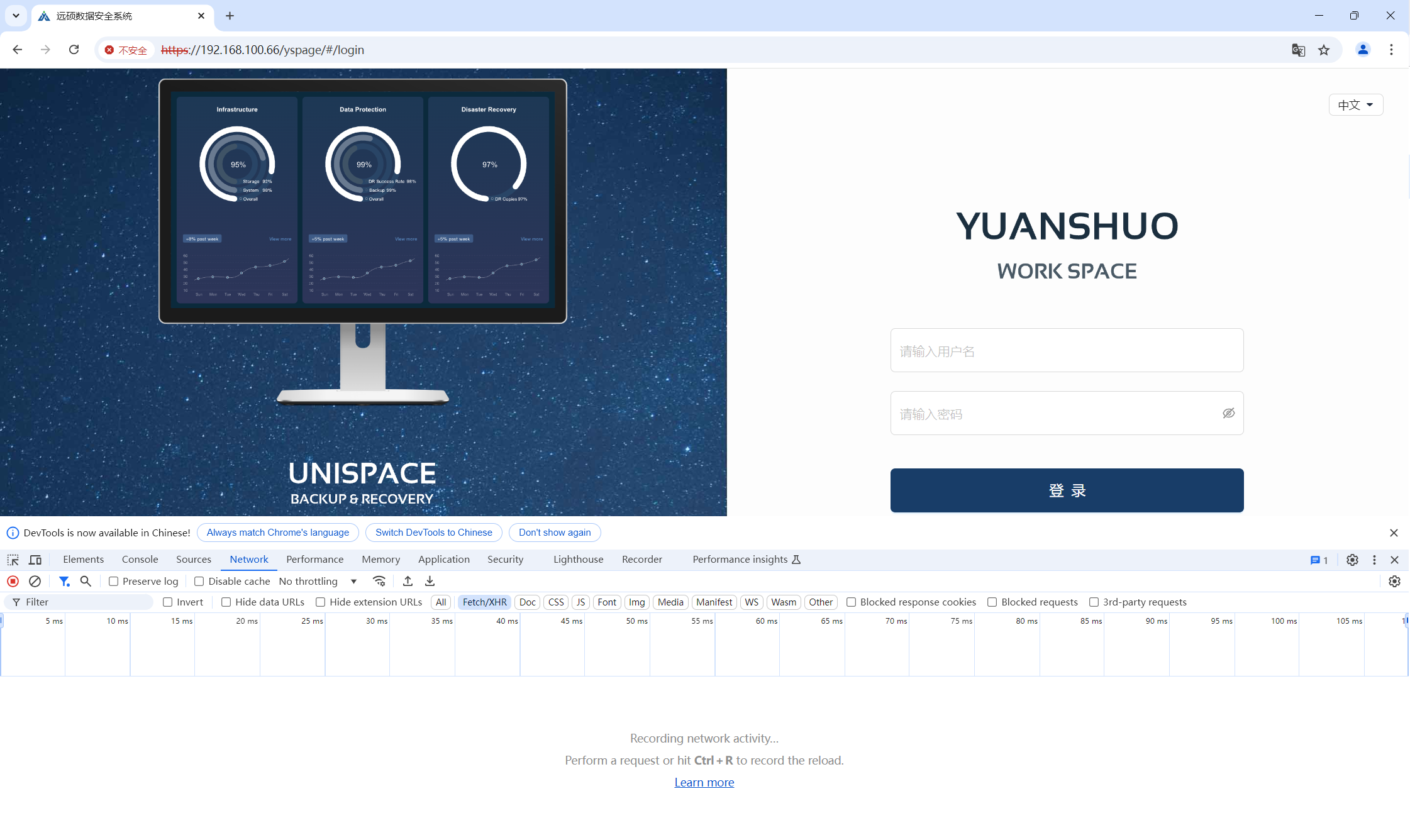
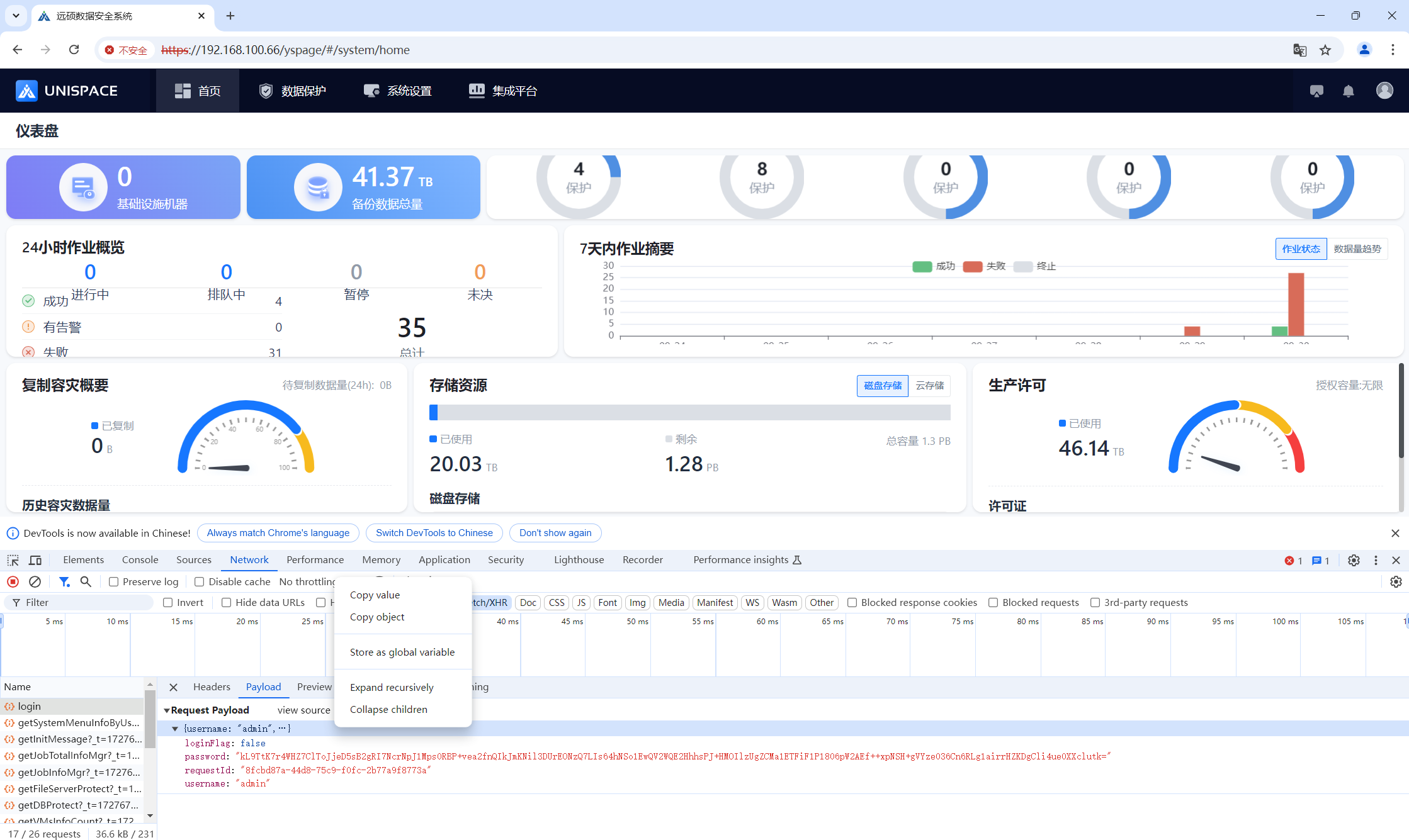
Press F12 or right-click anywhere on the page and select “Inspect” to open the Developer Tools.
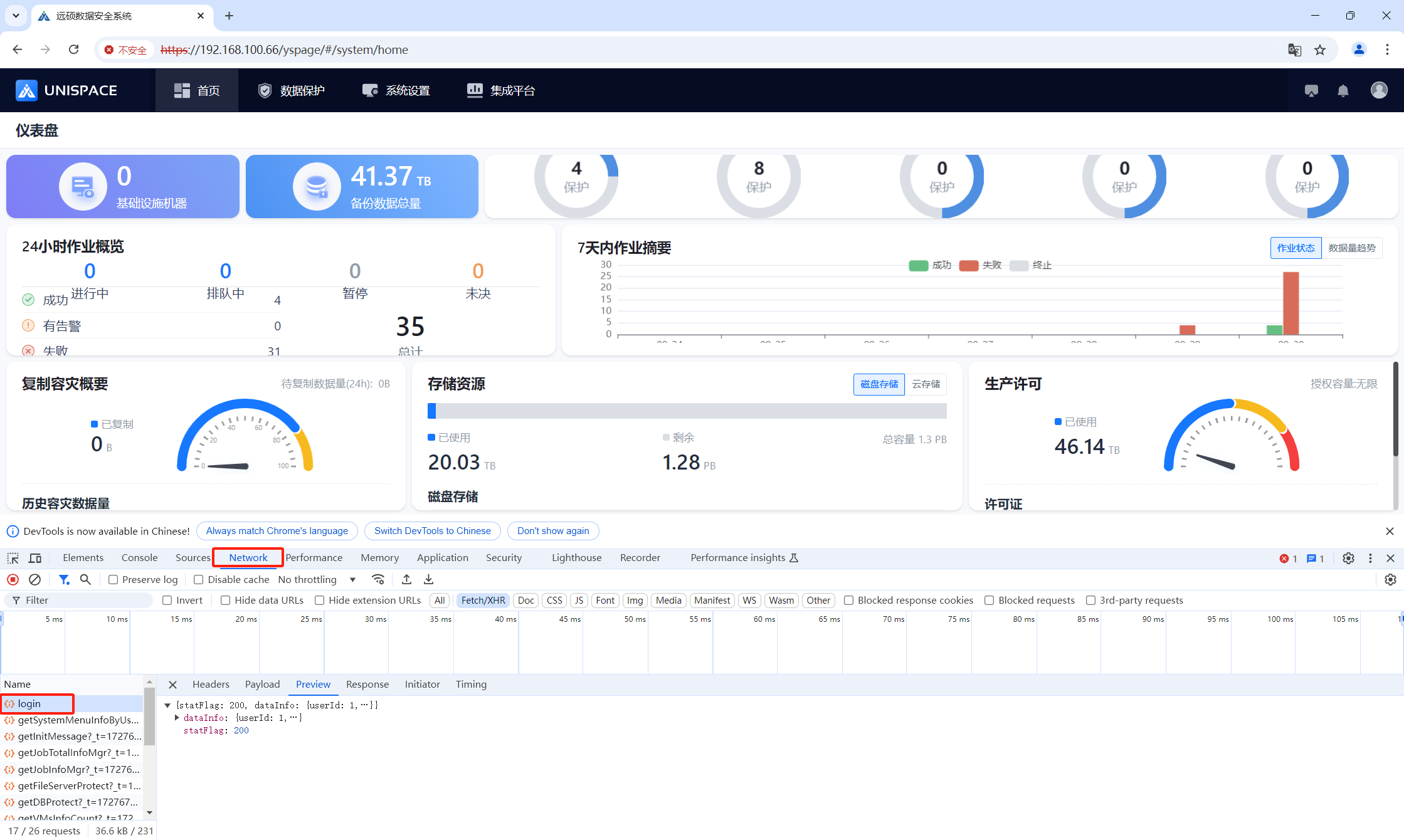
Enter your username and password and click Login. In the Network tab, click on the “login” request.
Under Payload, locate the line containing "username: admin" then right-click “Copy value” to copy all the login parameters.
1.2 Get Token Information
Open the UniSpace API interface page. Replace the IP address and port according to your environment:
https://192.xxx.xxx.66:443/webapi/doc.html#/home
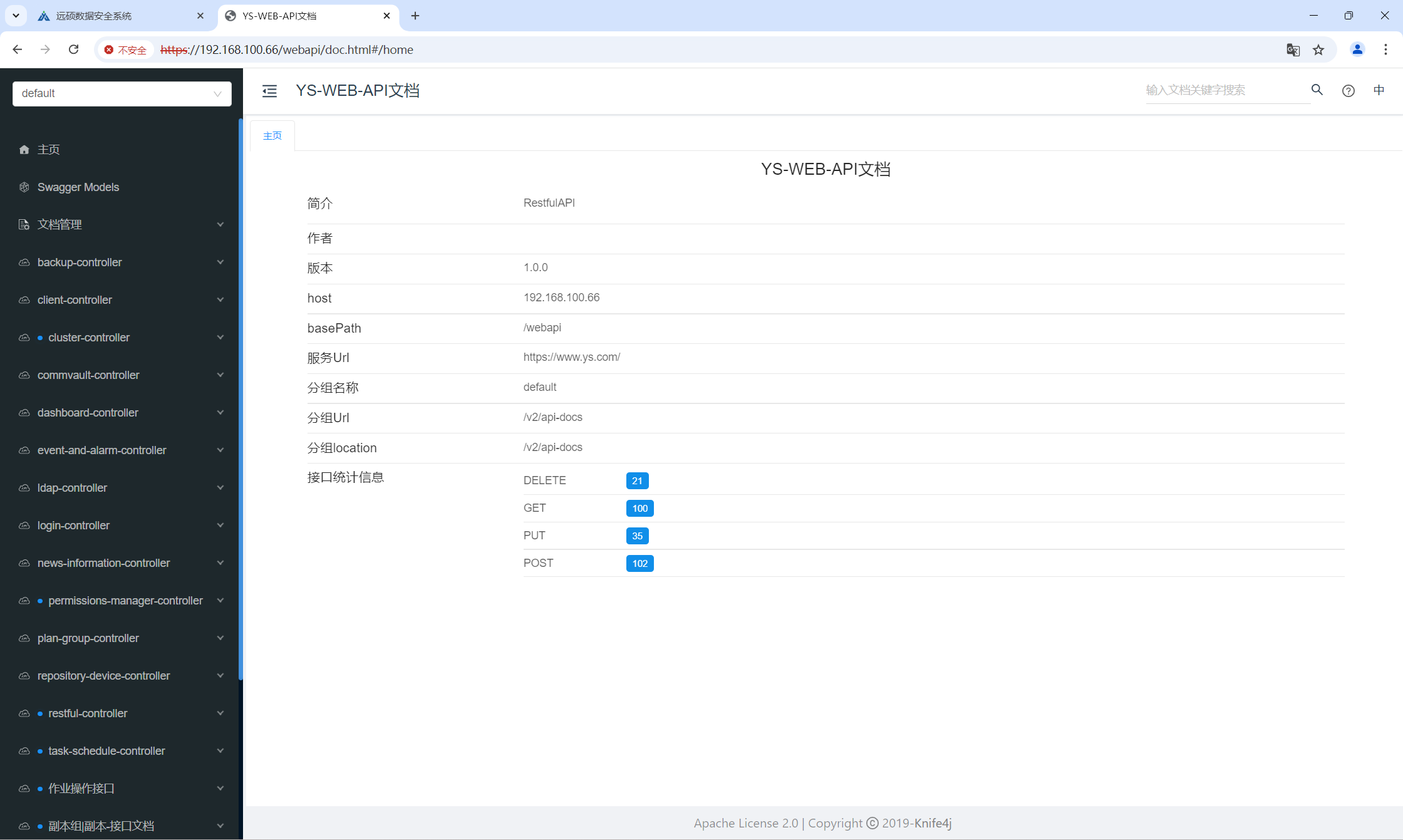
Navigate to login > Try it out > Request Body.
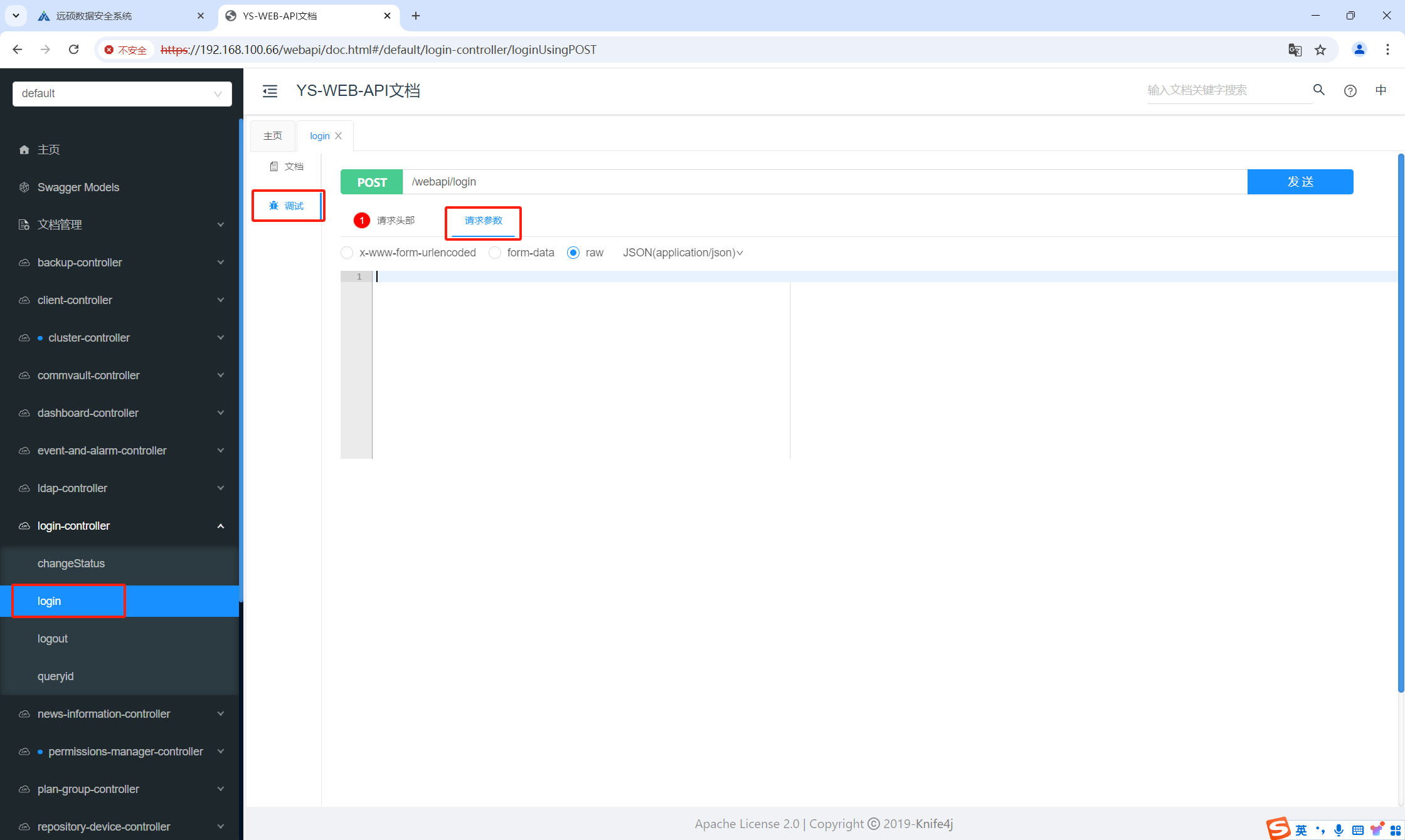
Paste all the information copied from step 1.1 into the request body. Click Execute, then copy the token string from the double quotes in the response.
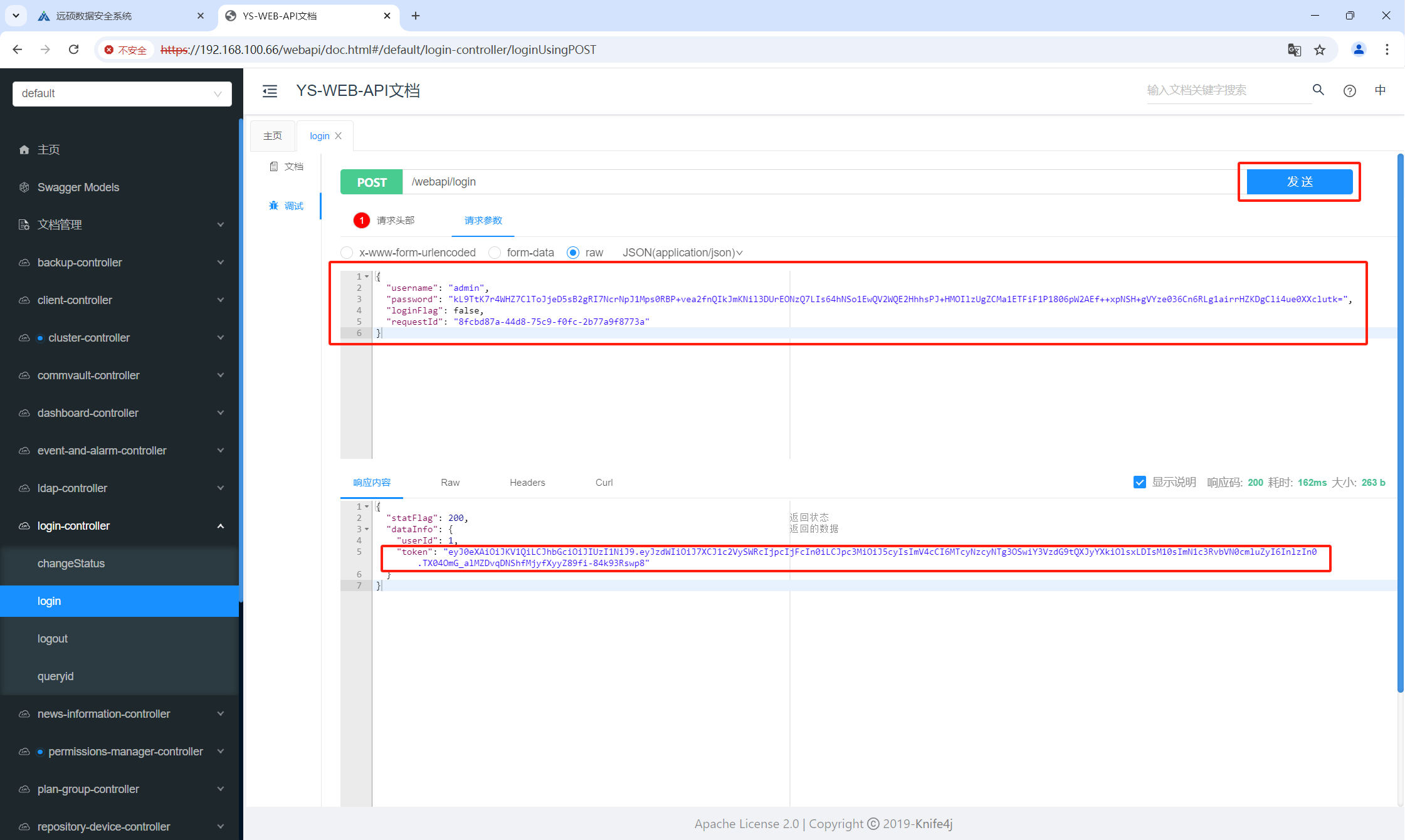
1.3 Change Logging Level
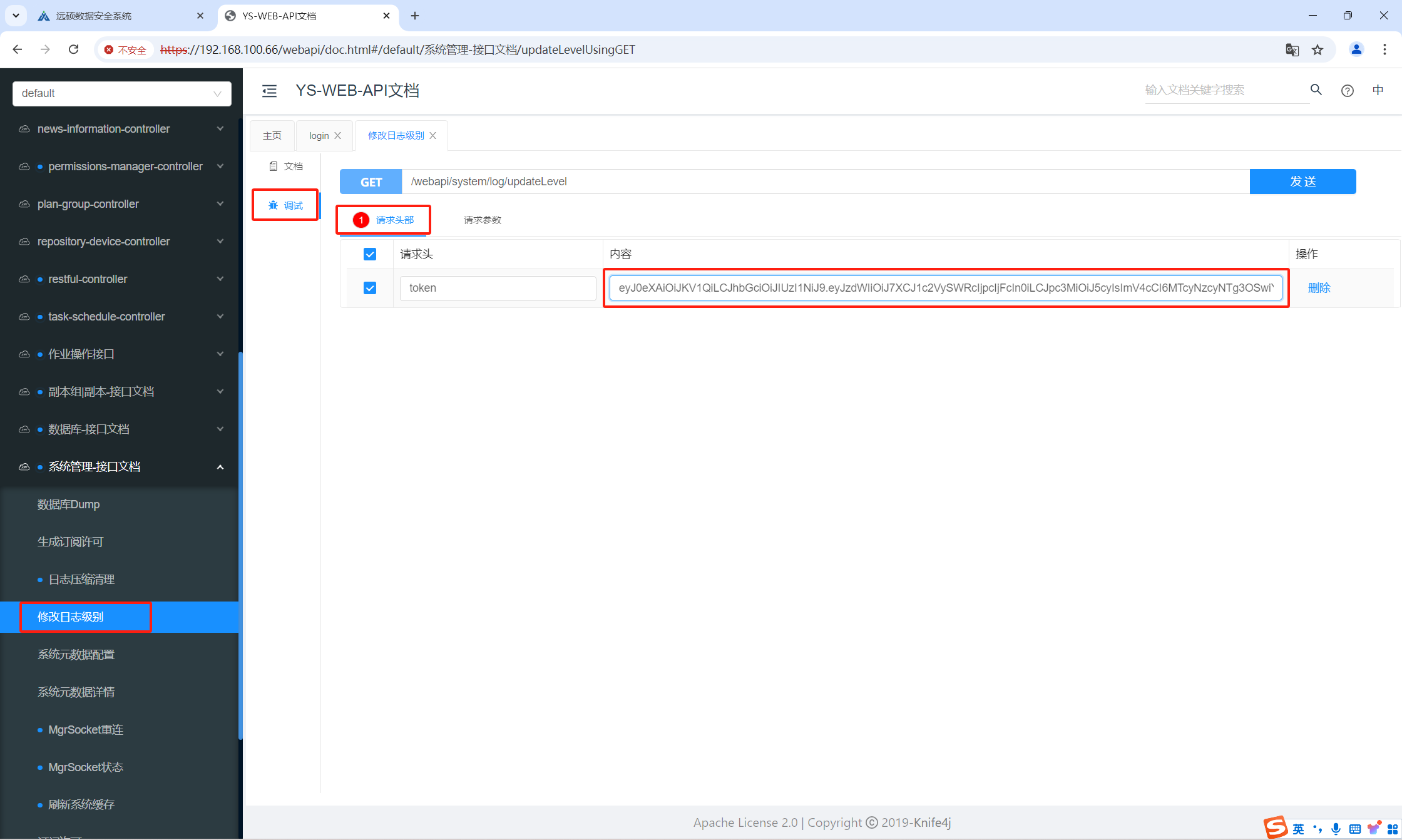
Go to Change Log Level > Try it out > Request Headers, and paste the token value in the Authorization field.
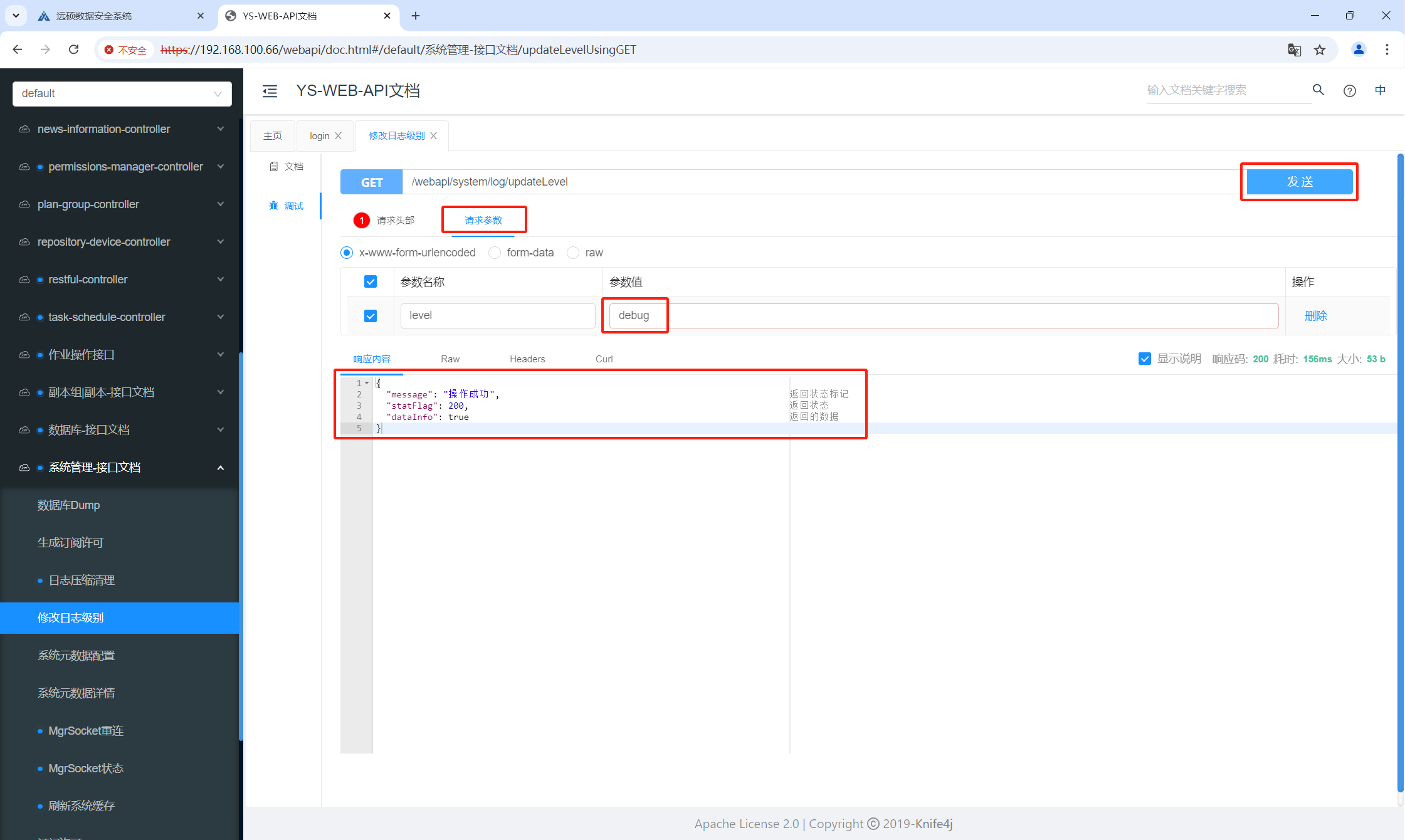
In the Request Body, enter "debug" as the parameter. Click Execute. If the response returns “Operation Successful”, the log level has been updated.
Note: Once troubleshooting is done, repeat the steps and set the log level back to info.
2 Mozilla Firefox Browser
2.1 Get Login Information
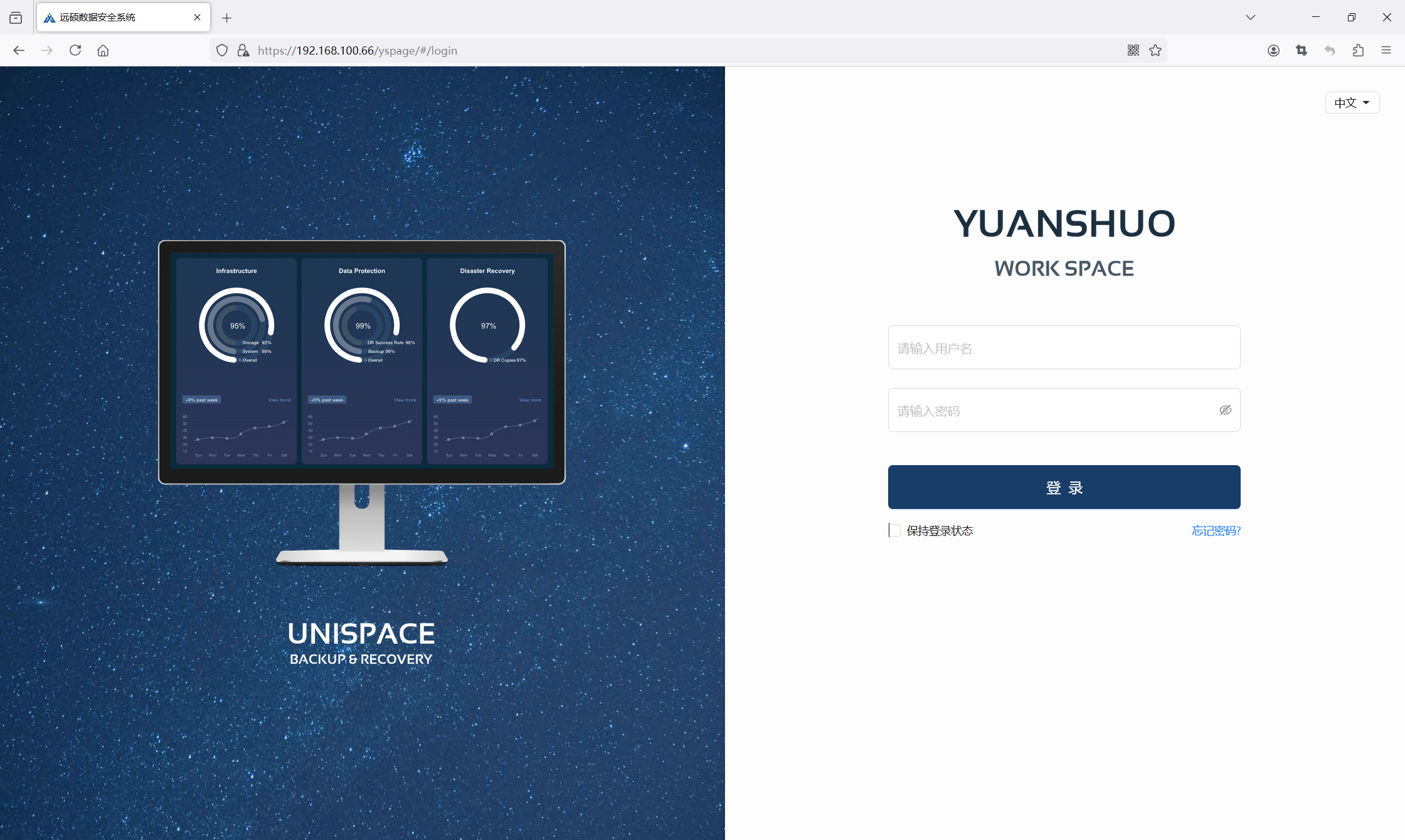
Open the UniSpace login page.
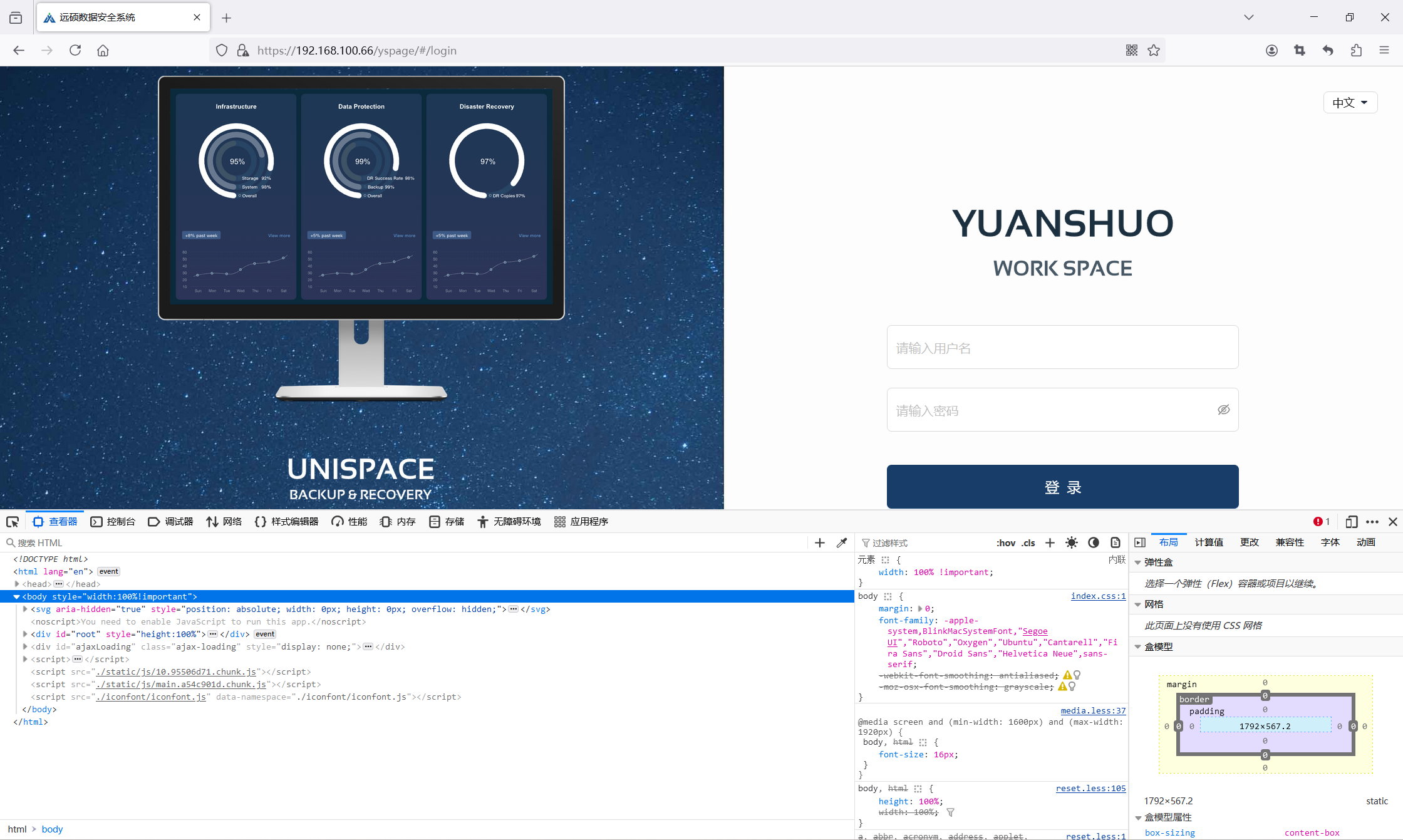
Press F12 or right-click anywhere on the page and select “Inspect” to open the Developer Tools.
Enter your username and password and click Login. In the Network tab, click on the “login” request.
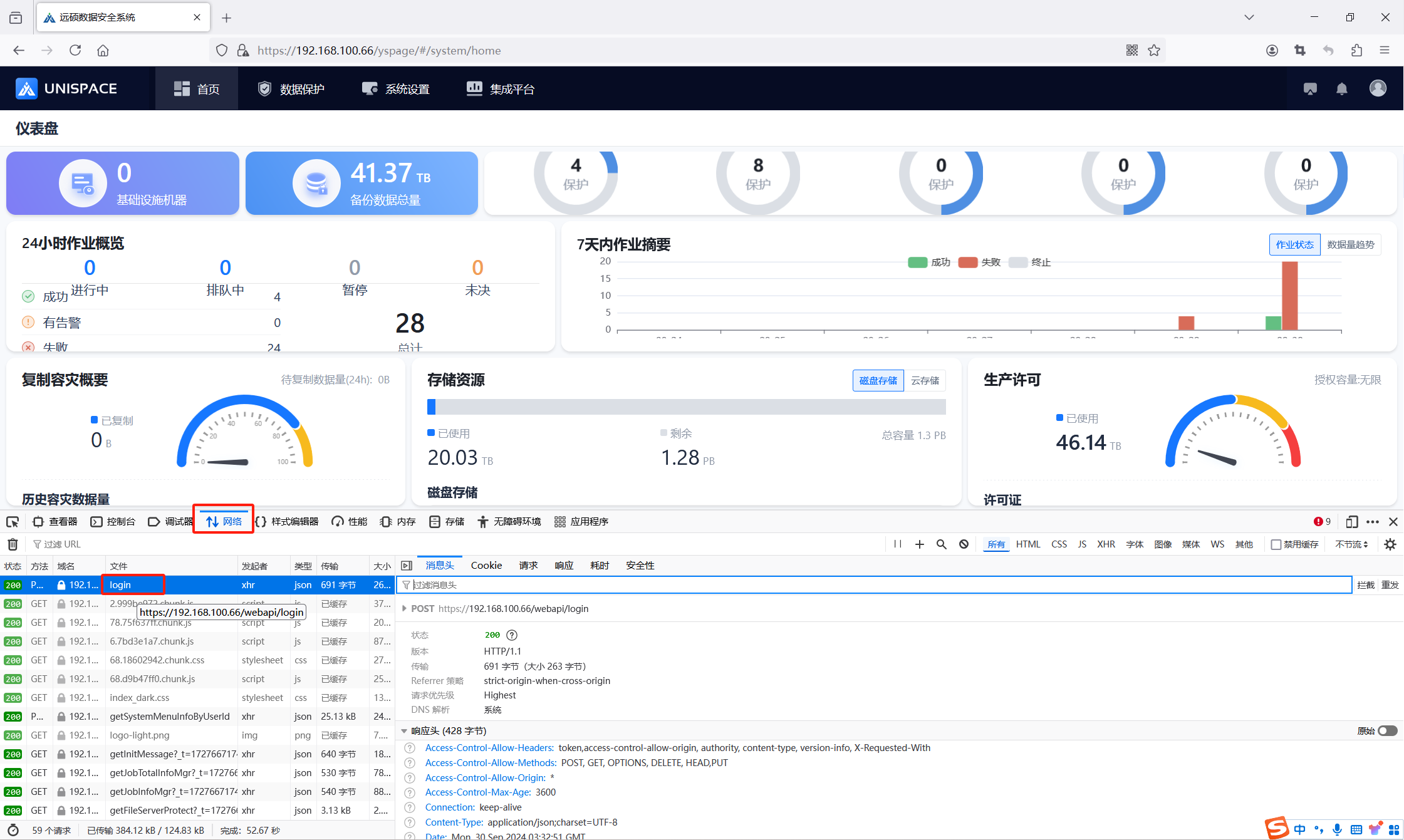
Under Request, right-click and select “Copy All” to save all login parameters.
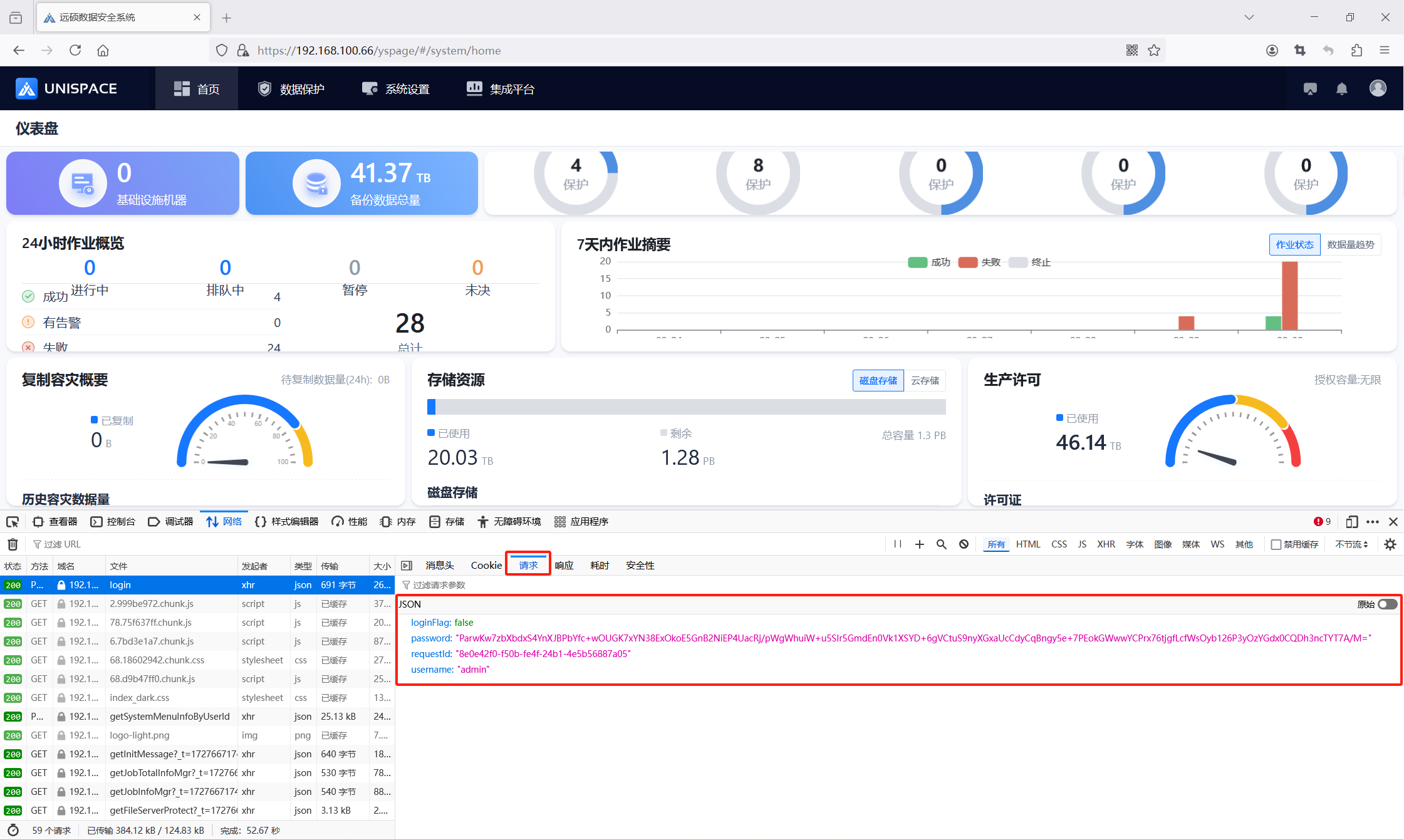
2.2 Get Token Information
Open the UniSpace API interface page. Replace the IP and port accordingly:
https://192.xxx.xxx.66:443/webapi/doc.html#/home
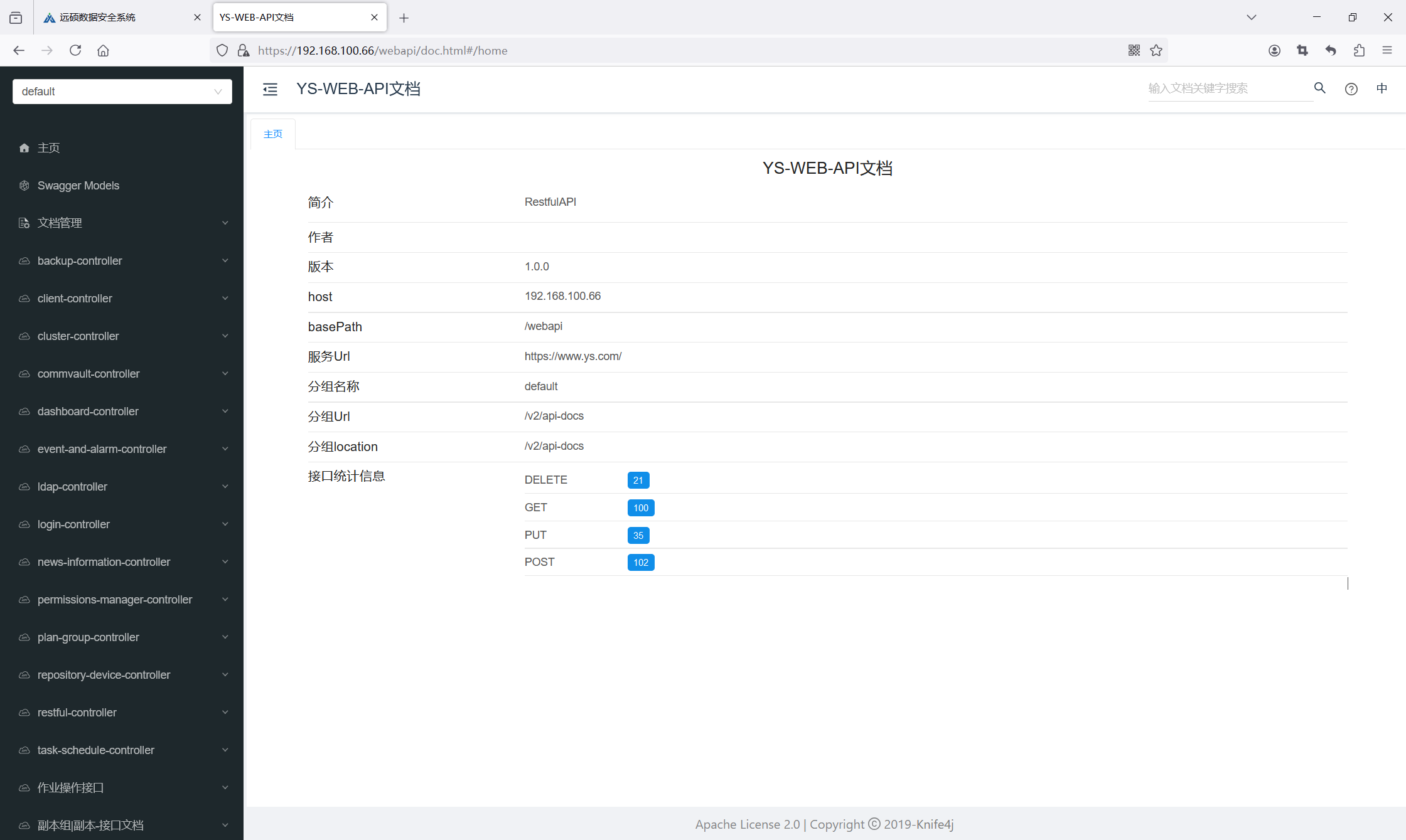
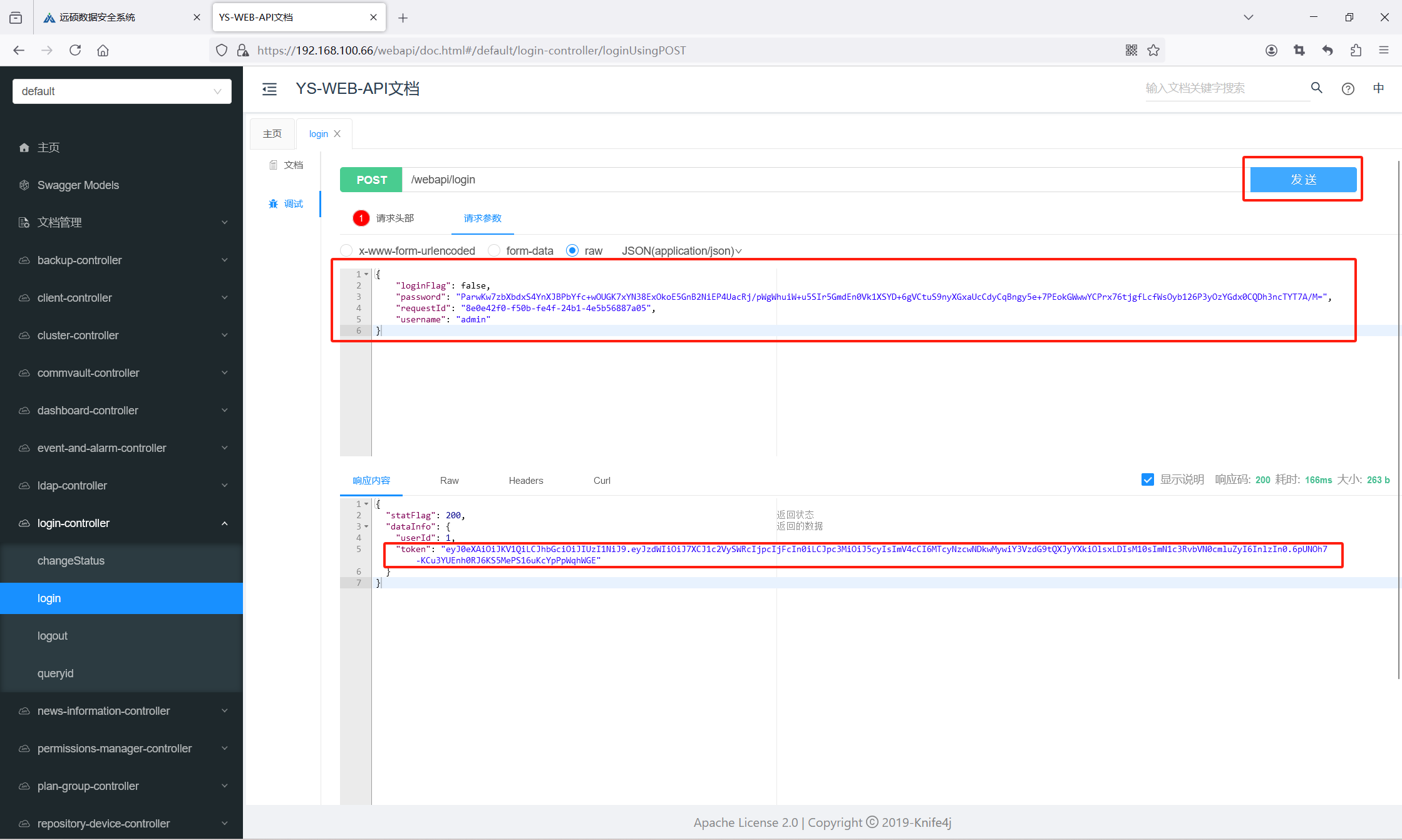
Navigate to login > Try it out > Request Body.
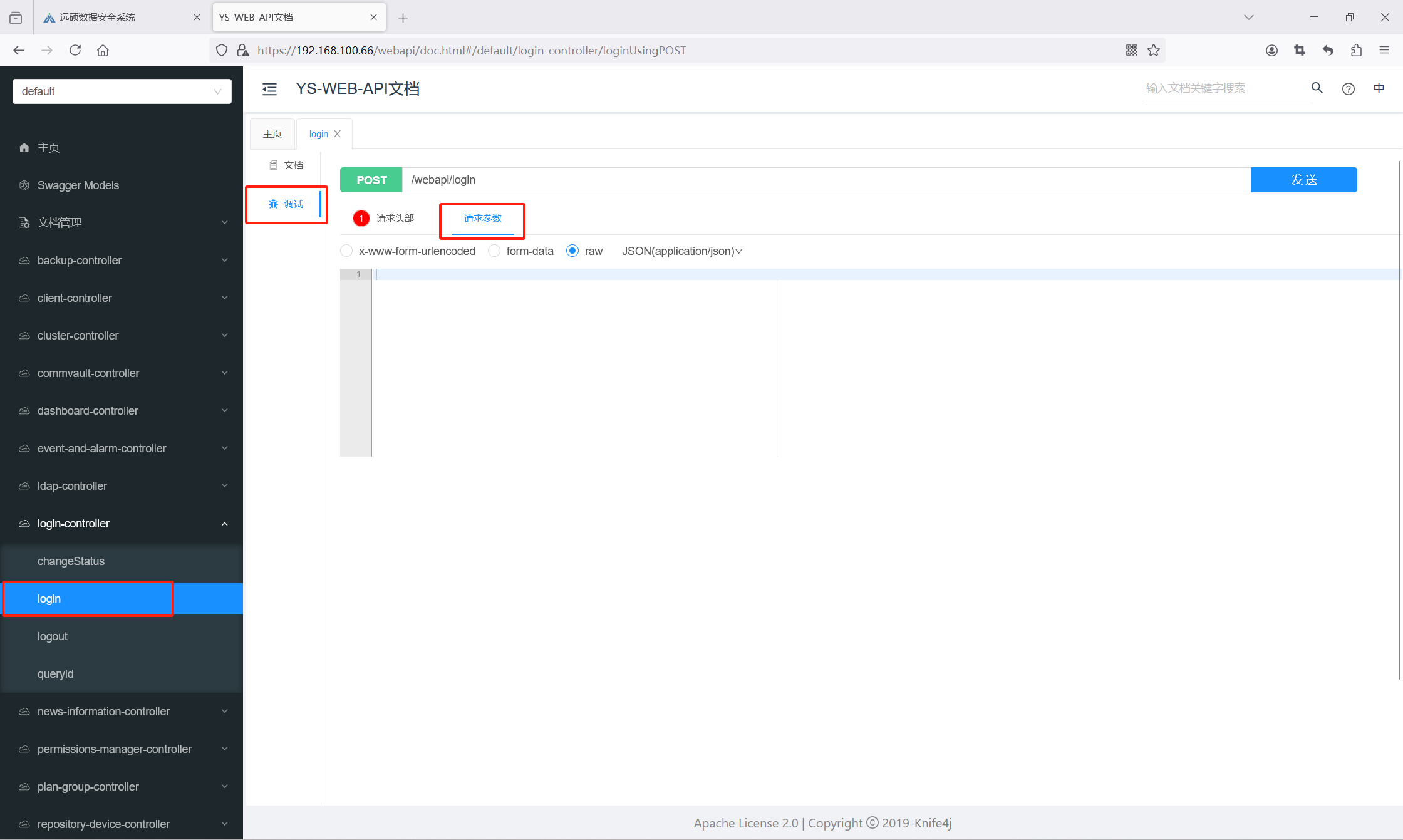
Paste the copied login information from step 2.1. Click Execute and copy the returned token from the response.
2.3 Change Logging Level
Go to Change Log Level > Try it out > Request Headers, and paste the token.
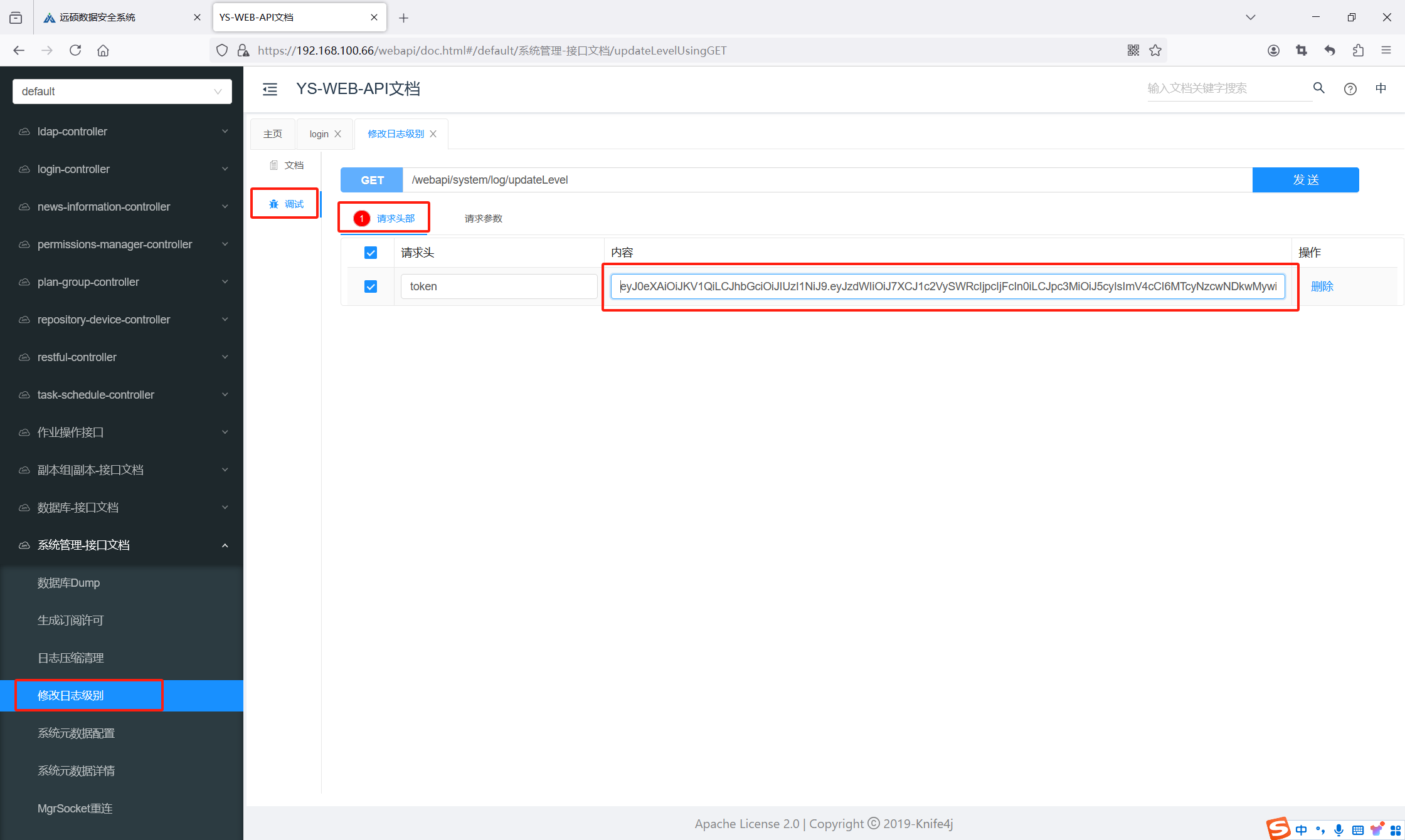
In the Request Body, enter "debug" as the log level. Click Execute. If you see “Operation Successful”, the change has been applied.
Note: Switch the log level back to "info" after the issue has been resolved.