
Agent--GoldenDB
1.1 Create GoldenDB Cluster
Prerequisites
- Created a storage repository.
- Created a service plan.
- All GoldenDB nodes have been registered in the system.
- Network requirements:
| No. | Source | Target | Port | Description |
|---|---|---|---|---|
| 1 | UniSpace management node | Storage node | 9000 | Bidirectional |
| 2 | UniSpace management node | All GoldenDB nodes | 9000 | Bidirectional |
| 3 | Storage node | All GoldenDB nodes | 9000 | Bidirectional |
| 4 | GoldenDB management node | All GoldenDB nodes | 9000 | Bidirectional |
| 5 | GoldenDB tenant data node | Same tenant data nodes | 9000 | Bidirectional (nodes within the same tenant must communicate; nodes from different tenants do not need to) |
Note:
If the business IP and management IP of the GoldenDB node are separated, port 9000 needs to be open to both IPs.
Point 5 is the requirement that data nodes within a tenant are interoperable。 Data nodes from different tenants do not need to be interoperable
Steps
Step 1: Click [Database] - [Virtual Cluster] - [Add] button.
Step 2: Select the GoldenDB icon and click [Next].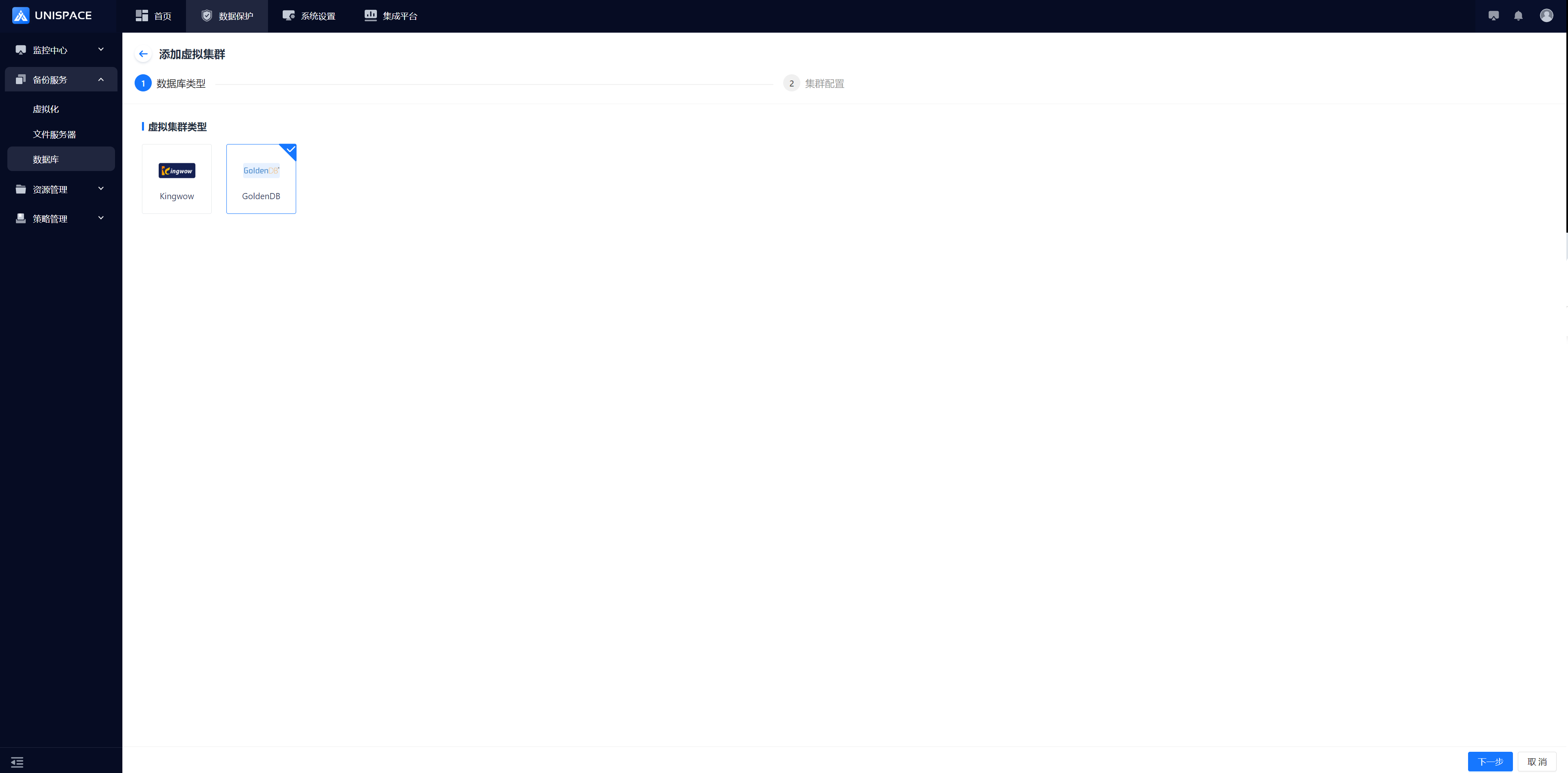
Step 3: Fill in the [Add Virtual Cluster] form. 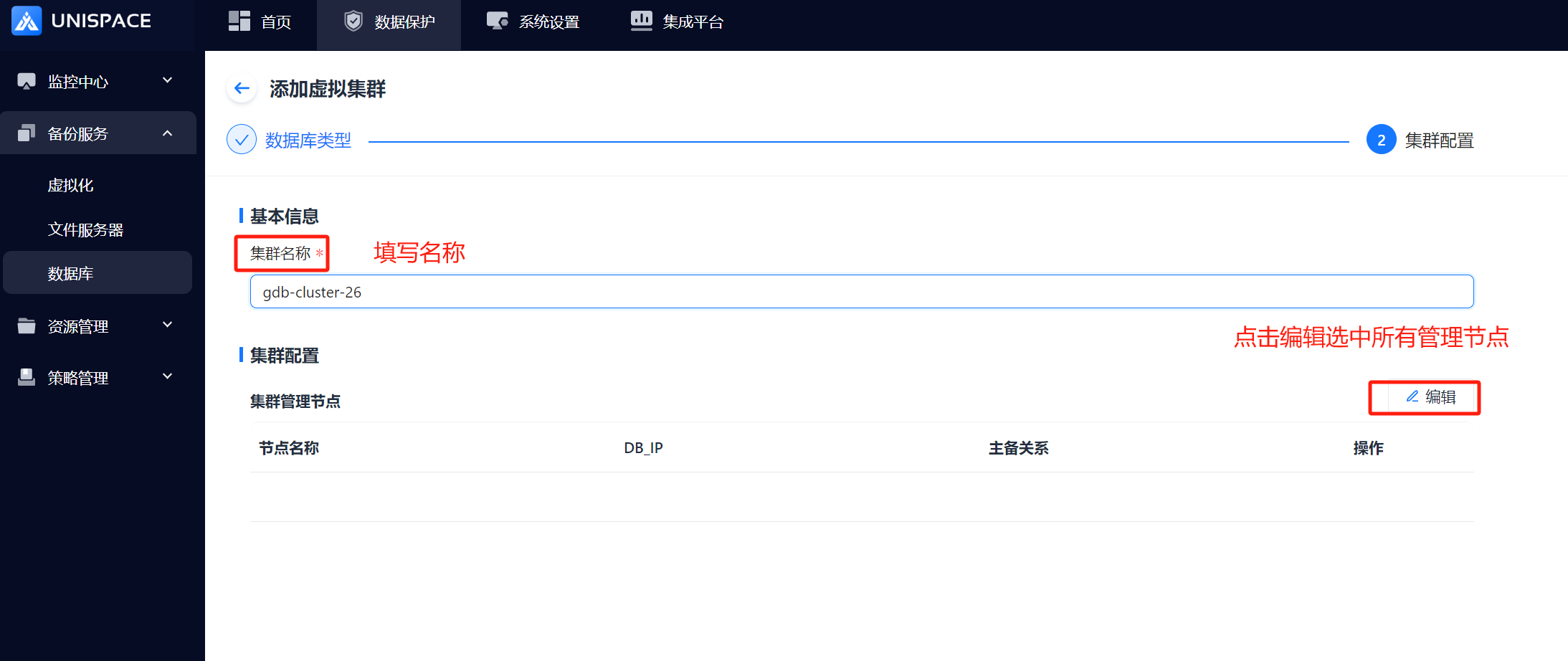
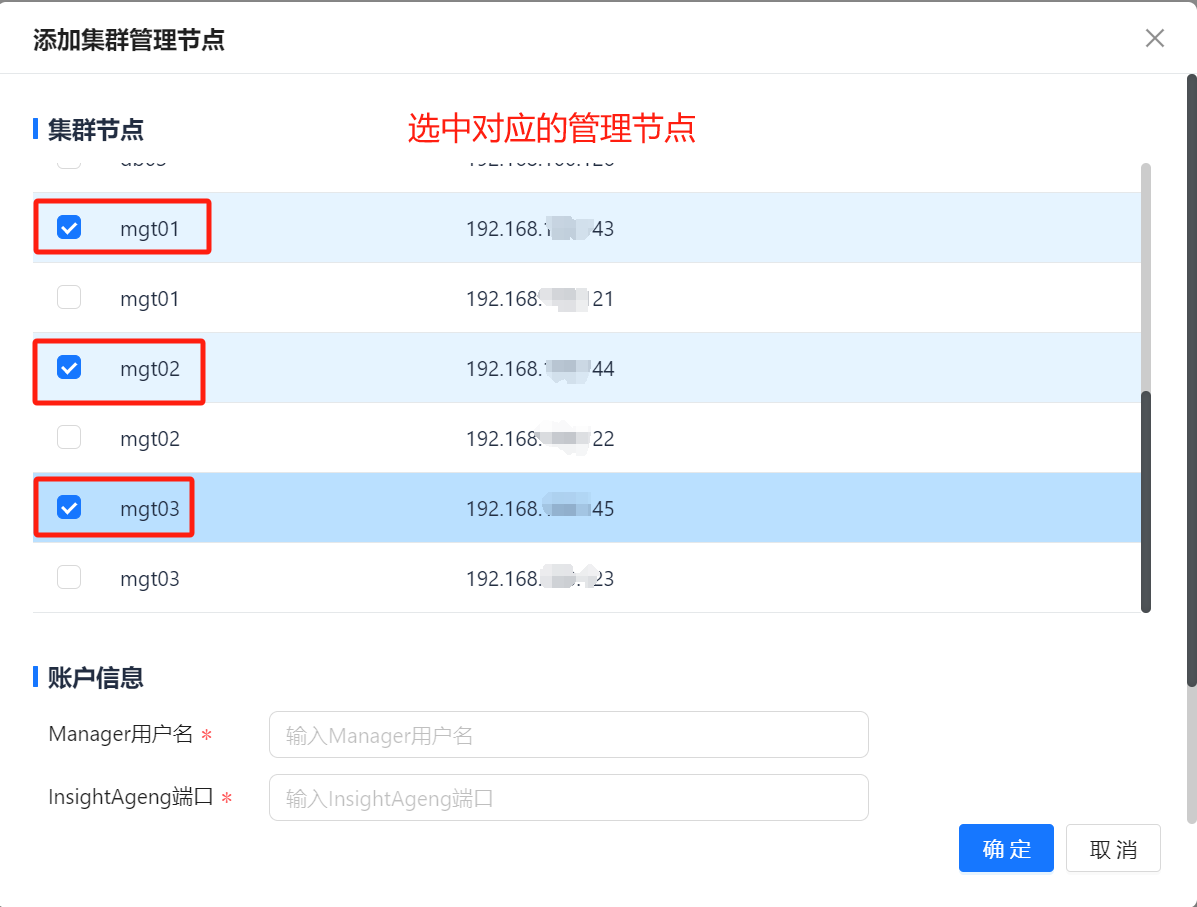
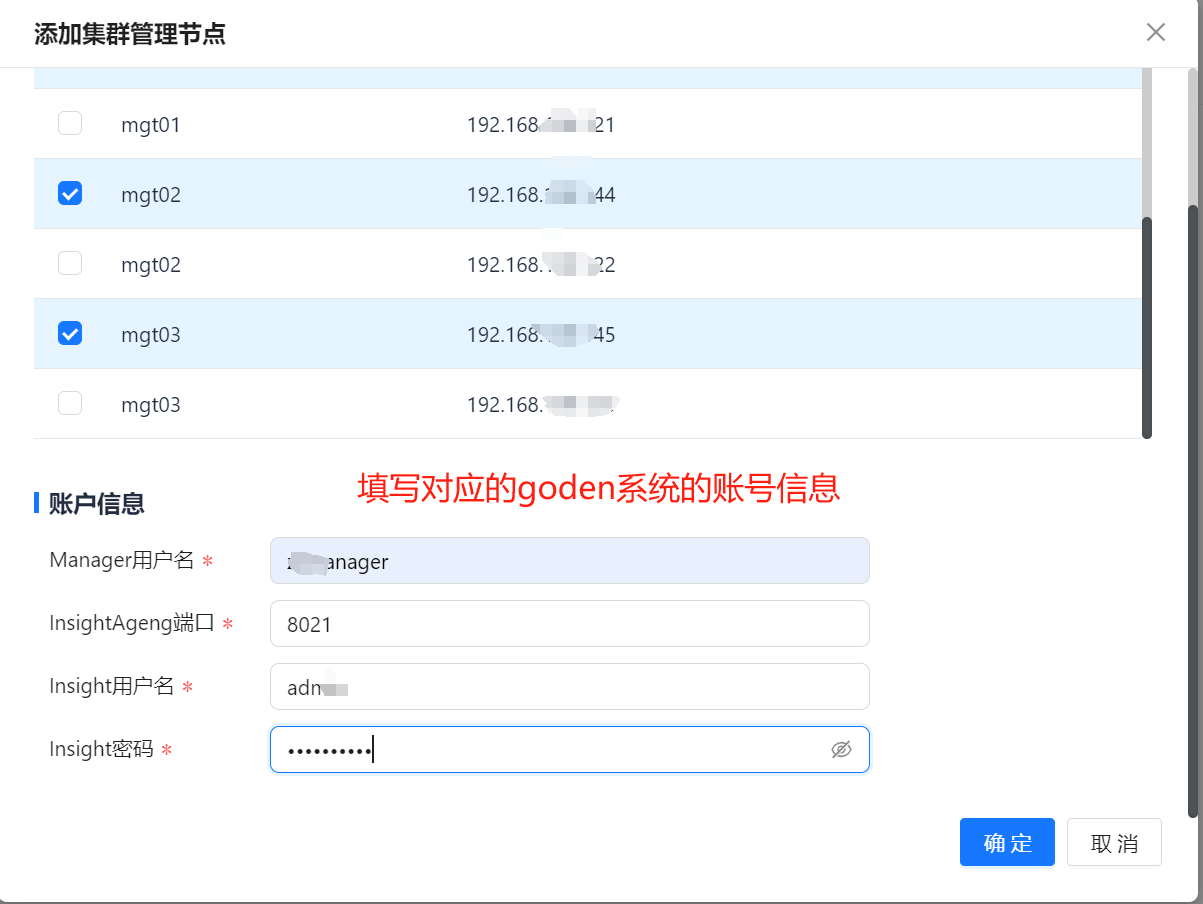 If the GoldenDB system account information is correct, a success message will appear.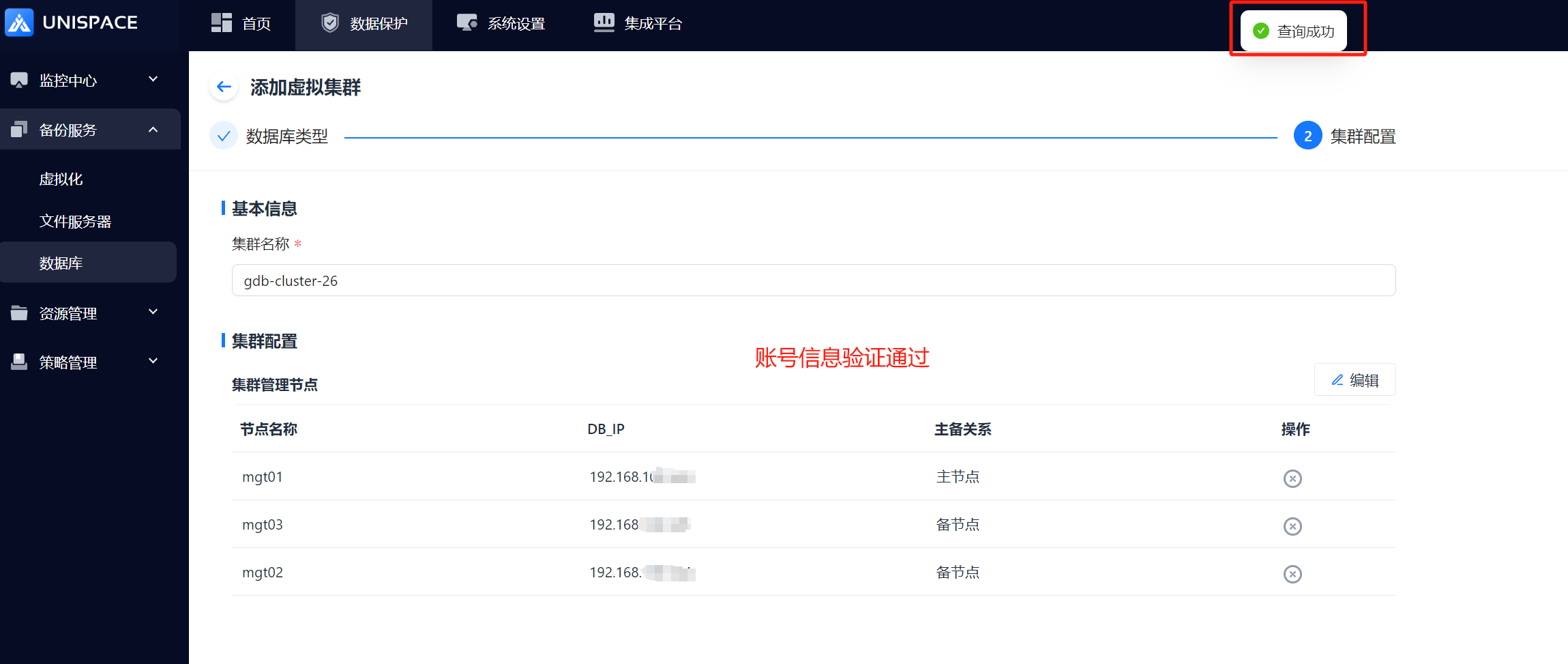
Step 4: Click [Confirm] to complete the cluster creation.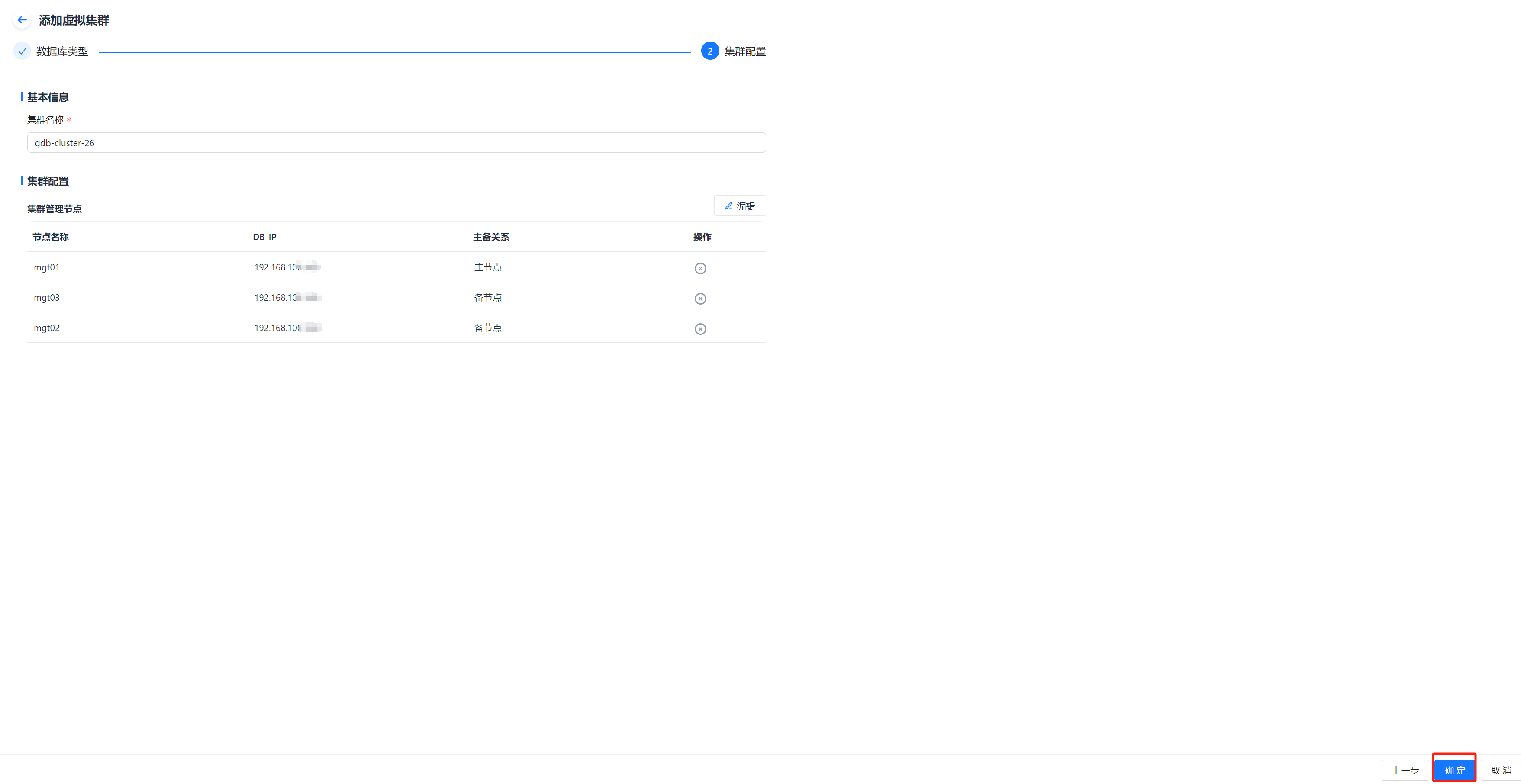

1.2 Create GoldenDB Instance
Prerequisites
- The GoldenDB cluster has been added.
Steps
Step 1: Click [Database] - [Virtual Cluster] - Cluster Name, then click the [Add] button in the top right of [Instance].

Step 2: Fill in the [Add Instance] form and click [Next].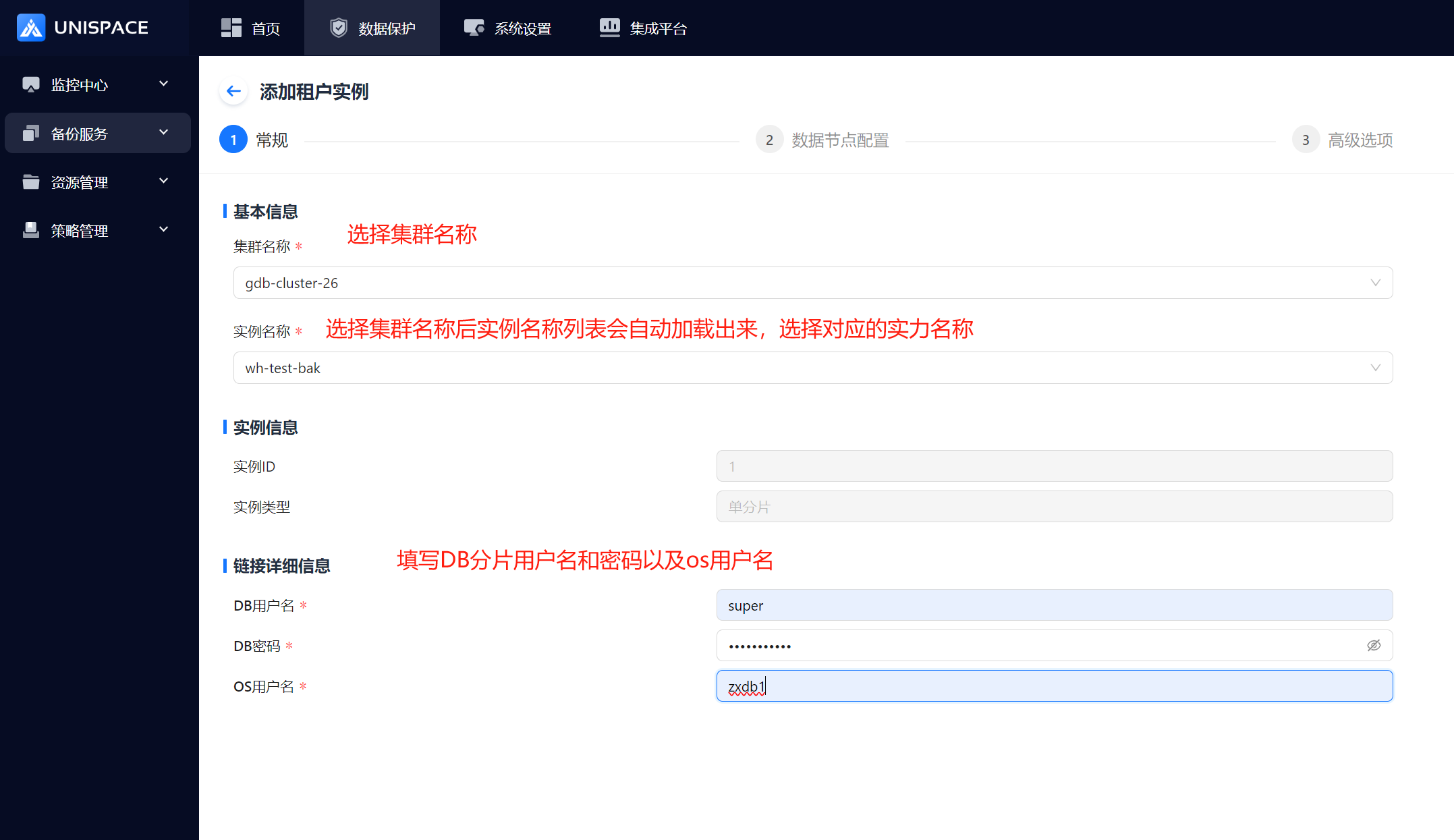
Step 3: Fill in the [Data Node Configuration] and click [Next].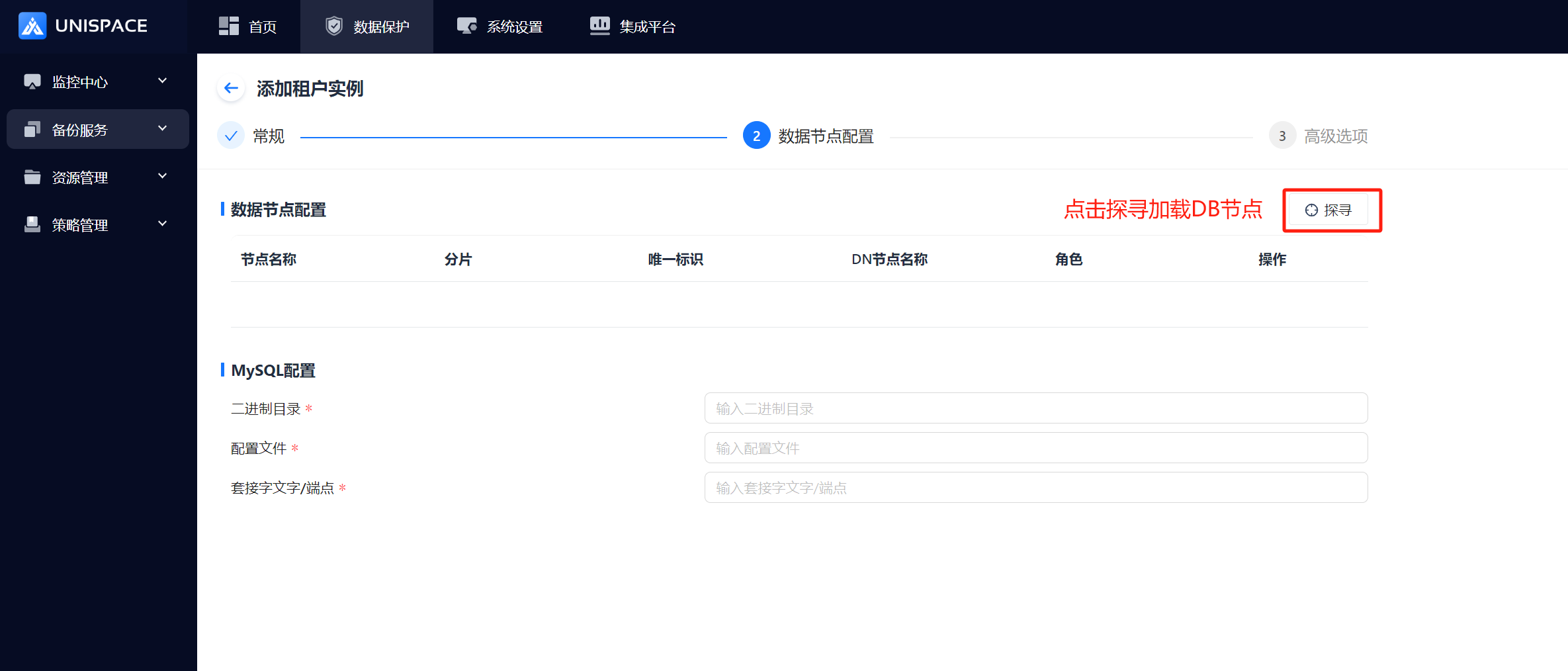
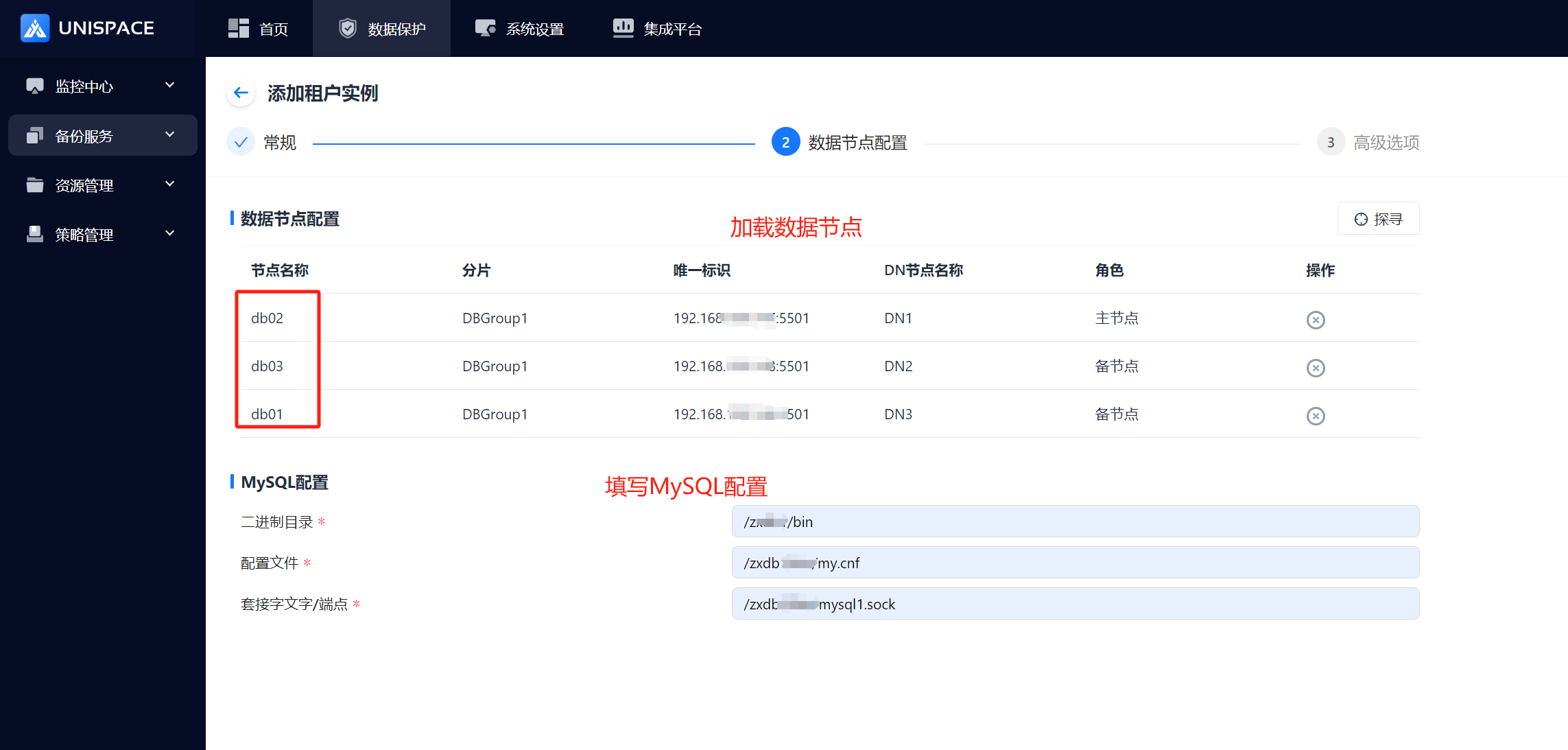
Step 4: Complete the "xtrabackup" form and click [Confirm].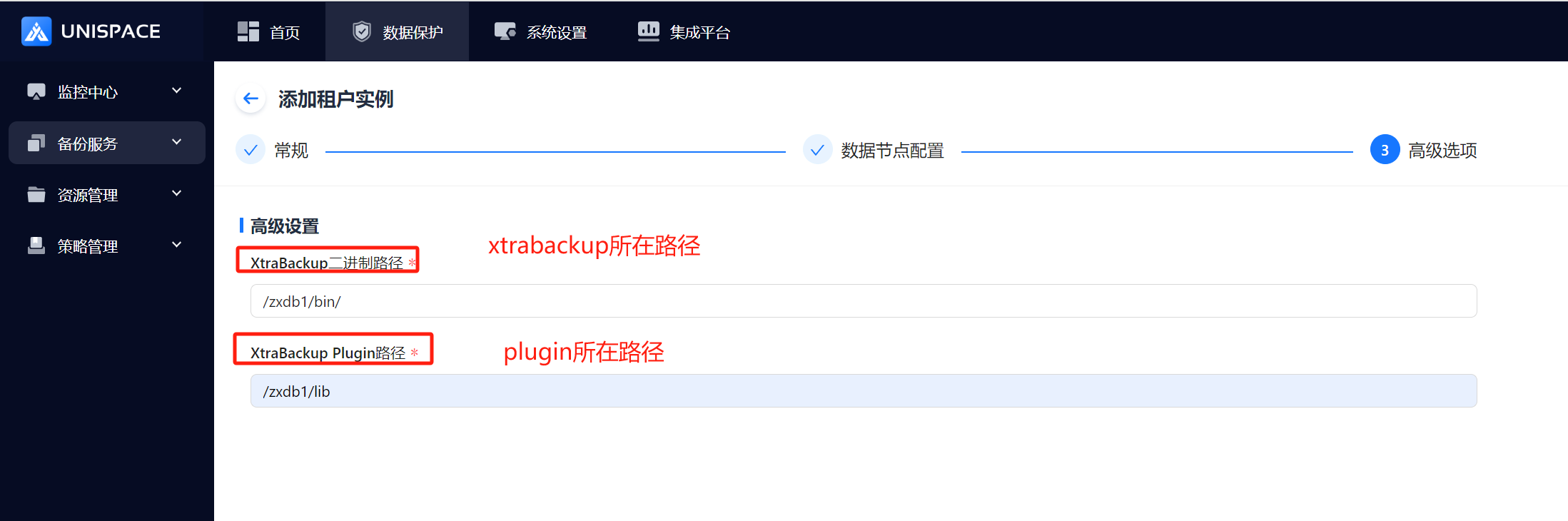
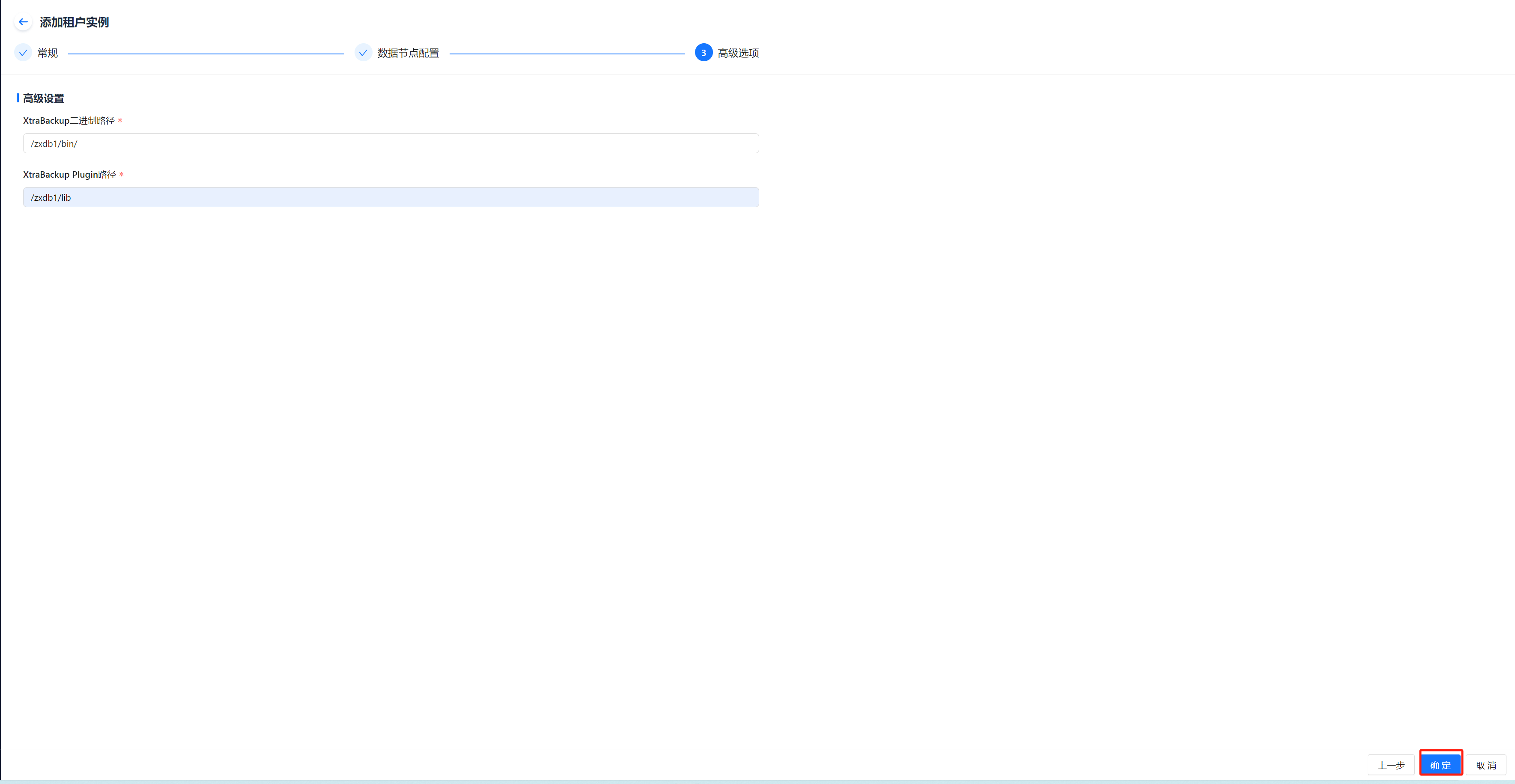
Instance creation will be successful.
1.3 Create GoldenDB Backup Set
Prerequisites
- A GoldenDB instance has been created.
Steps
Step 1: Click [Database] → [Virtual Cluster] → Cluster Name, then click the [Add] button at the top right of [Backup Set].
Step 2: The [Add Backup Set] form will pop up. Fill it out completely.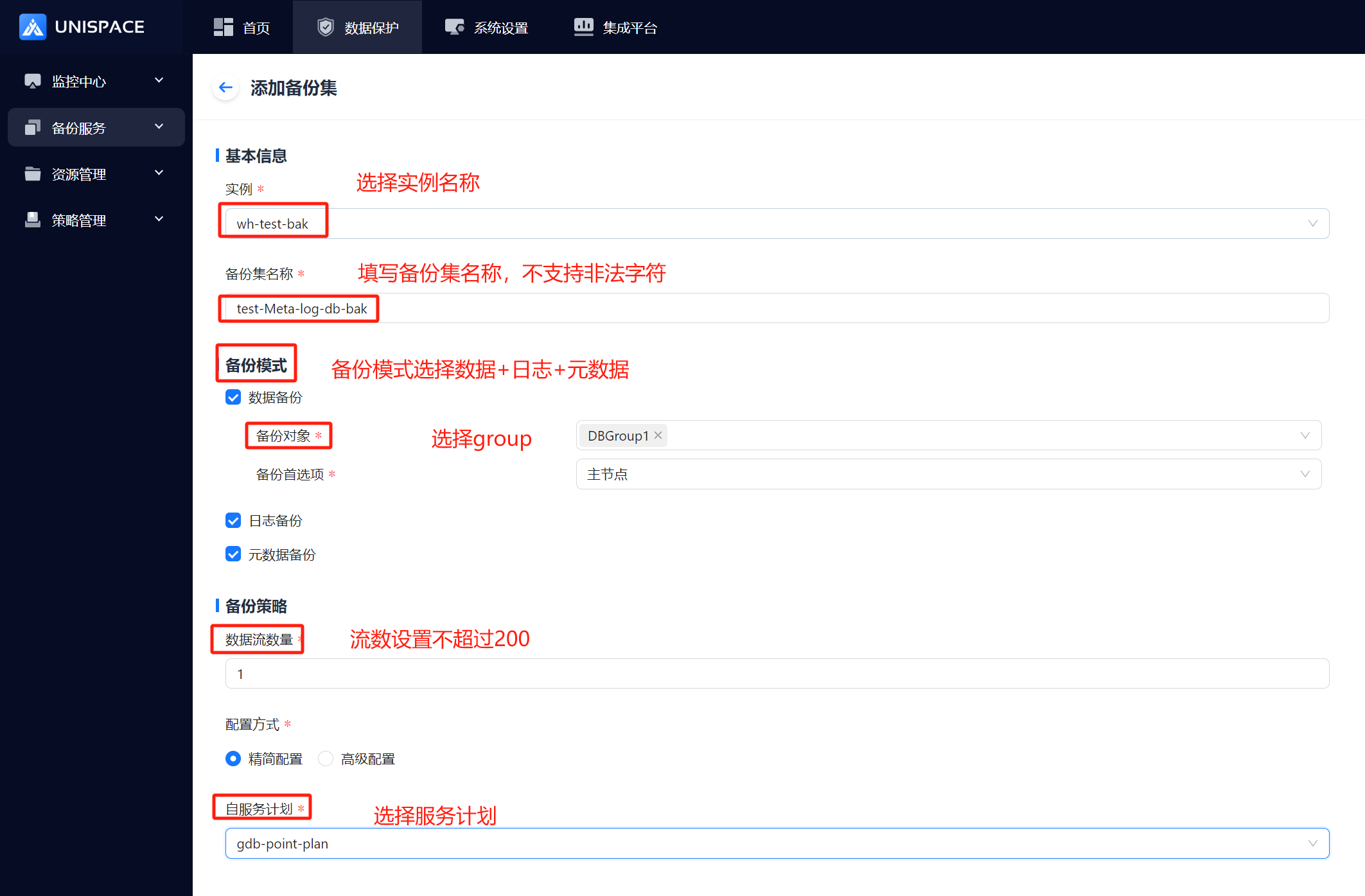
Step 3: Click [Confirm] to complete the creation.
1.4 Initiate GoldenDB Backup
1.4.1 GoldenDB Data and Meta Backup
Prerequisites
- A GoldenDB backup set has been created.
Steps
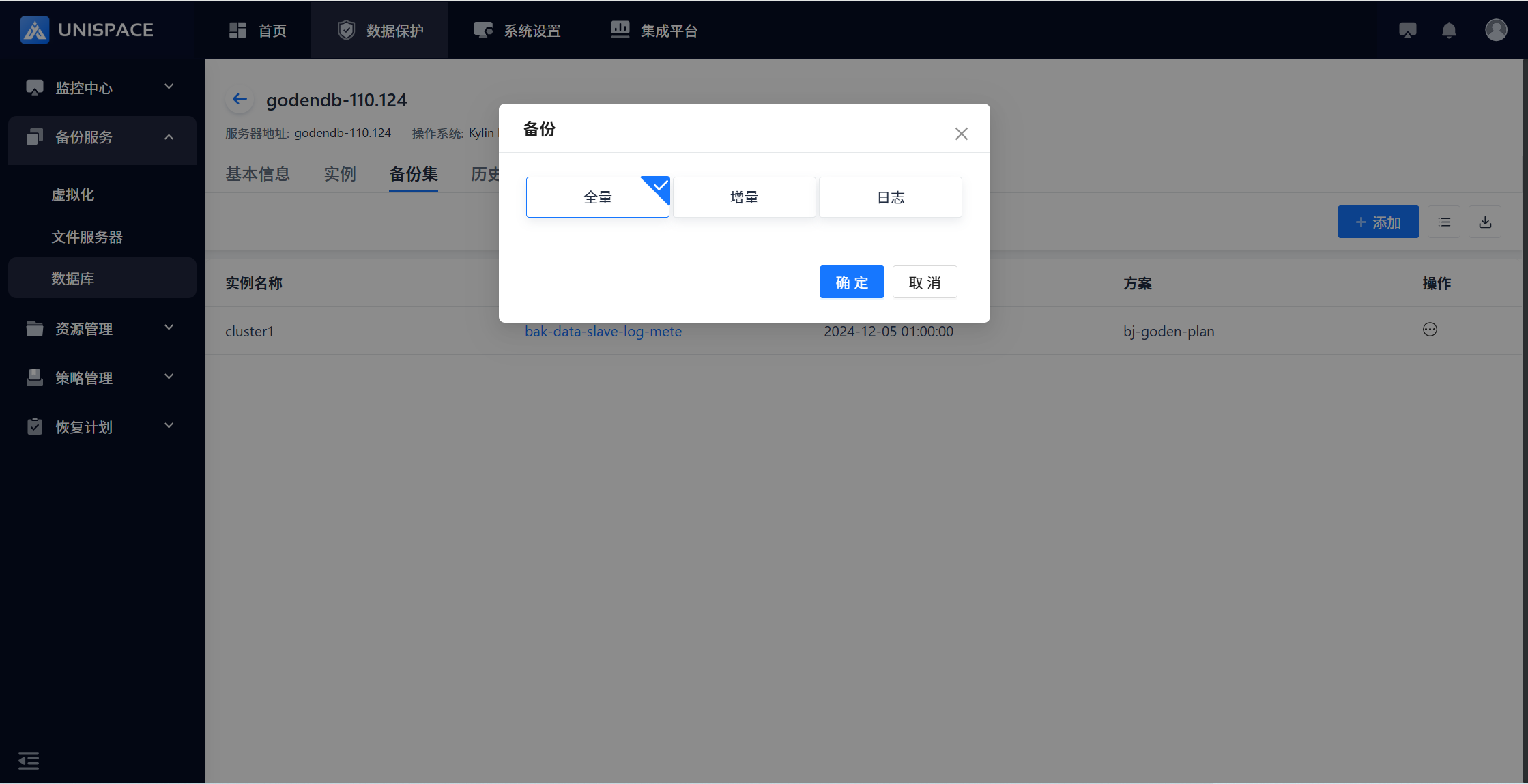
Step 1: Click [Backup Set] → [Operation] → [Backup] to start a Full or Incremental backup.

Step 2: Once the job starts successfully, click [Monitoring Center] - [Jobs] - [Active Jobs] to view it.
Step 3: After the job finishes, click [Monitoring Center] - [Jobs] - [Job History] to check the job and its status.
Note:
If the first initiated job is an incremental backup, it will automatically convert to a full backup. Once completed, it will be marked as a full backup.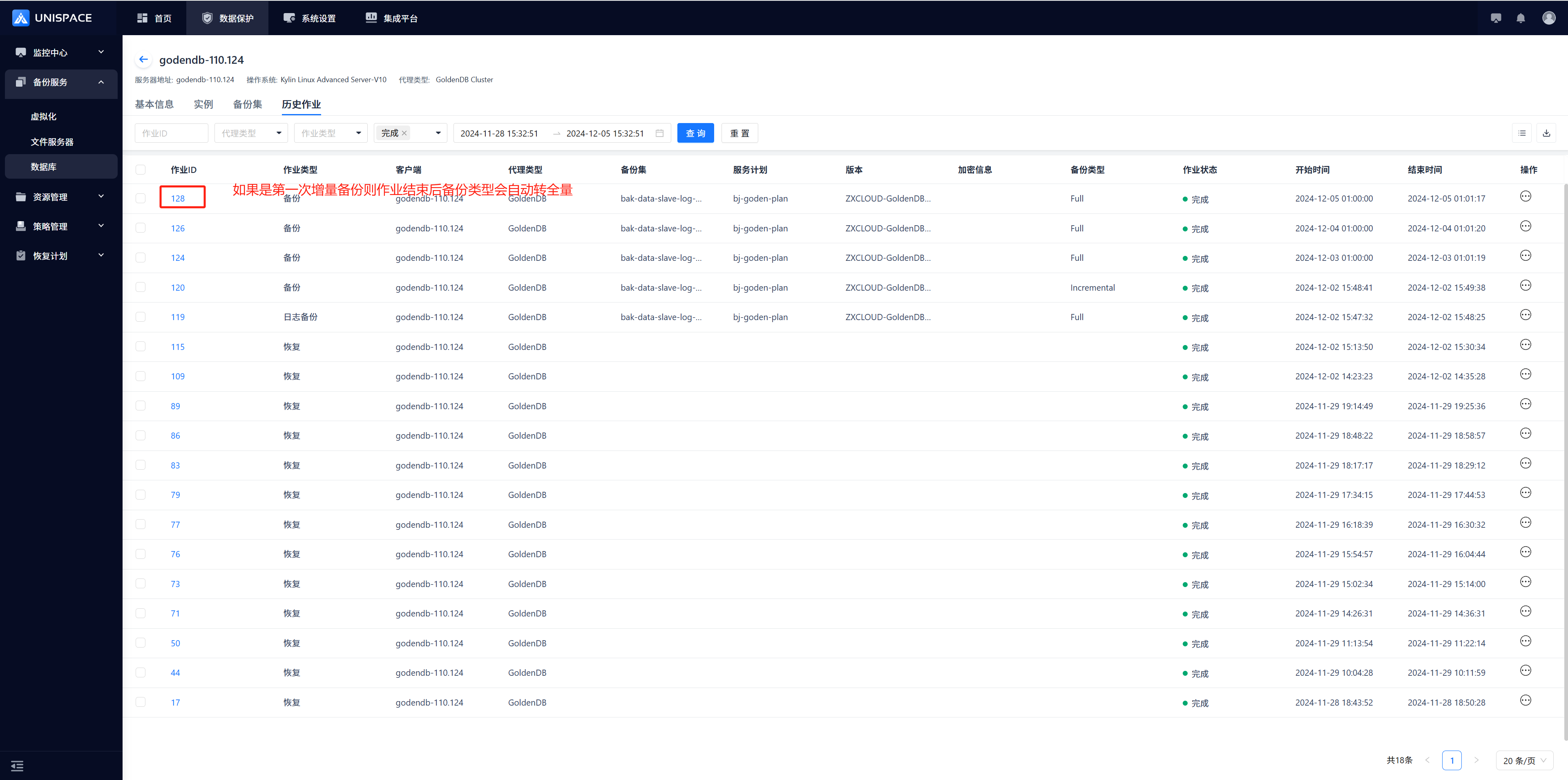
1.4.2 GoldenDB Log Backup
Prerequisites
- A GoldenDB backup set has been created.
Steps
Step 1: Click [Backup Set] - [Operation] - [Backup] to initiate a Log Backup.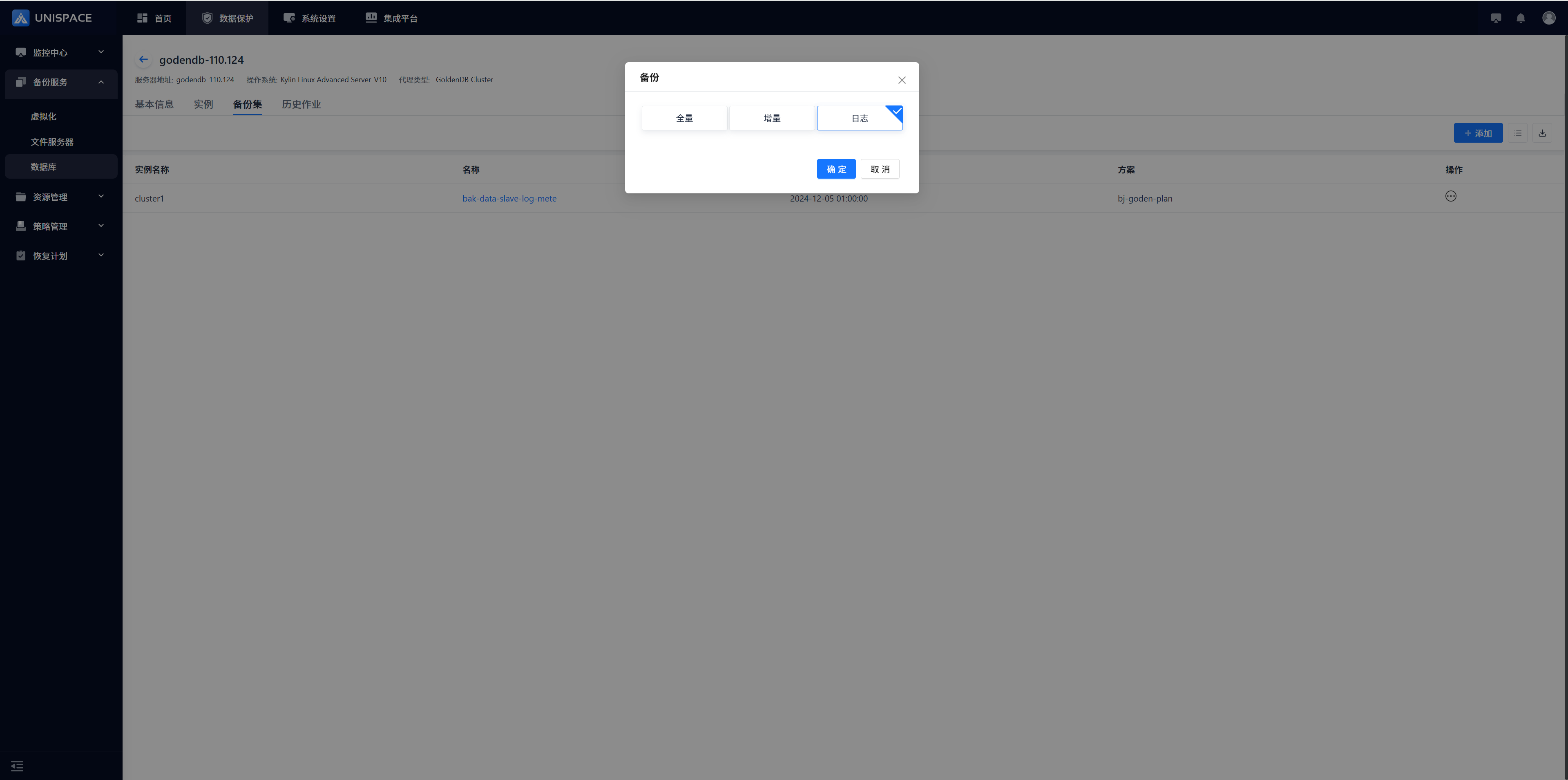
Step 2: Once the job starts successfully, click [Monitoring Center] - [Jobs] - [Active Jobs] to view it.
Step 3: After the job finishes, click [Monitoring Center] - [Jobs] - [Job History] to check the job and its status.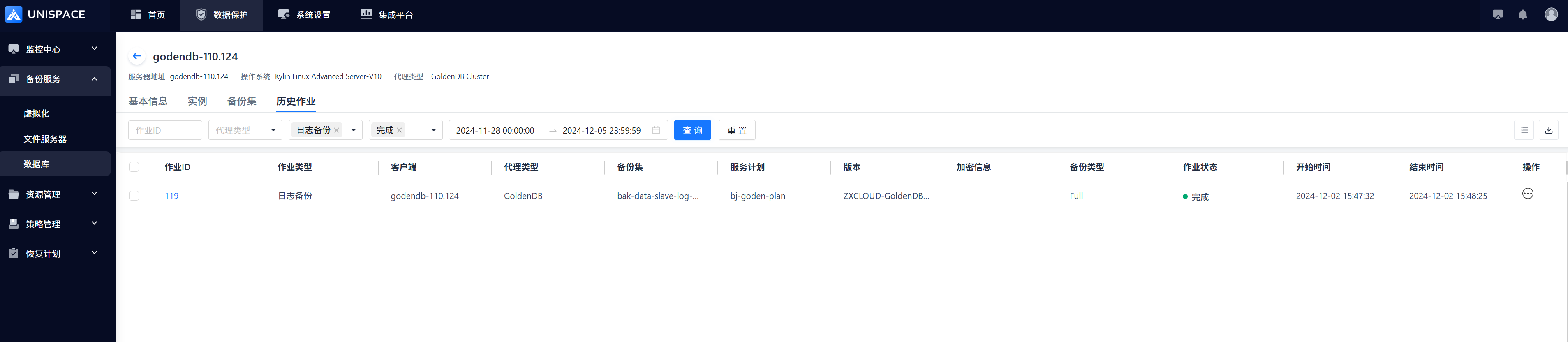
1.5 GoldenDB Recovery
1.5.1 GoldenDB Instance Recovery
Prerequisites
- The GoldenDB backup set has been successfully backed up.
Steps
Step 1: Click [Instance] - [Operation] - [Recovery].
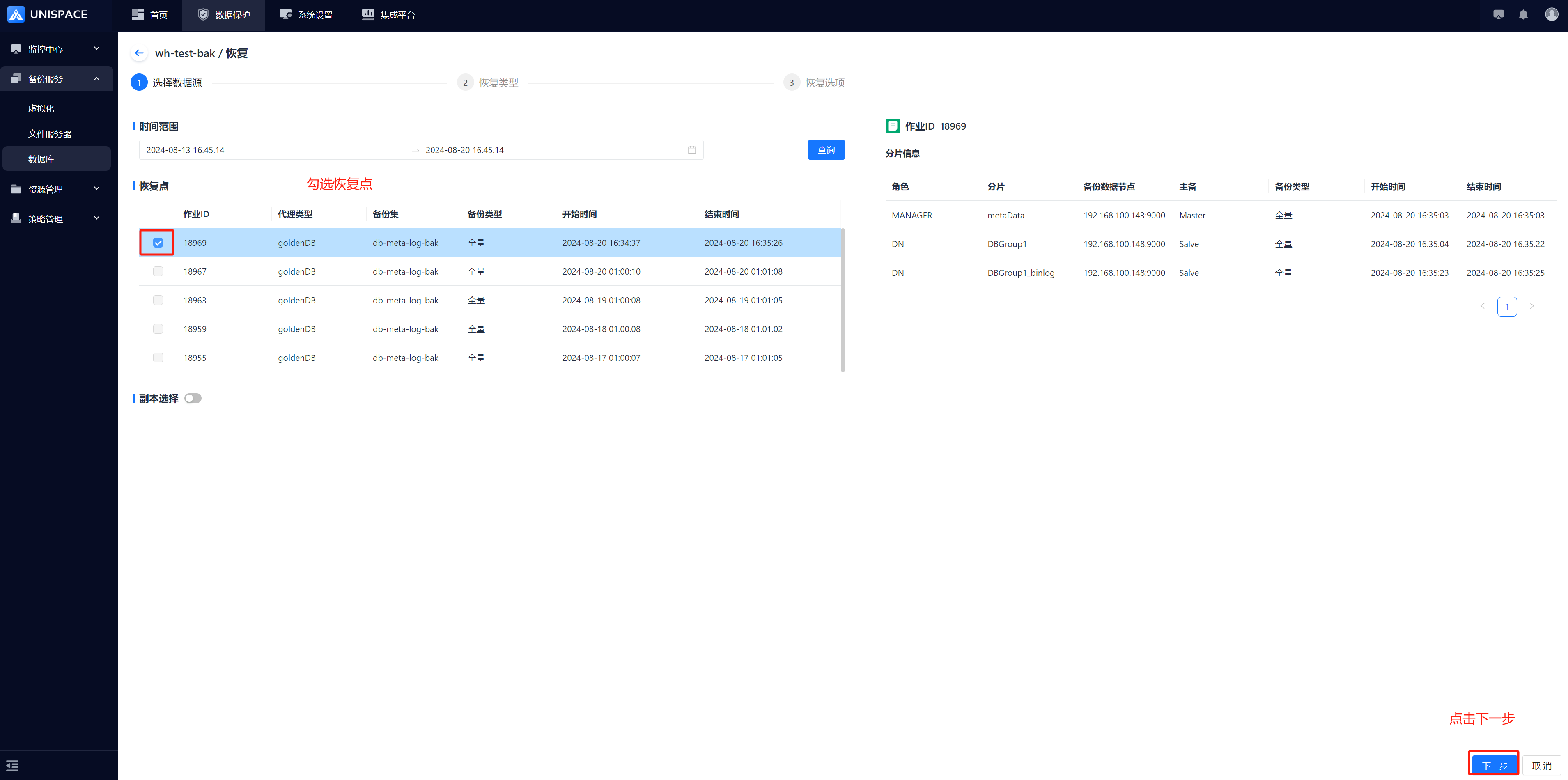
Step 2: Query the recovery point based on the time range, select the job ID to be recovered, and click [Next].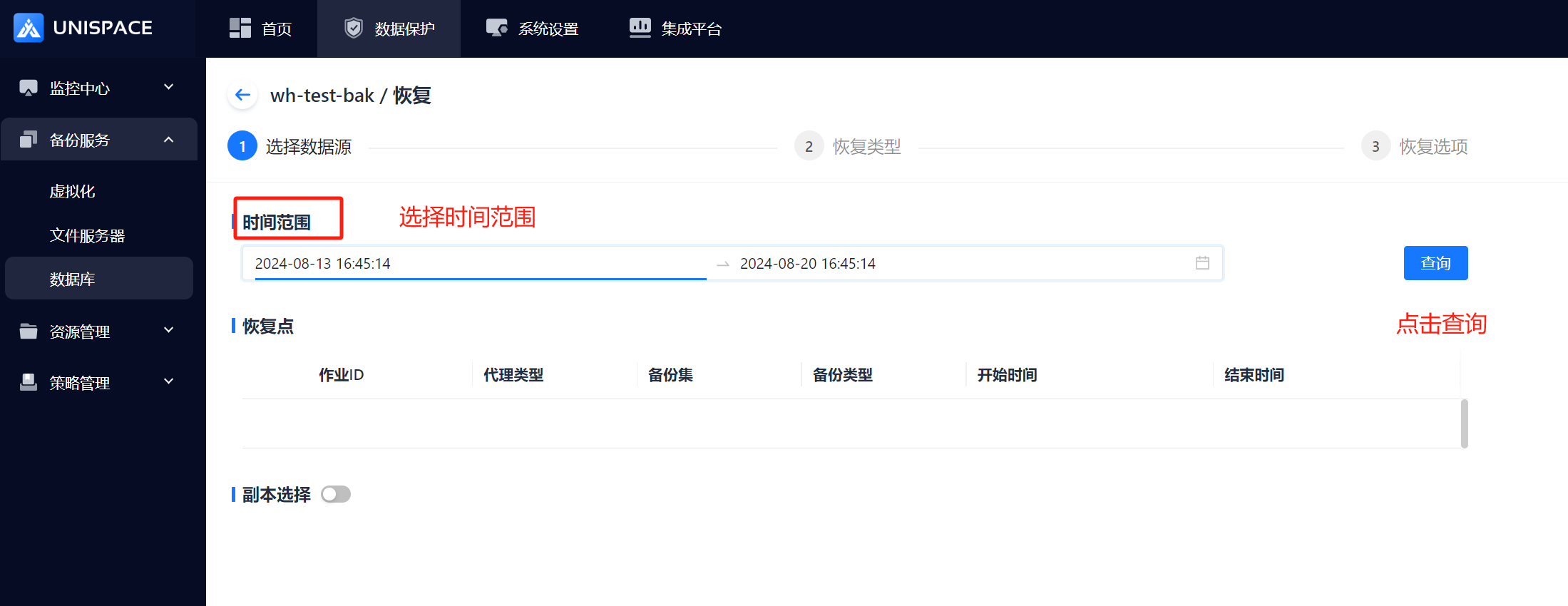
Step 3: Choose the "Instance Recovery" type and click [Next].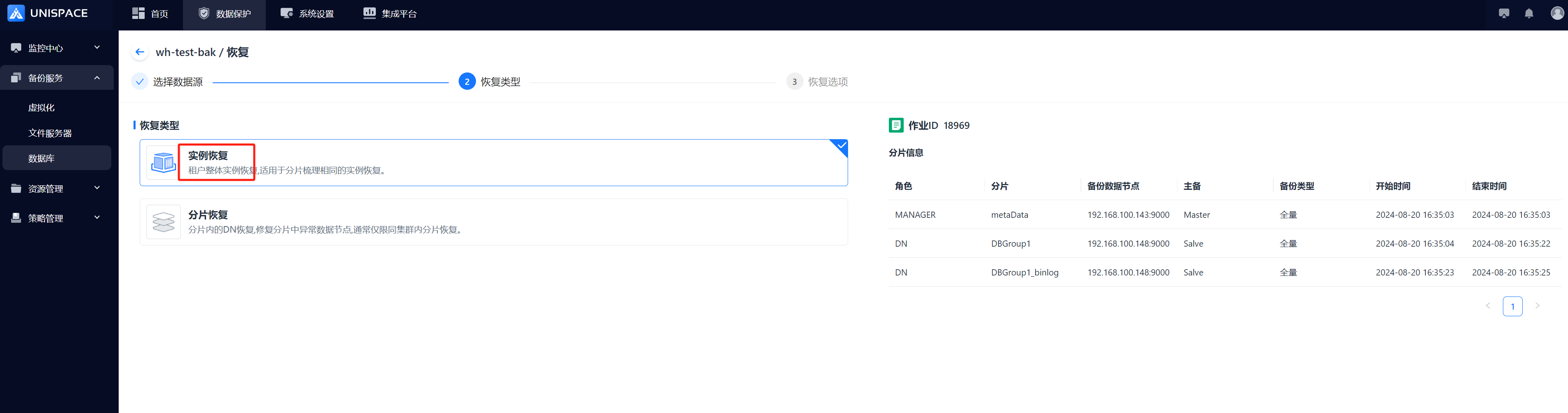
Step 4: For in-place recovery, fill in the form.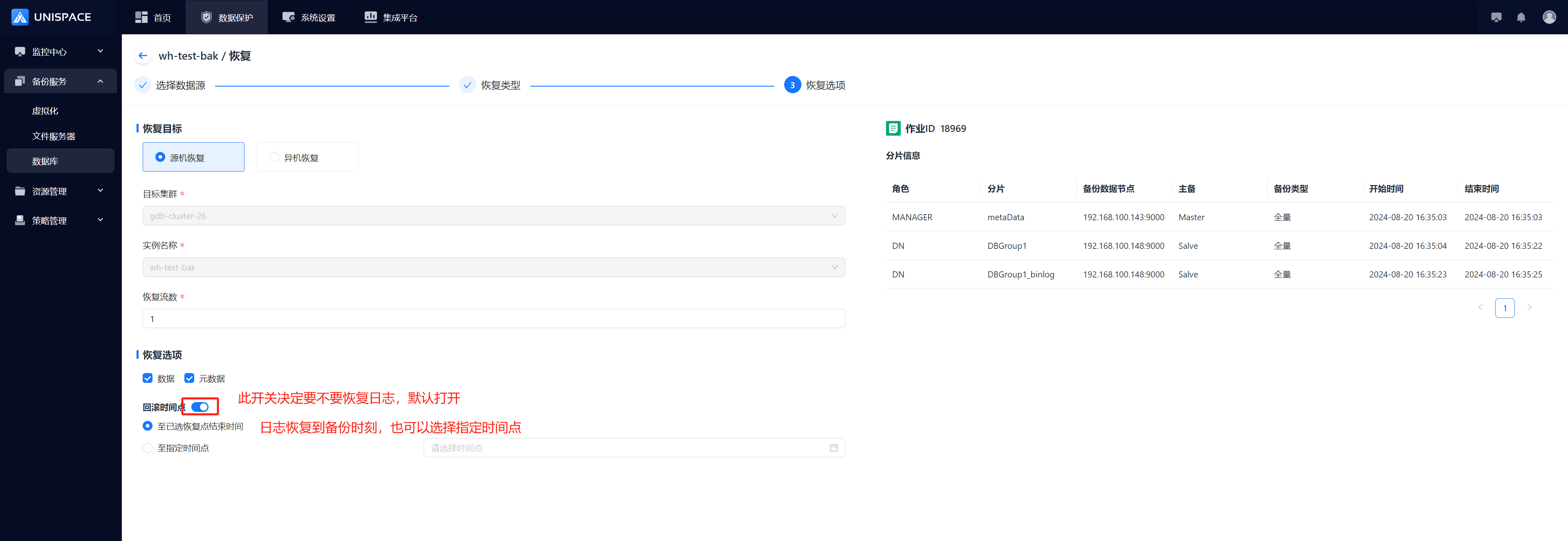
Step 5: For cross-machine recovery, fill in the form and click [Confirm].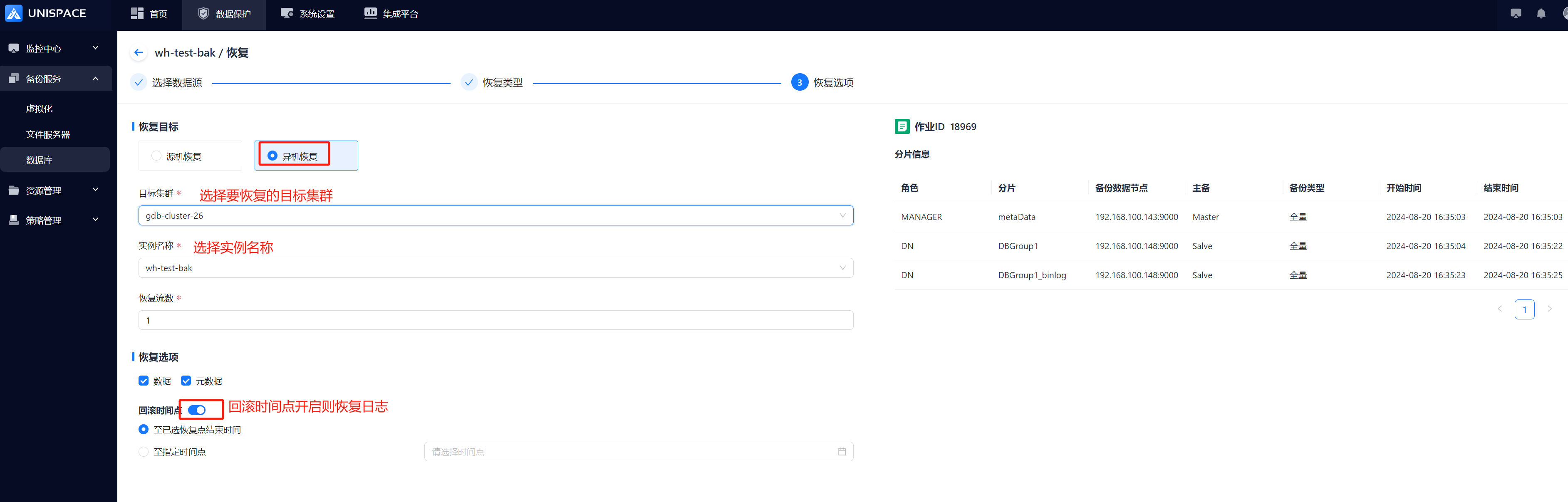

Step 6: Once the job starts successfully, click [Monitoring Center] - [Jobs] - [Active Jobs] to view it.
Step 7: After the job finishes, click [Monitoring Center] - [Jobs] - [Job History] to check the job and its status.
1.5.2 GoldenDB Shard Recovery
Prerequisites
- The GoldenDB backup set has been successfully backed up.
Steps
Step 1: Click [Instance] - [Operation] - [Recovery].
Step 2: Query the recovery point based on the time range, select the job ID to be recovered, and click [Next].
Step 3: Choose the "Shard Recovery" type and click [Next].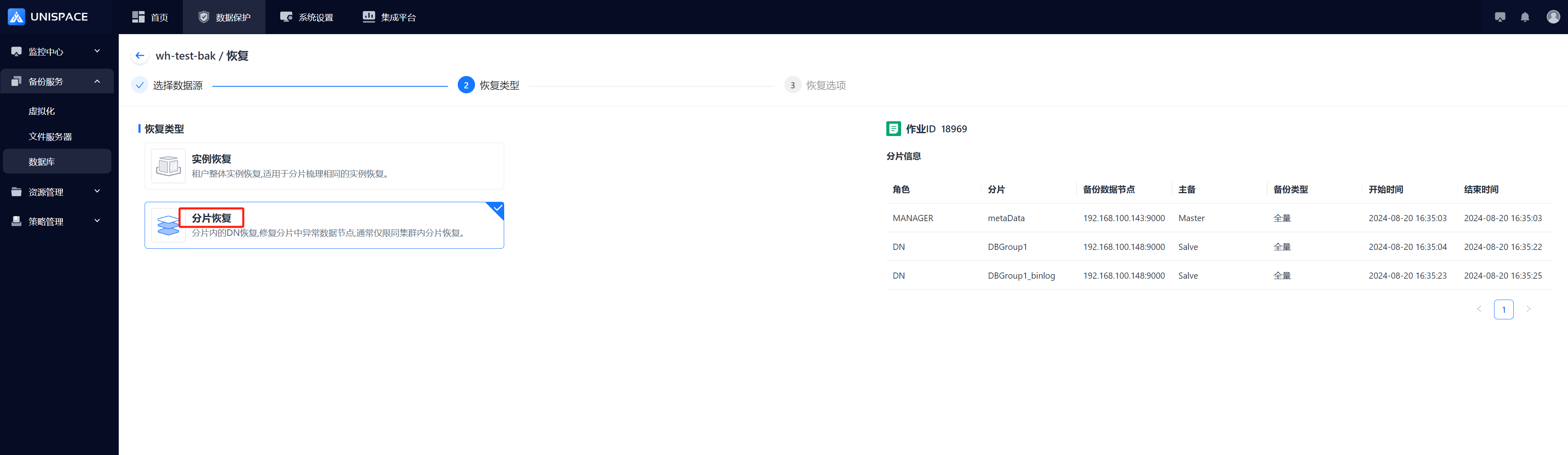 Step 4: For in-place recovery, fill in the form and click [Confirm].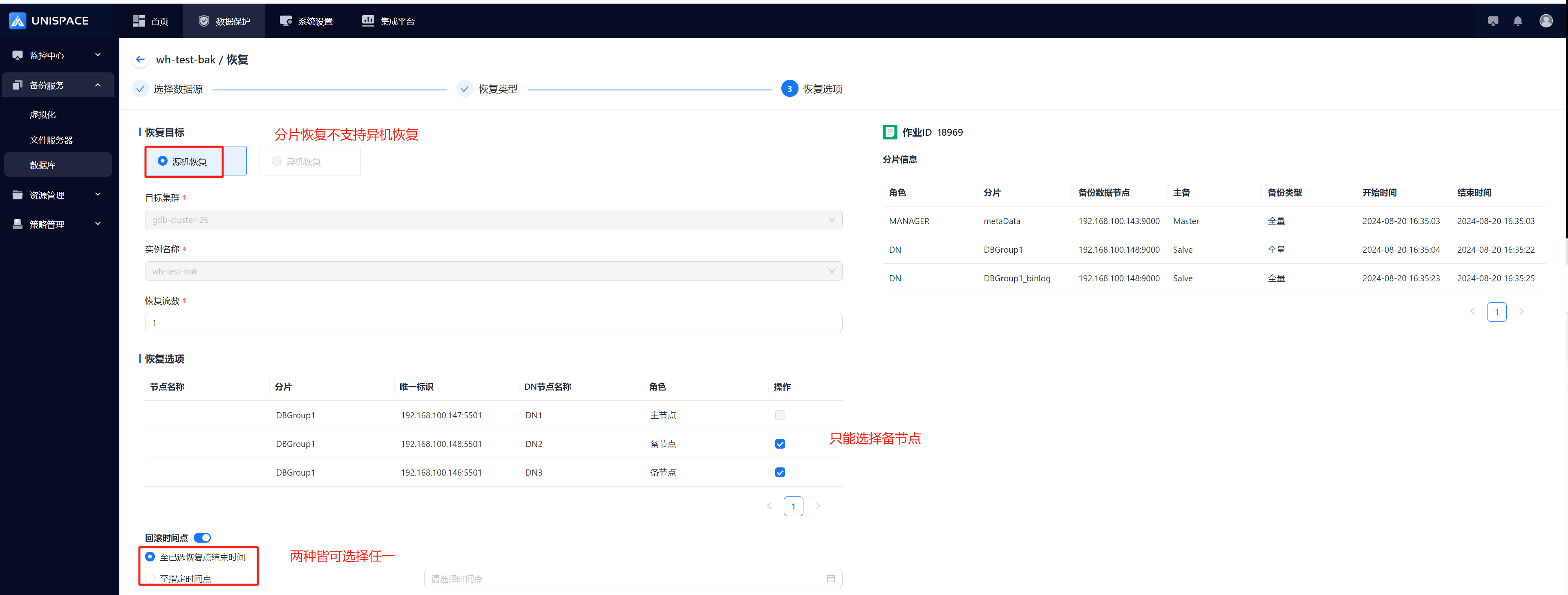

Step 5: Once the job starts successfully, click [Monitoring Center] - [Jobs] - [Active Jobs] to view it.
Step 6: After the job finishes, click [Monitoring Center] - [Jobs] - [Job History] to check the job and its status.