
Agent--Oracle
1.1 Create an Oracle Instance
Prerequisites
- Created a new user.
- Created a new storage repository.
- Created a new service plan.
- Have access to an installed Oracle service.
Steps
Step 1: Click on the system menu [Backup Service] - [Database] list "Server Name" to enter the database instance page.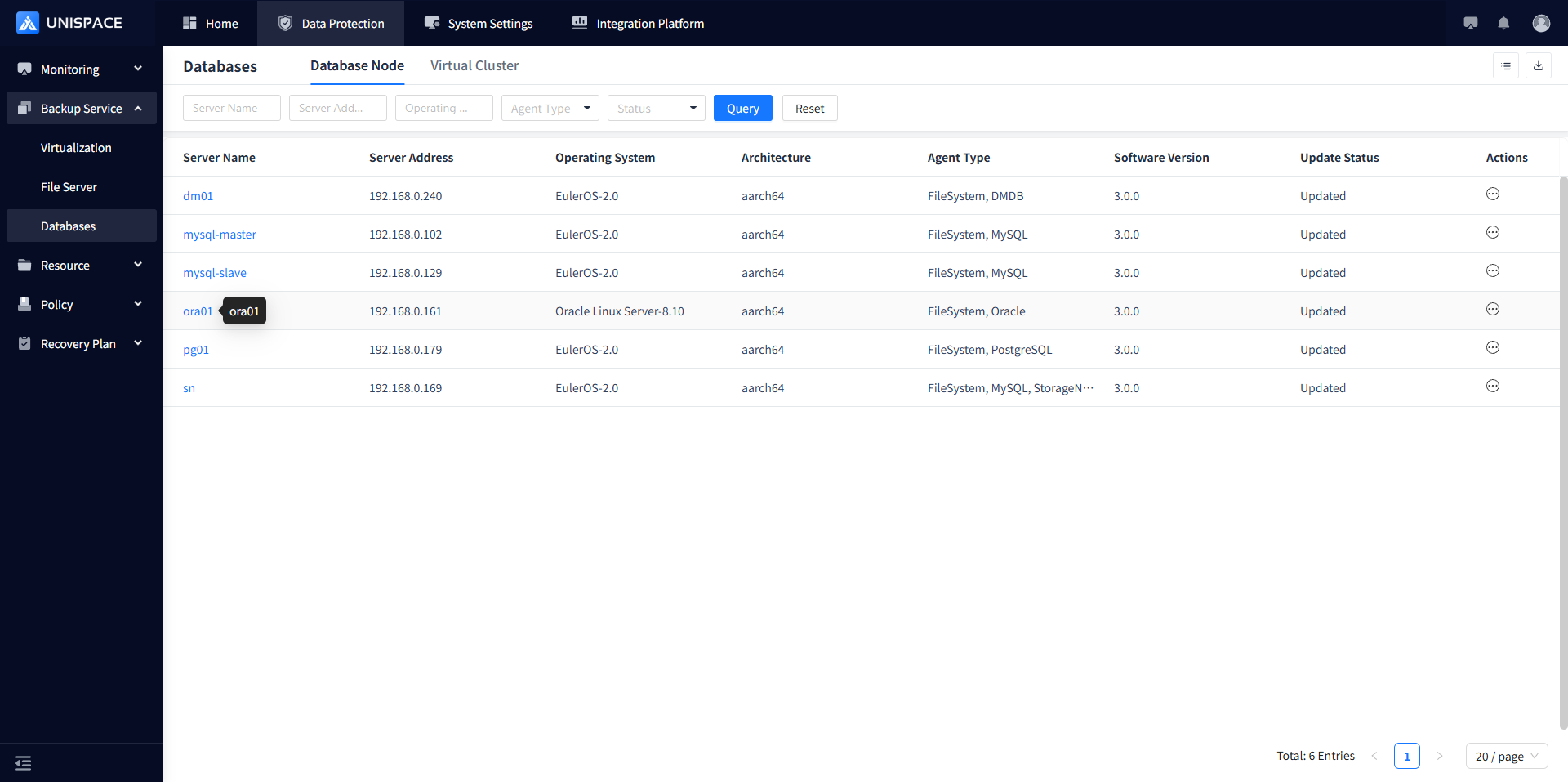
Step 2: Click [Instance].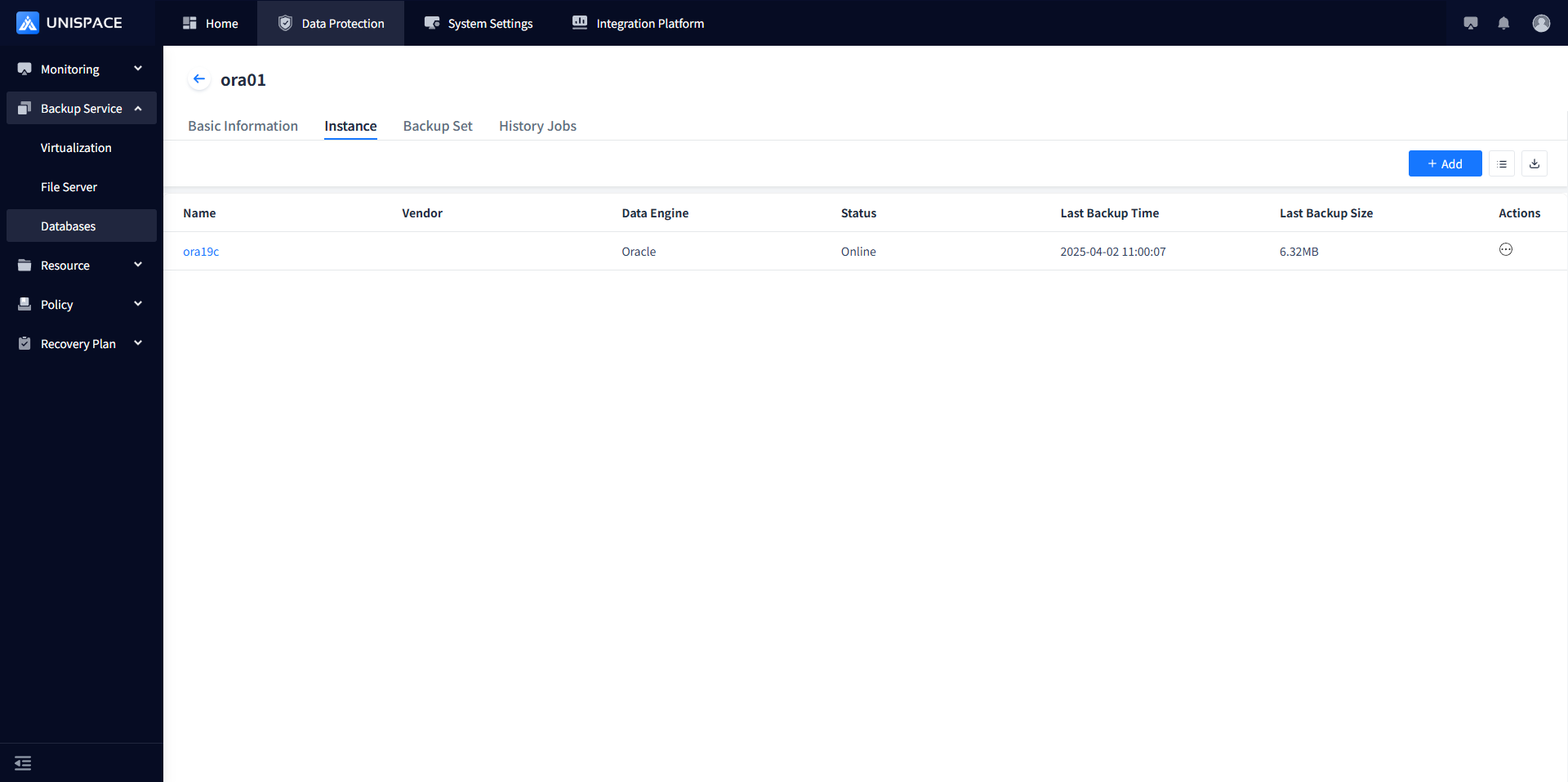
Step 3: Click the [Add] button in the upper right corner of [Instance], and a pop-up window appears: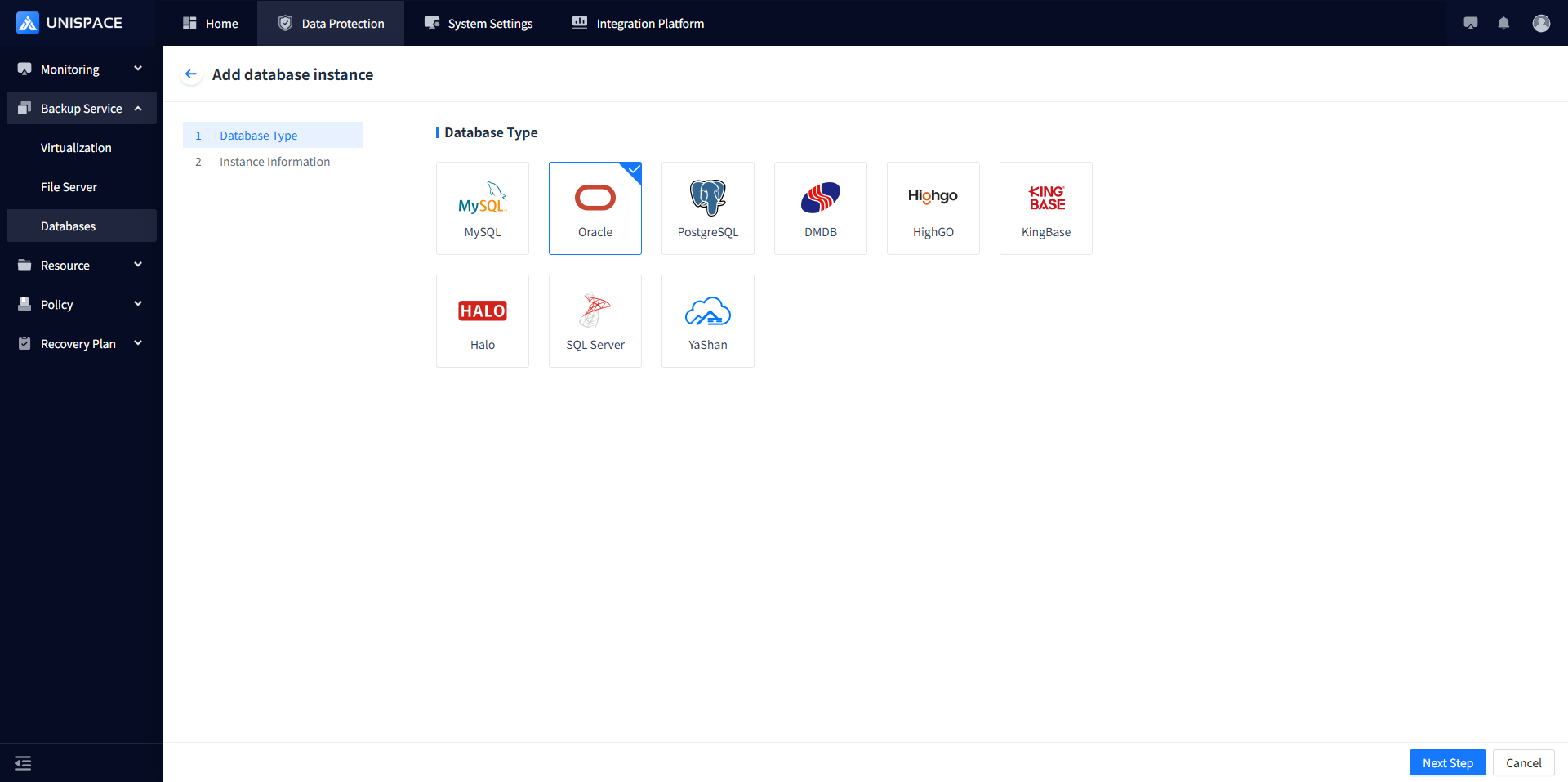
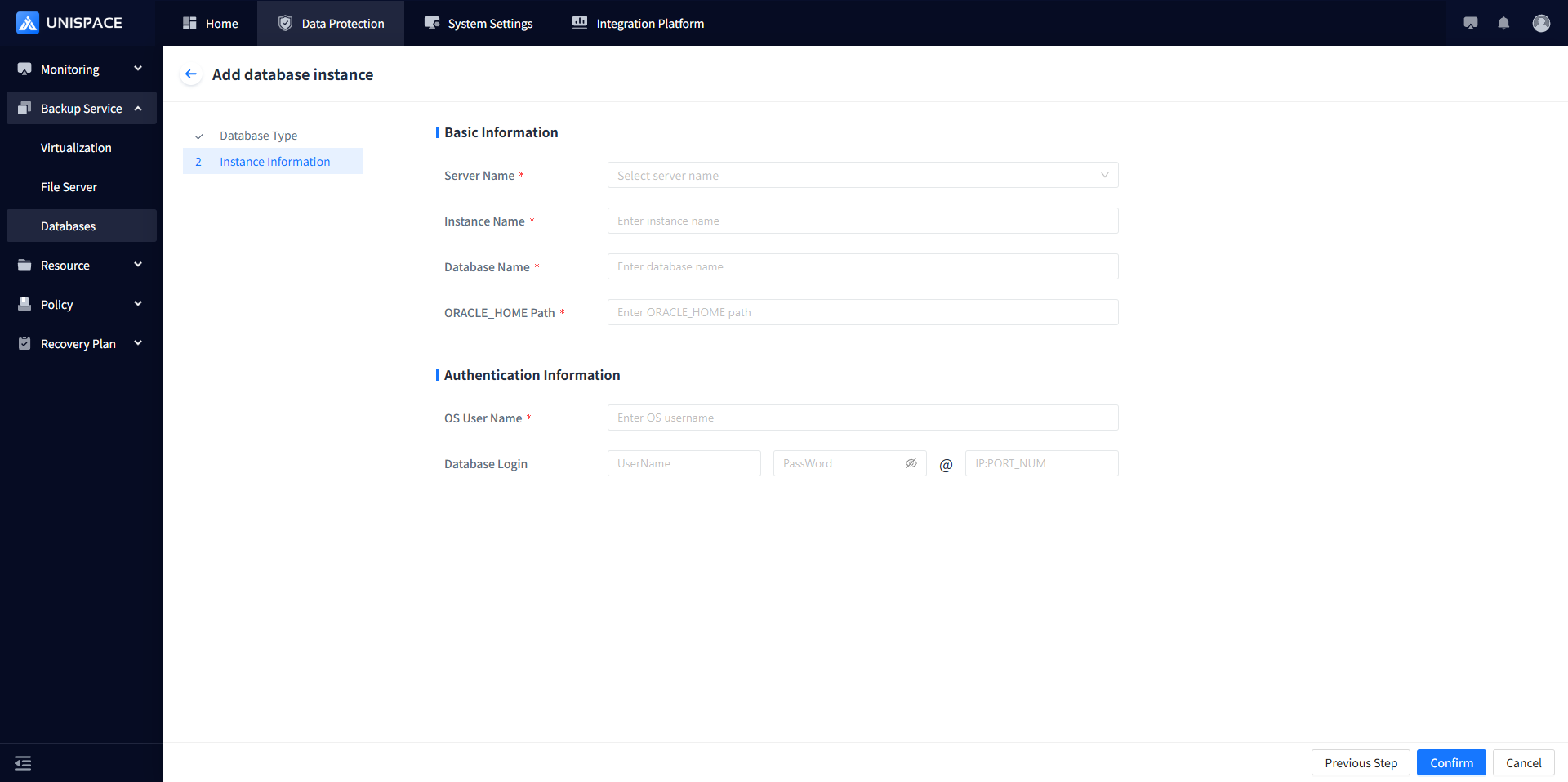
Step 4: Fill in the necessary parameters as shown below:
| Parameter Name | Parameter Description | Setting Guidelines |
|---|---|---|
| Database Type | Single choice, required, default is MySQL | Select Oracle |
| Server Name | Single choice, required, options are Oracle servers | Select the name of the Oracle server |
| Instance Name | Text input, required, customizable | No length or special character restrictions for now |
| Database Name | Text input, required | Enter the Oracle database name specified during creation |
| ORACLE_HOME Path | Text input, required | Enter the Oracle software installation path |
| OS Username | Text input, required | Default Oracle username |
| Username | Username input, required | Enter the Oracle username |
| Password | Password field | Enter the Oracle password |
| IP:PORT_NUM | Input field | Enter the Oracle host IP and port number |
Step 5: Click [Confirm] and a success message will appear.
1.2 Create Oracle Backup Set
Prerequisites
- Created an Oracle instance.
Steps
Step 1: Click on the system menu [Backup Service] - [Database] - [Server Name] - [Backup Set].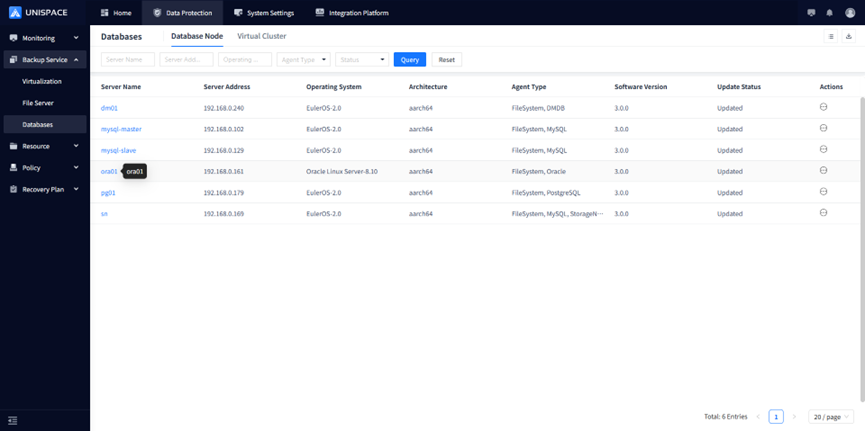
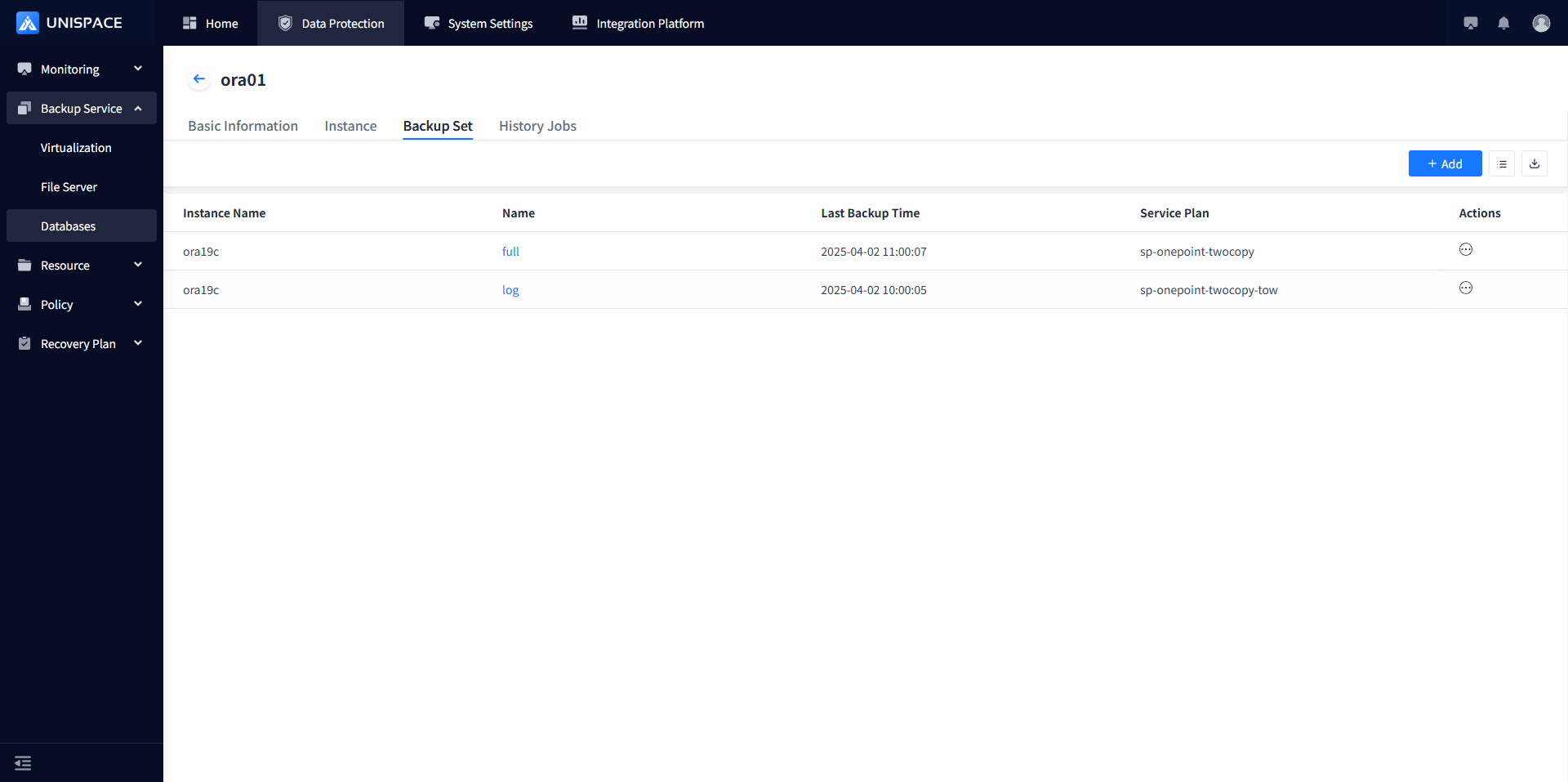
Step 2: Click the [Add] button in the upper right corner of [Backup Set]. A pop-up window appears: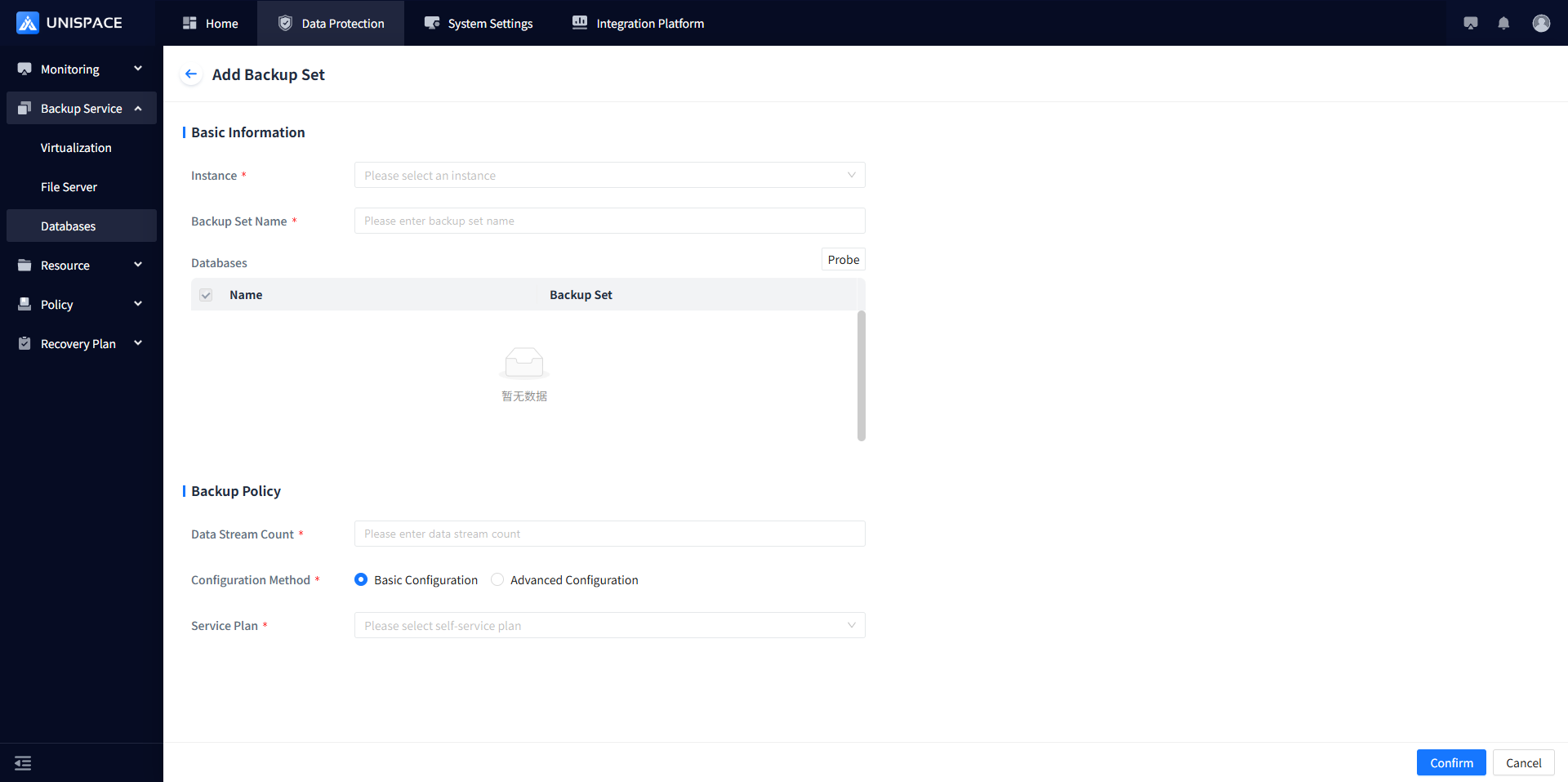
Step 3: Fill in the necessary parameters as shown below:
| Parameter Name | Parameter Description | Setting Guidelines |
|---|---|---|
| Instance | Single choice, required, select the current Oracle instance | Not selected by default |
| Backup Set Name | Text input, required | No more than 50 characters, no special characters |
| Backup Mode | Single choice, default is database backup | Supports database backup, archive log backup, can choose to delete archive logs after backup |
| Advanced Options | Switch, default is enabled for automatic control file backup | Currently ineffective, keep it enabled |
| Data Stream Count | Number type | Not exceeding 200 |
| Configuration Mode | Single choice, required | Simplified or Advanced configuration |
| Self-Service Plan | Single choice, required | Select the appropriate plan |
Step 4: Click [Confirm] and a success message will appear.
1.3 Oracle Database Backup
Prerequisites
- The Oracle backup set has been configured.
Steps
Step 1: Click on the system menu [Backup Service] - [Database] - [Server Name] - [Backup Set].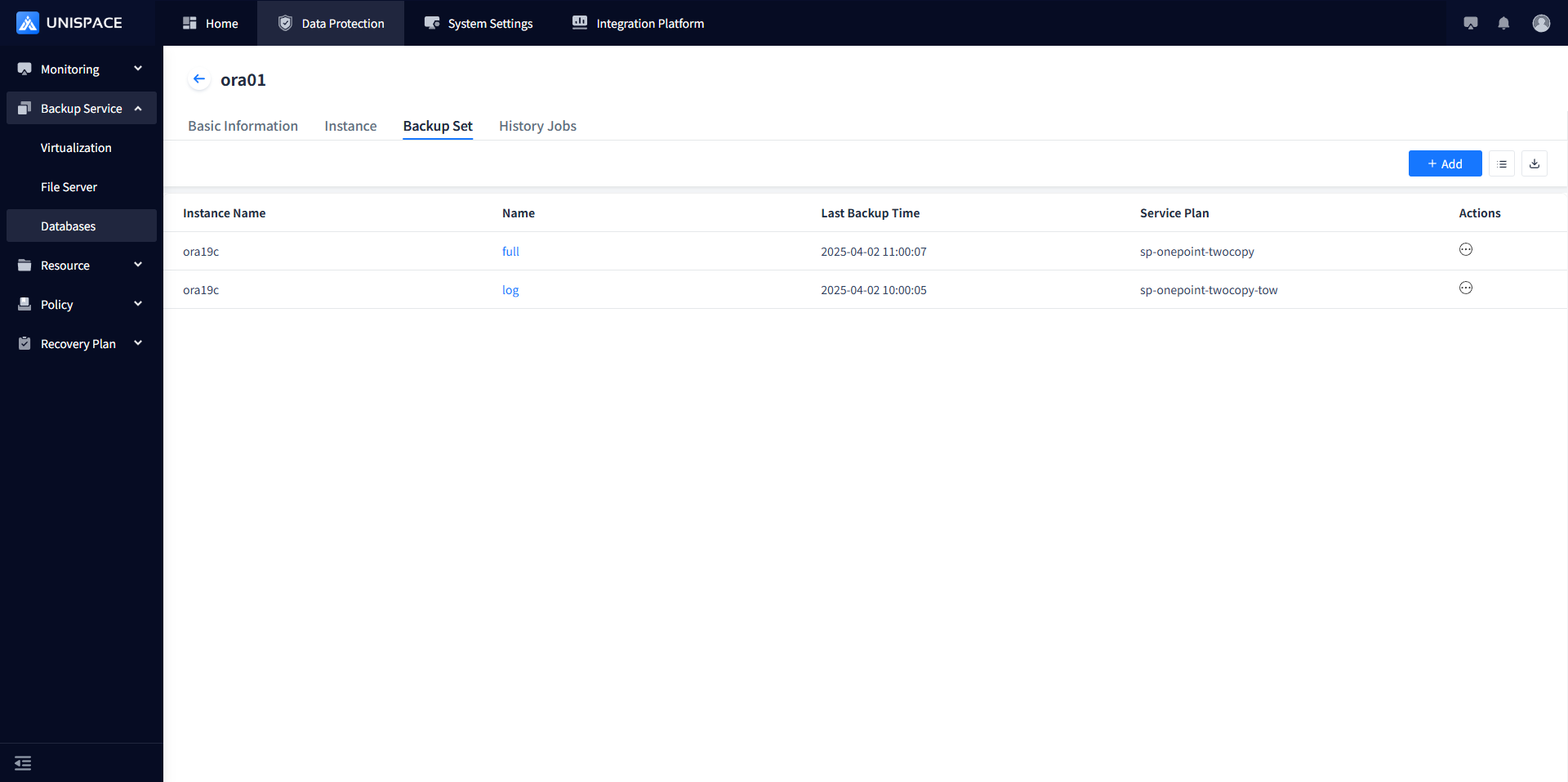
Step 2: Select the backup set, click [Backup] under the [Actions] column.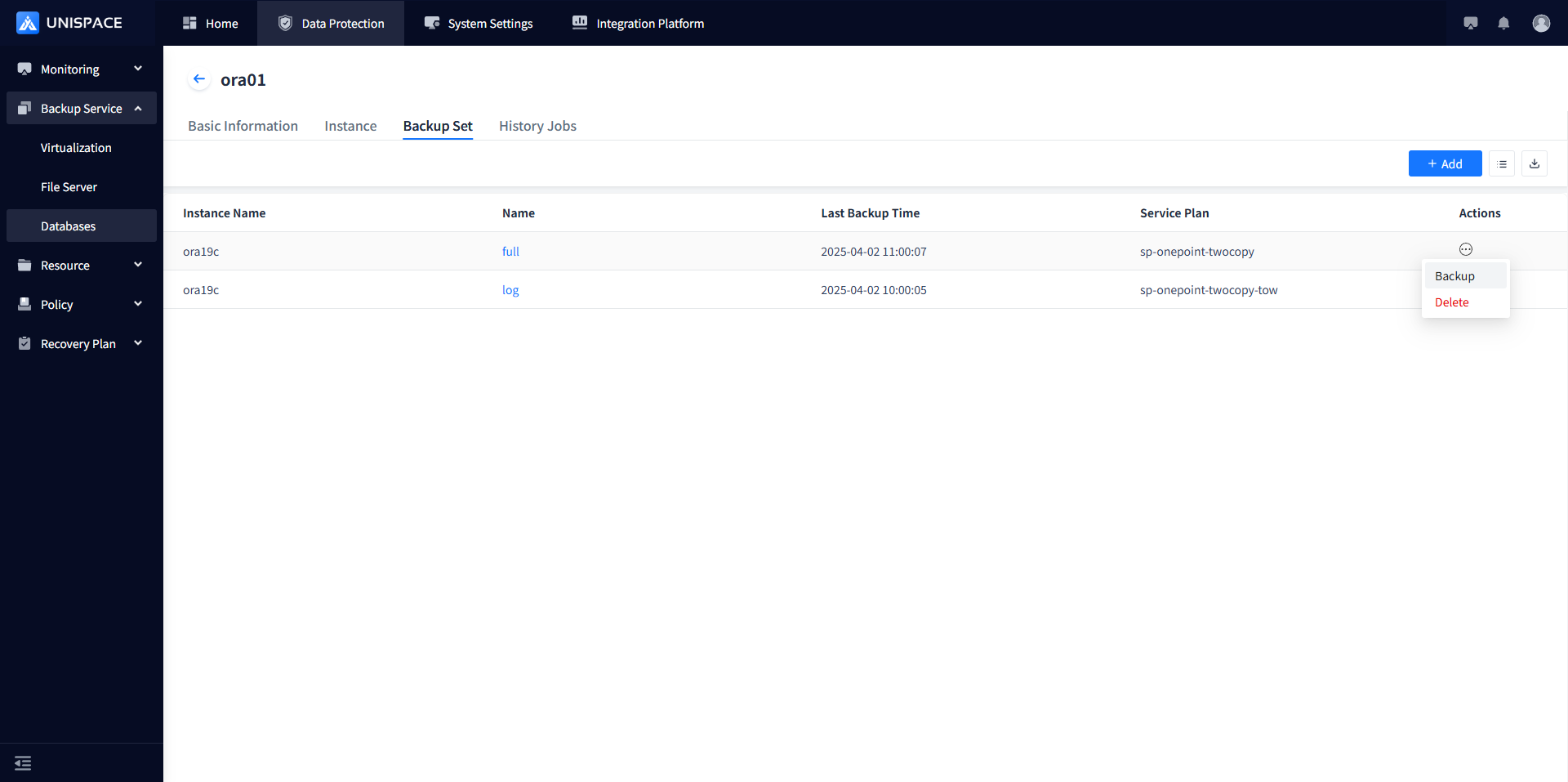
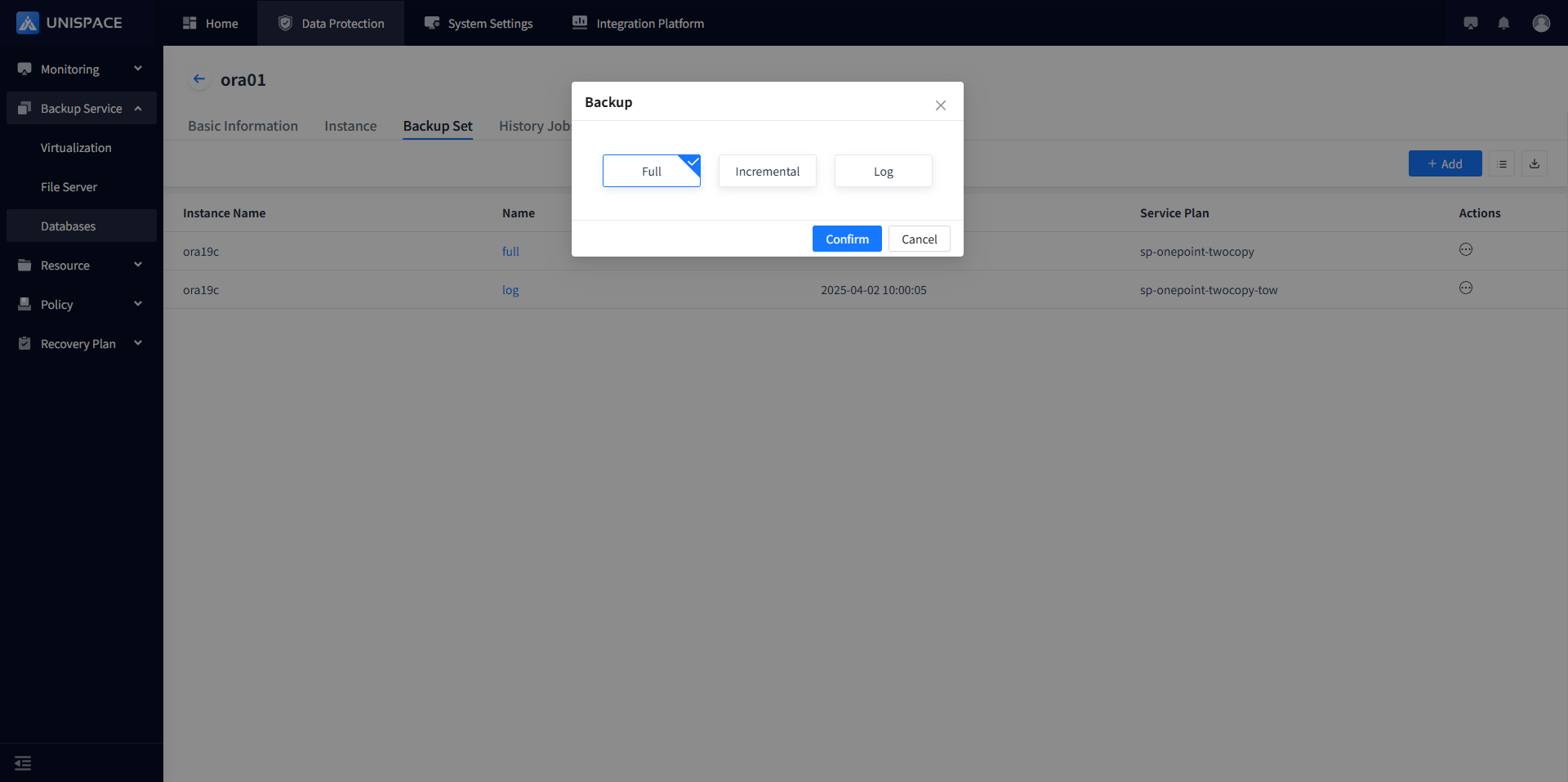
Step 3: Select "Full (Incremental)" and click [Confirm]. A message "Backup job submitted successfully" will appear.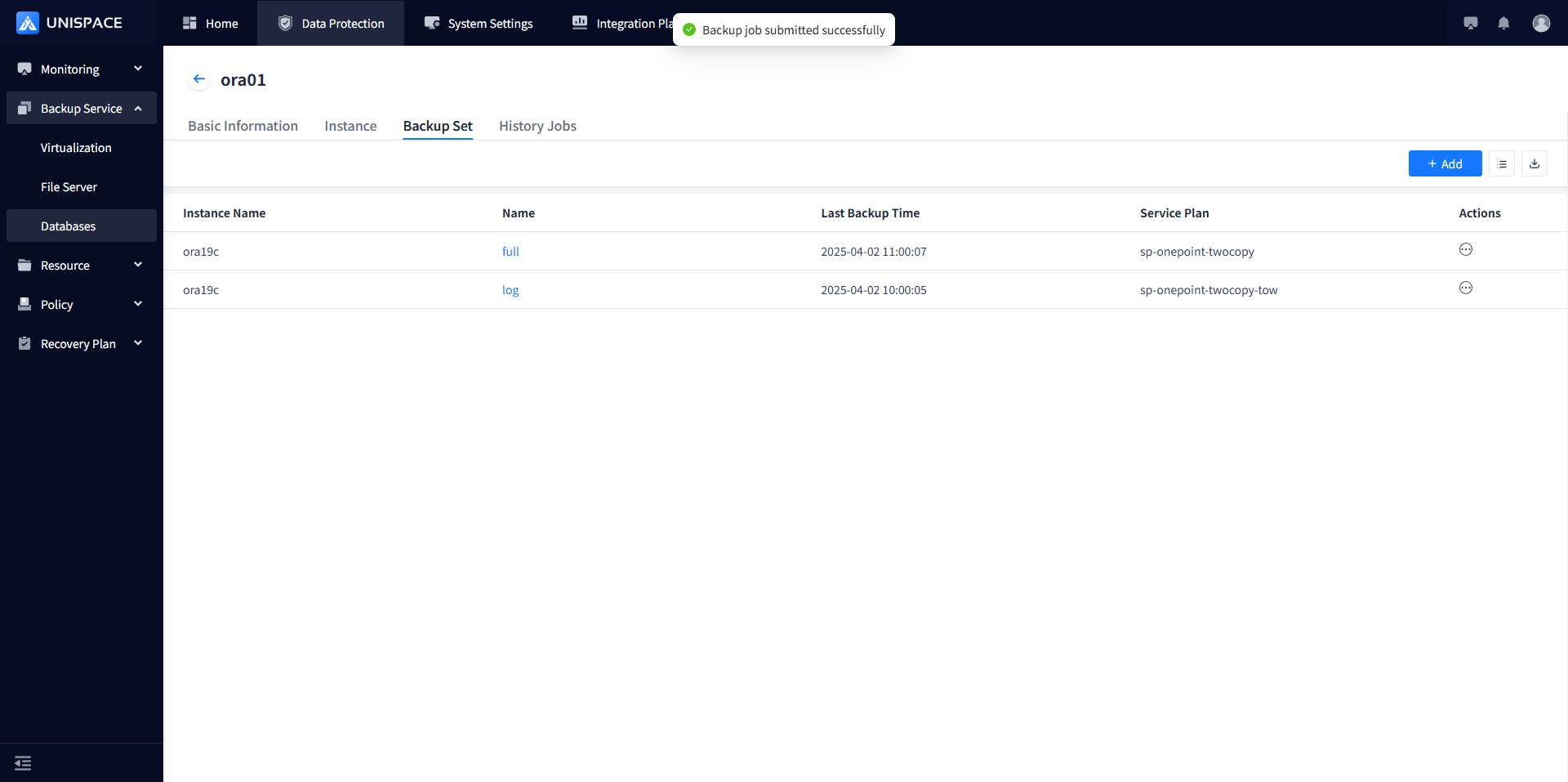
Step 4: After the backup job starts successfully, click [Monitoring] - [Jos] - [Active Jobs] to view the job.
Step 5: After the backup is completed, click [Monitoring] - [Job] - [Job History] to view the job, and the job status should be "Completed".
1.4 Oracle Log Backup
Prerequisites
- The Oracle instance has been added.
Steps
Step 1: Click on the system menu [Backup Service] - [Database] - [Server Name] - [Backup Set].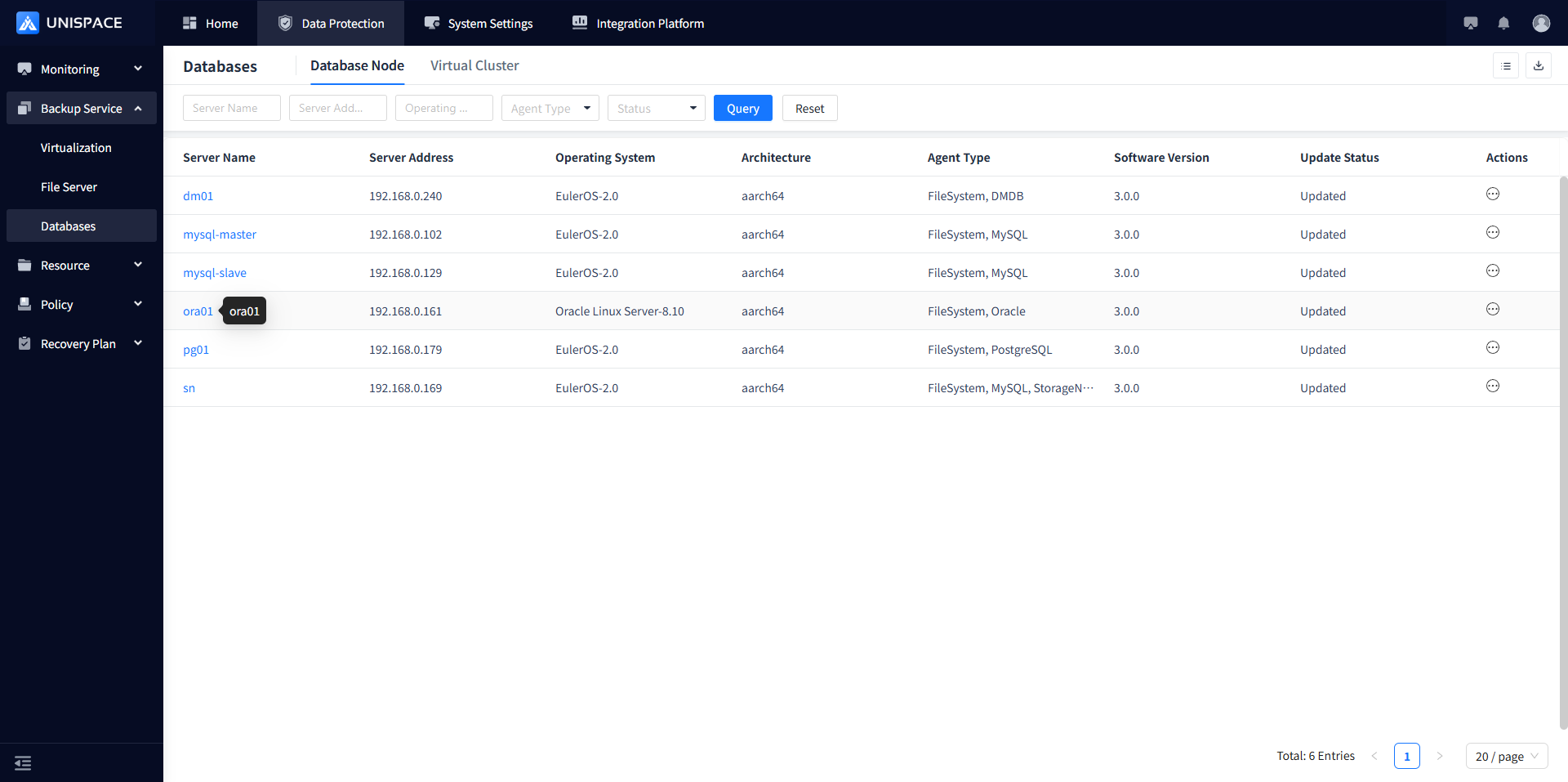
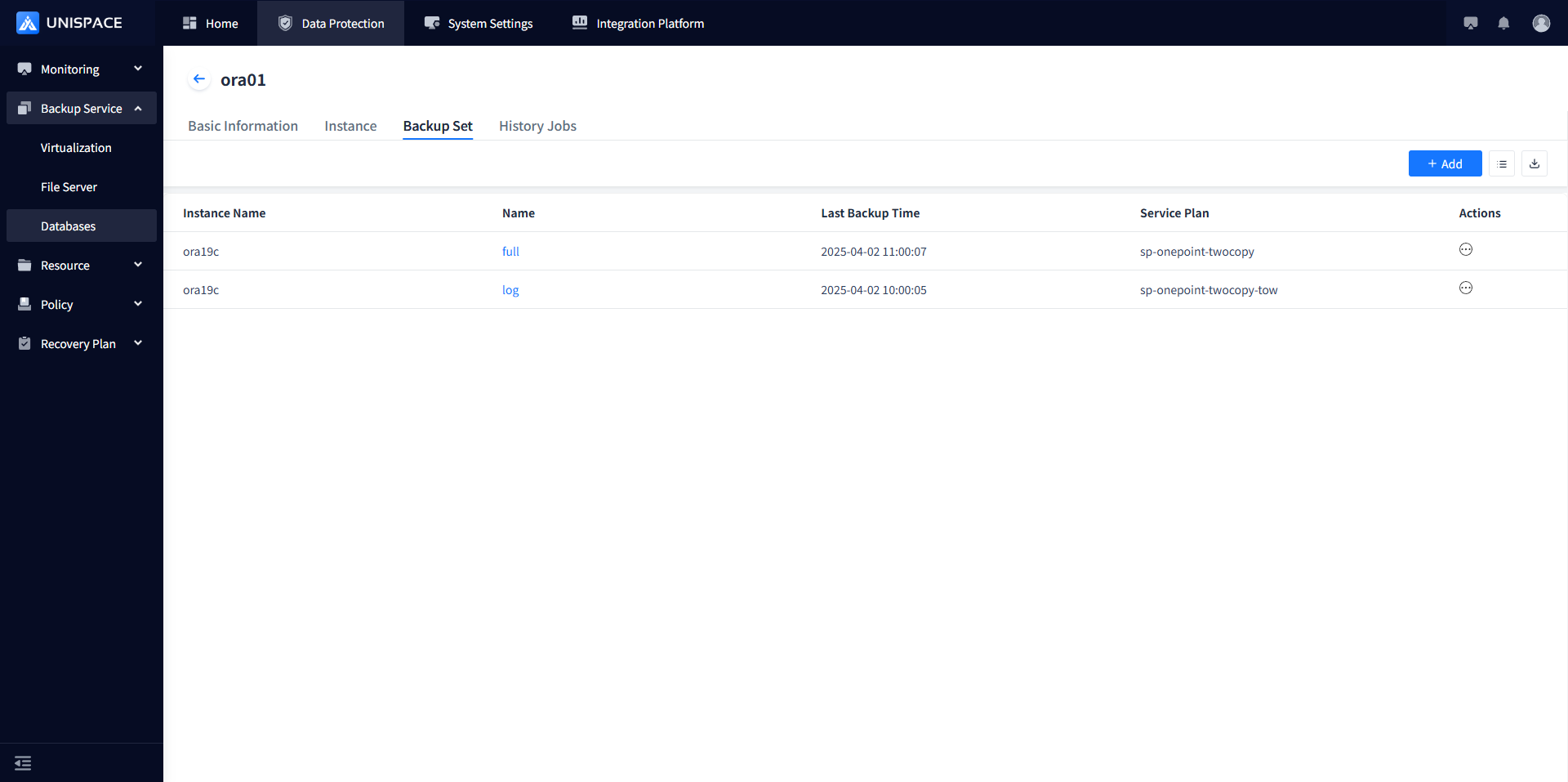
Step 2: Click [Backup Set] - [Backup] under the [Actions] column.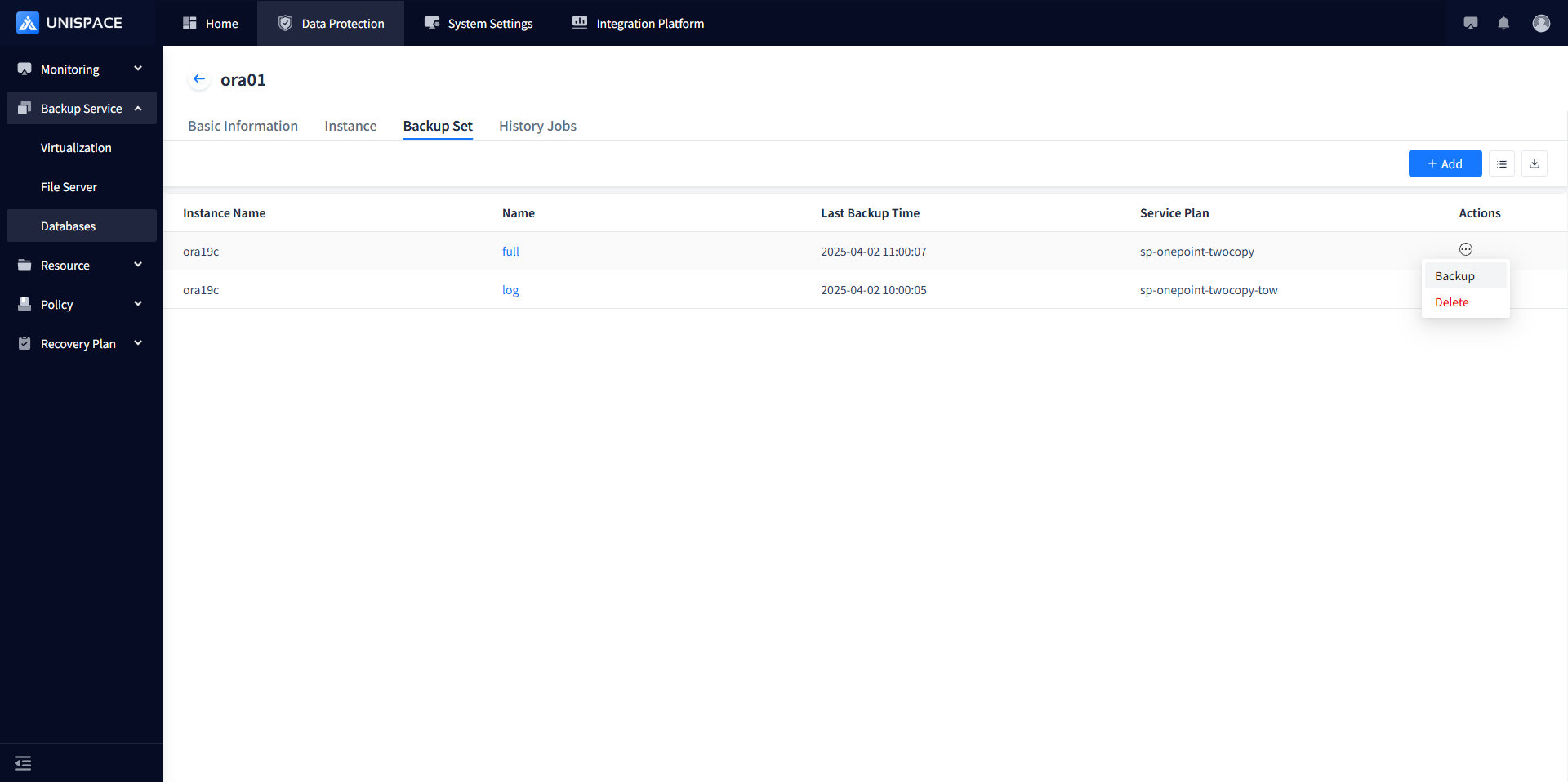
Step 3: Select "Log" and click [Confirm]. A message "Backup job submitted successfully" will appear.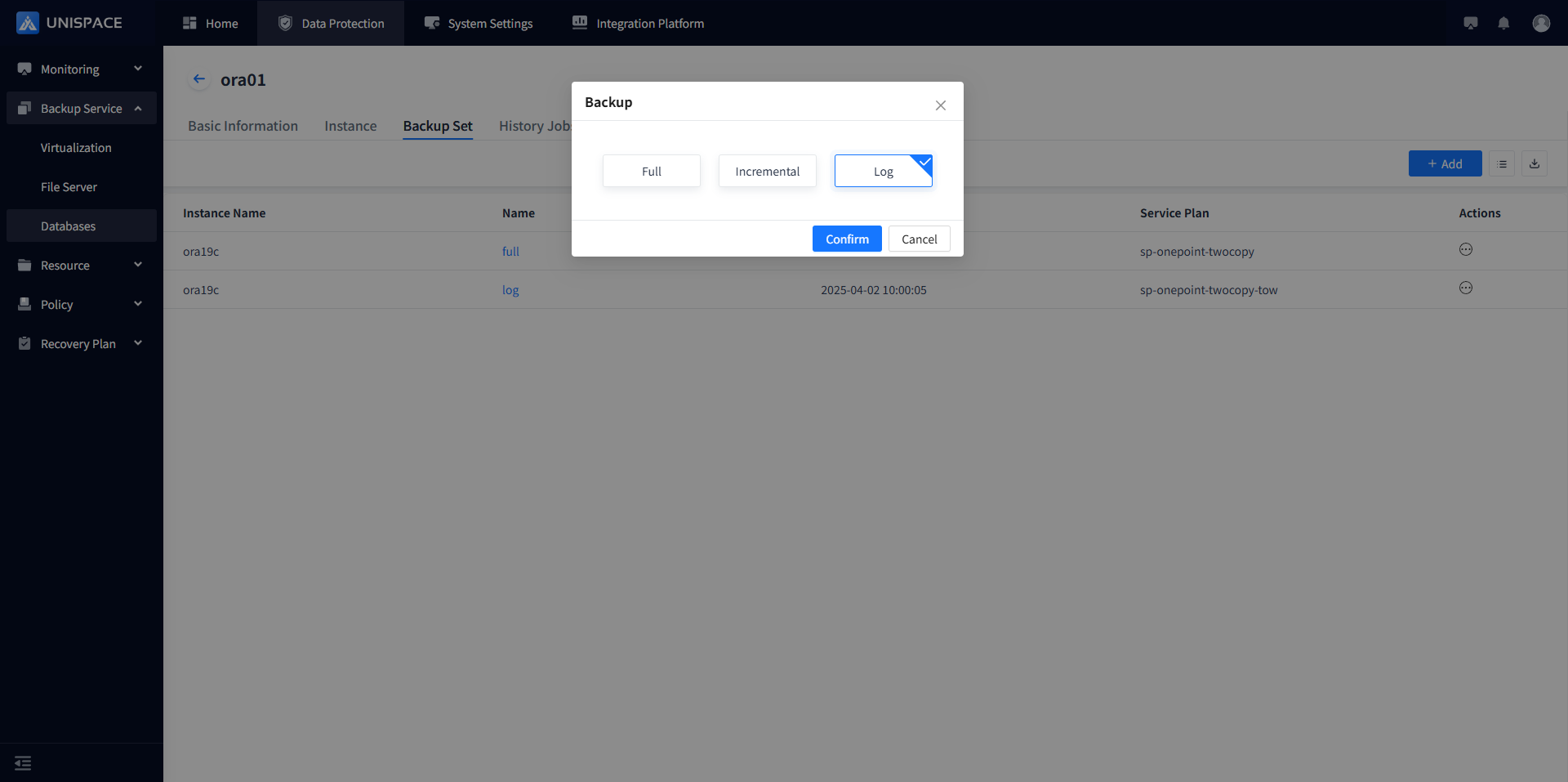
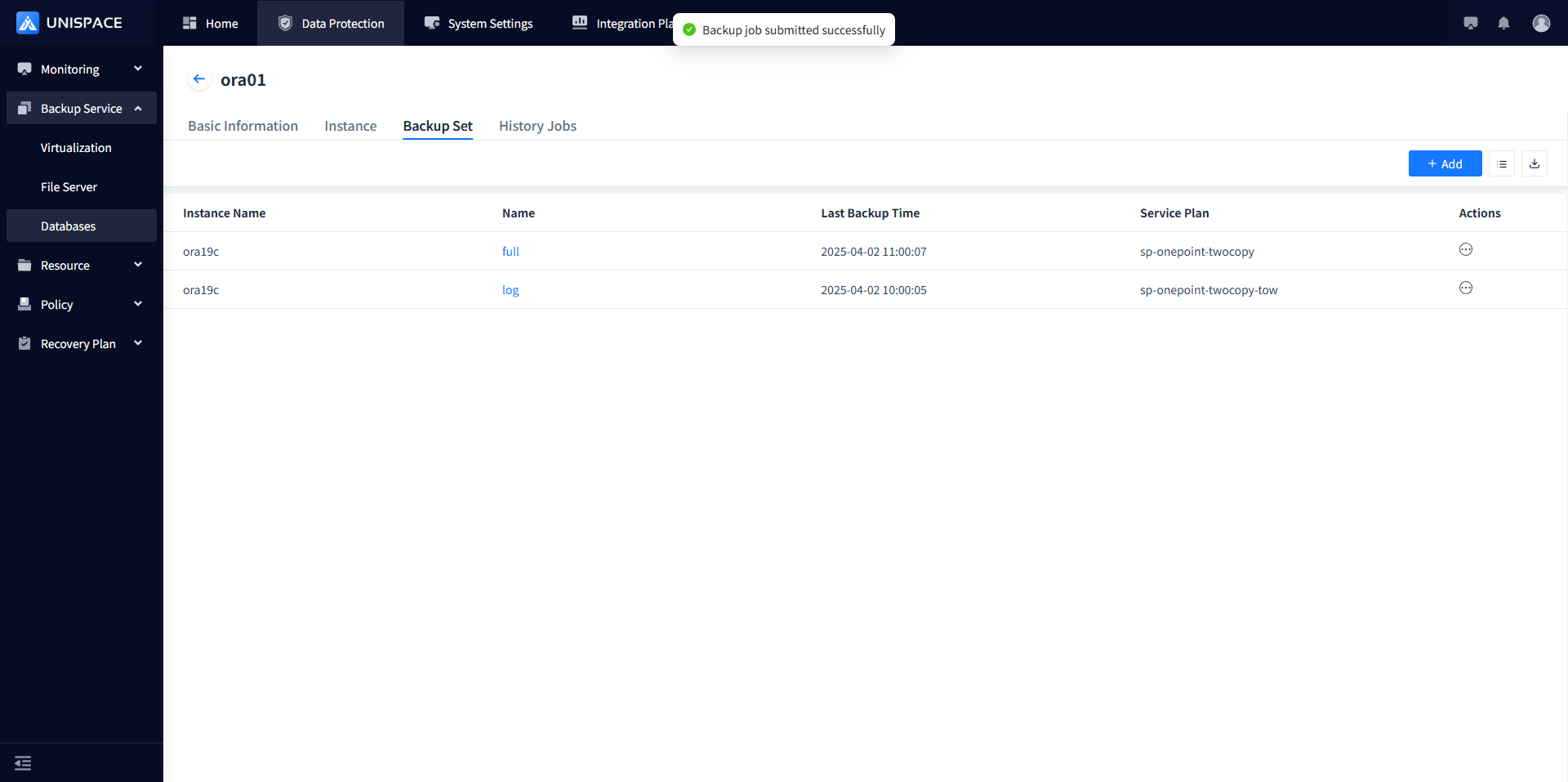
Step 4: After the job starts, view the job under [Monitoring Center] - [Jobs] - [Active Jobs].
Step 5: After the job completes, check the status in [Monitoring Center] - [Jobs] - [Job History].
1.5 Oracle Database Source Machine Recovery
Prerequisites
- The Oracle database has been backed up.
Steps
Step 1: Click [Backup Service] - [Database].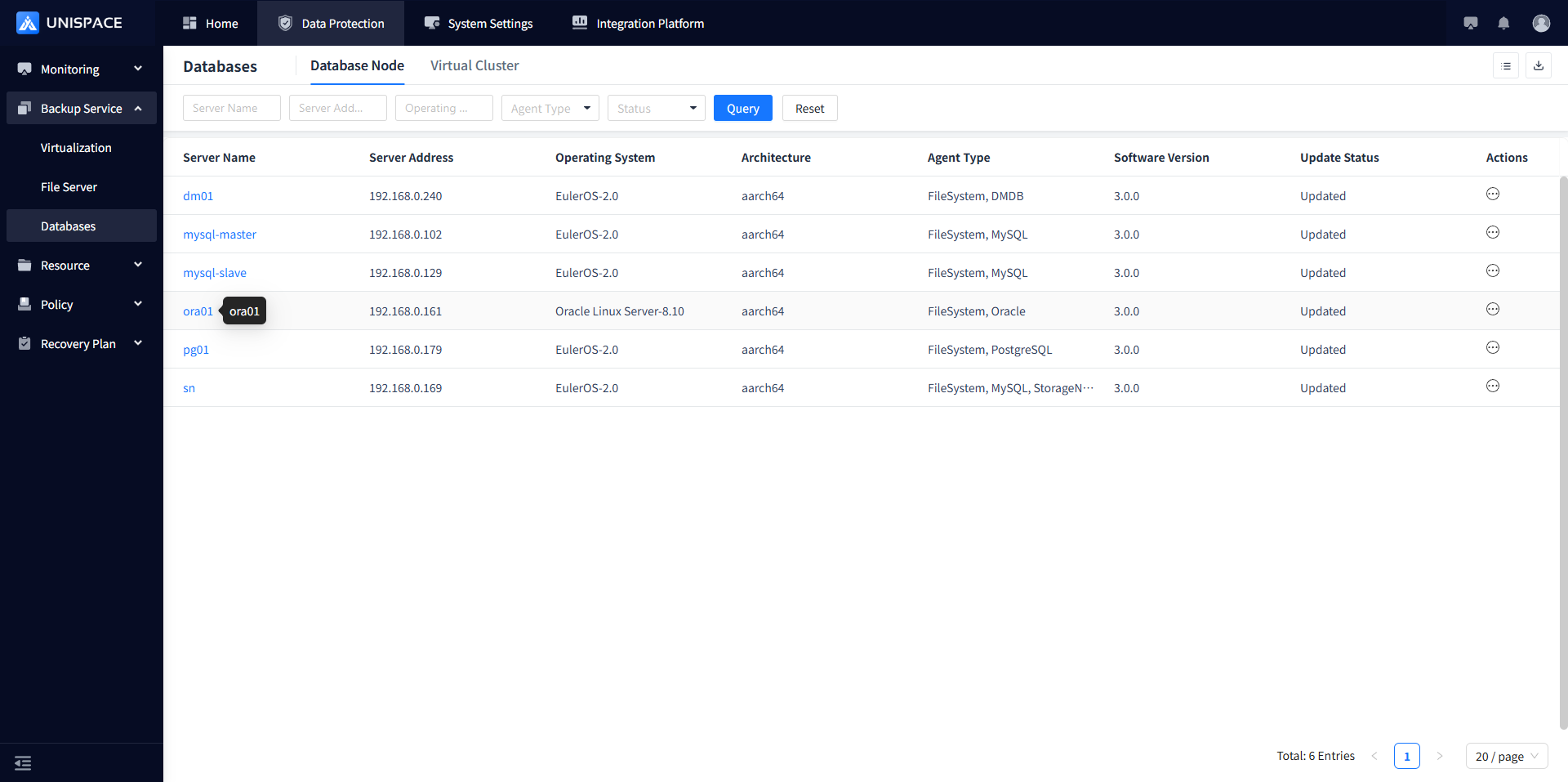
Step 2: Click [Database] - [Server Name] - [Instance] - [Actions] - [Restore].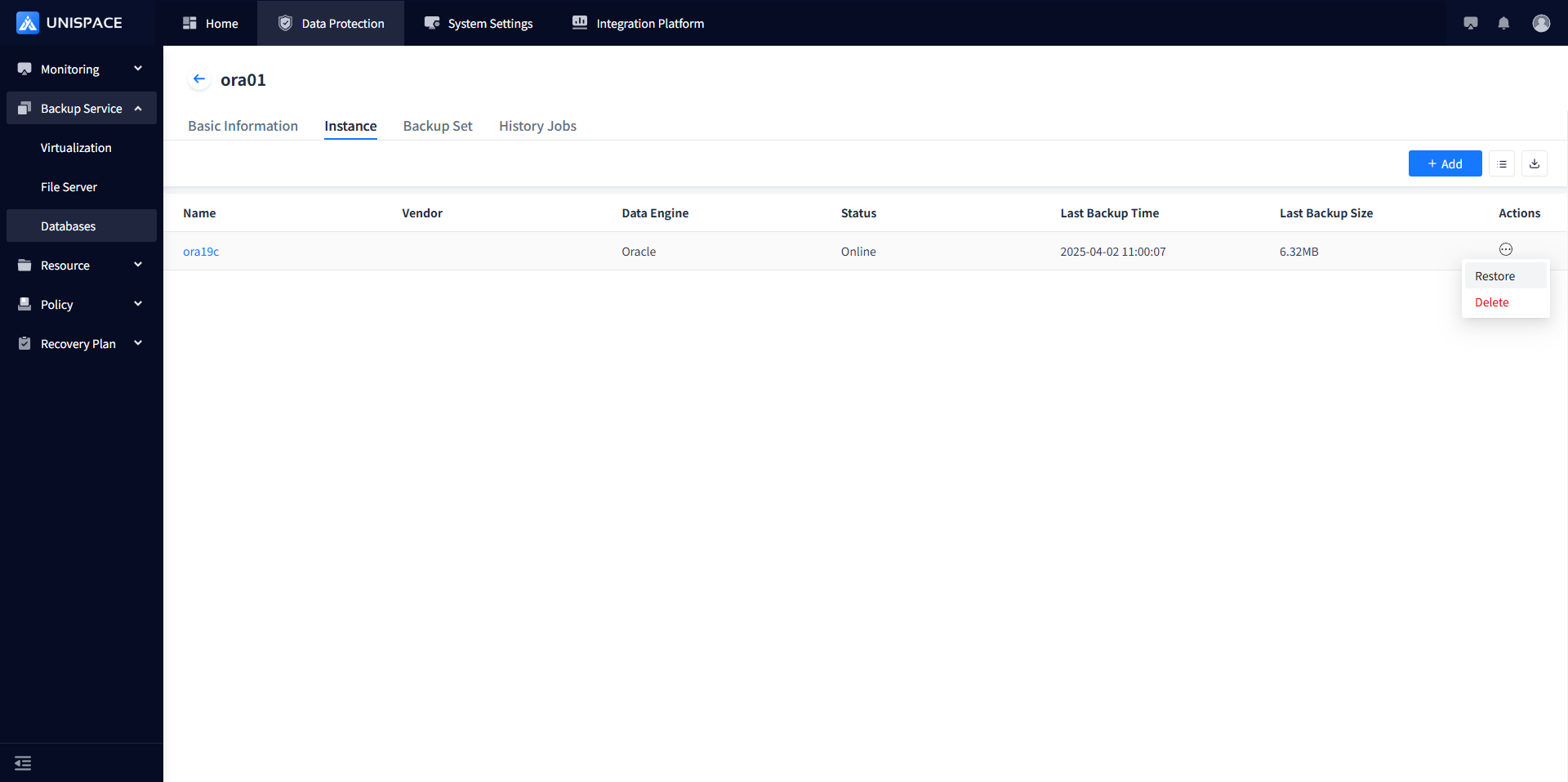
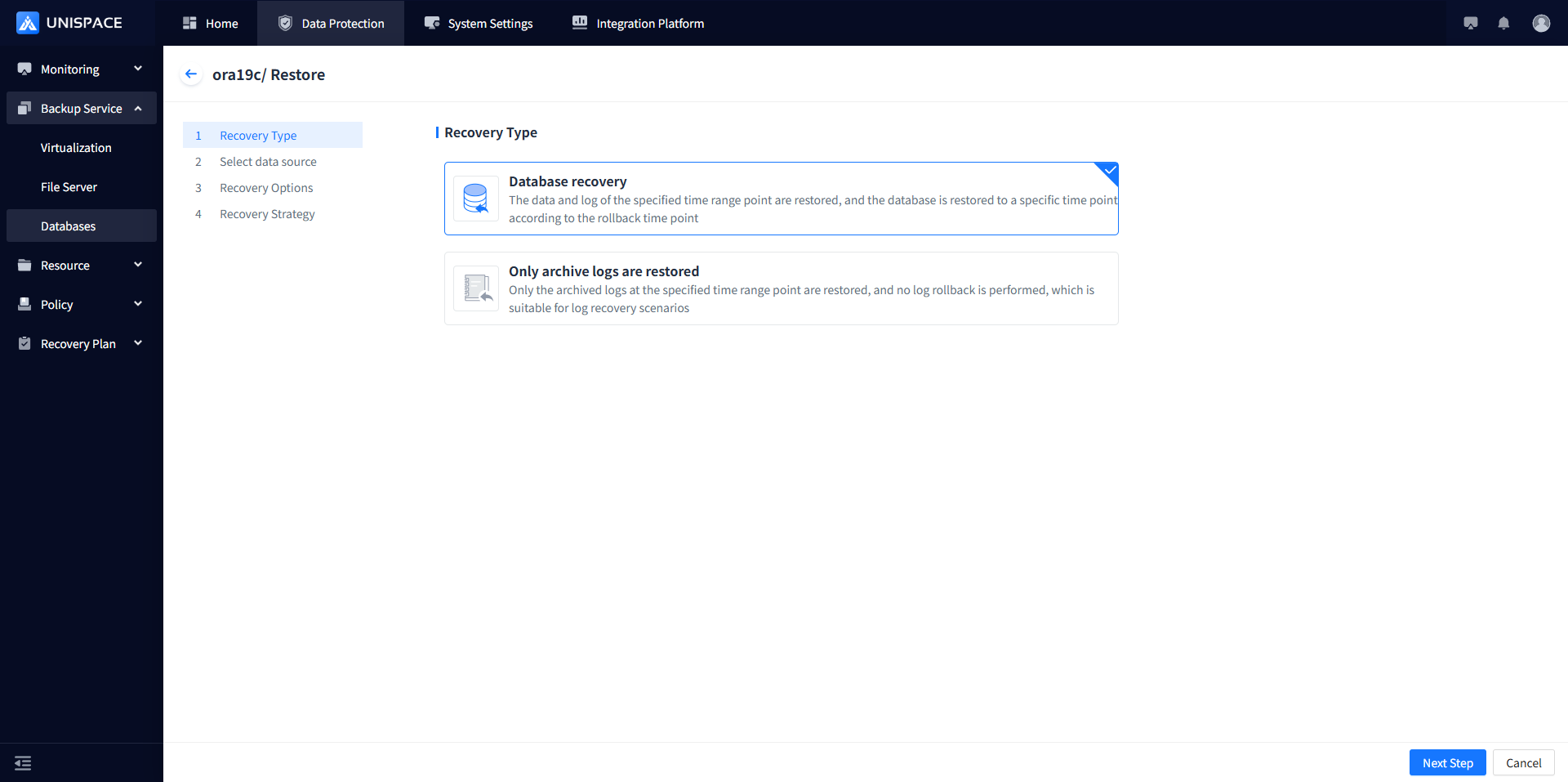
Step 3: Select the restore point from the pop-up window and click [Next].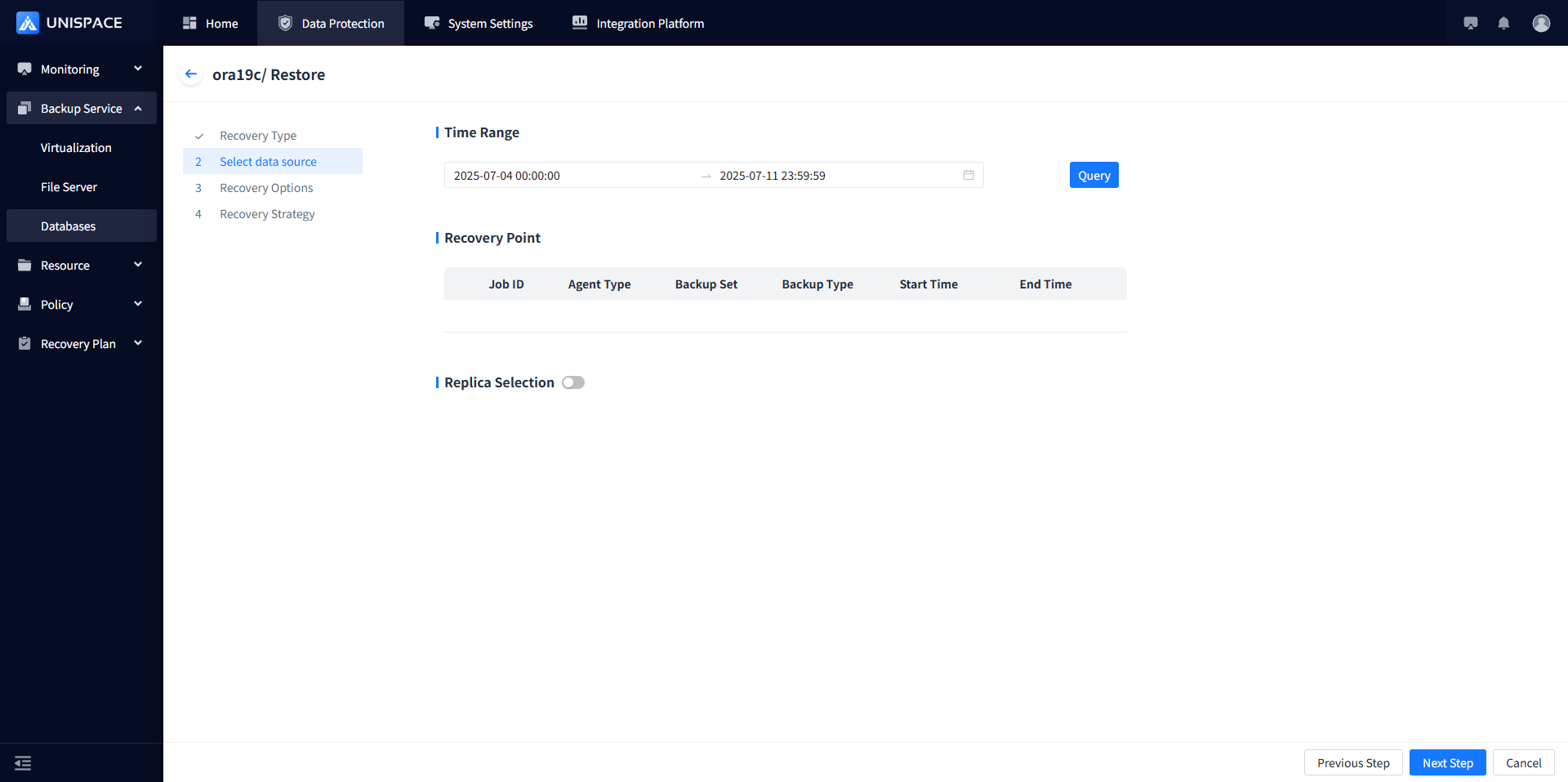
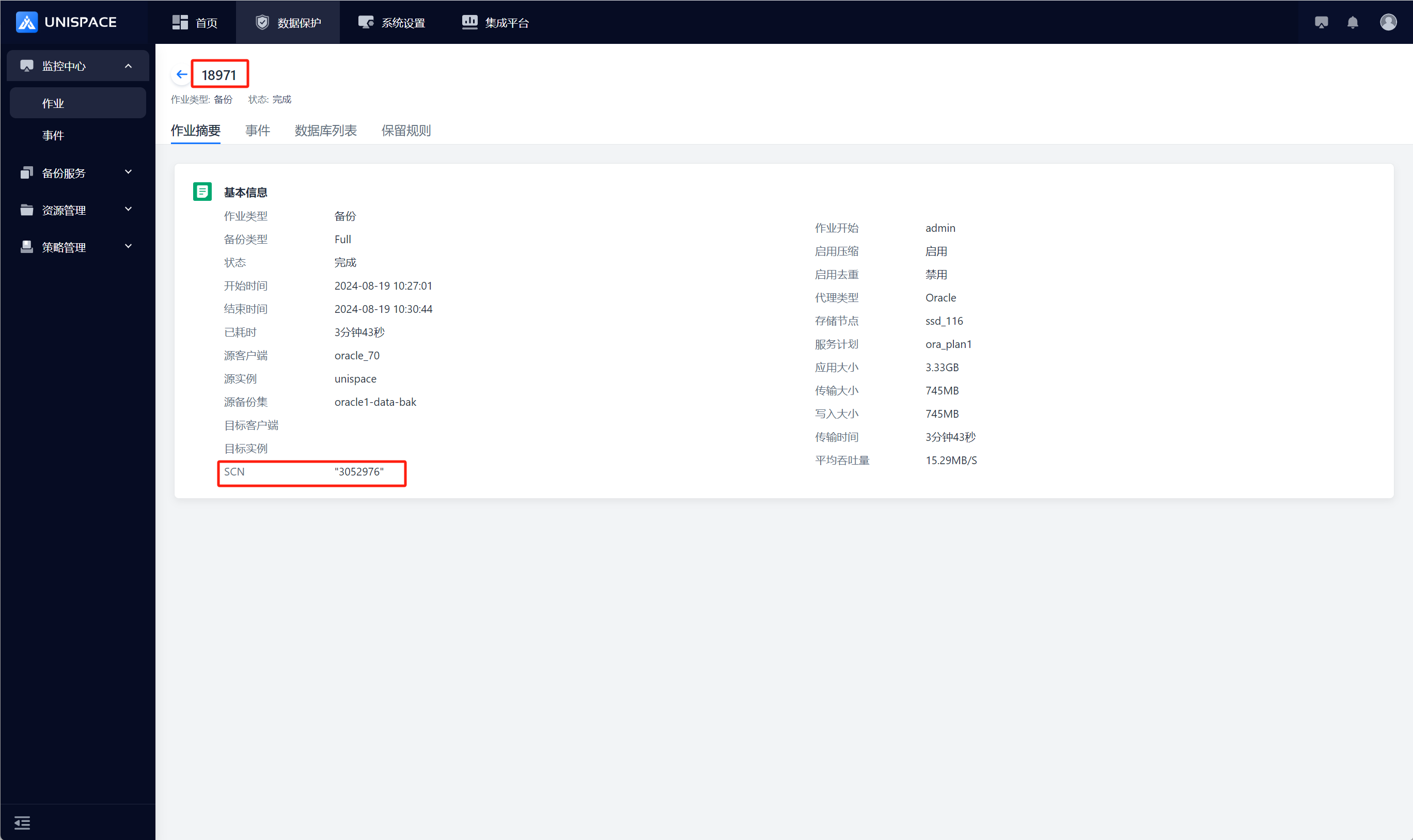
Step 4: Select the recovery method "Source Machine Recovery", enter the stream count, and select recovery options such as "Control File", "Data", "Spfile" (supports single selection), and specify the SCN, then click [Next].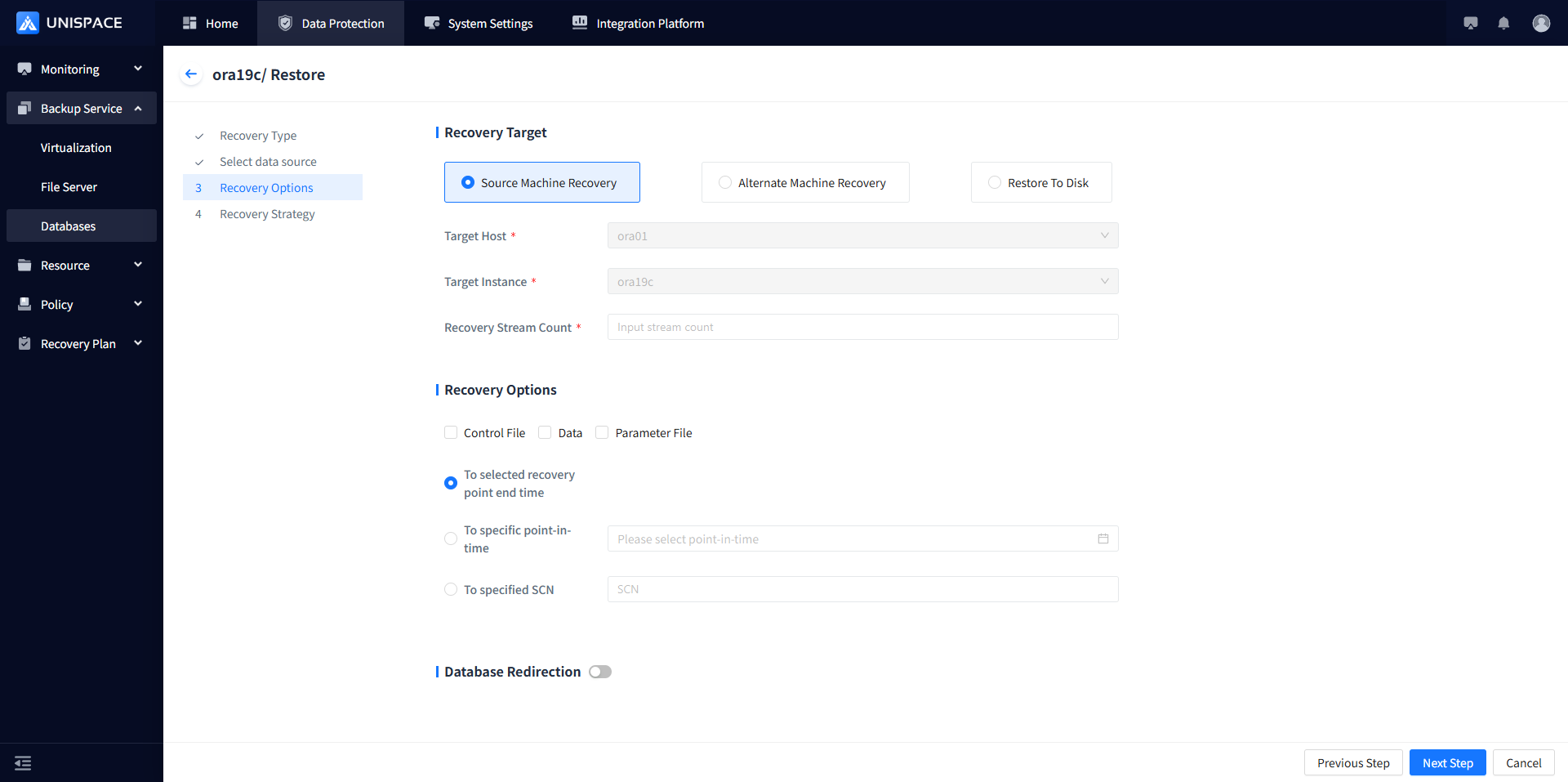
 Step 5: Enable "Advanced Restore Options" and click [Confirm].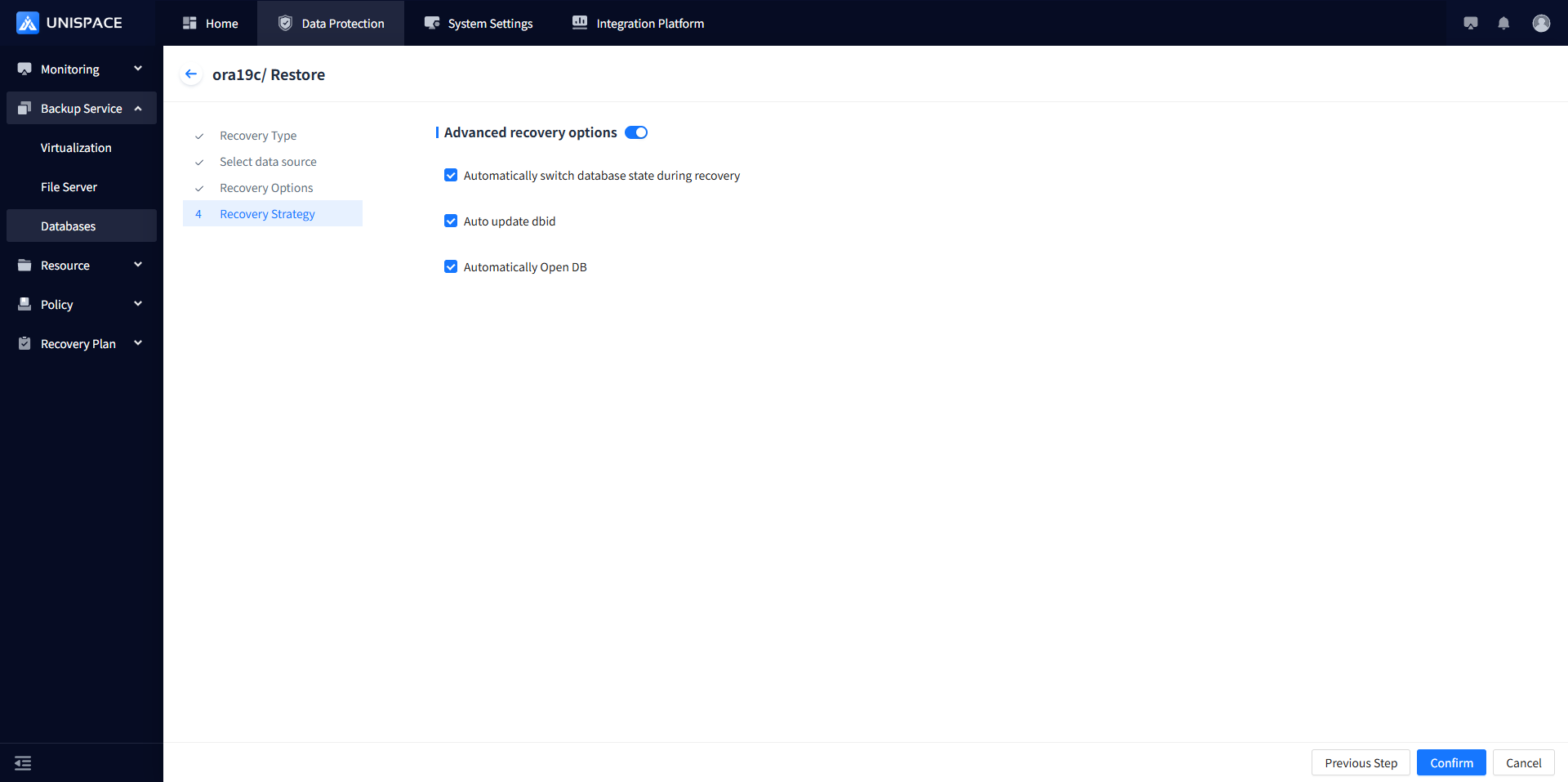
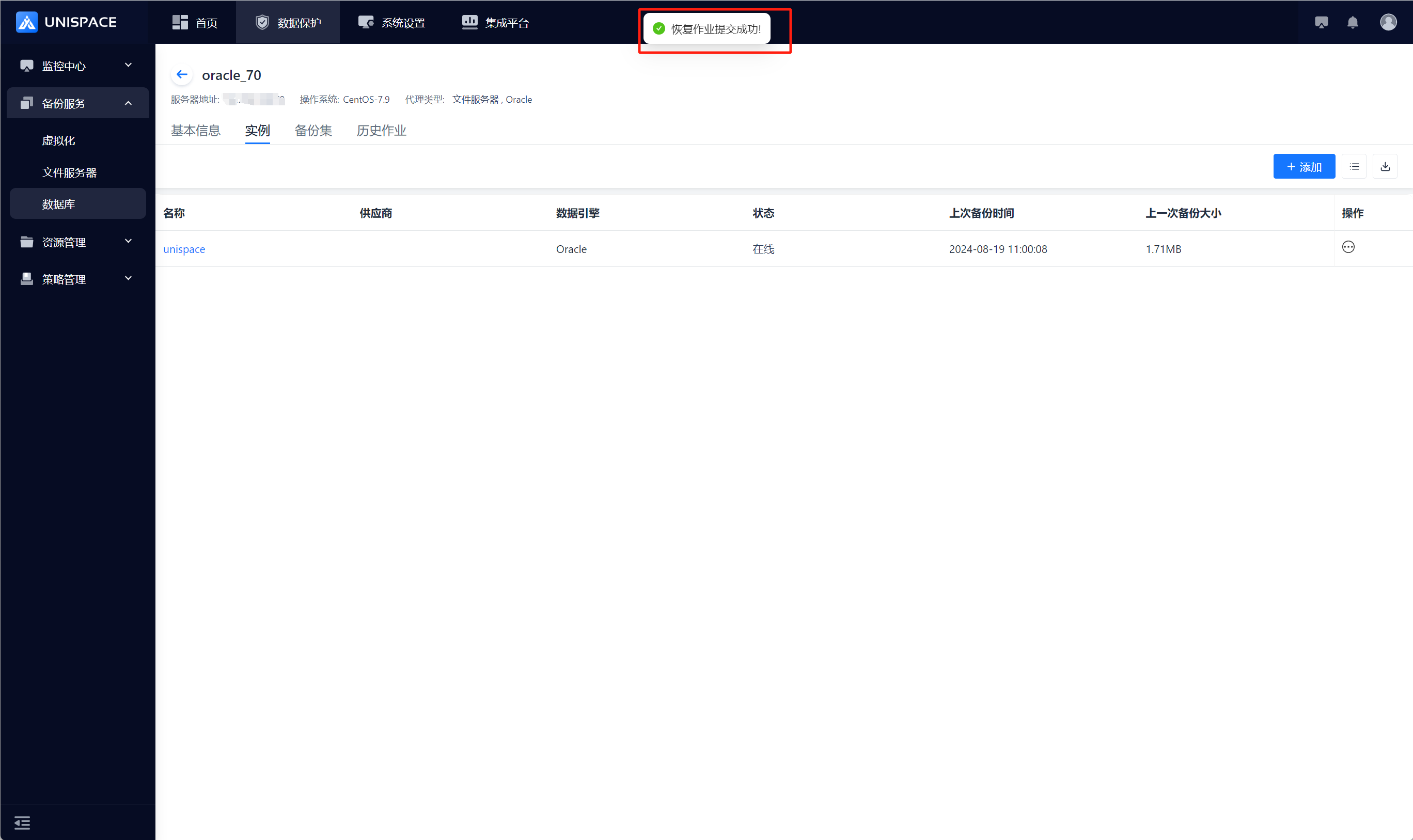 Step 6: Monitor the job in [Monitoring Center] - [Jobs] - [Active Jobs].
 Step 7: After the job completes, check the status in [Monitoring Center] - [Jobs] - [Job History].
Step 8: Fill in the necessary parameters. The details of each parameter are shown in the following table:
| Parameter Name | Description | Configuration Principle |
|---|---|---|
| Recovery Method | Single selection, default is Source Machine Recovery | Options: Source Machine Recovery, Cross-Machine Recovery, or Disk Recovery |
| Target Host | Default is grayed out | Based on recovery method: Cross-Machine Recovery or Disk Recovery |
| Target Instance | Default is grayed out | [Cross-Machine Recovery] - Select the created Oracle instance |
| Stream Count | Numeric type | Should not exceed 200 |
| Recovery Options | Single selection, required | Choose between Simple Configuration or Advanced Configuration |
| Recovery Type | Point-in-time recovery / Archive log recovery | - [Point-in-time recovery] - [To specified time] Choose the appropriate time - [Point-in-time recovery] - [To specified SCN] Enter the SCN for recovery - [Archive log recovery] - "Start Time", "End Time" - Choose appropriate time - [Archive log recovery] - "Log Cache Path" - Enter log cache path |
| Database Redirection | Toggle option, default is off | Tablespace redirection or REDO log redirection |
1.6 Oracle Database Alternate Machine Recovery
Prerequisites
- Oracle database has been backed up.
Steps
Step 1: Click [Backup Service] - [Database].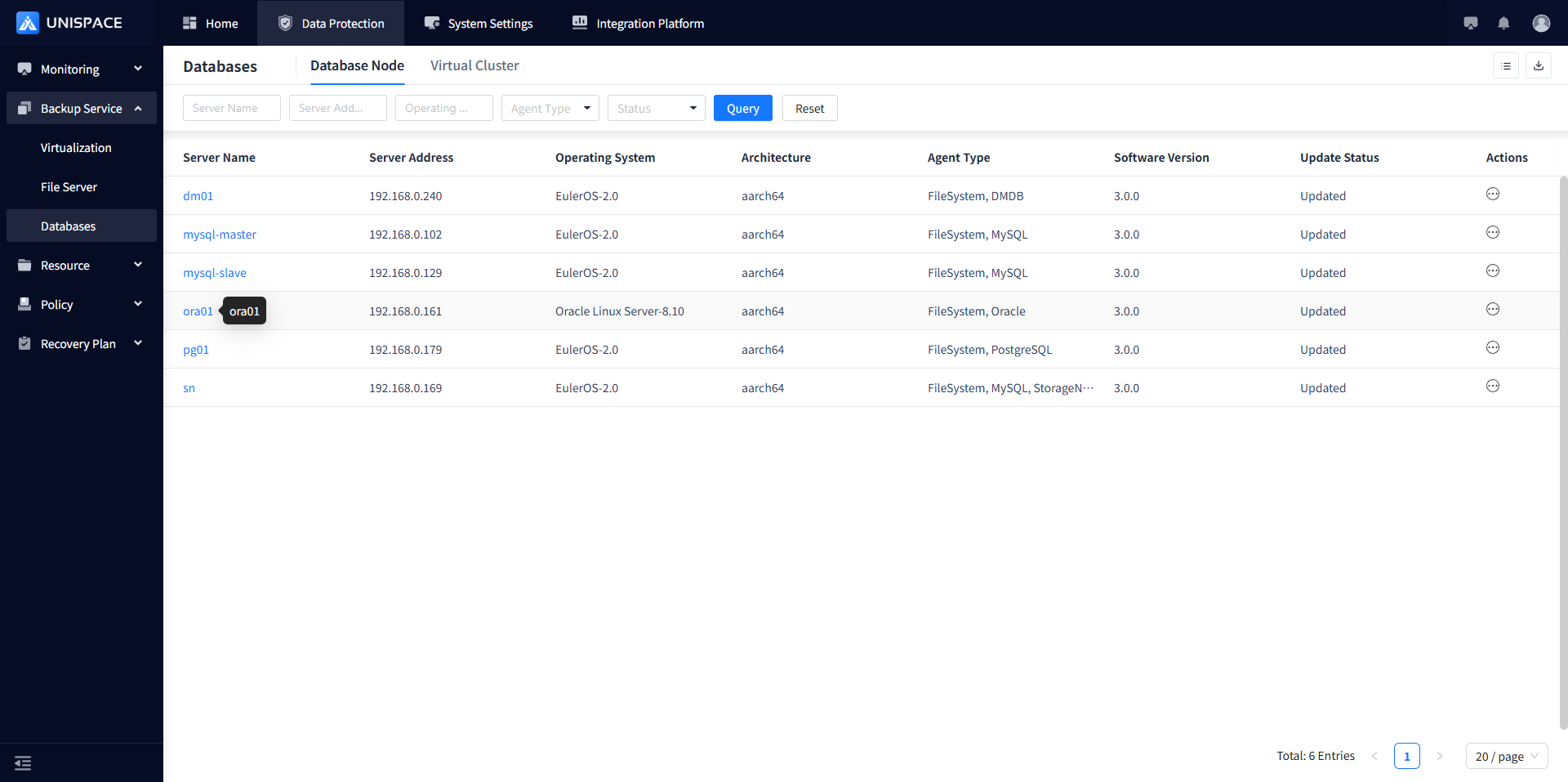
Step 2: Click [Database] - [Server Name] - [Instance] - [Actions] - [Restore].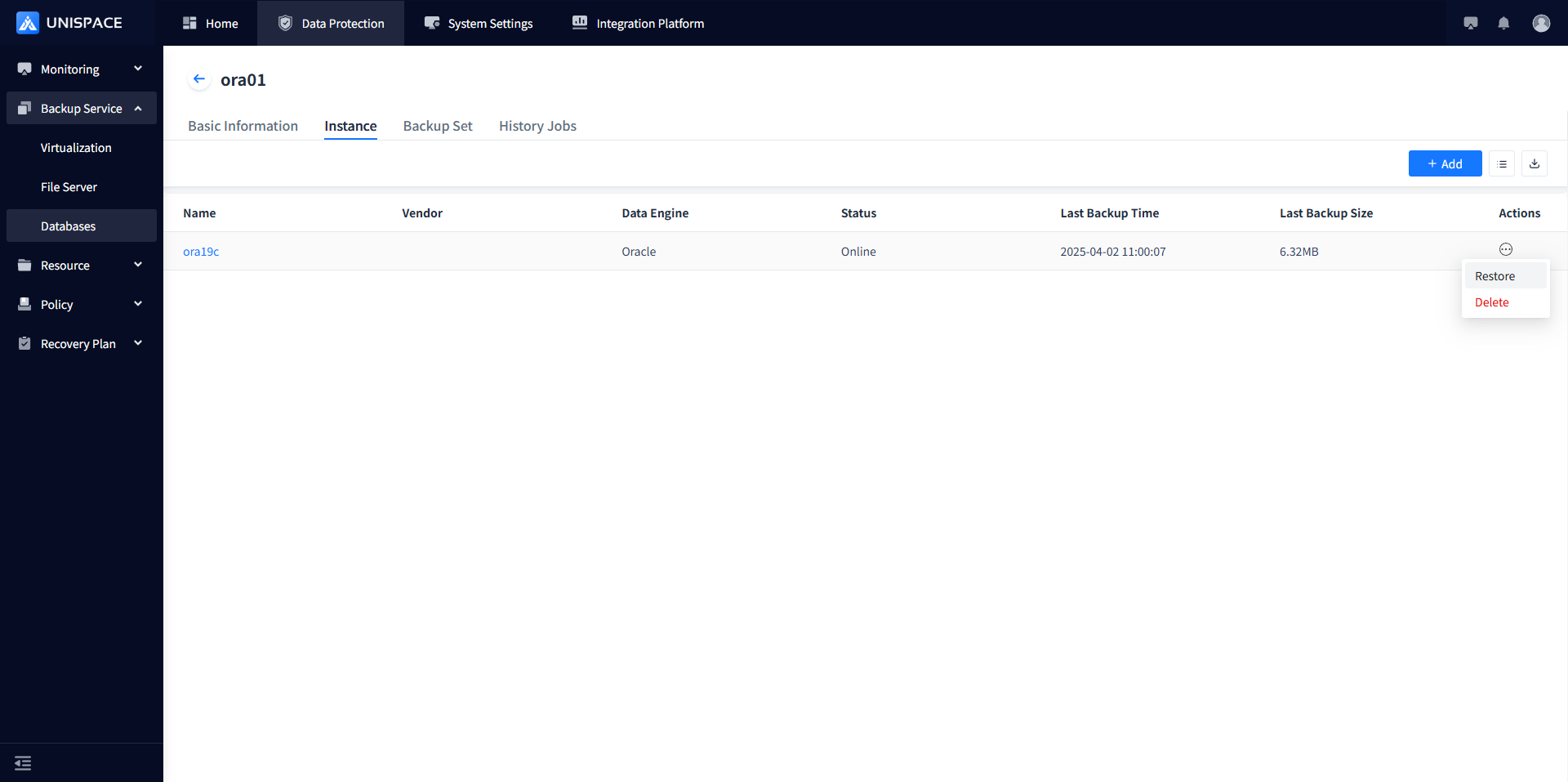
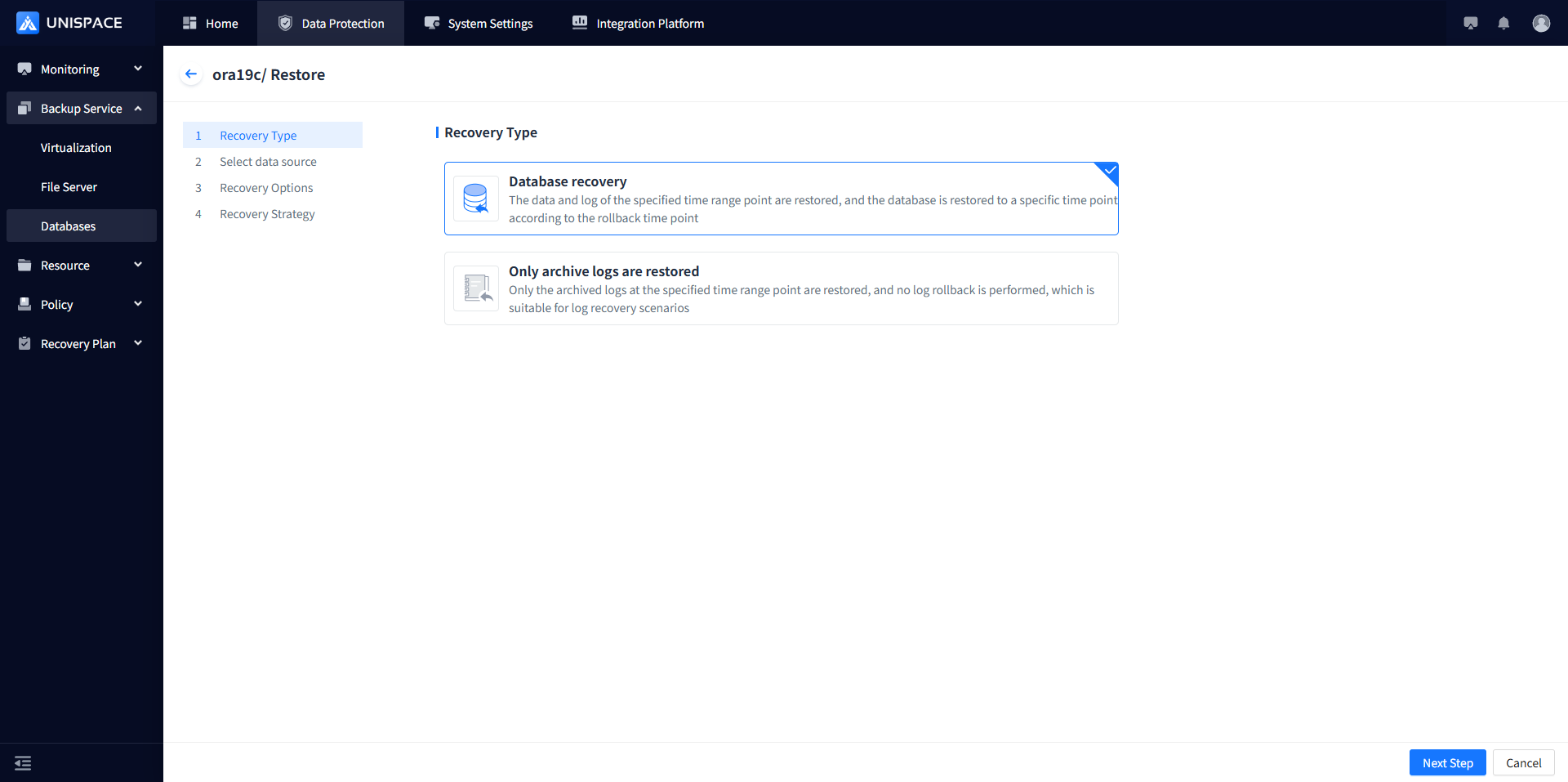
Step 3: A recovery window will pop up. Select a recovery point. You can search for a recovery point by time range, select the "Recovery Point" job ID, and click [Next].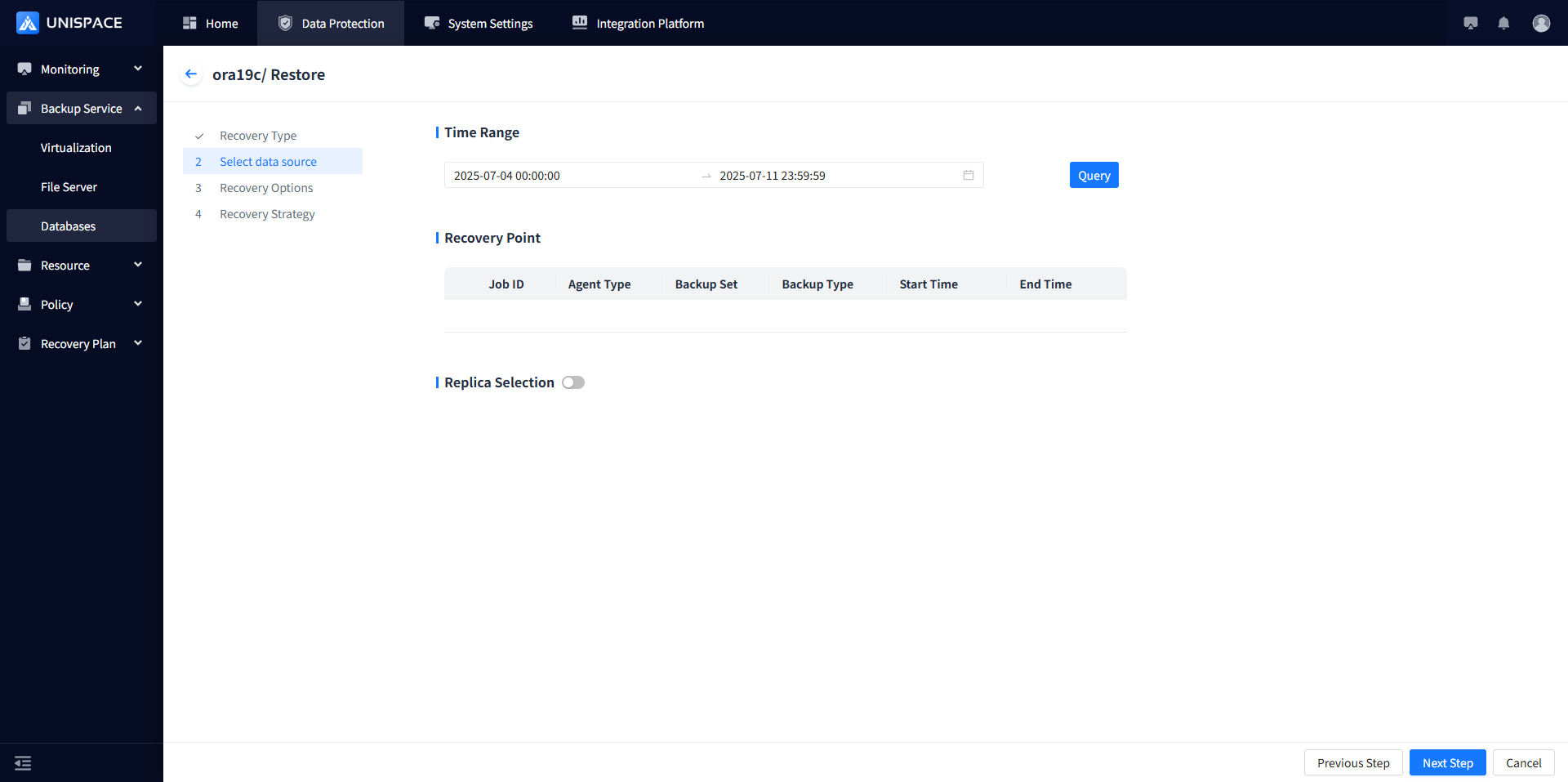
Step 4: Select the recovery method "Alternete Machine Recovery", enter the stream count, and select the recovery options like "Control File", specify the SCN, and click [Next].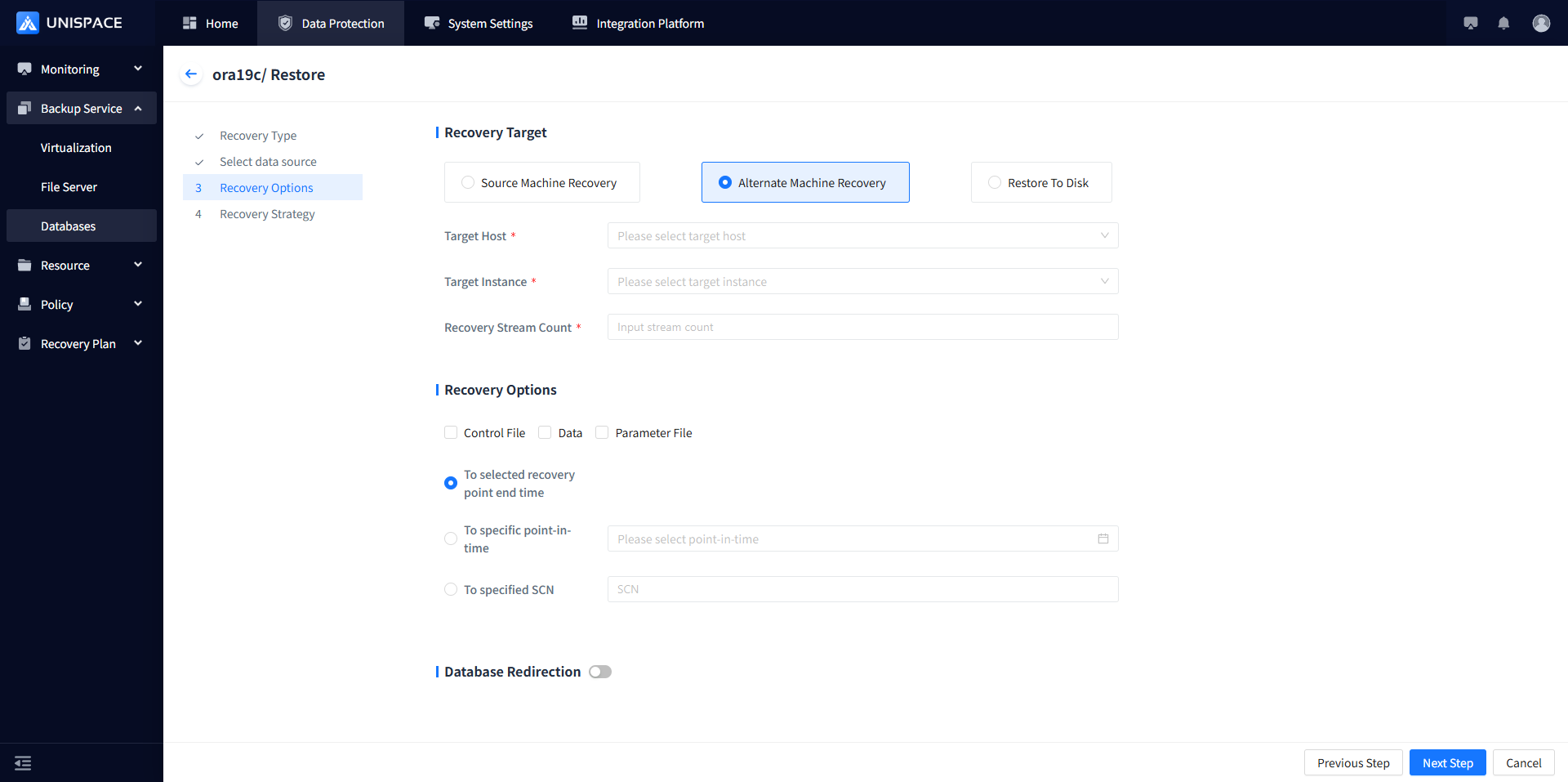
Step 5: Check "Advanced Recovery Options" and click [Confirm].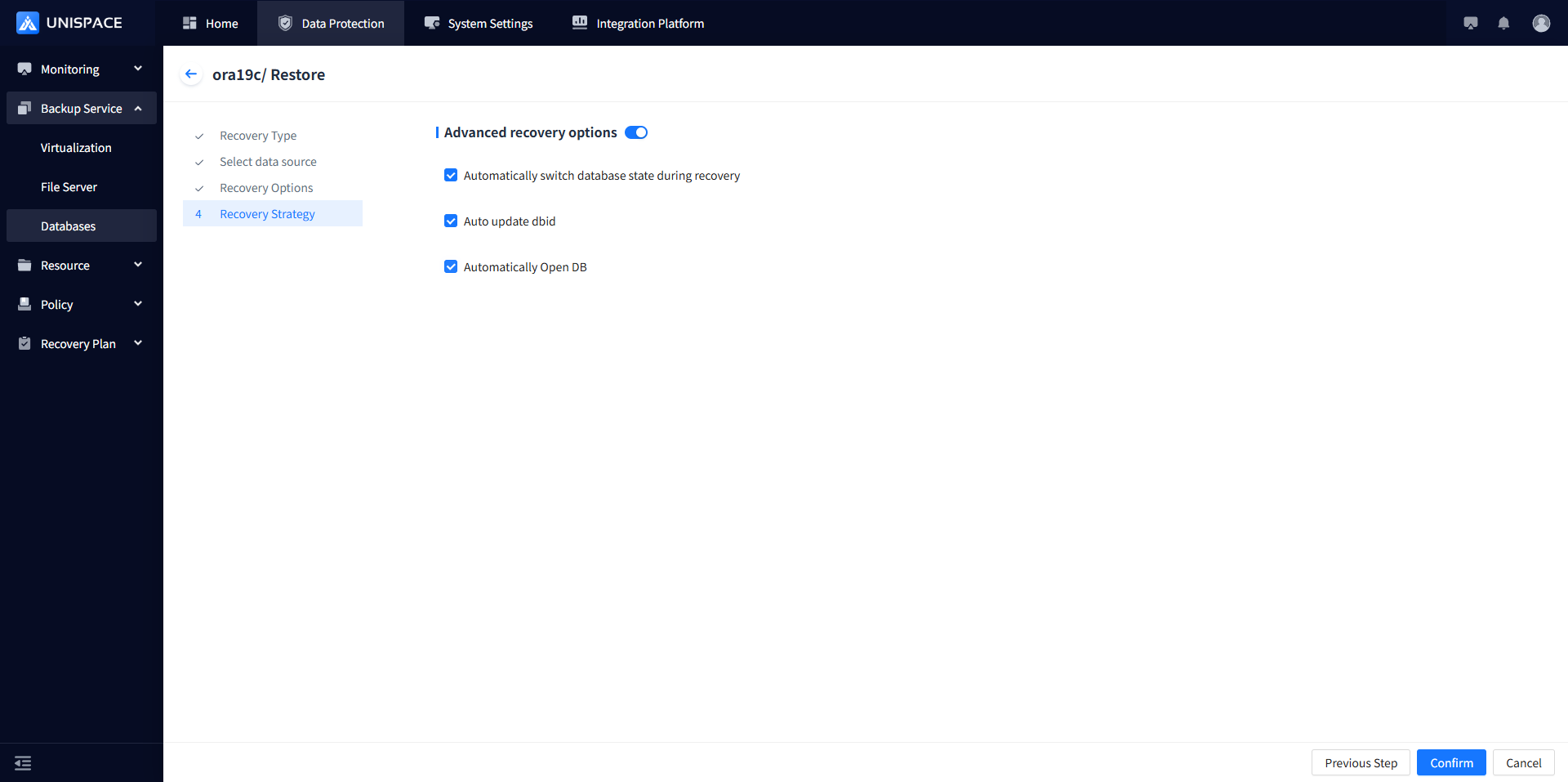
Step 6: Once the job starts successfully, go to [Monitoring] - [Job] - [Active Jobs] to view the current job.
Step 7: After the job completes, go to [Monitoring] - [Job] - [Job History] to see the job status.
Step 8: Click on [Database] - [Server Name] - [Instance] - [Actions] - [Restore] again.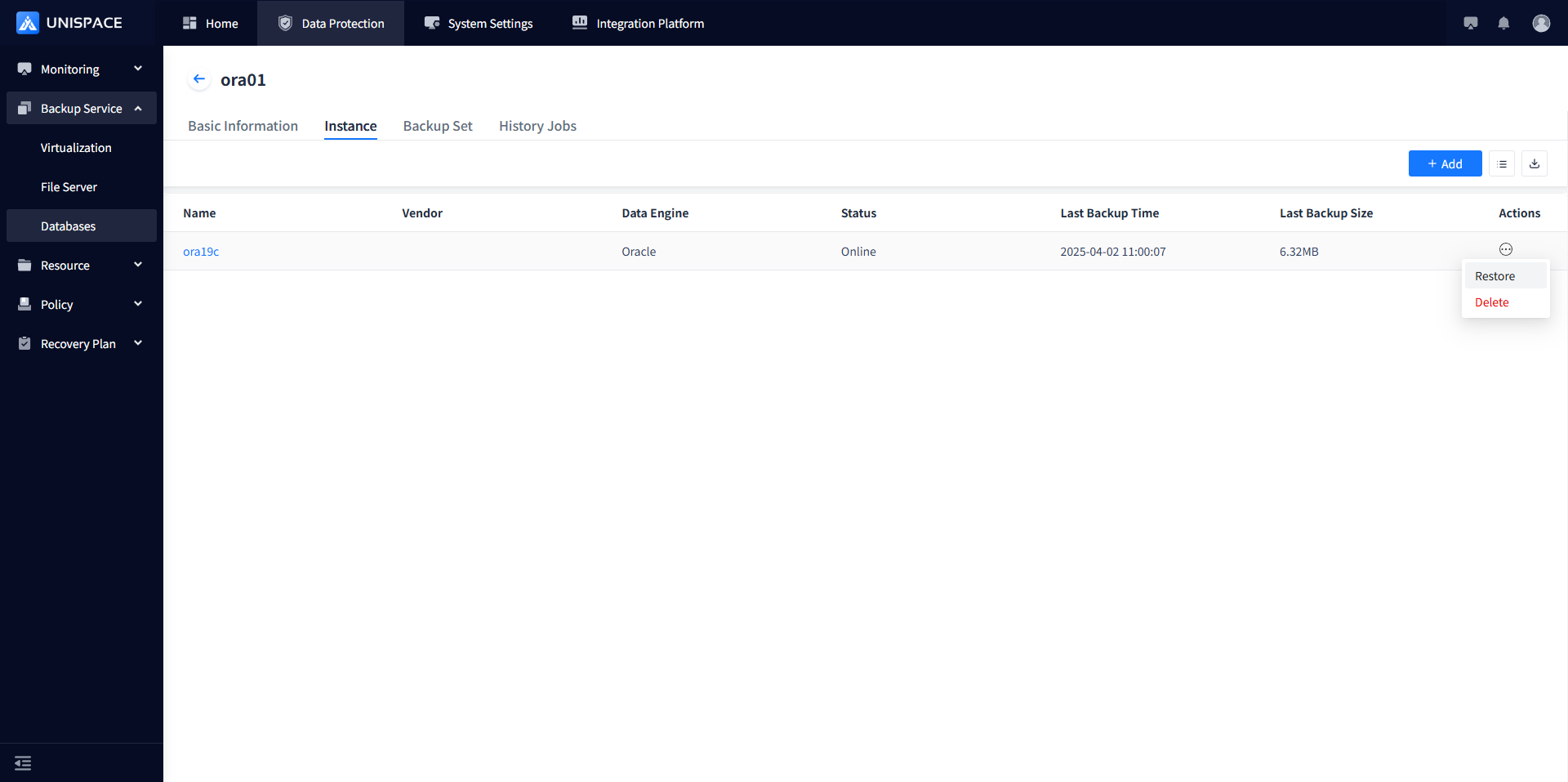
Step 9: A recovery window will pop up again. Select the same recovery point as in Step 3.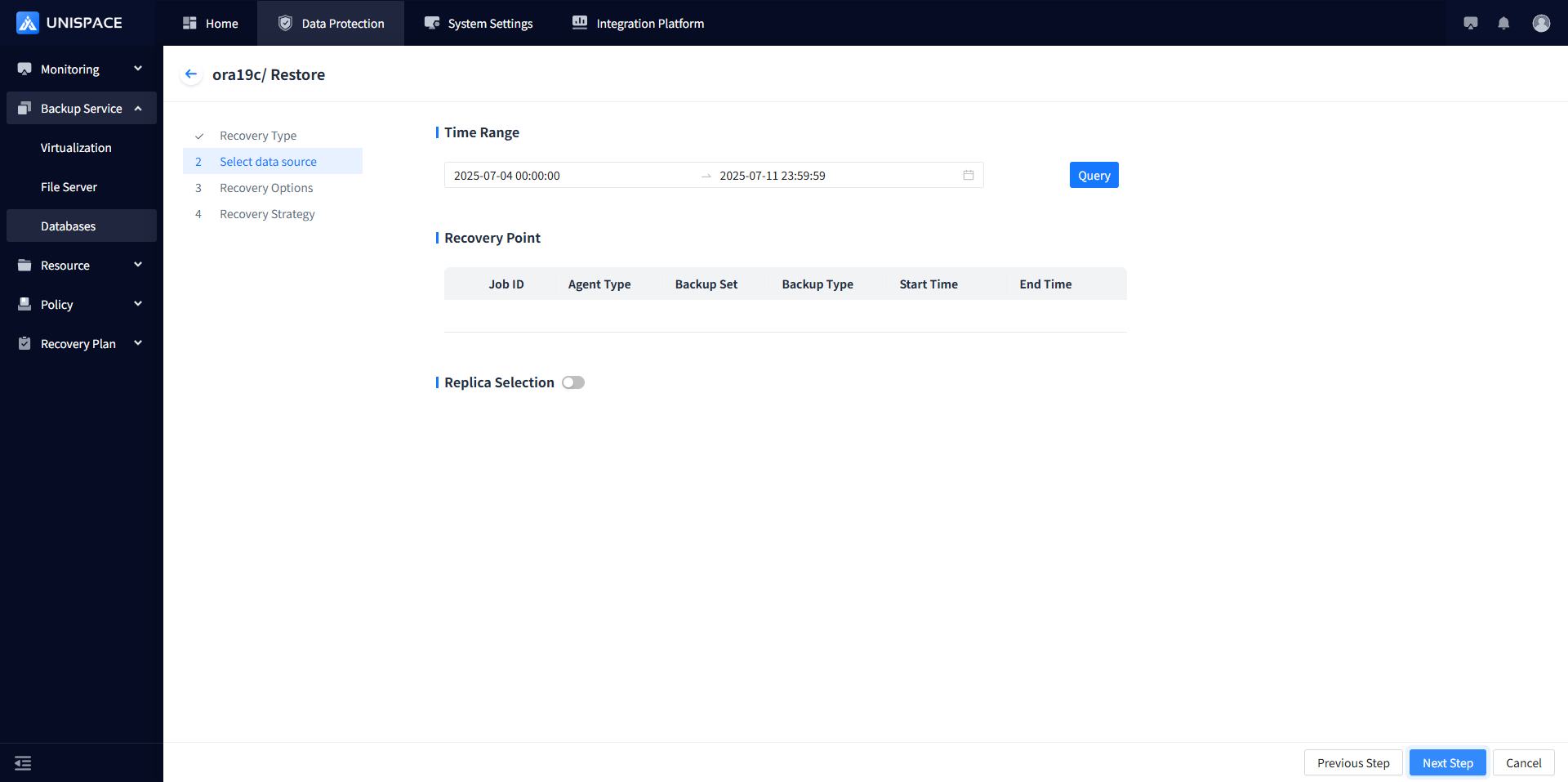
Step 10: Select the recovery method "Alternate Machine Recovery", enter the stream count, select recovery options like "Control File", "Data", "Spfile" (supports single selection), specify the SCN, and click [Next].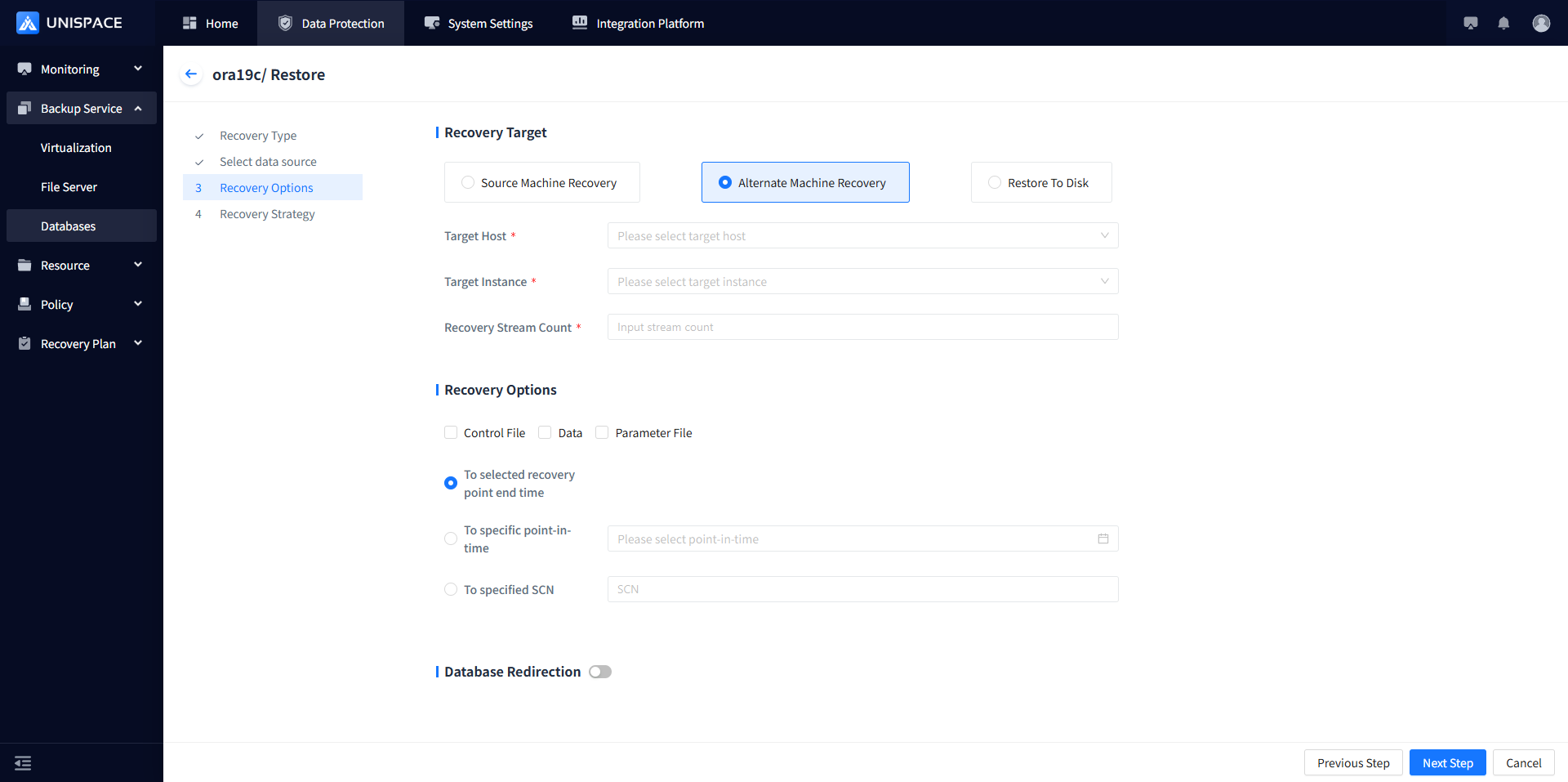
Step 11: Check "Advanced Recovery Options" and click [Confirm].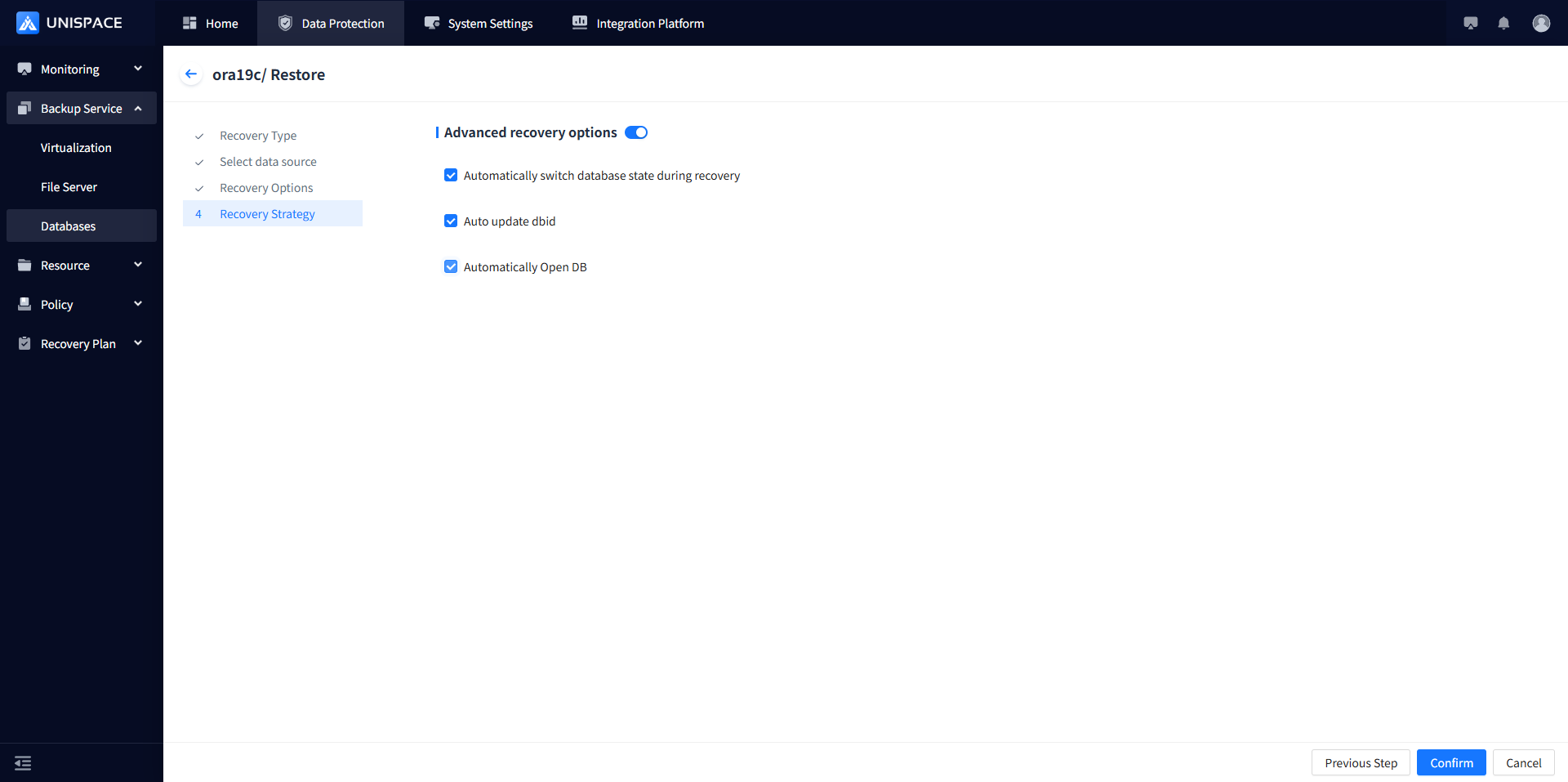
Step 12: Once the job starts successfully, go to [Monitoring] - [Job] - [Active Jobs] to view the current job.
Step 13: After the job completes, go to [Monitoring Center] - [Jobs] - [Job History] to see the job status.
1.7 Oracle Log Recovery
Prerequisites
- Oracle log backups have already been performed.
Steps
Step 1: Click the system menu [Backup Service] - [Database].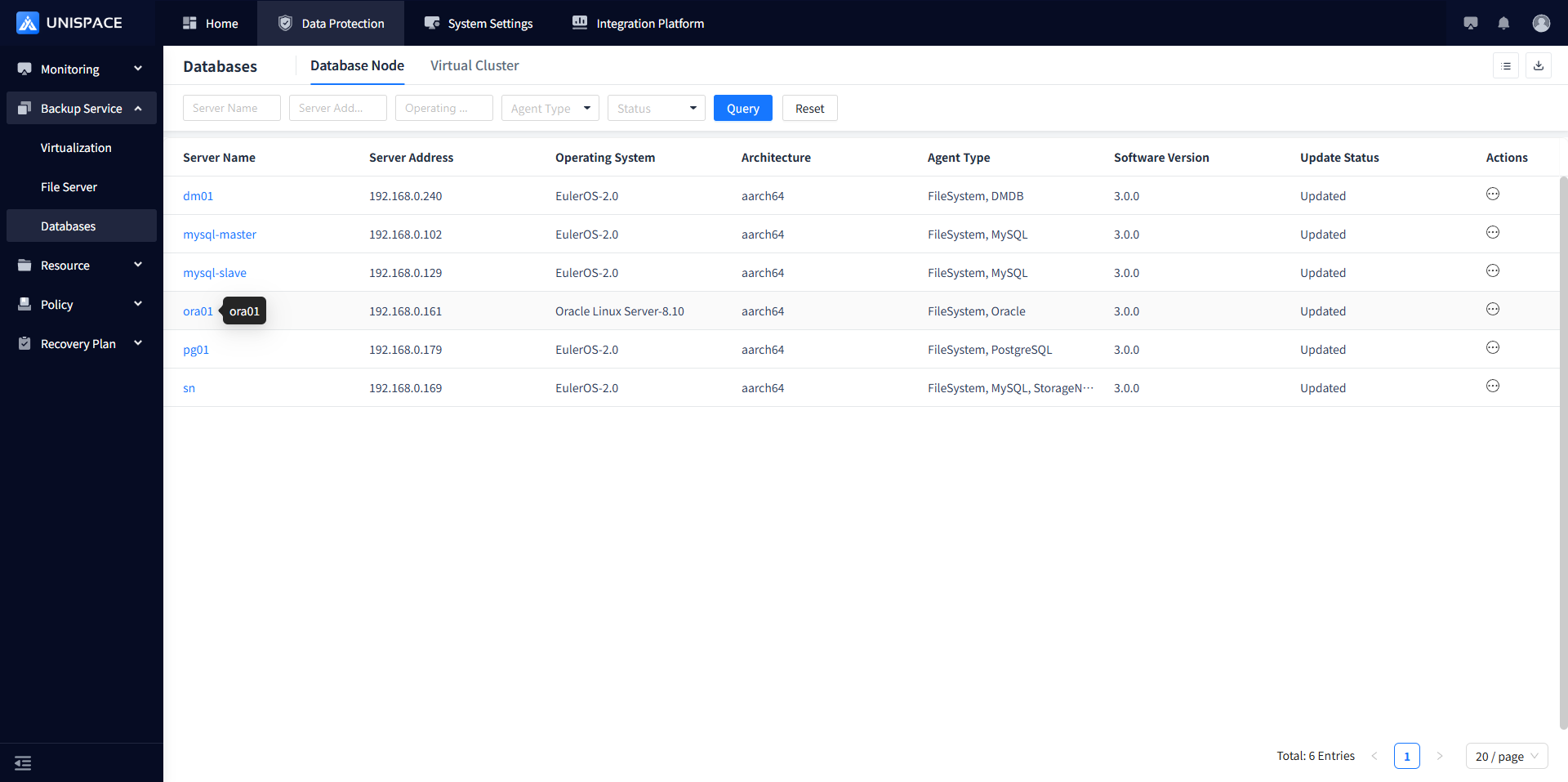
Step 2: Click [Database] - [Server Name] - [Instance] - [Actions] - [Recovery].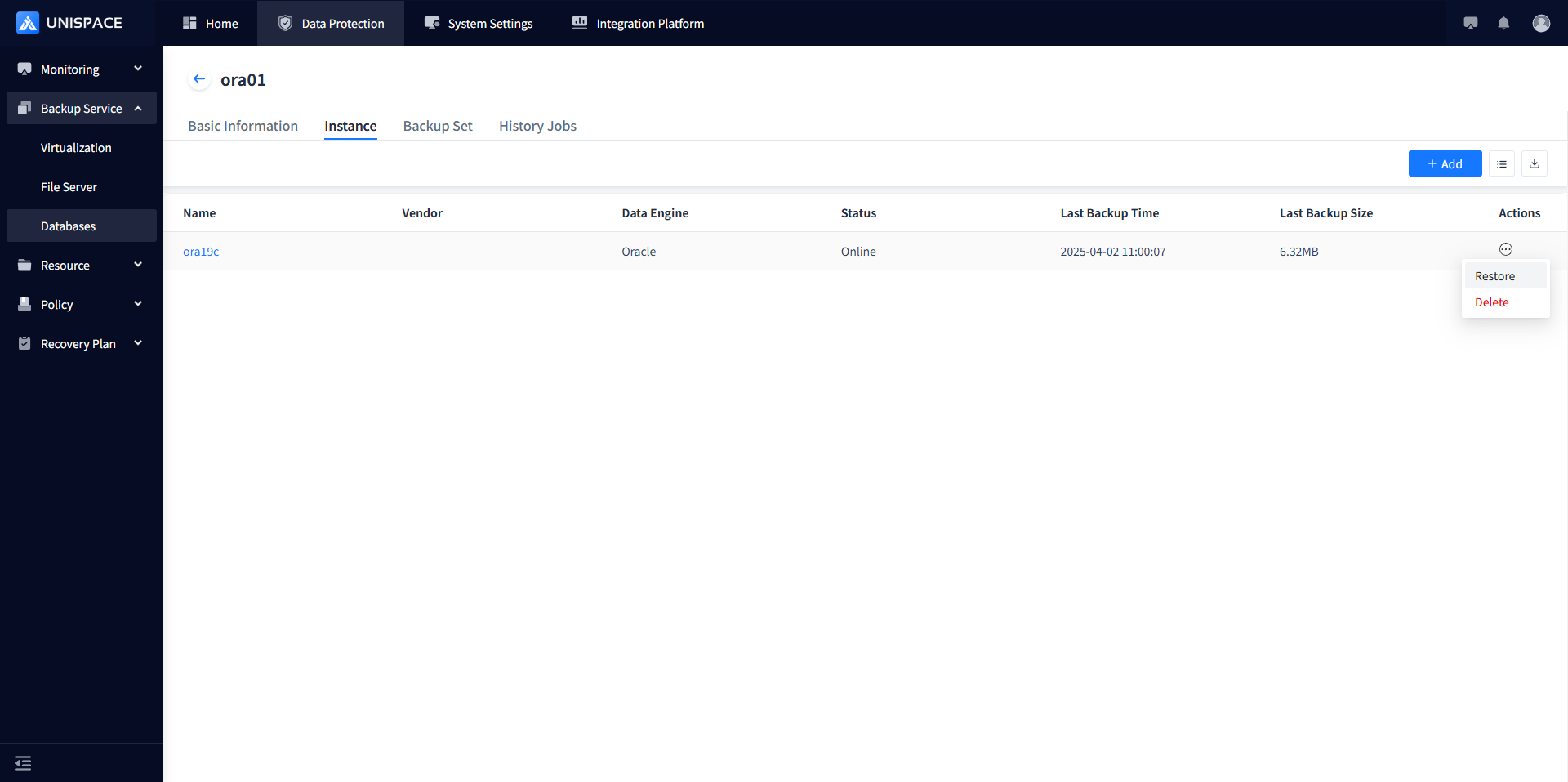
Step 3: A recovery window will pop up. Select a recovery point. You can search for recovery points based on a time range. Select the job ID of the "Recovery Point" (backup type: "Log") and click [Next].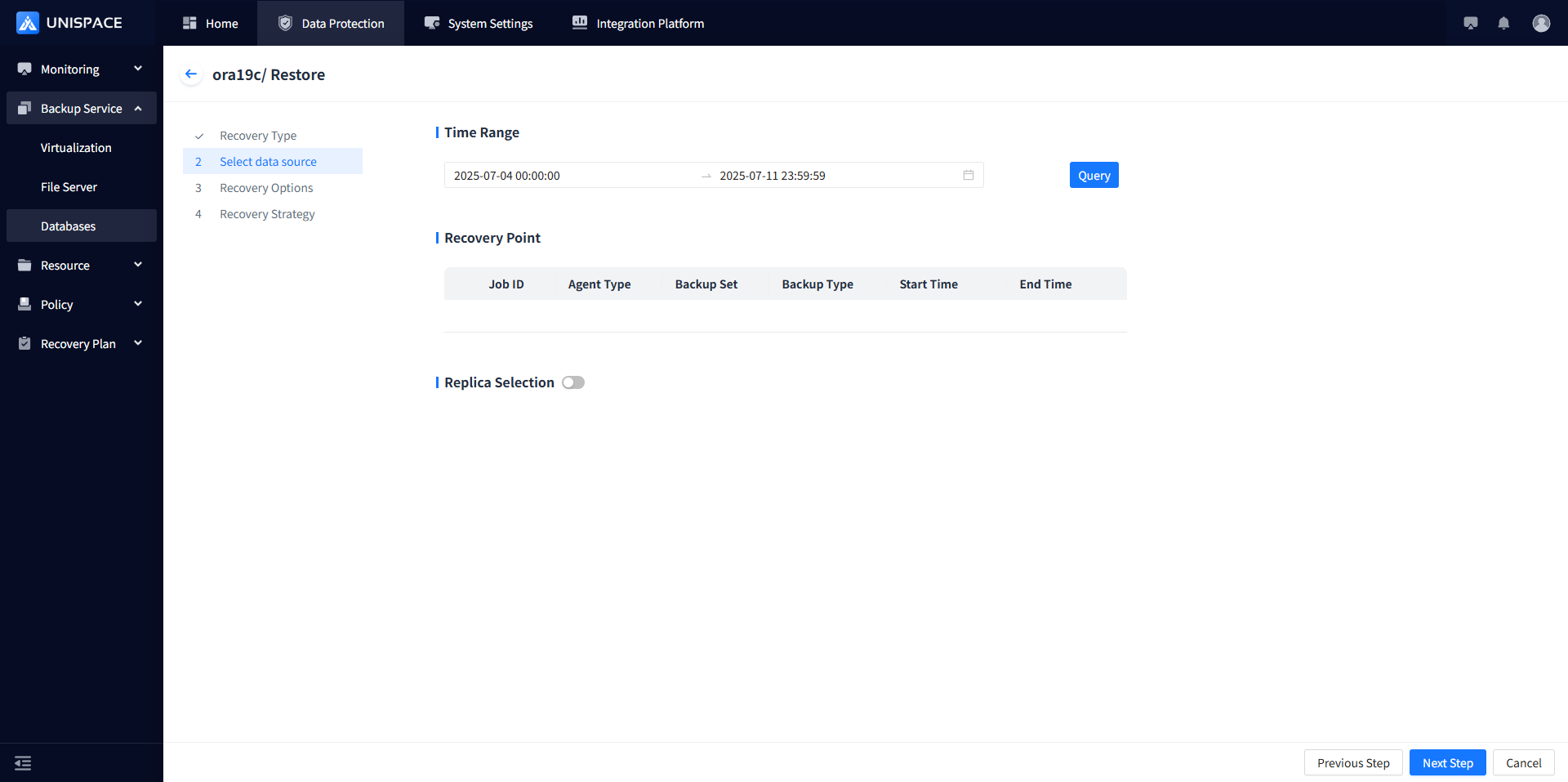
Step 4: Select the recovery method "Source Machine Recovery", enter the stream count, and choose the recovery type "Restore Archive Logs". Enter the "Start Time", "End Time", and "Log Cache Path", then click [Next].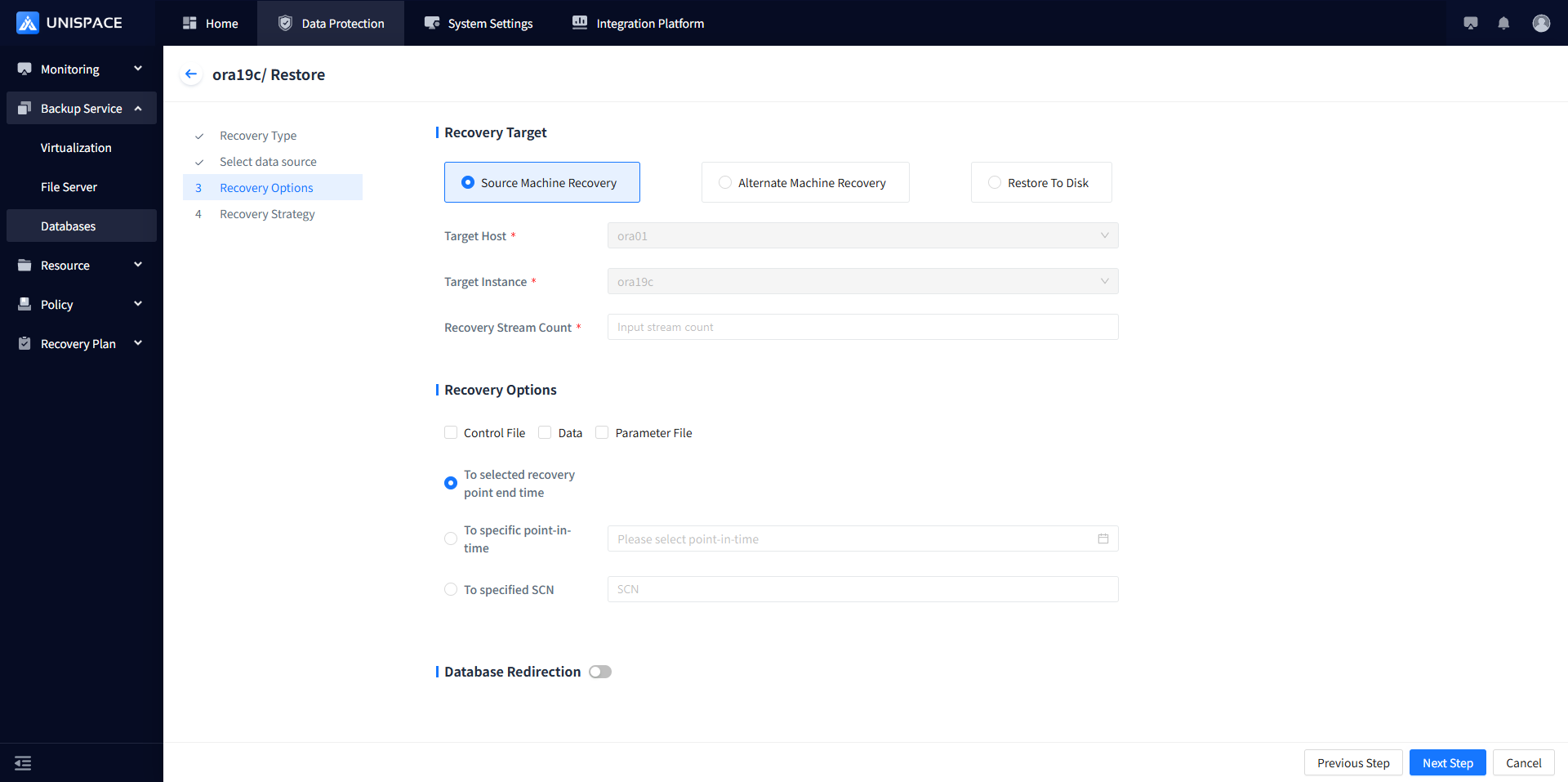
Step 5: Once the job starts successfully, click [Monitoring] - [Job] - [Active Jobs] to view the job.
Step 6: After the job completes, click [Monitoring Center] - [Jobs] - [Job History] to view the job and its status.
1.8 Oracle Database Recovery to Disk
Prerequisites
- Oracle data has already been backed up.
Steps
Step 1: Click the system menu [Backup Service] - [Database].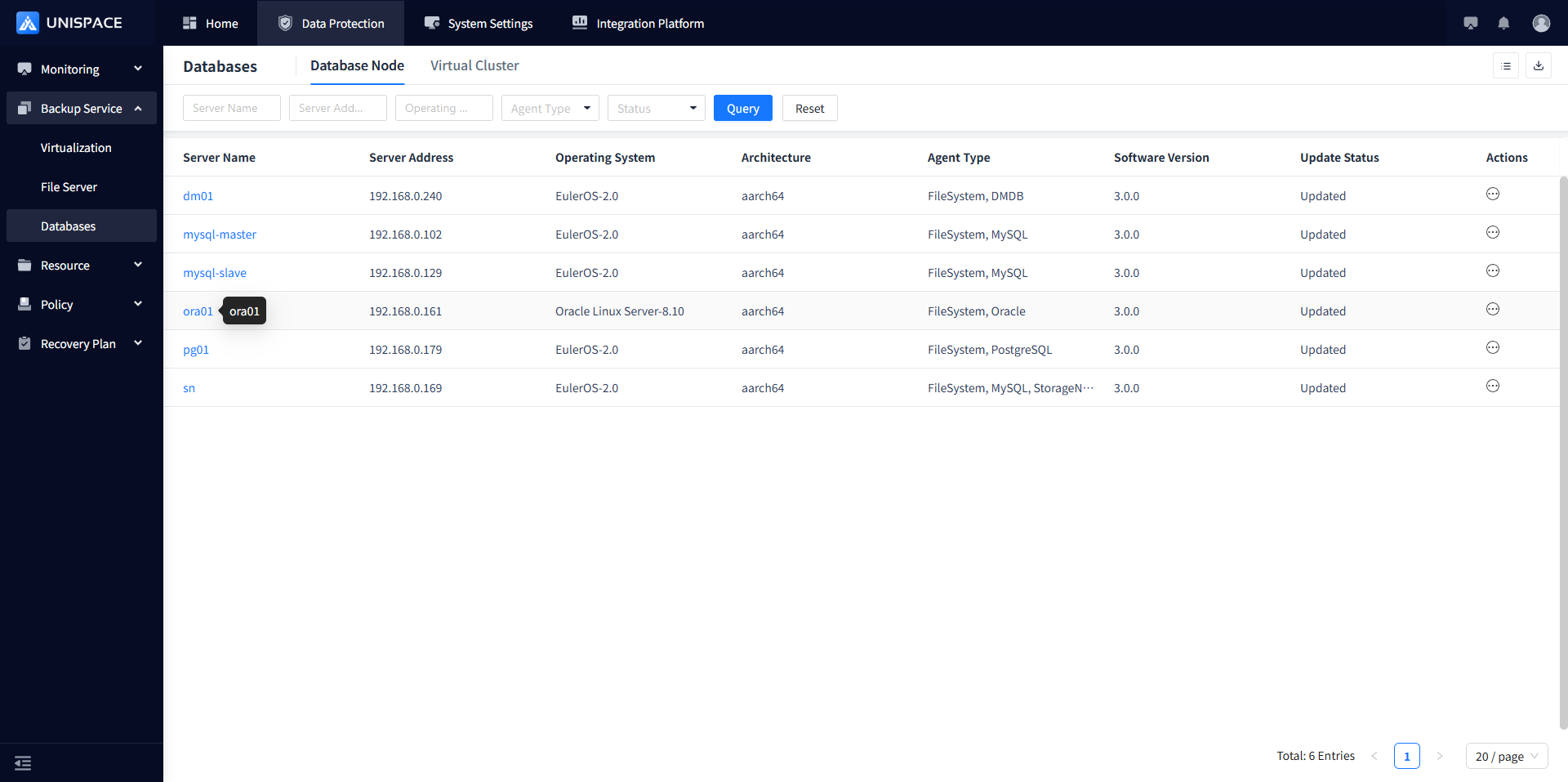
Step 2: Click [Database] - [Server Name] - [Instance] - [Actions] - [Restore].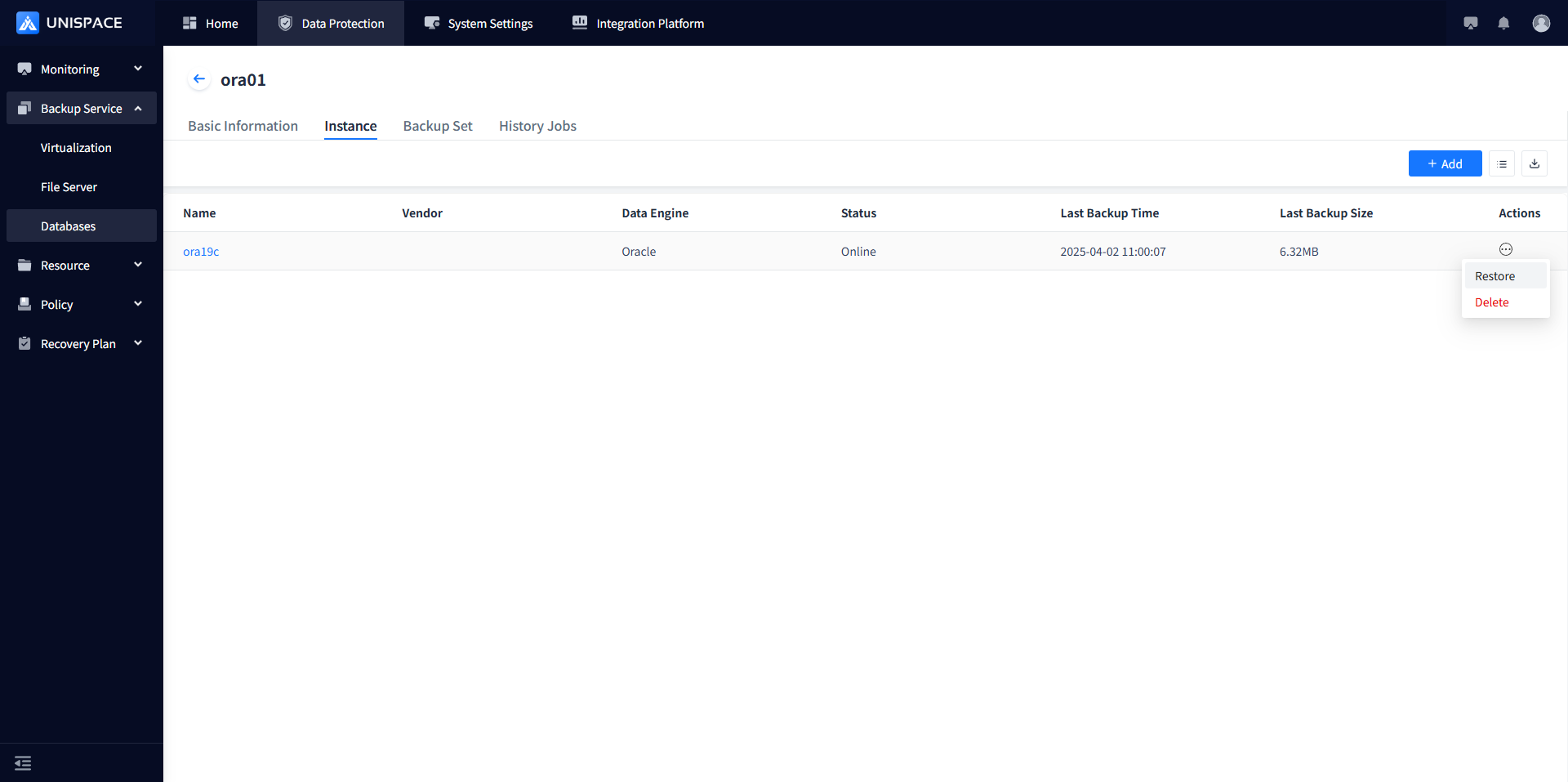
Step 3: A recovery window will pop up. Select a recovery point. You can search for recovery points based on a time range. Select the job ID of the "Recovery Point" and click [Next].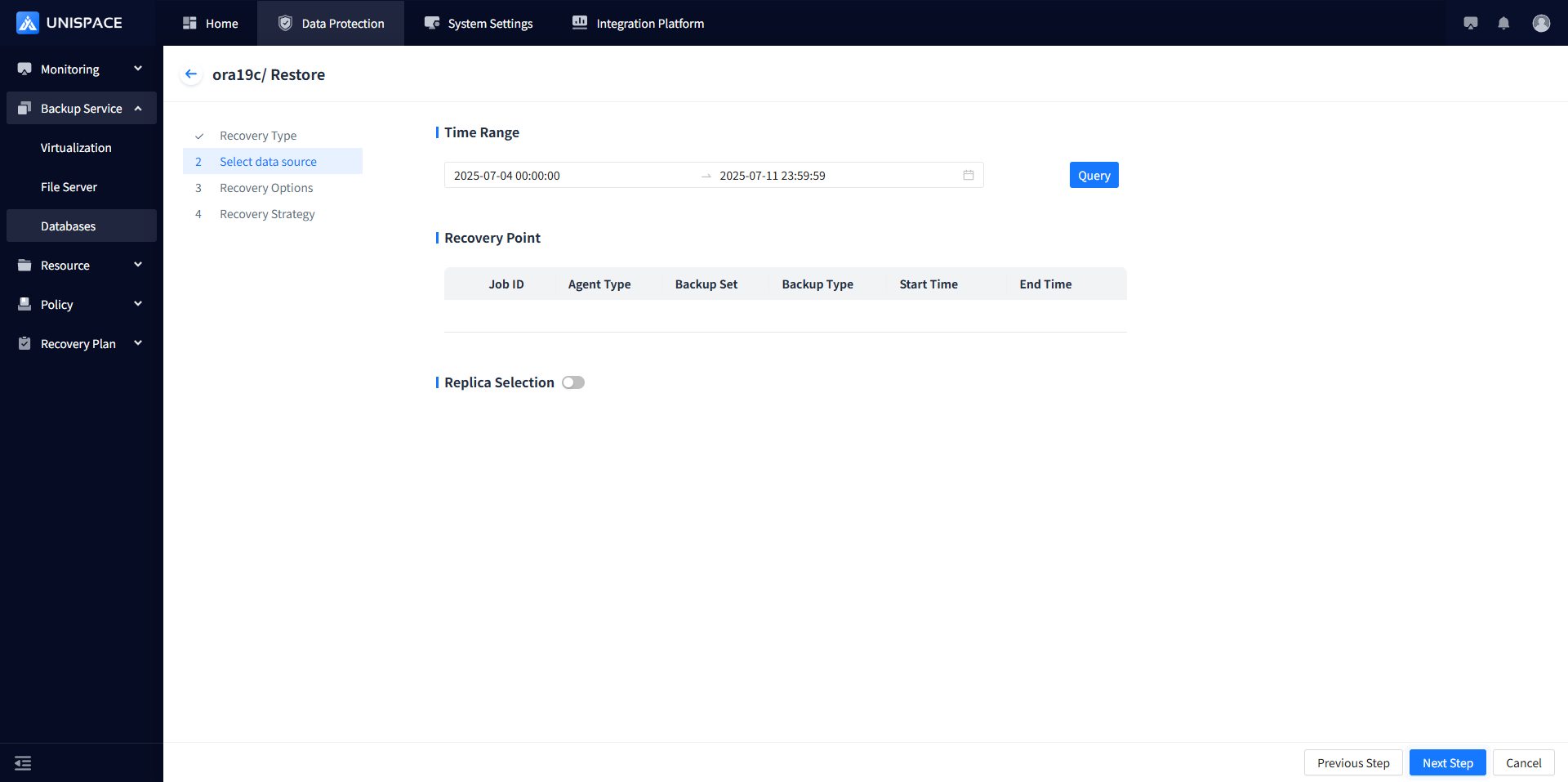
Step 4: Select the recovery method "Recovery to Disk", enter the "Target Path" and "Stream Count", then click [Confirm].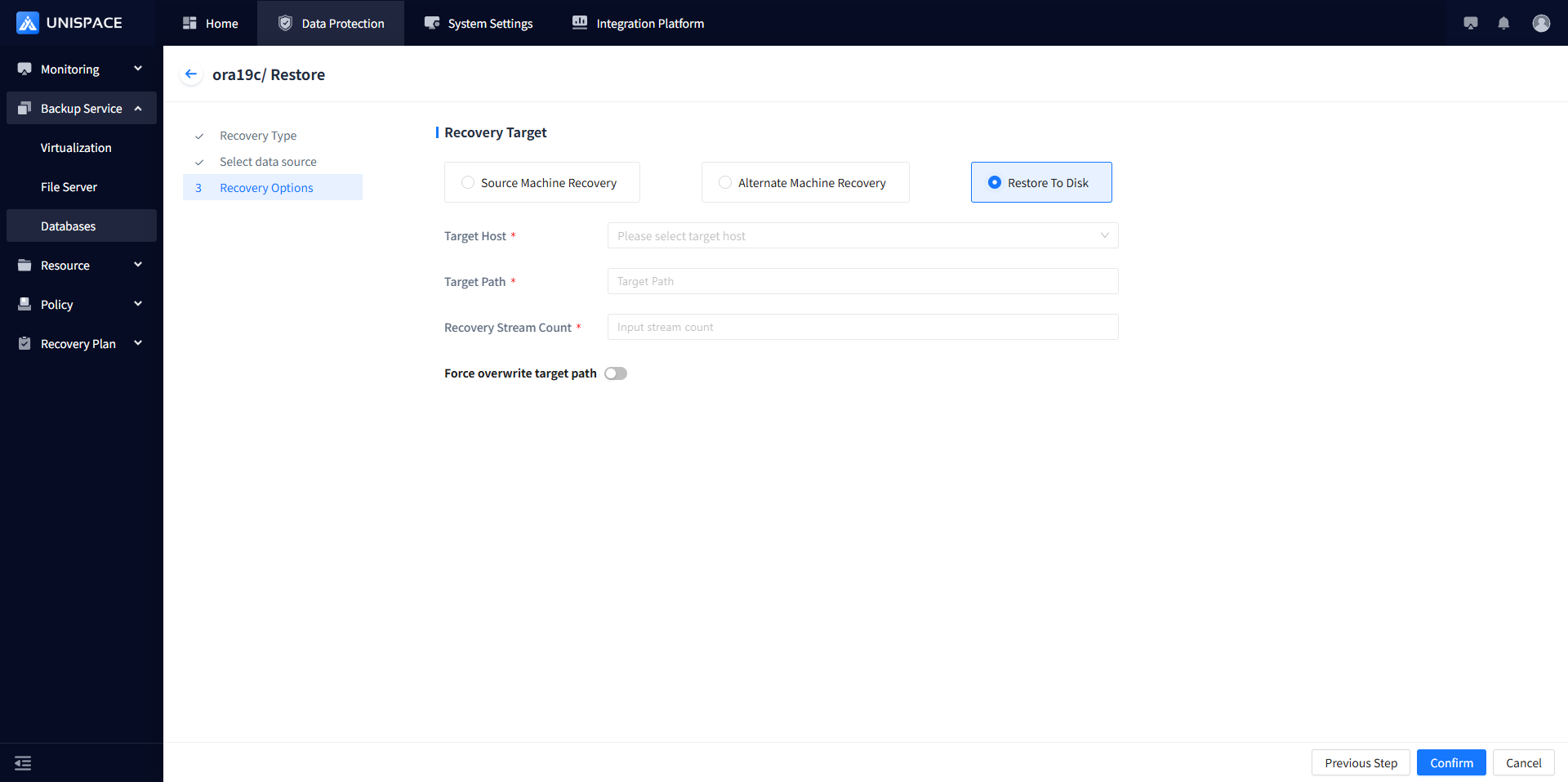
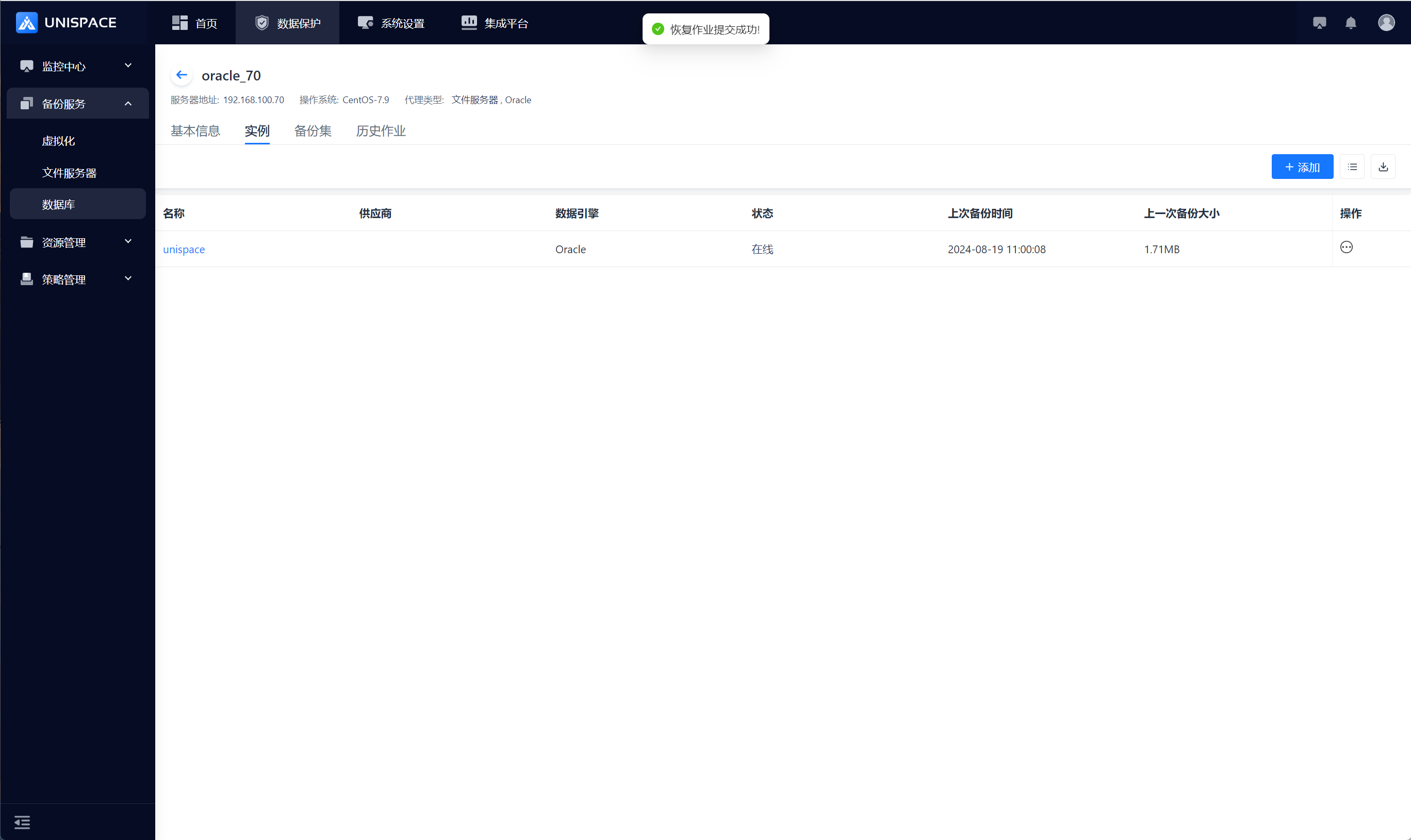
Step 5: Once the job starts successfully, click [Monitoring Center] - [Jobs] - [Active Jobs] to view the job.
Step 6: After the job completes, click [Monitoring Center] - [Jobs] - [Job History] to view the job and its status.