
Agent-ZStack
1.1 Create a New Virtualization Platform
Prerequisites
- Create a new storage repository.
- Only x86 and aarch64 ZStack platforms are supported (aarch64 requires v3.4.6 or later).
- Create a new service plan.
Steps
Step 1: Click [Backup Service] - [Virtualization] in the system menu. 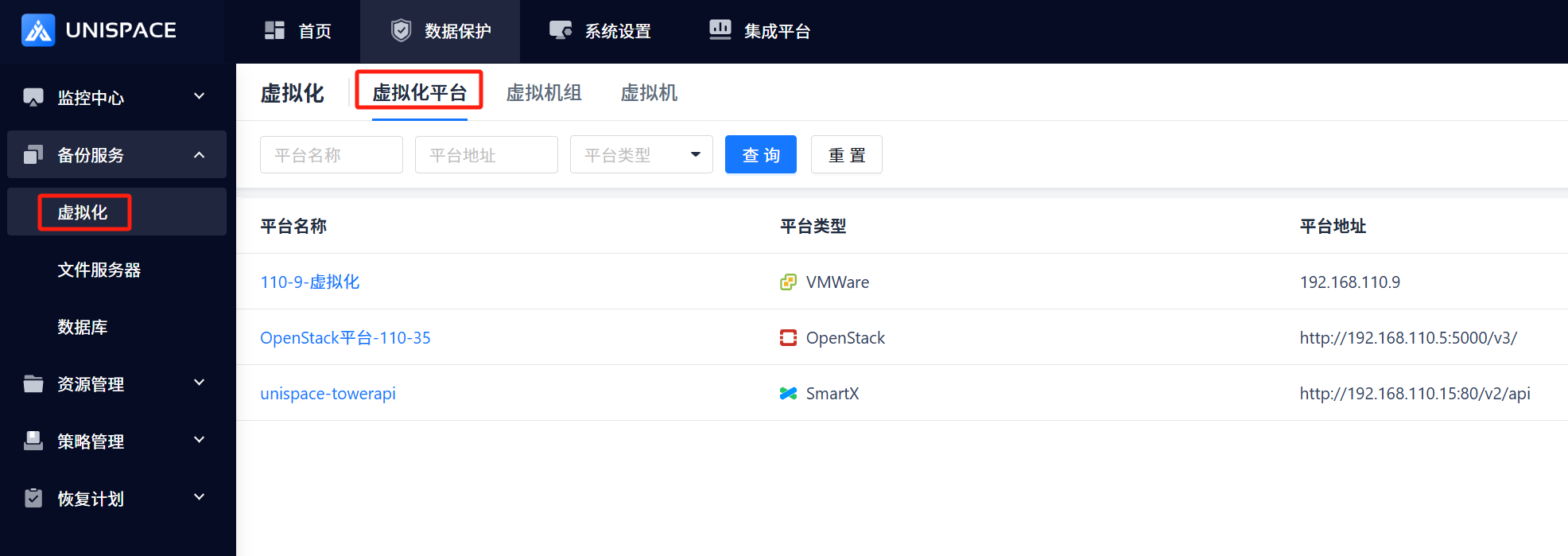
Step 2: Click the [Add] button for [Virtualization Platform]. The following dialog box appears: 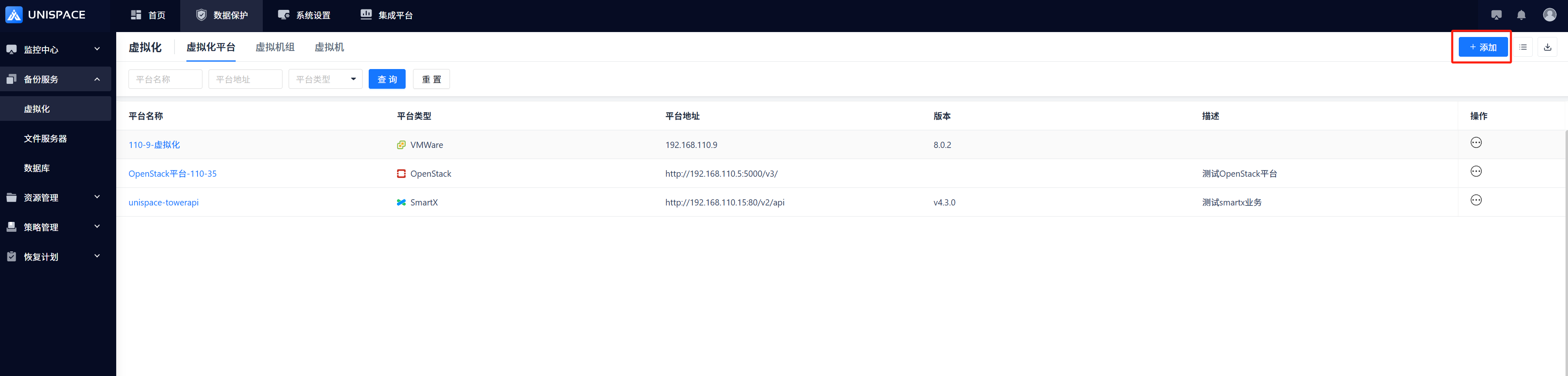
Step 3: Select ZStack ZSphere and click [Next Step] to open the Add Virtualization Platform page. 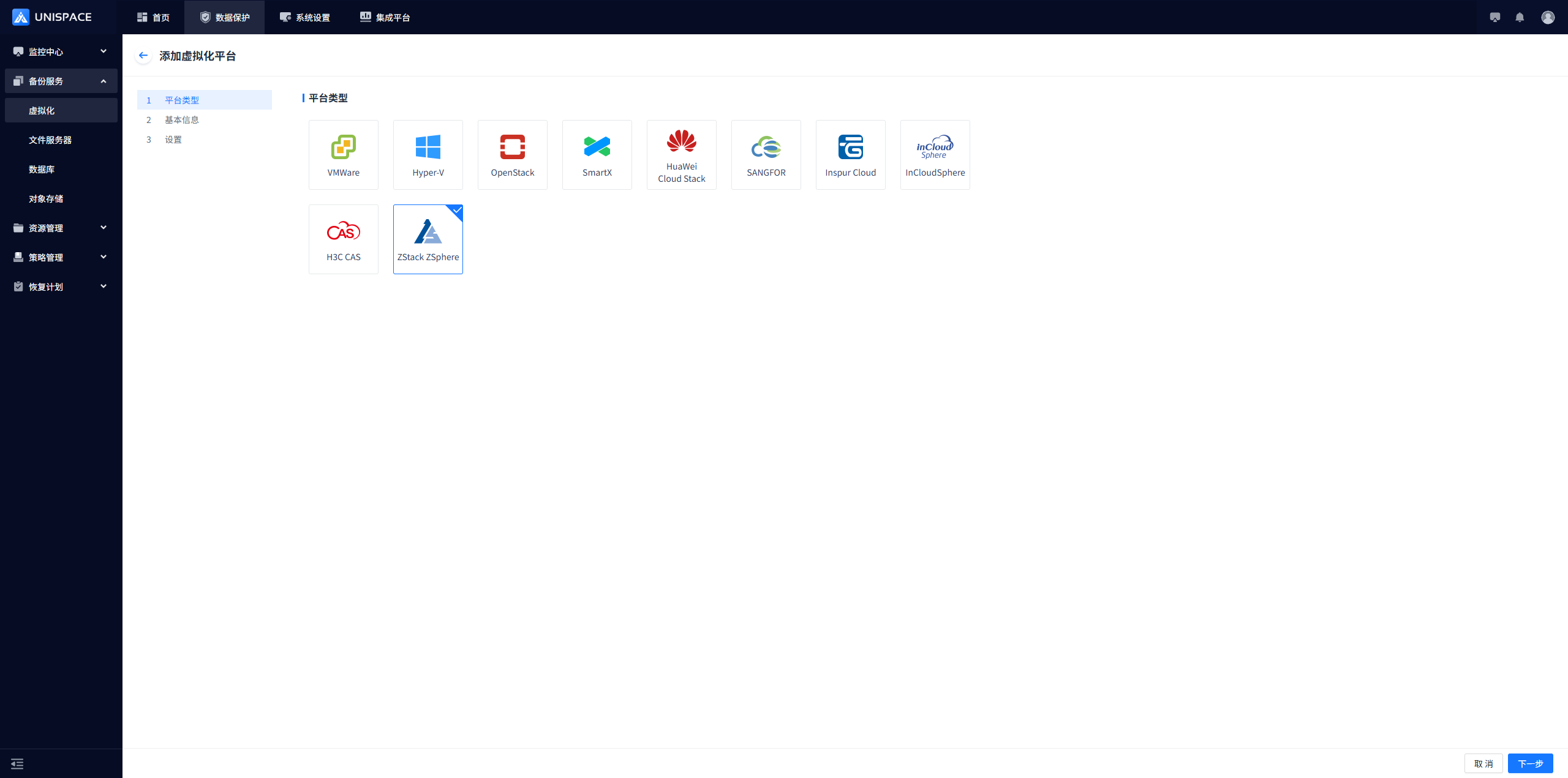
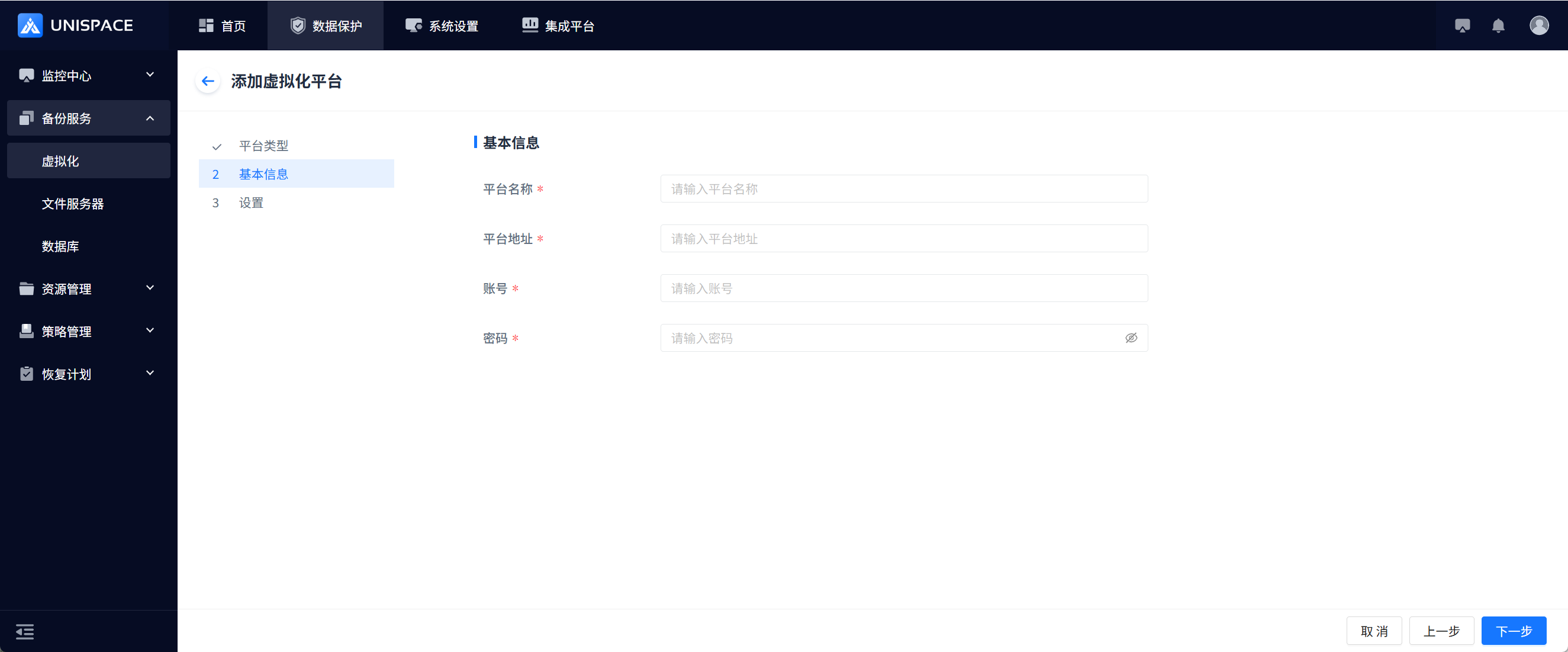
| Parameter Name | Parameter Description | Setting Principle |
|---|---|---|
| Platform Name | Text input box, required, enter manually | Customizable |
| Platform Address | Text input box, required, enter manually | ZStack platform address, e.g., http://192.168.100.xx:port |
| Account | Text input box, required | Enter the correct username |
| Password | Password field, required, enter manually | Enter the correct password |
Step 4: Add access nodes (register access nodes in advance; see the Client Installation and Deployment section). Click [Edit] to load access nodes. You can select one or more. 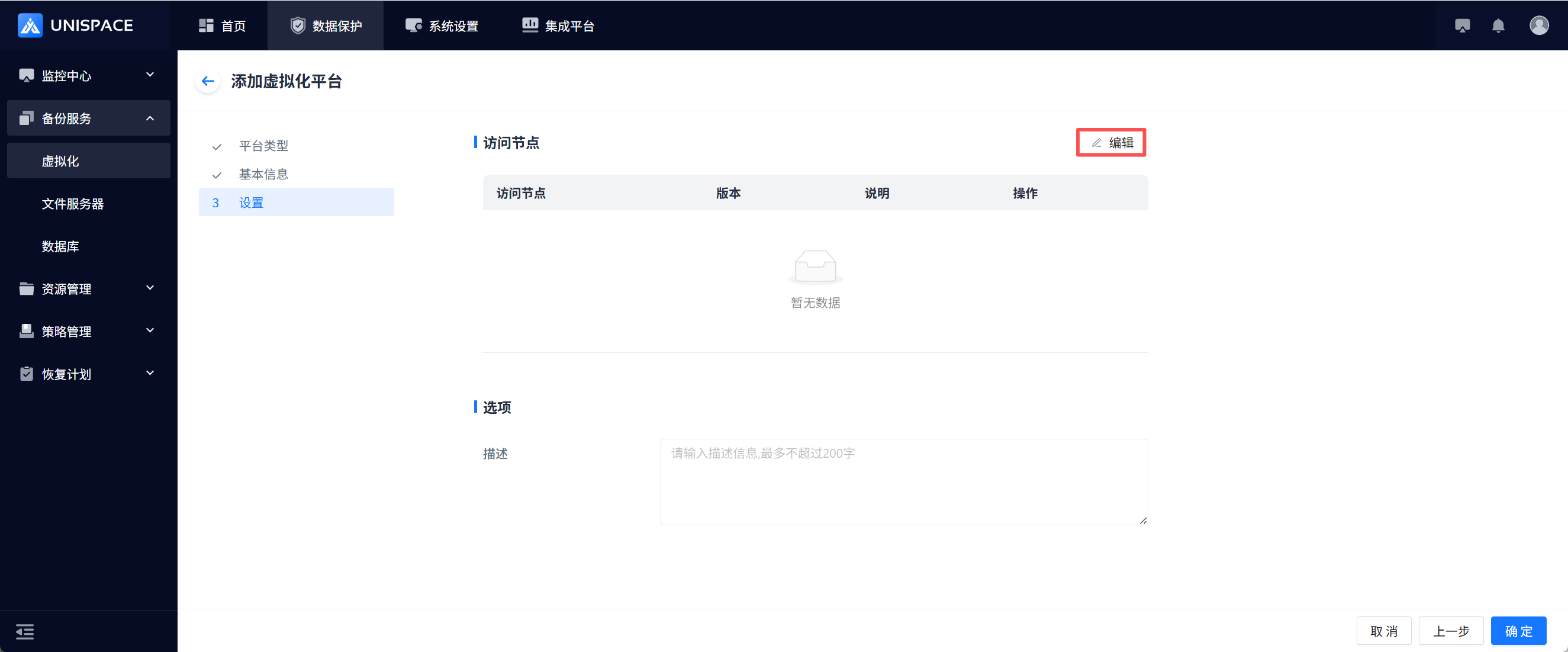
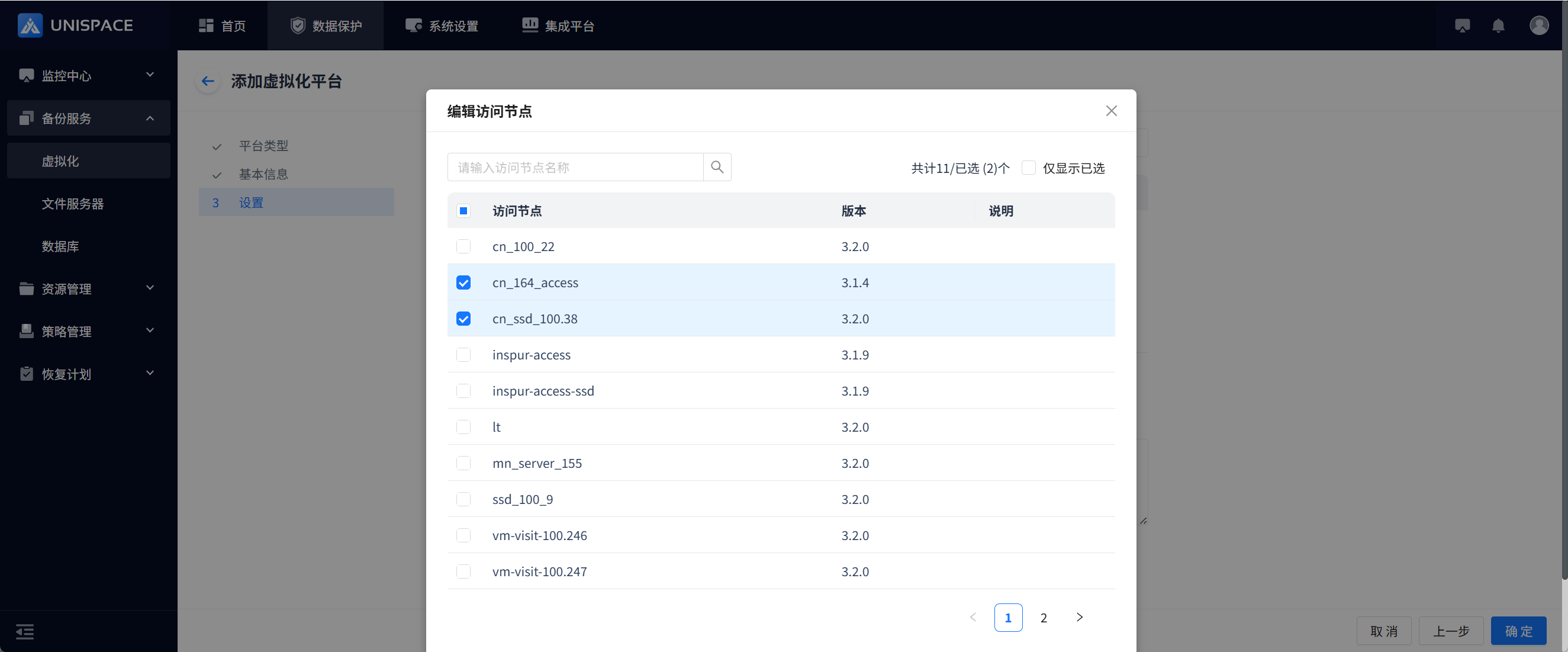
Step 5: Complete the form and click [Confirm]. The frontend displays a message indicating that the addition was successful. 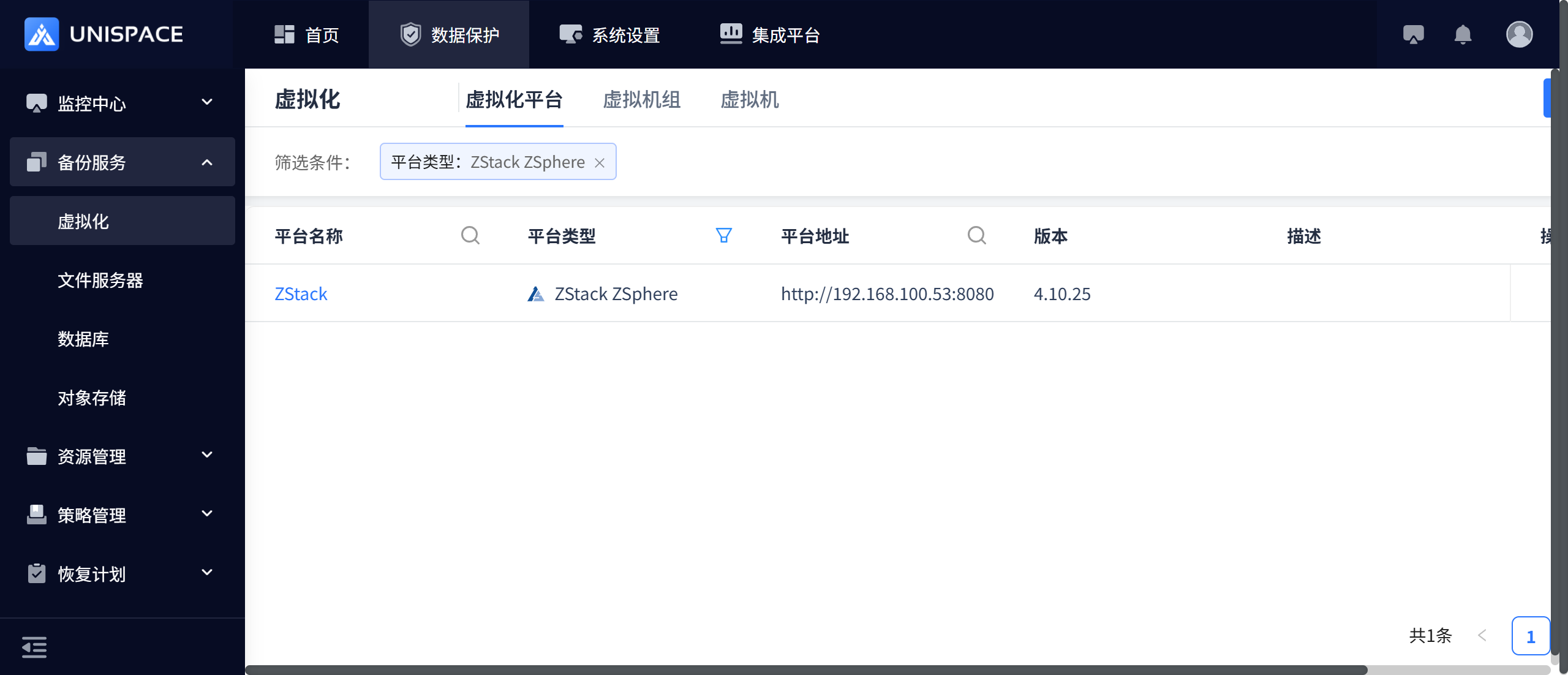
1.2 Create a New Virtual Machine Group
Prerequisites
- Create a virtualization platform.
Steps
Step 1: Click the [Add] button for [Virtual Machine Group]. The Add Virtual Machine Group page appears. 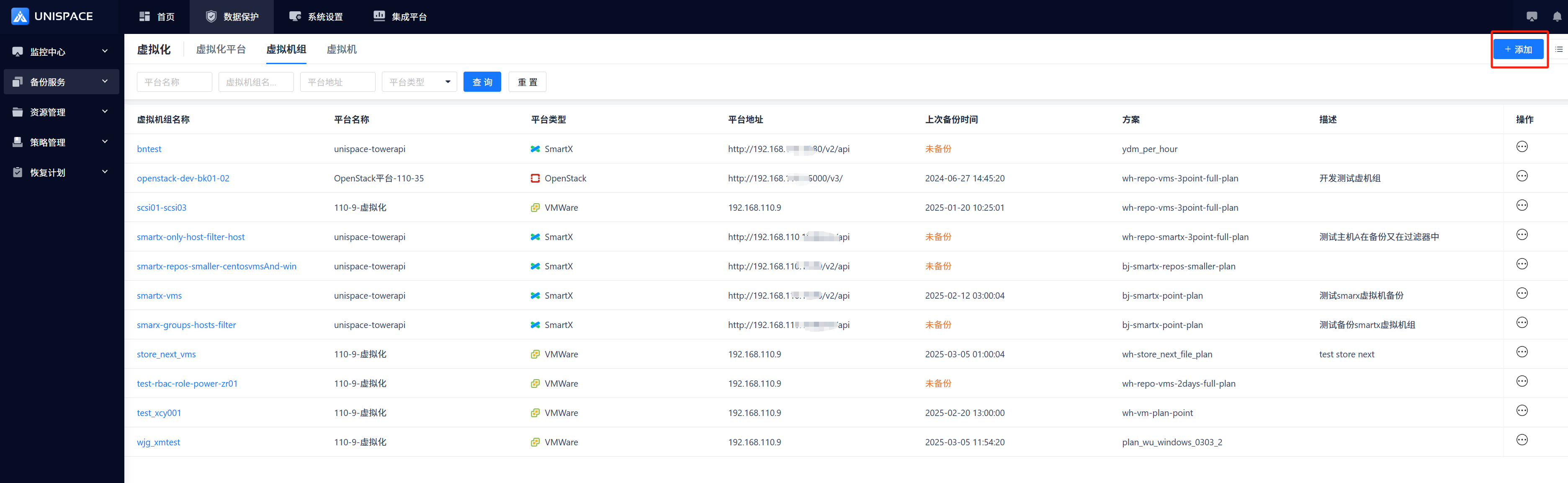
Step 2: Add a virtual machine group and fill in the relevant parameters. 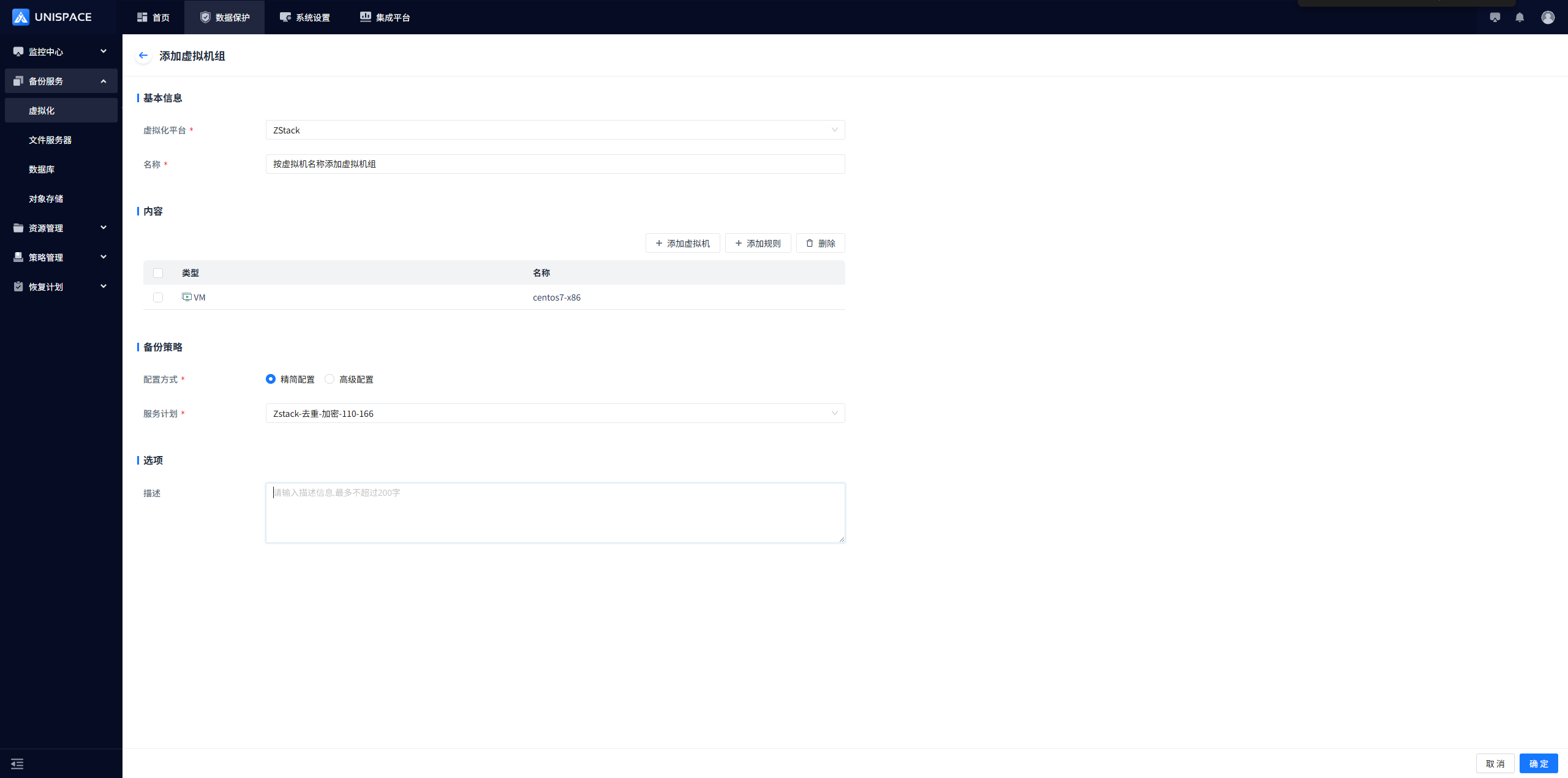
| Parameter Name | Parameter Description | Setting Principle |
|---|---|---|
| Virtualization Platform | Added virtualization platform | In the drop-down list, select the ZStack virtualization platform |
| Name | Text input box, required, enter manually | Customizable |
| Content | Add backup objects (virtual machines) | After clicking [Add], browse the VM list by host or VM group and add one or more VMs |
| Add Specification | Not currently supported | |
| Delete | Added VMs can be deleted; at least one VM must remain | |
| Configuration Method | Basic Configuration or Advanced Configuration | Basic Configuration by default |
| Service Plan | A custom plan can trigger jobs periodically | Select an appropriate service plan |
Step 3: Click [Confirm]. The page displays a message indicating that the addition was successful. 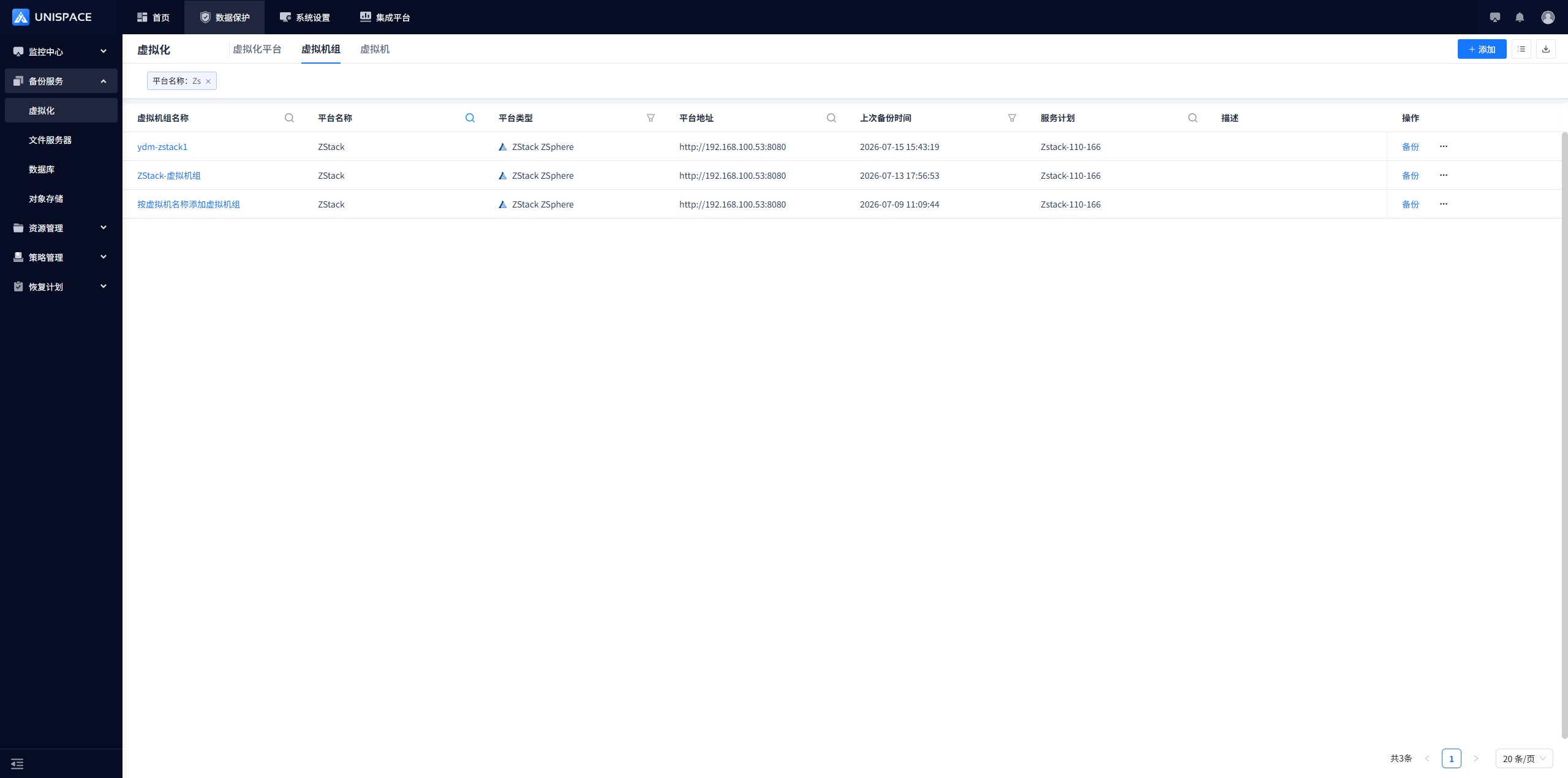
1.3 Virtual Machine Backup
Prerequisites
- Create a virtual machine group.
Steps
Step 1: Select a [Virtual Machine Group], click [Backup], select Full or Incremental, and click [Confirm]. 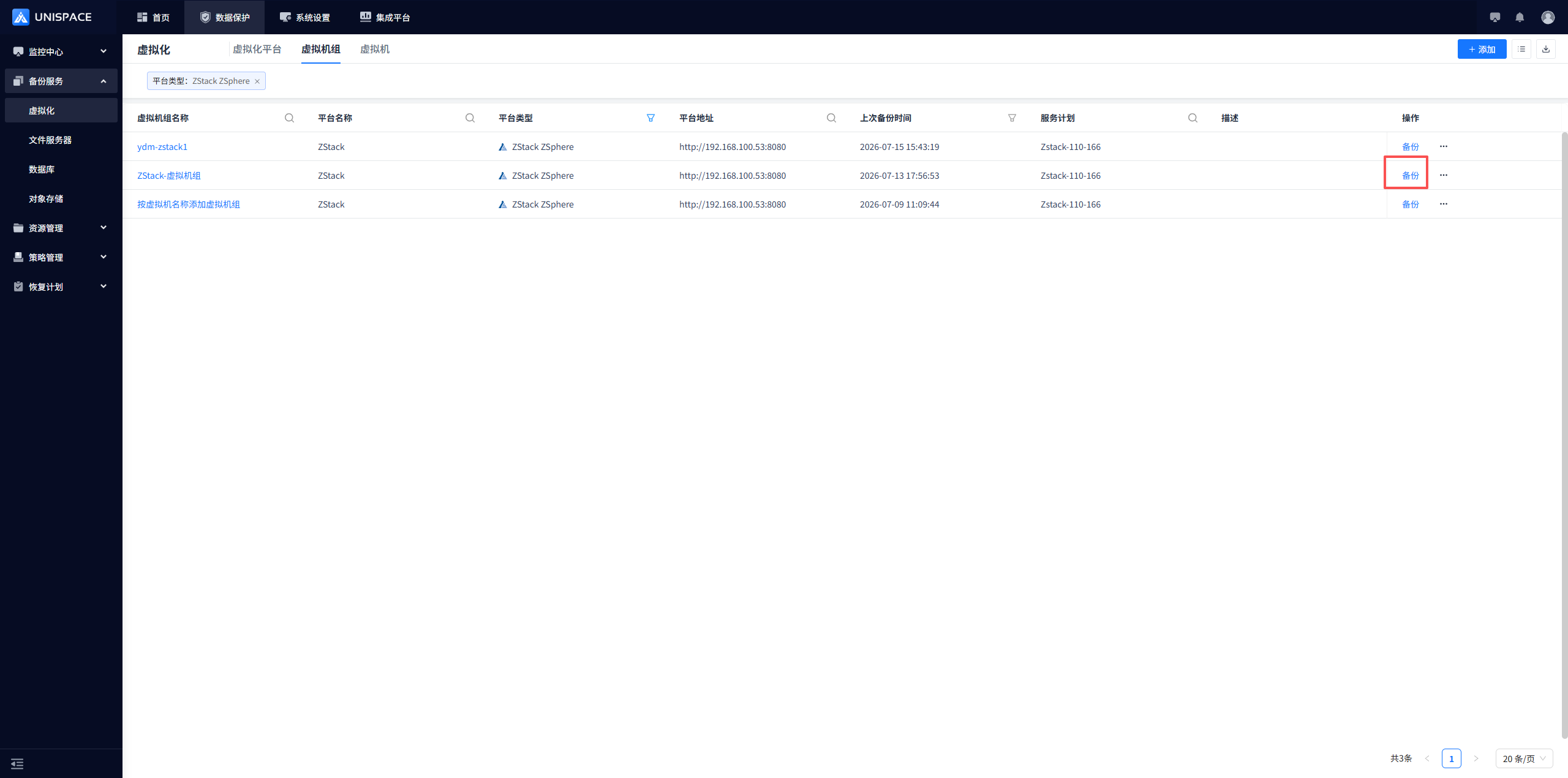
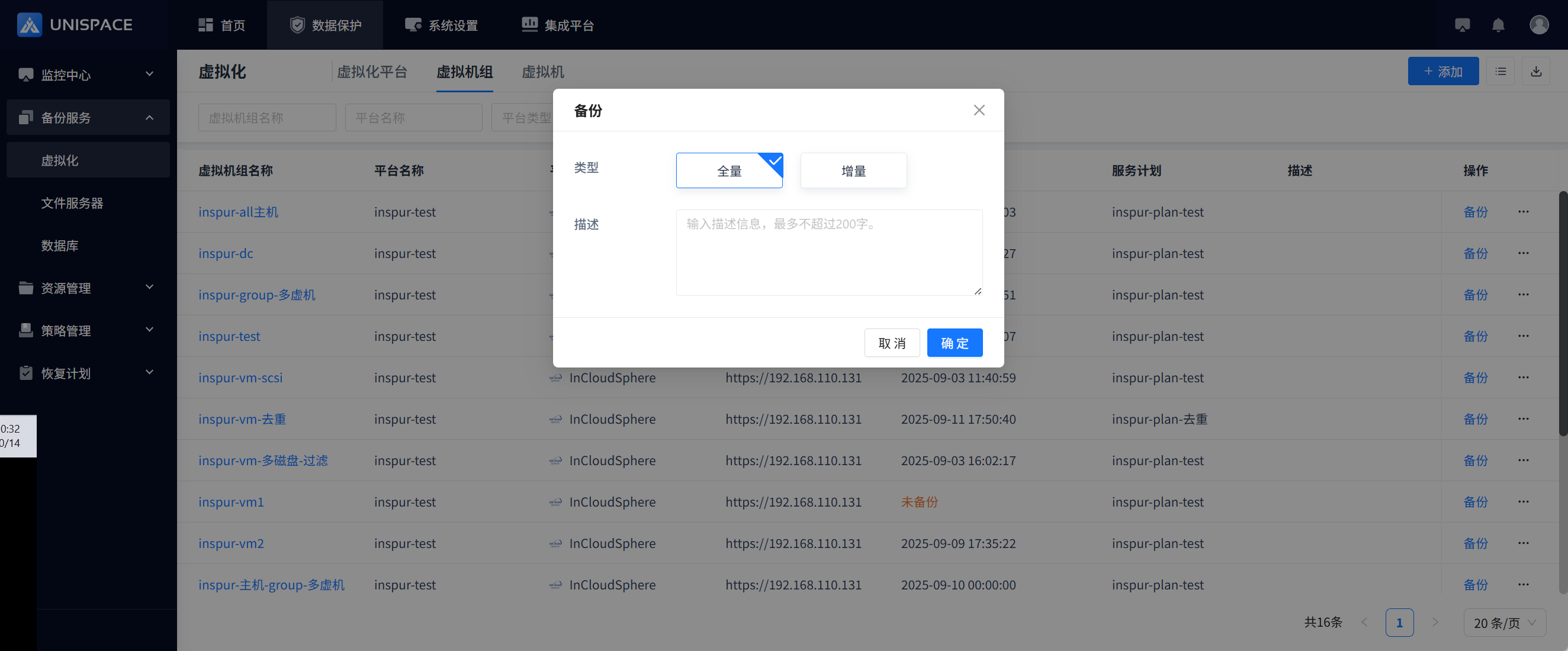
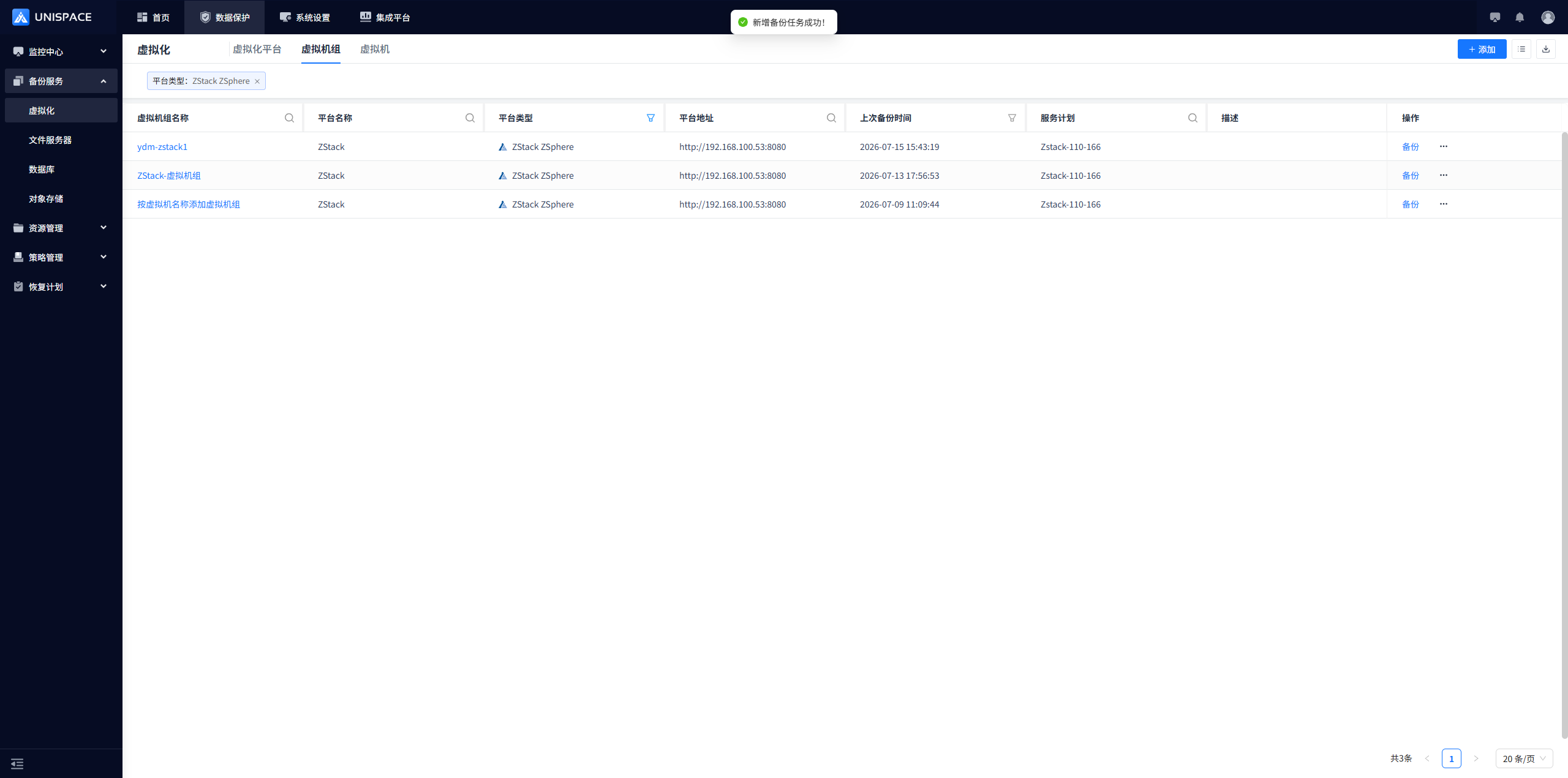
Step 2: Once the job starts successfully, go to [Monitoring Center] - [Jobs] - [Active Jobs] to view the job. Click the [ID] to view the job details. 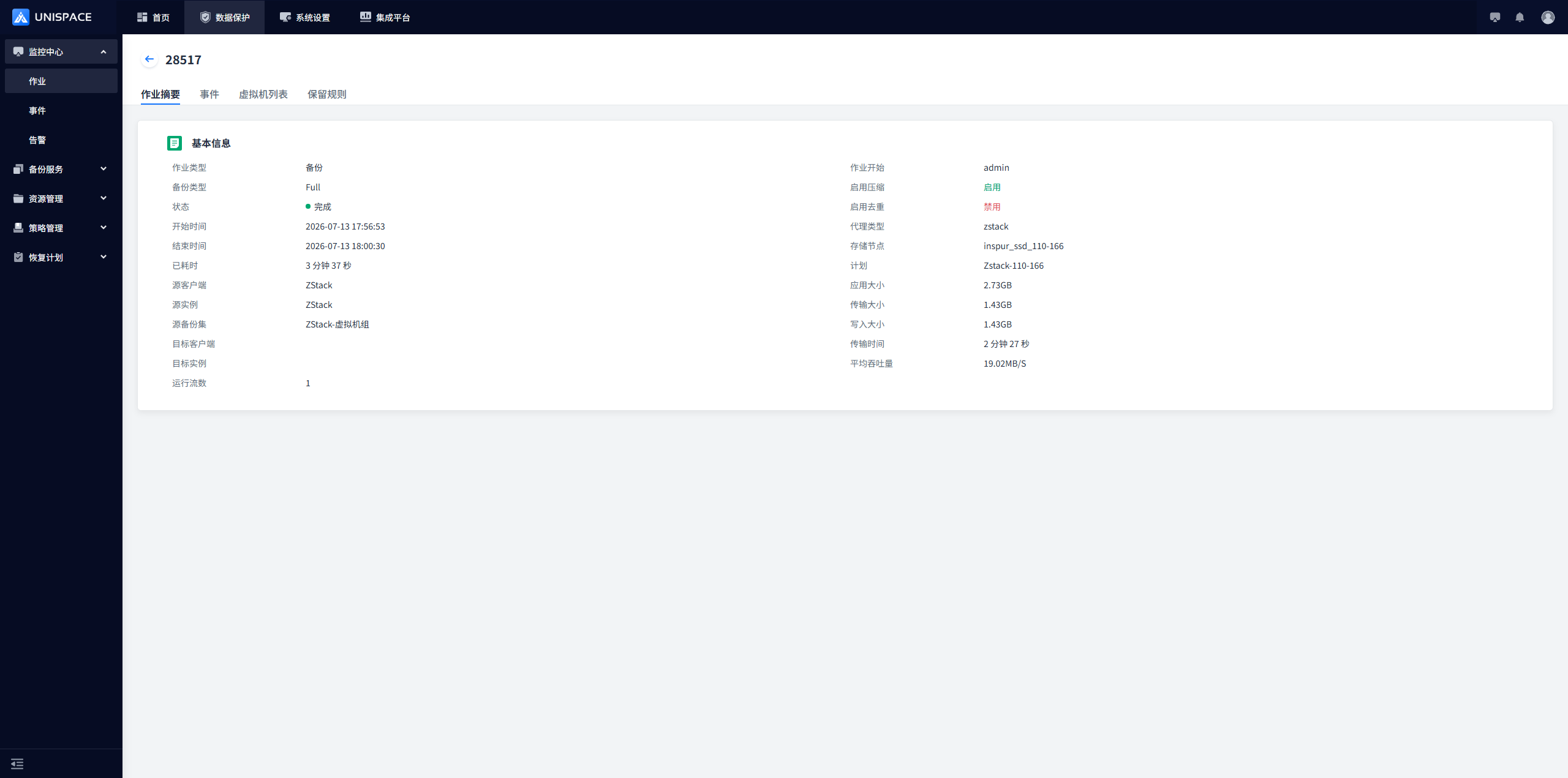
Step 3: After the backup is completed, go to [Monitoring Center] - [Jobs] - [Job History] to view the backup set job. When the job status is Completed, the backup is complete. 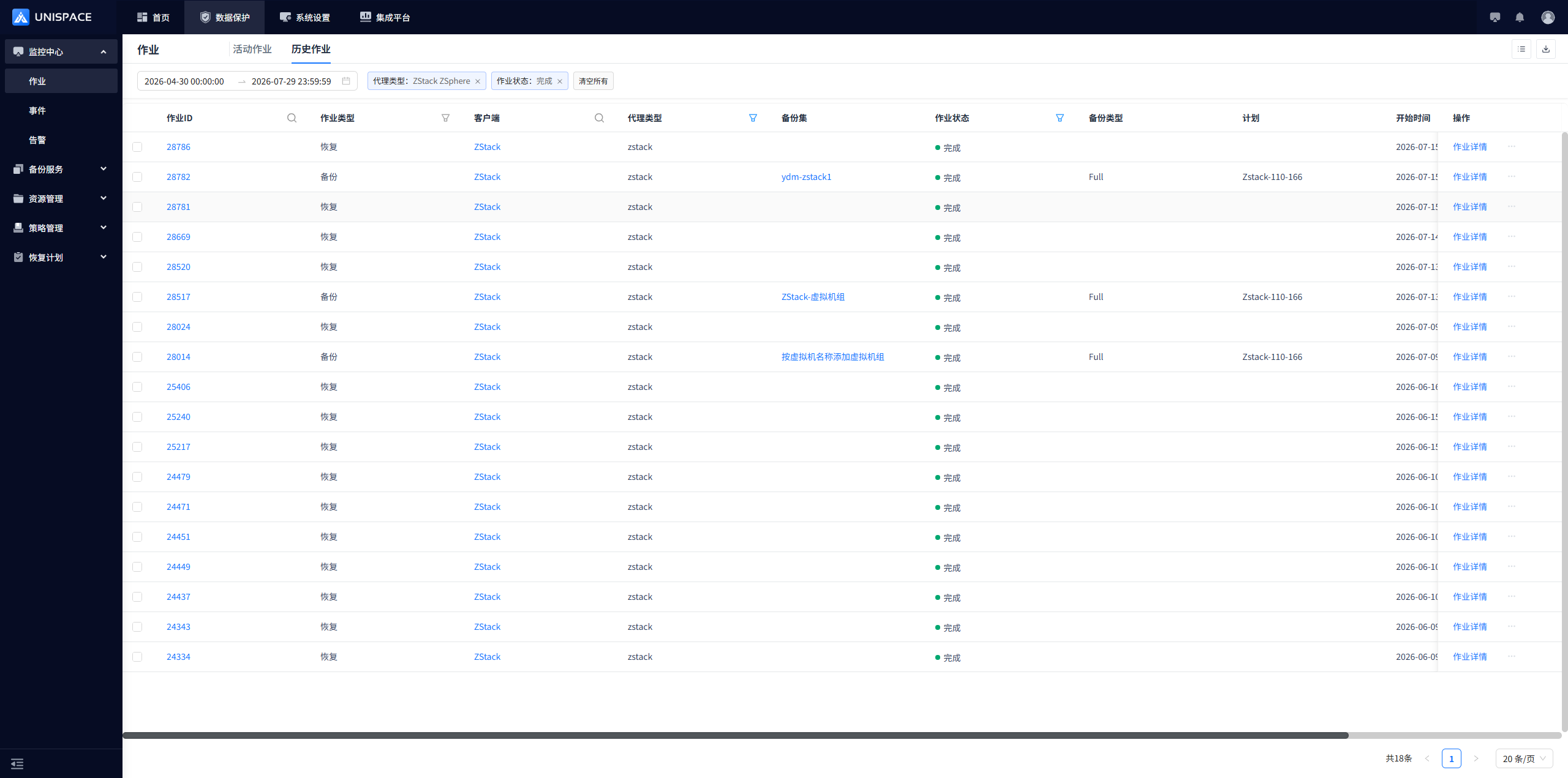
1.4 Virtual Machine Recovery
Prerequisites
- Perform a full or incremental backup of the group containing the virtual machine.
Steps
Step 1: Click [Backup Service] - [Virtualization] - [Virtual Machine] in the system menu. 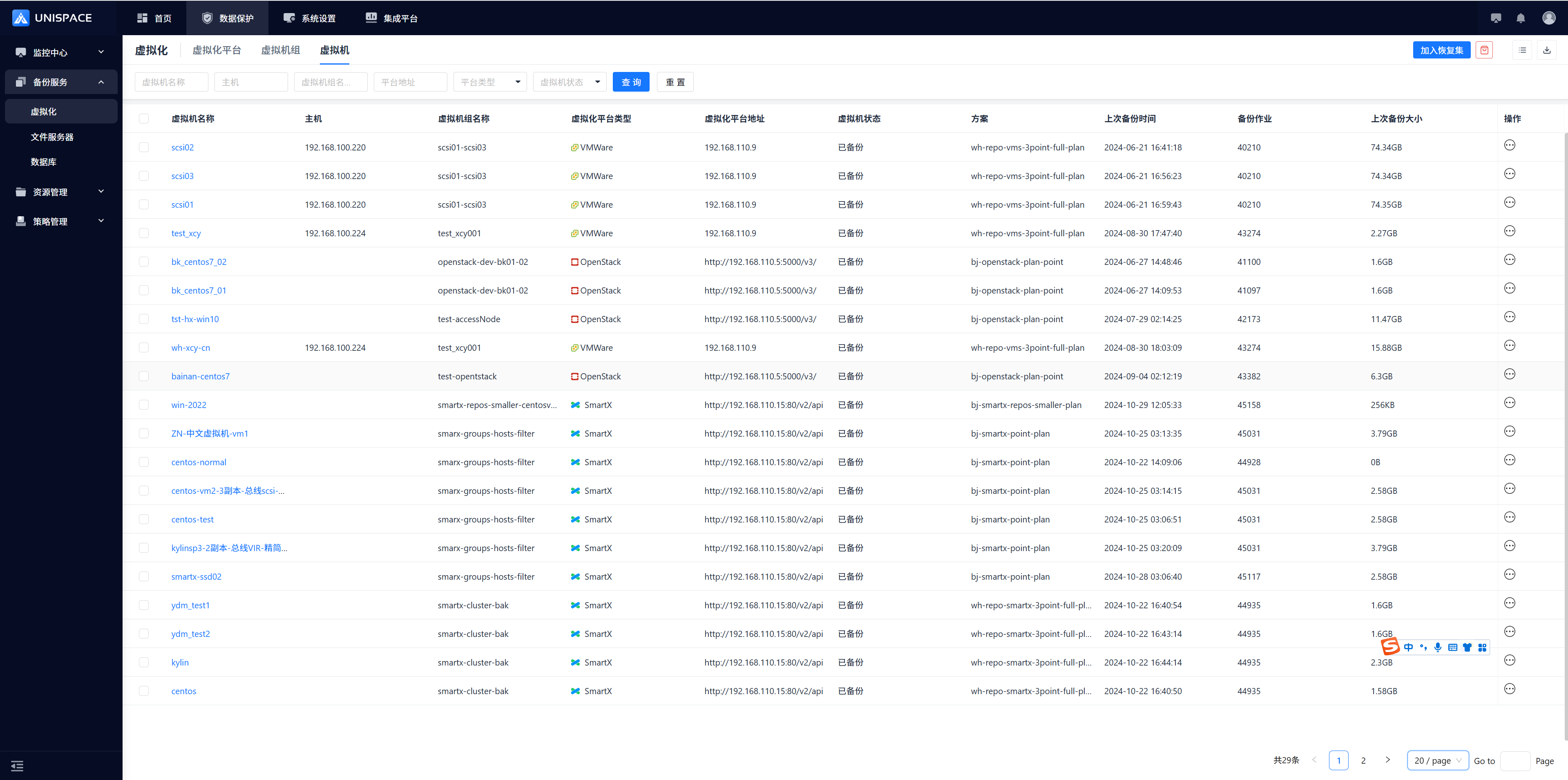
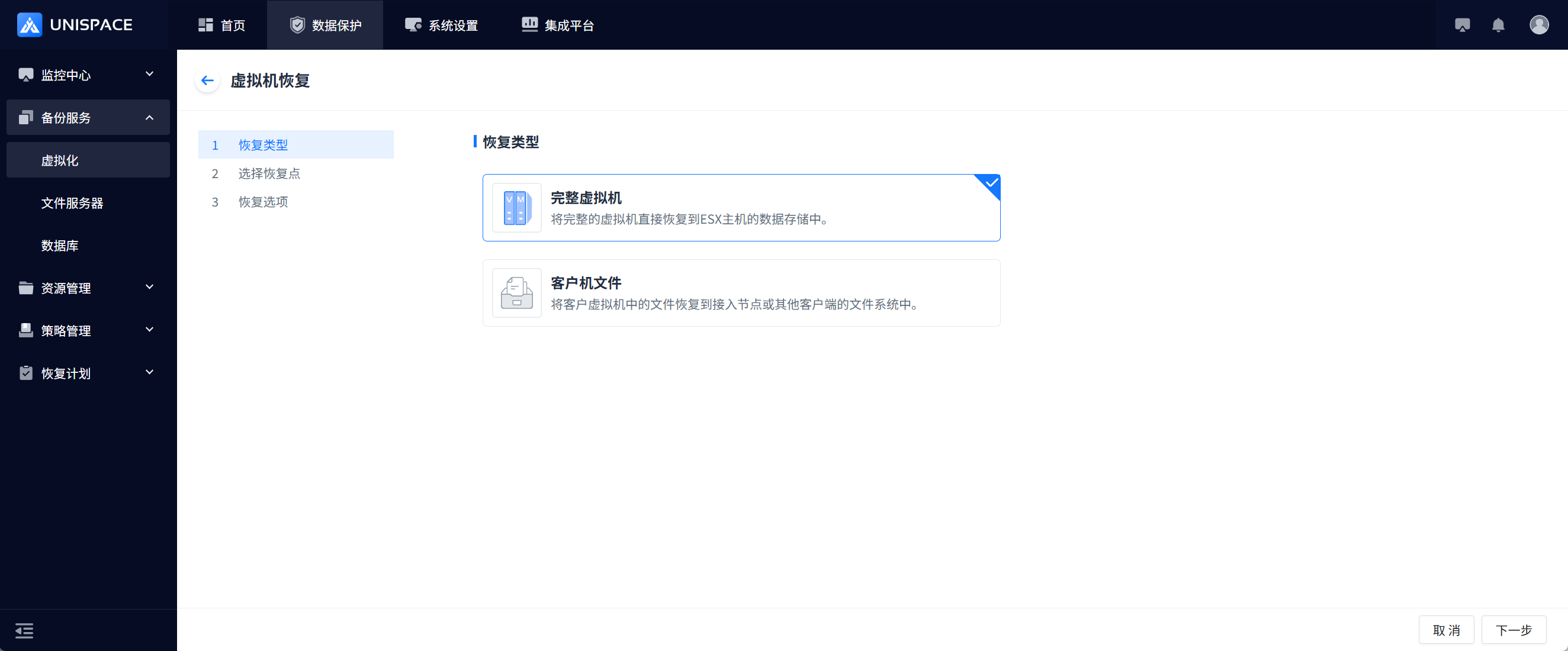
Step 2: Select the virtual machine to restore in the [Virtual Machine] list, click [Add to Recovery Set], and click the [Recovery Set] icon to open the recovery page. Select [Full Virtual Machine]. [Guest Files] is currently not supported. 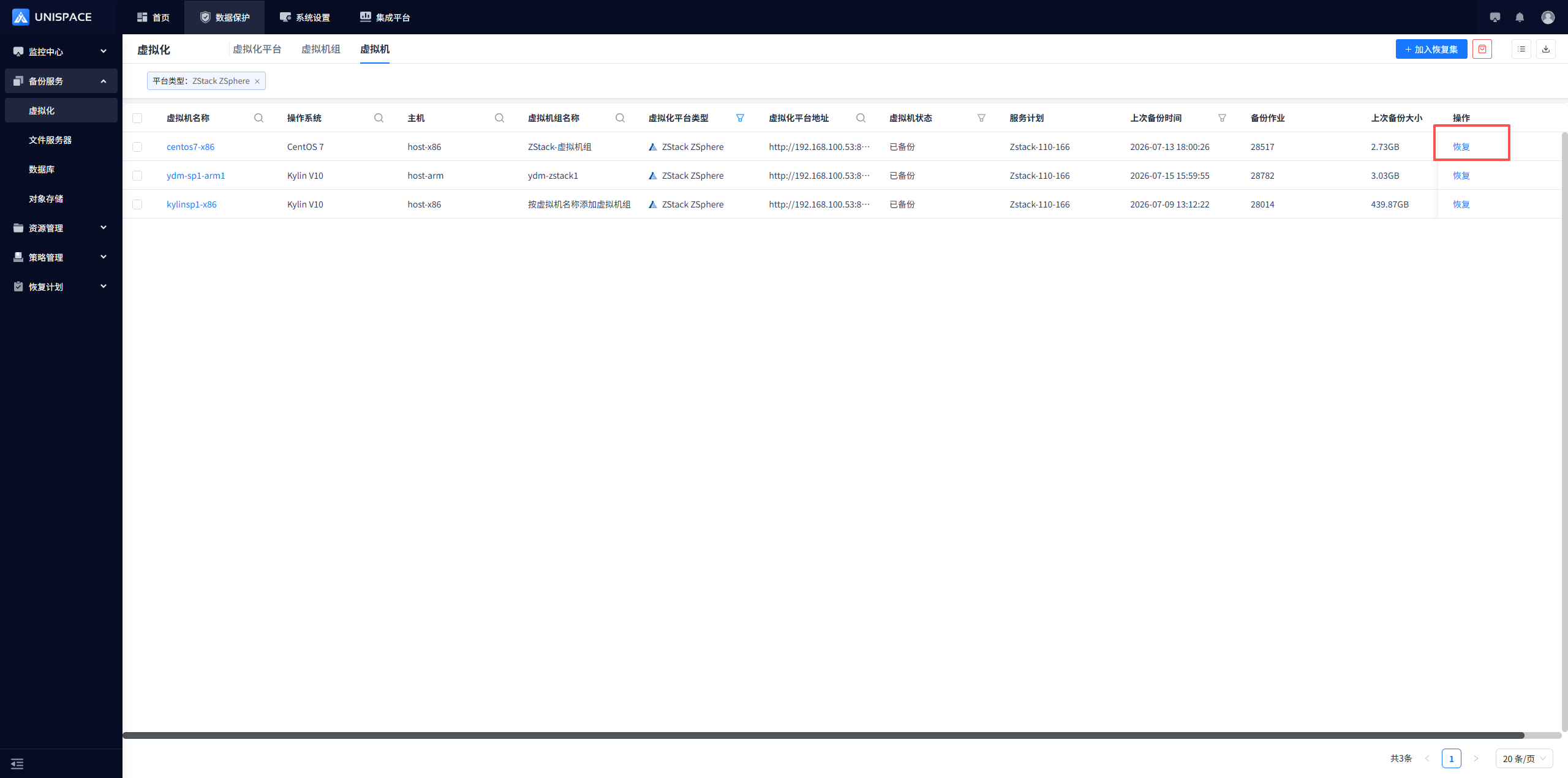
Step 3: Select a recovery point. Query recovery points by time range, click [Query], select a recovery point from the results, and click [Next]. 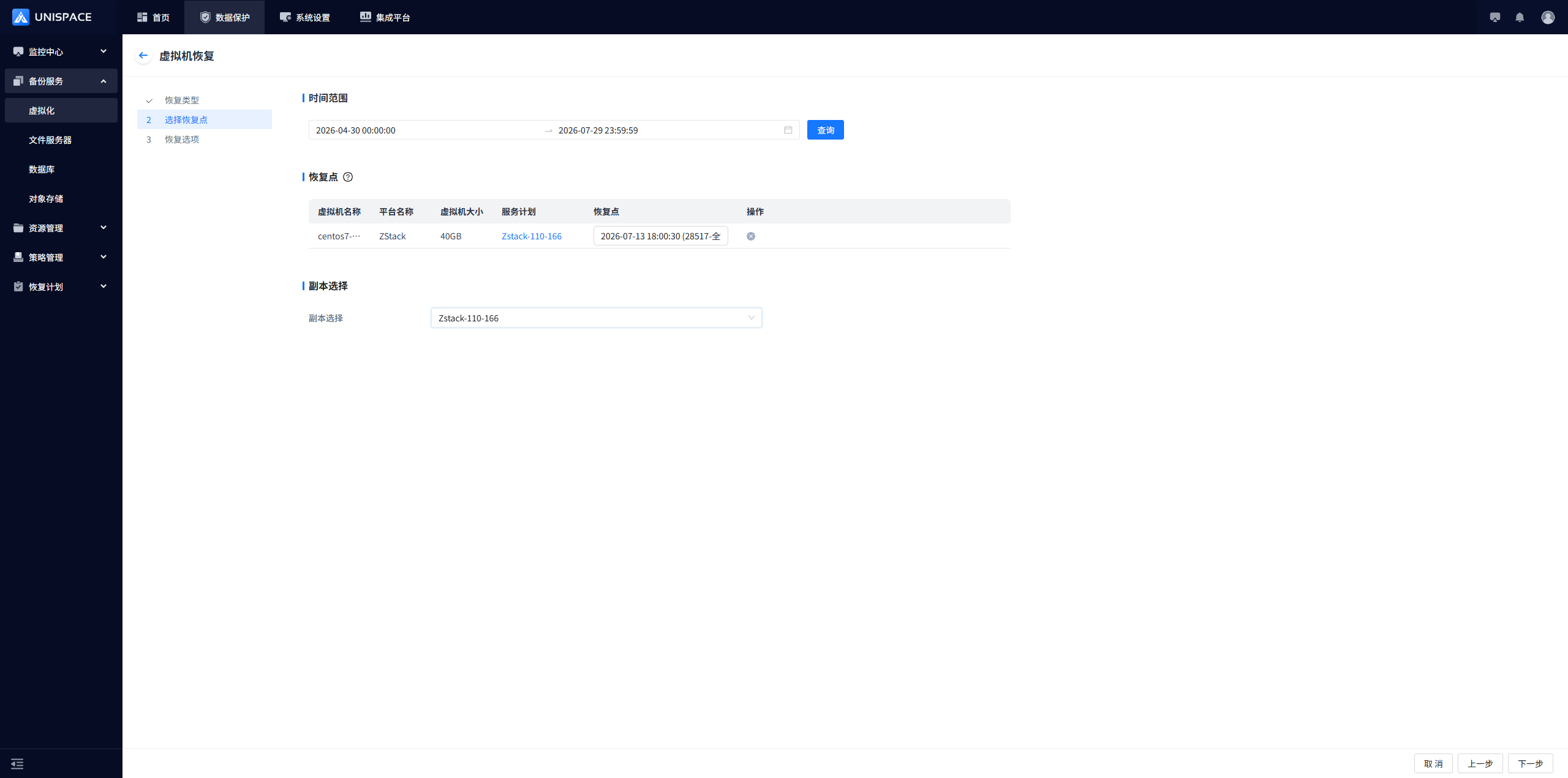
Step 4: Open the recovery options page and fill in the relevant parameters. 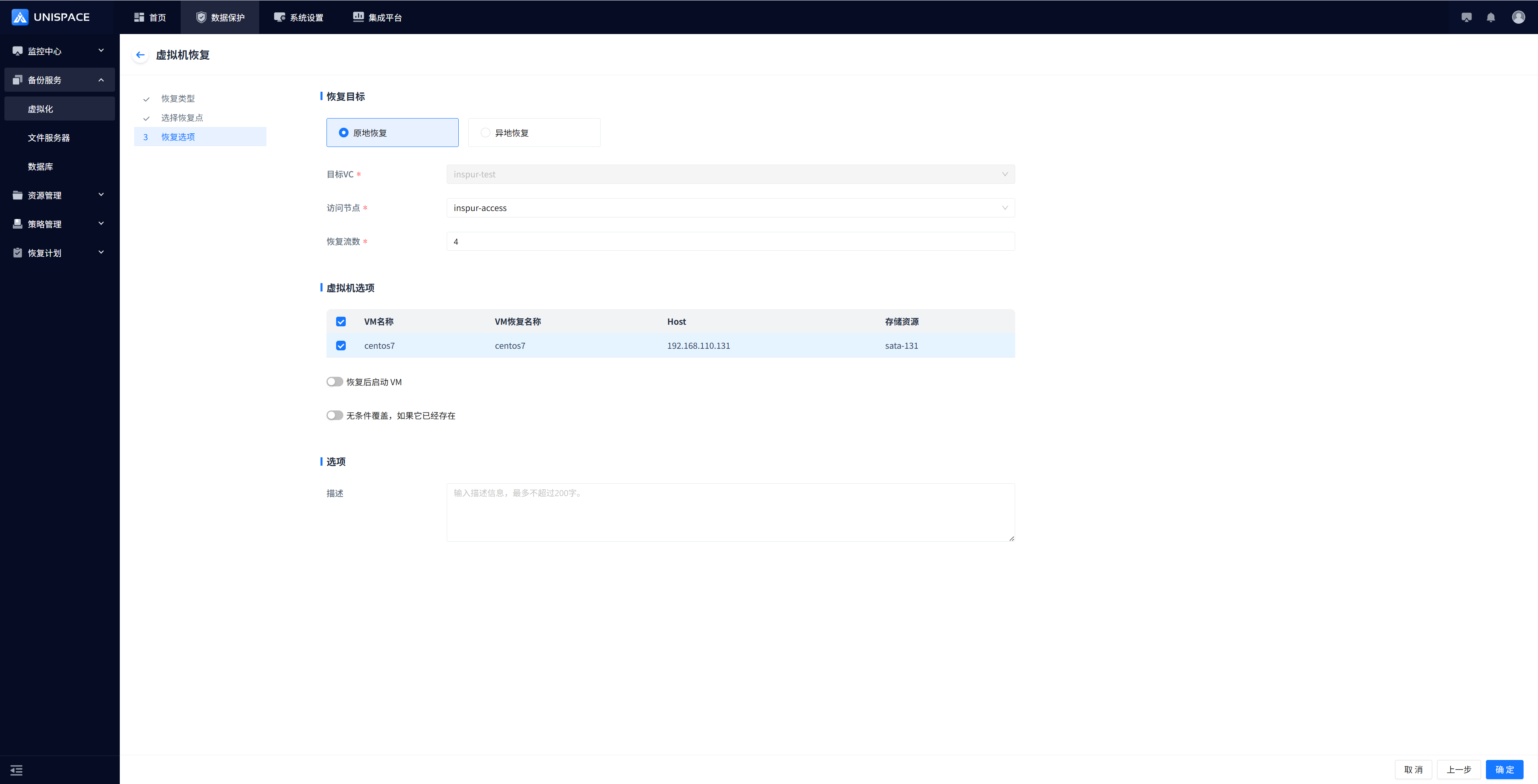
| Parameter Name | Parameter Description | Setting Principle |
|---|---|---|
| Recovery Target | Original location by default; single selection | Recover in place or to a different location |
| Target VC | Single selection, drop-down list | Linked to the recovery target. Disabled by default for in-place recovery; for cross-site recovery, select an appropriate target VC |
| Access Node | Single selection, drop-down list | The drop-down list displays client names registered as access nodes |
| Recovery Stream Count | 1–200 | Use 1 for a single stream and 2–200 for multiple streams |
| Virtual Machine Options | In place: displays the original VM information; cross-site: the target VM name can be modified | Unified configuration is required; see the next step |
| Start VM After Recovery | Off by default | Turn on the switch to start the VM after recovery succeeds; if the switch is off, the VM remains powered off |
| Overwrite Unconditionally If It Already Exists | Off by default | Turn on the switch to overwrite the original VM after recovery; if the switch is off and the original VM exists, the job fails |
Step 5: If you select cross-site recovery, complete the unified configuration and click [Confirm]. 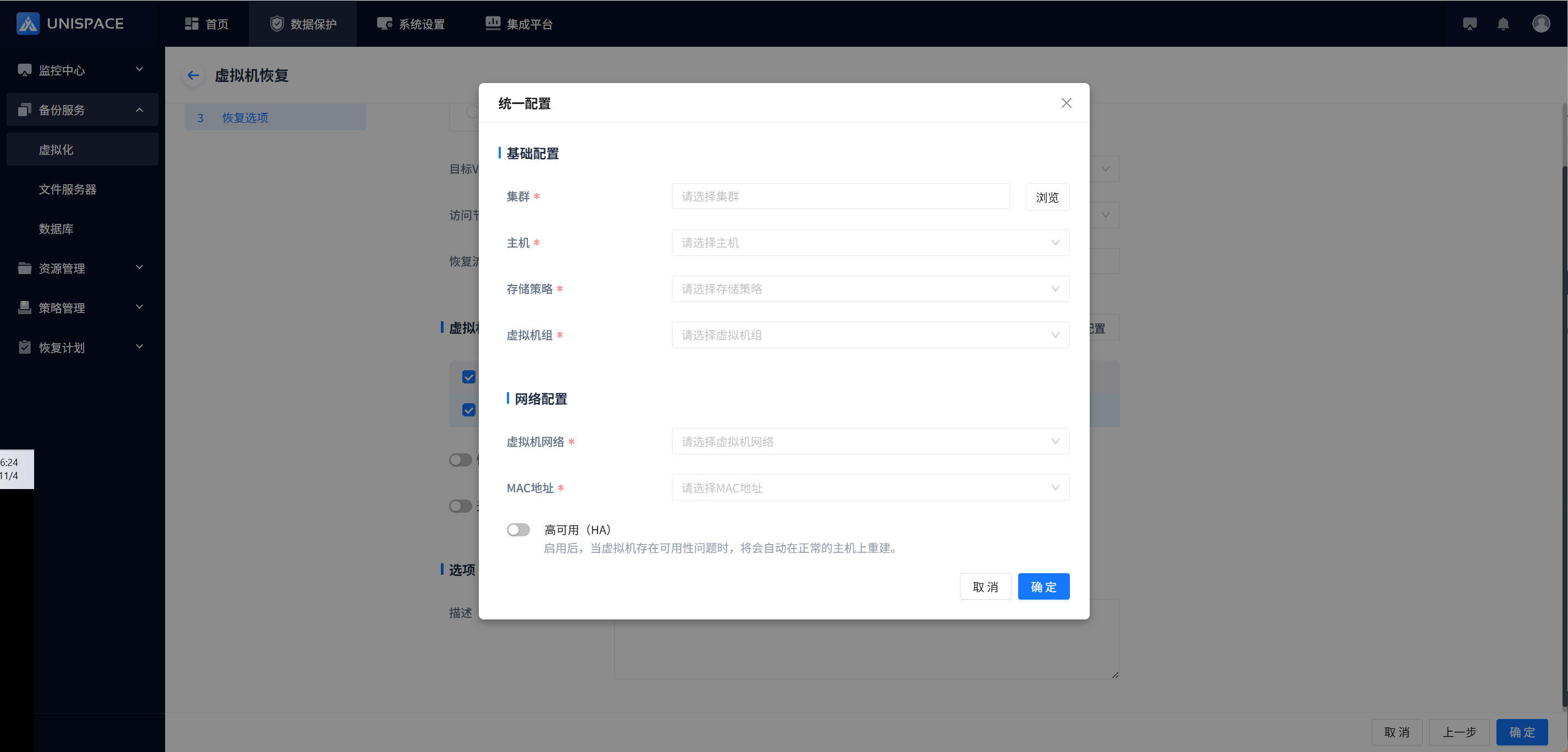
| Parameter Name | Parameter Description | Setting Principle |
|---|---|---|
| Basic Configuration | ||
| Cluster | Select the target cluster by loading the list | Click [Browse] to load clusters |
| Host | Single selection, drop-down list | Linked to the cluster |
| Storage Policy | Single selection, drop-down list | Linked to the cluster |
| Virtual Machine Group | Single selection, drop-down list | Ungrouped or custom |
| Network Configuration | ||
| Virtual Machine Network | Single selection, drop-down list | Linked to the cluster |
| MAC Address | Single selection, drop-down list | Automatically assign a MAC address or retain the original VM MAC address |
| High Availability | Off by default |
Step 6: Once the job starts successfully, go to [Monitoring Center] - [Jobs] - [Active Jobs] to view the job. 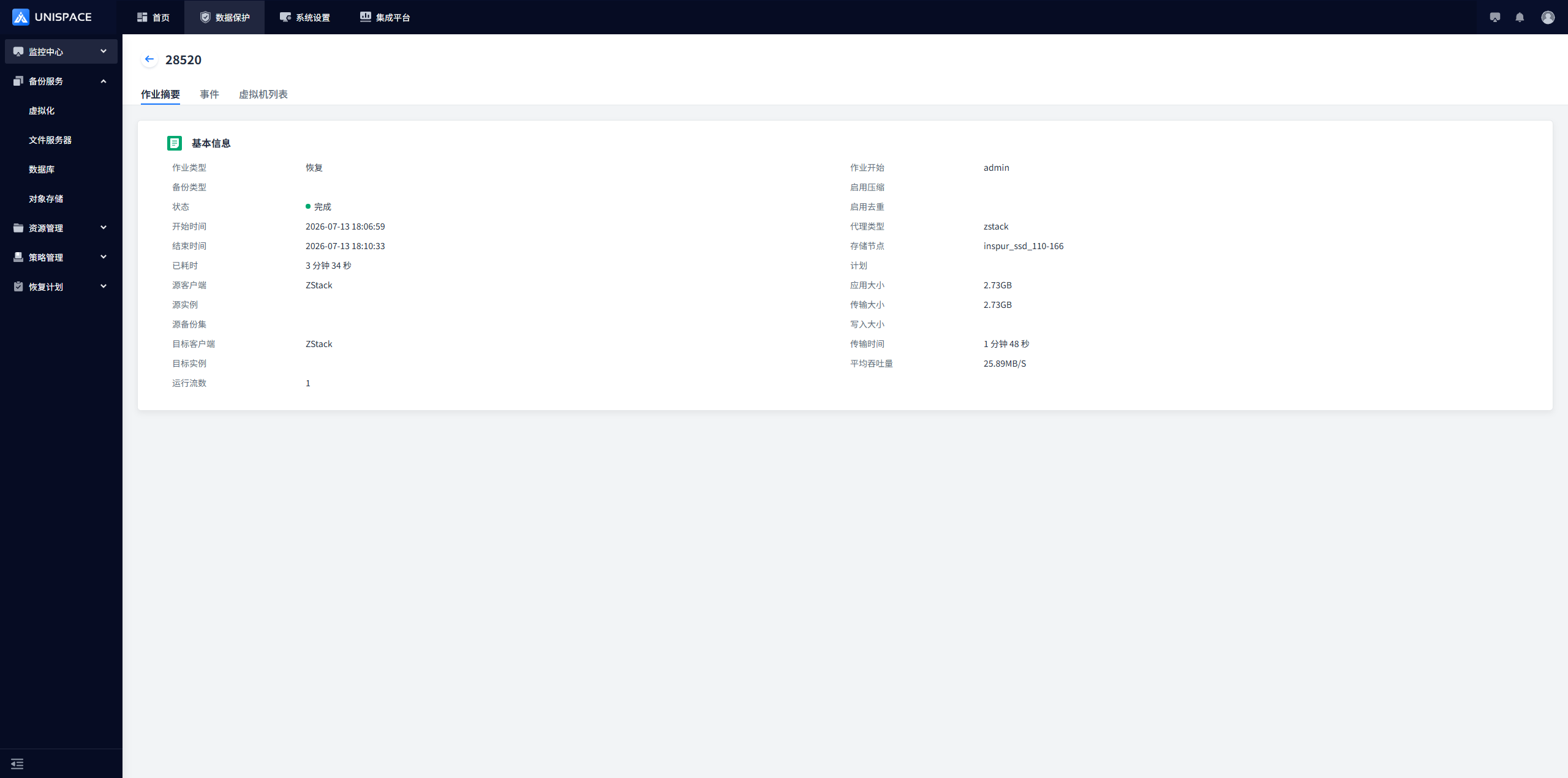
Step 7: After the job ends, go to [Monitoring Center] - [Jobs] - [Job History] to view the job and its status. 
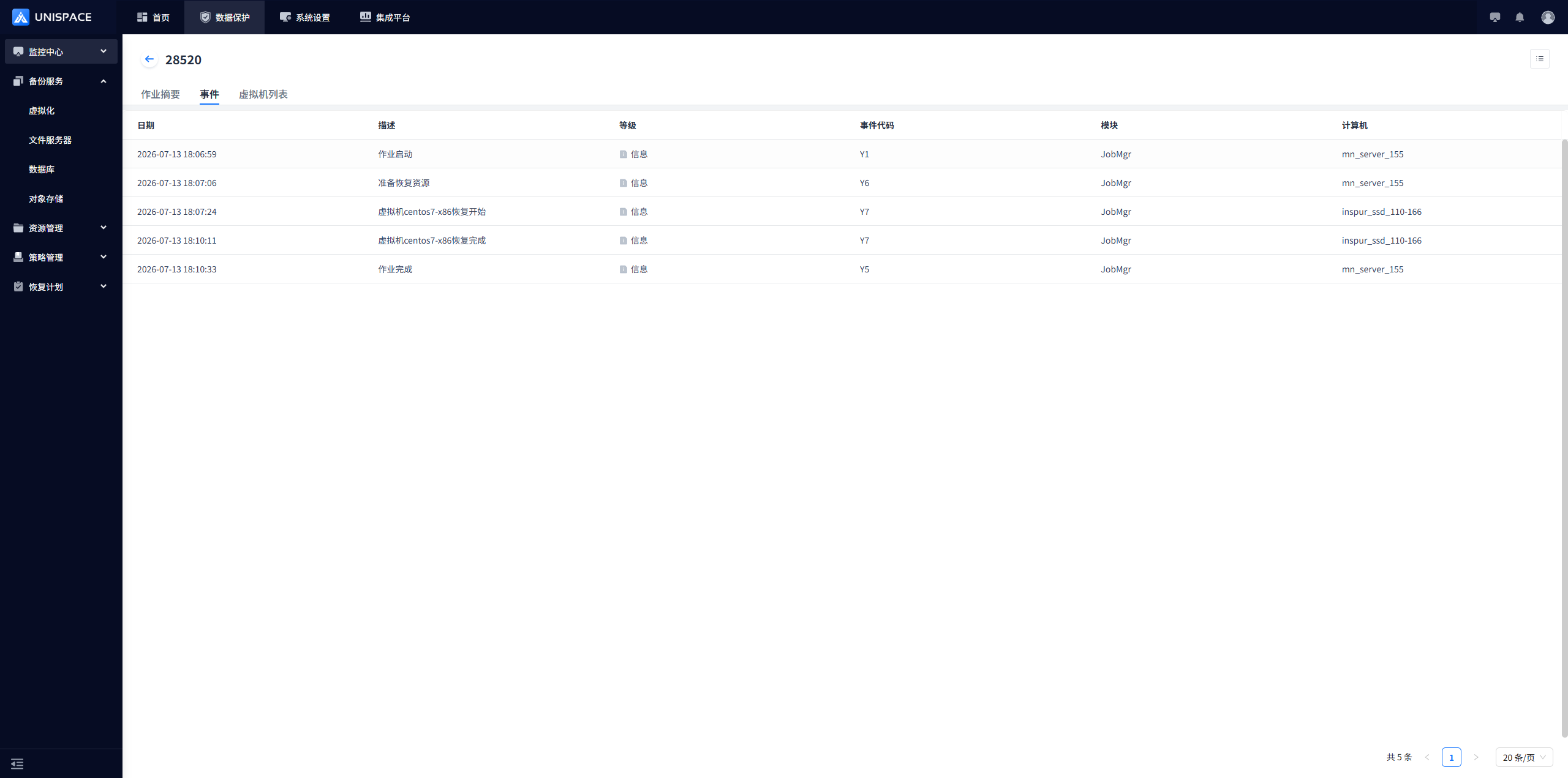
1.5 Notes
Open ports 443 (HTTPS) and 80 (HTTP) between access nodes (such as AccessNode or VSA) and the virtualization management platform (such as VMware).