
Agent--SANGFOR
1.1 Create a Virtualization Platform
Prerequisites
- Created a storage pool.
- Created a service plan.
Steps
Step 1: Click on the system menu [Backup Service] - [Virtualization].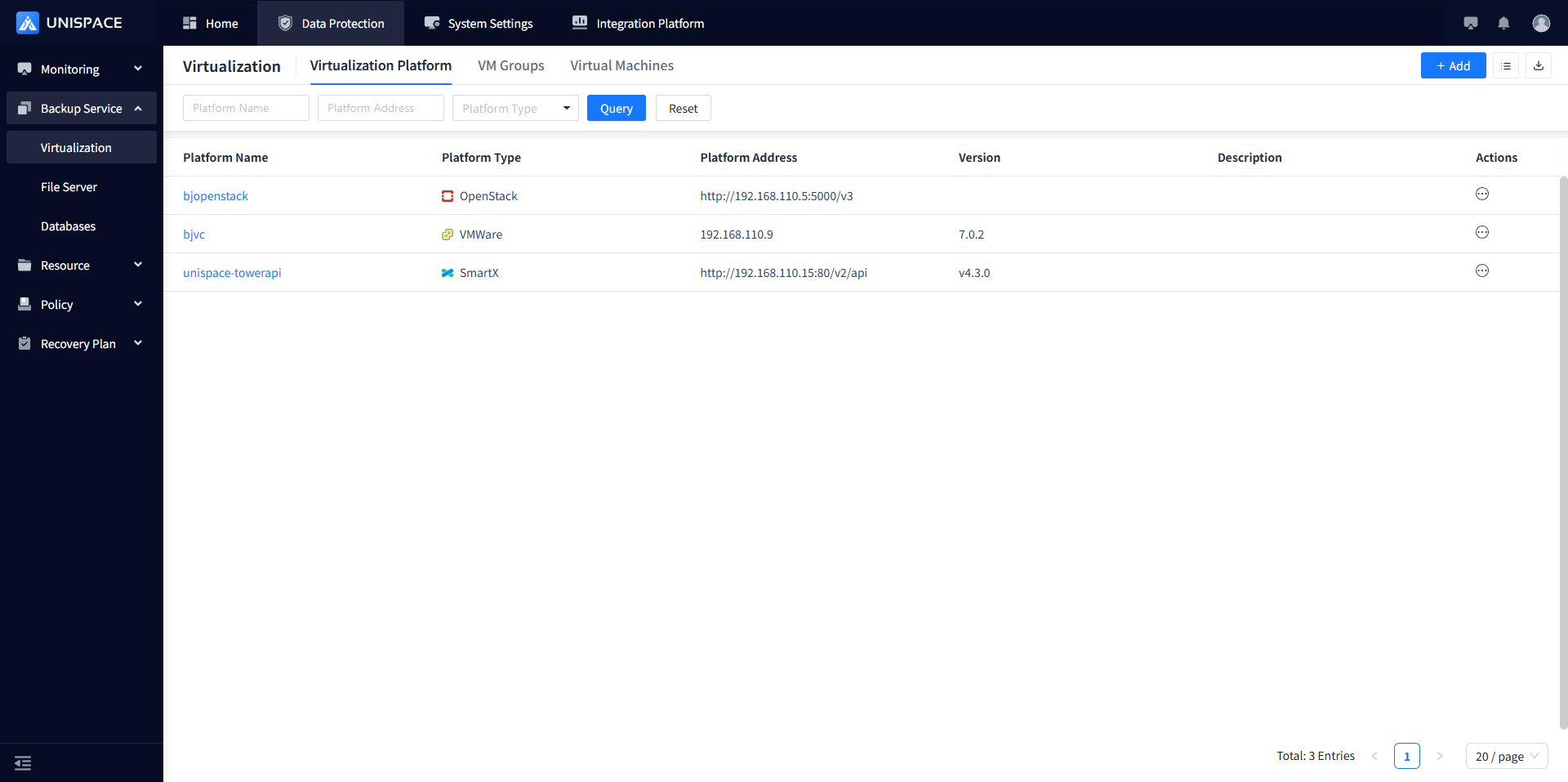 Step 2: Click the [Add] button in [Virtualization Platform]. A pop-up window appears as shown below:
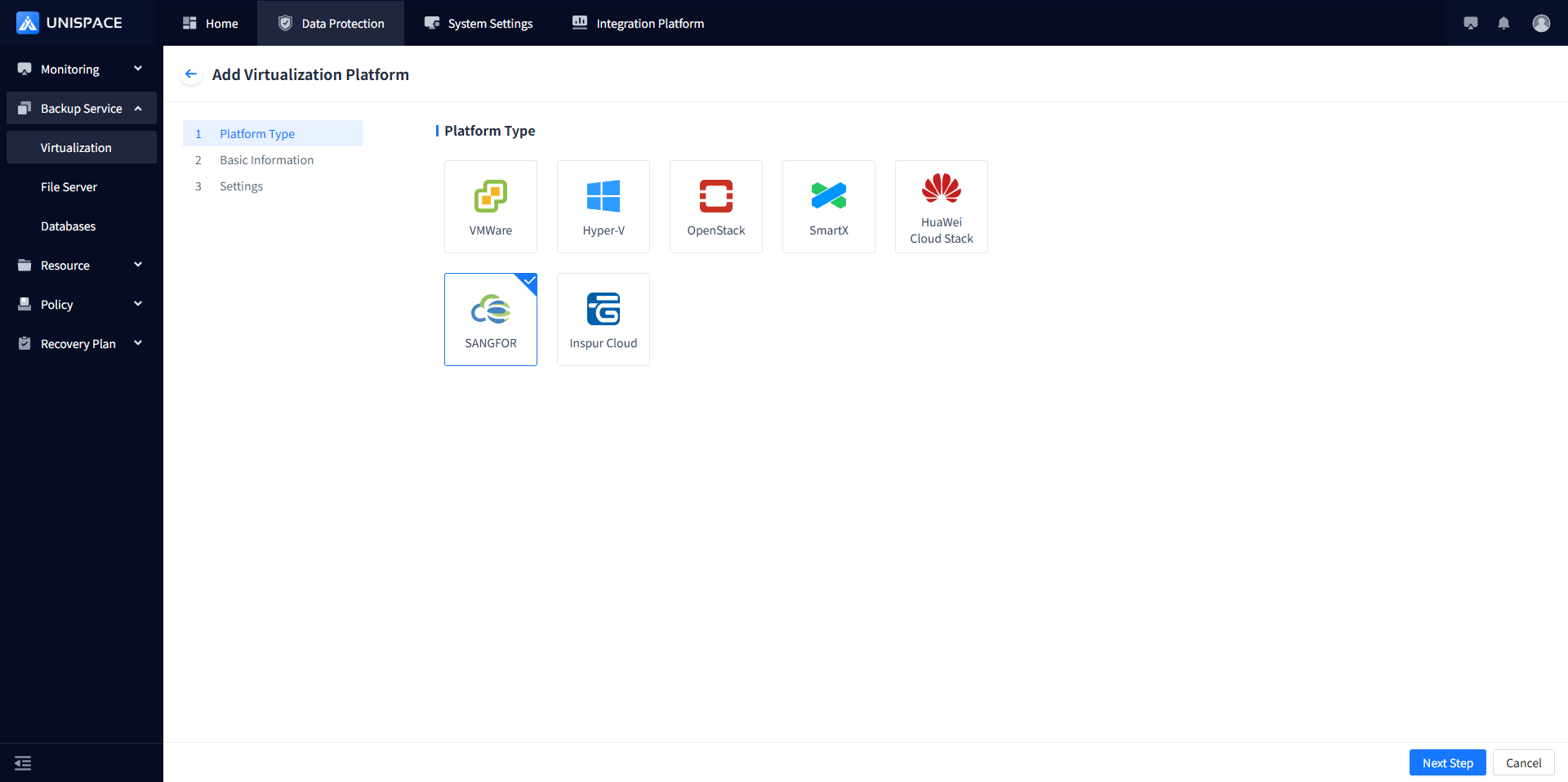 Step 3: Select the SANGFOR icon and click [Next Step] to enter the Add Virtualization Platform page.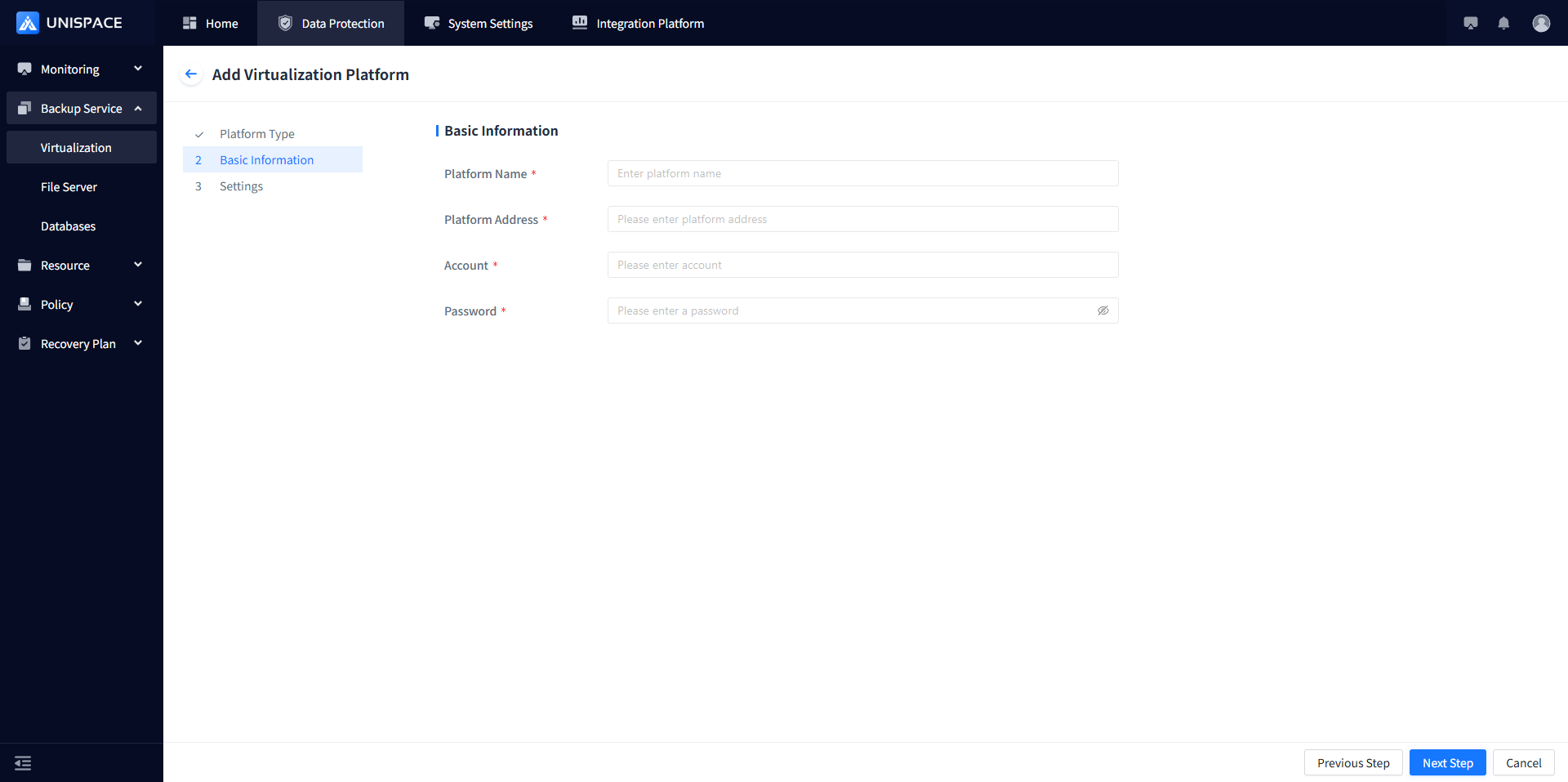
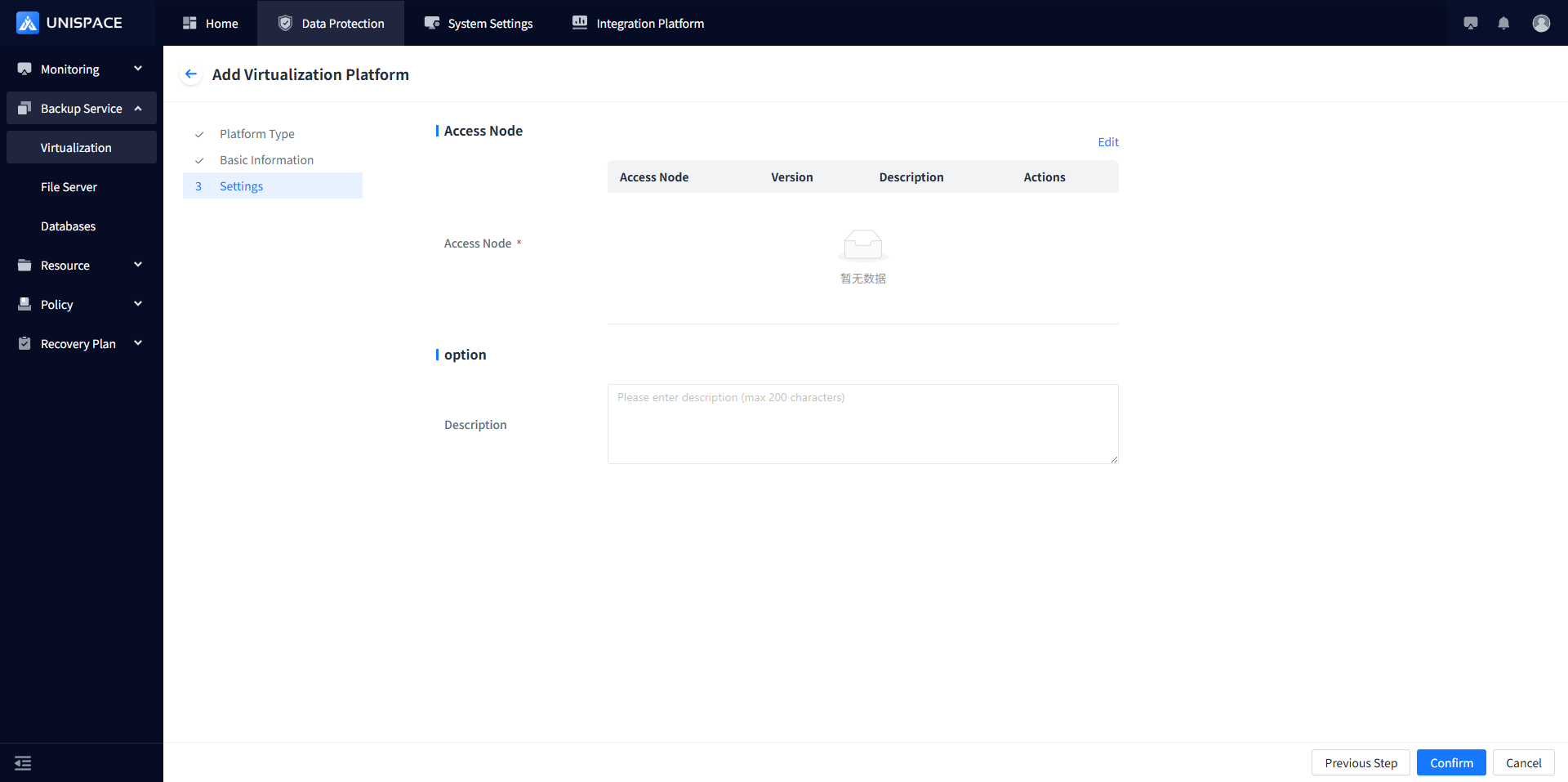
| Parameter Name | Parameter Description | Setting Principle |
|---|---|---|
| Platform Name | Text input box, required, manually entered | Maximum length of 255 characters, no special symbols allowed |
| Platform Address | Text input box, required, manually entered | Enter the correct address |
| Account | Text input box, required | Enter the correct username |
| Password | Password type, required, manually entered | Enter the correct password |
| Access Node | Single selection, required | Select the appropriate access node |
Step 4: After completing the form, click [Confirm]. A success message will be displayed.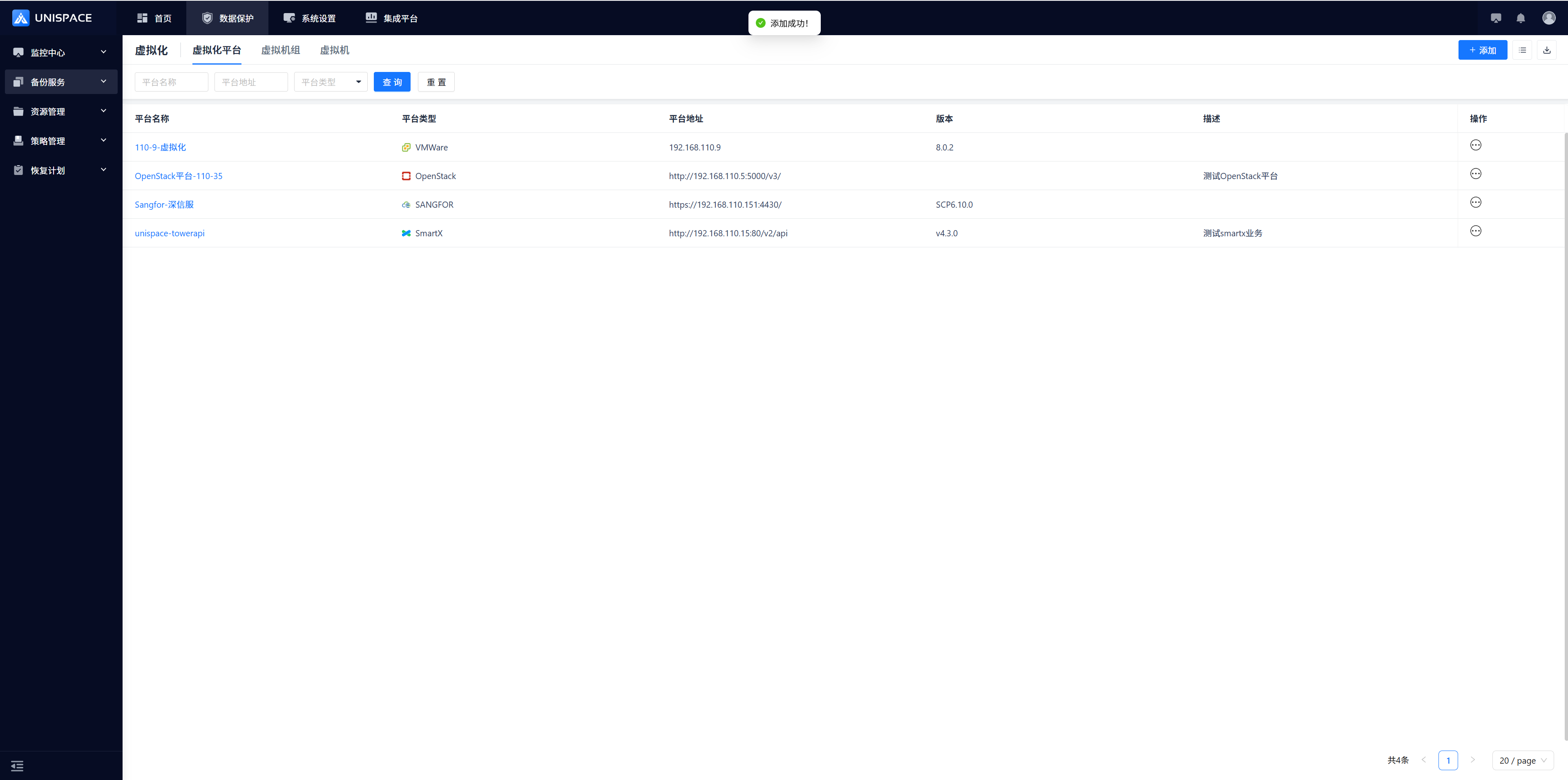
1.2 Create a Virtual Machine Group
Prerequisites
- A virtualization platform has been created.
Steps
Step 1: Click the [Add] button in [Virtual Machine Group] to open the [Add Virtual Machine Group] page.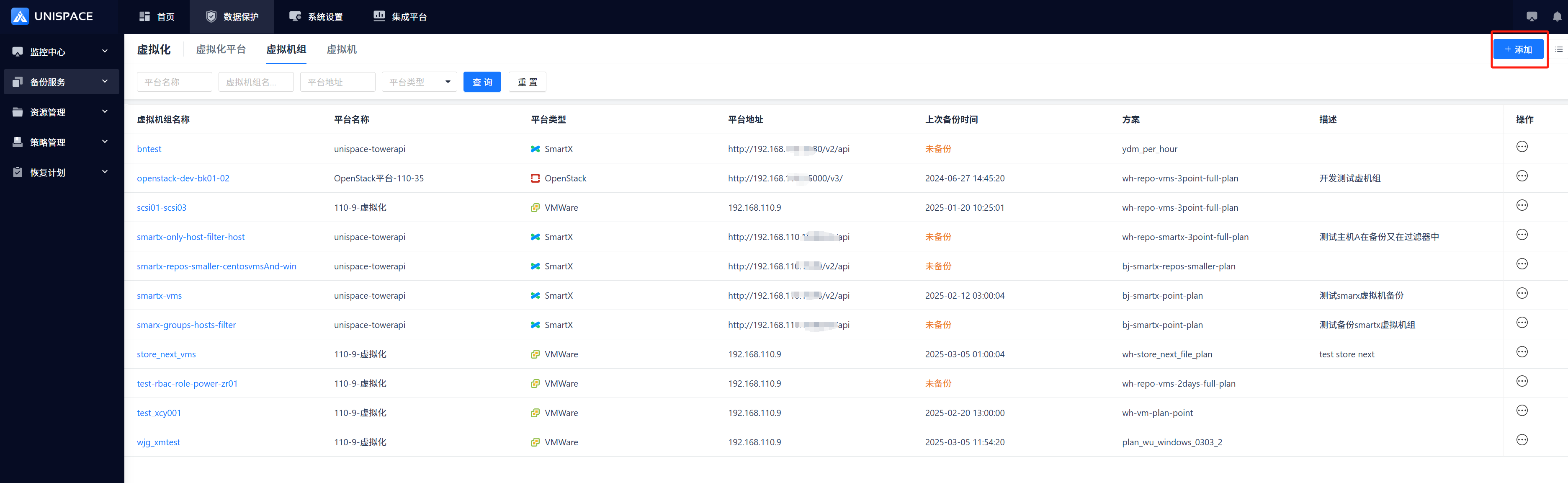 Step 2: Complete the virtual group configuration by specifying the virtual machines to be backed up and excluding virtual machines that do not require backup using filters.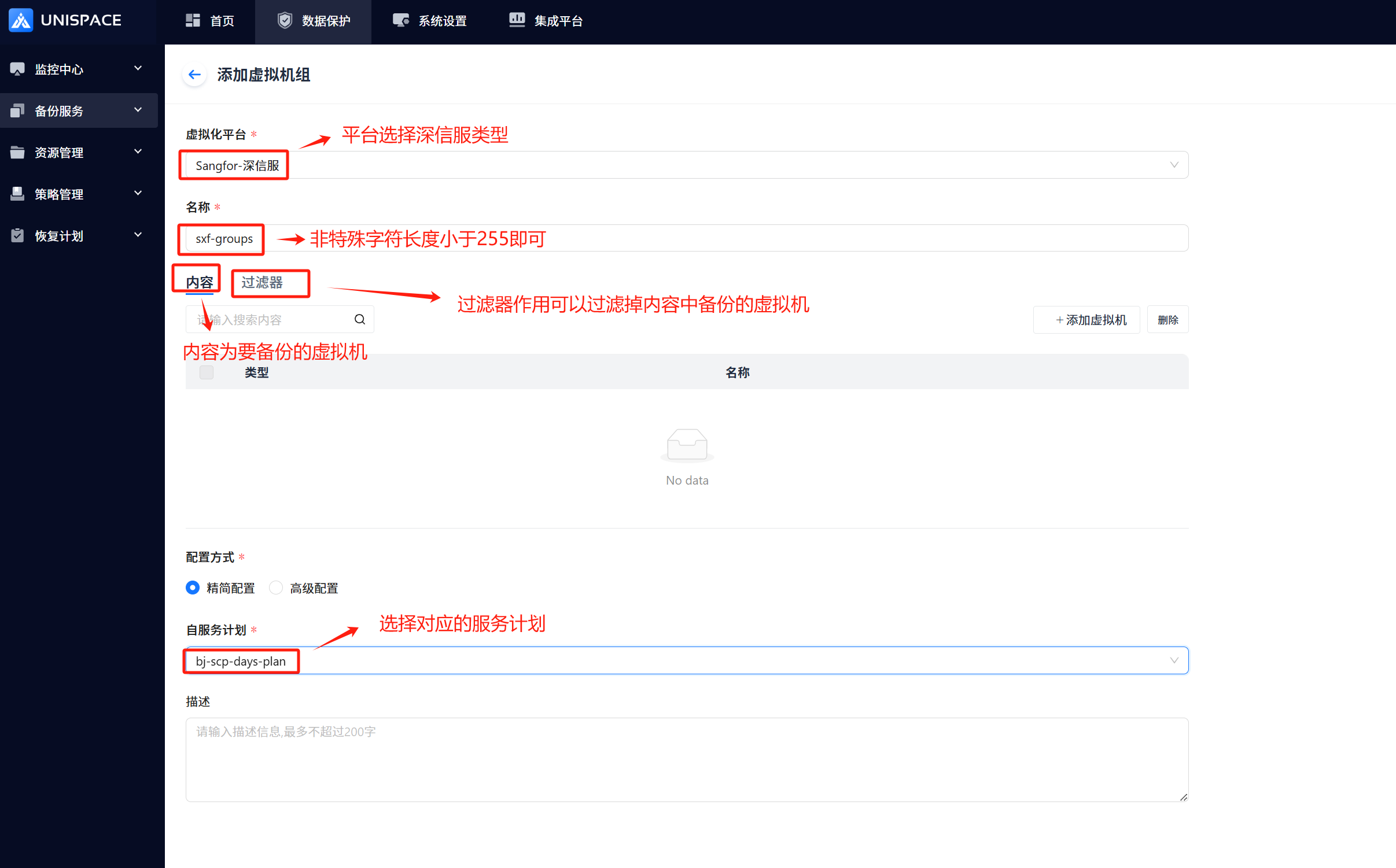
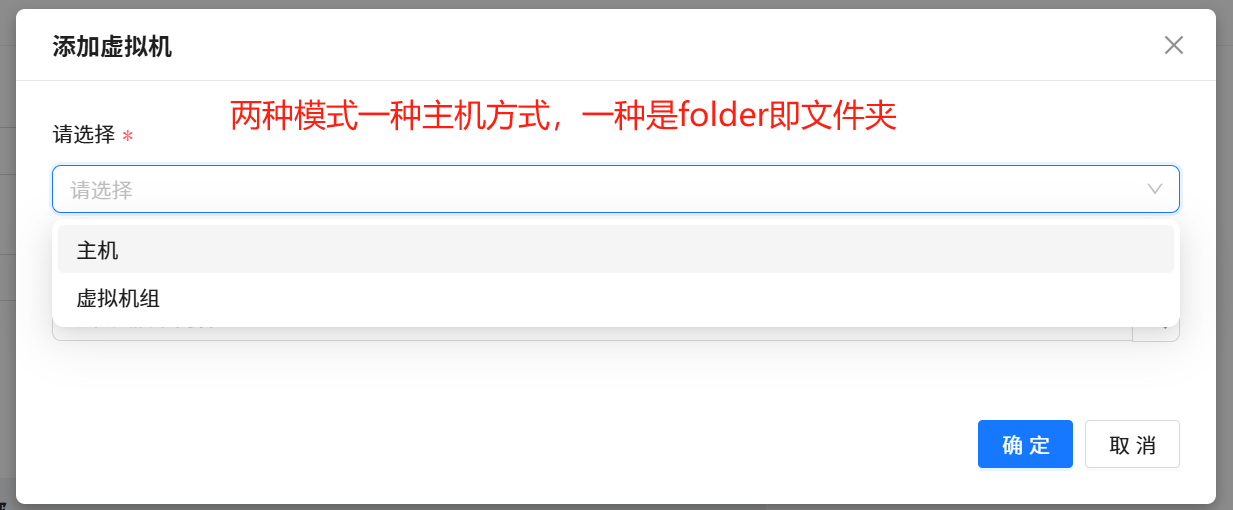 Step 3: Select the virtual machines to be backed up and click [Confirm].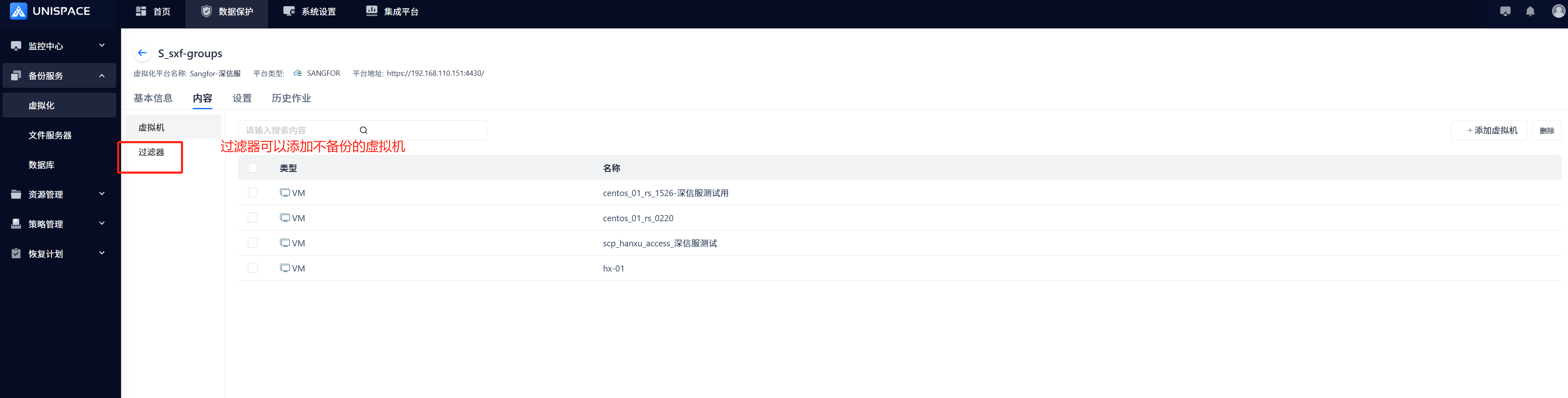
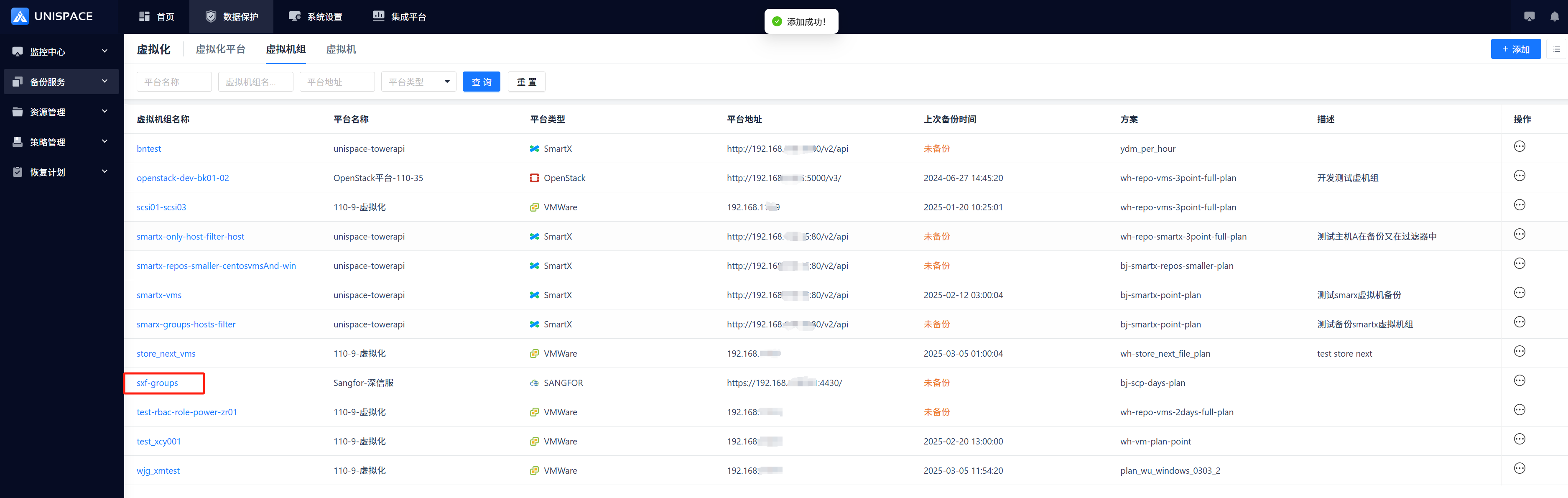 Step 4: Click the [Confirm] button, and a success message will appear.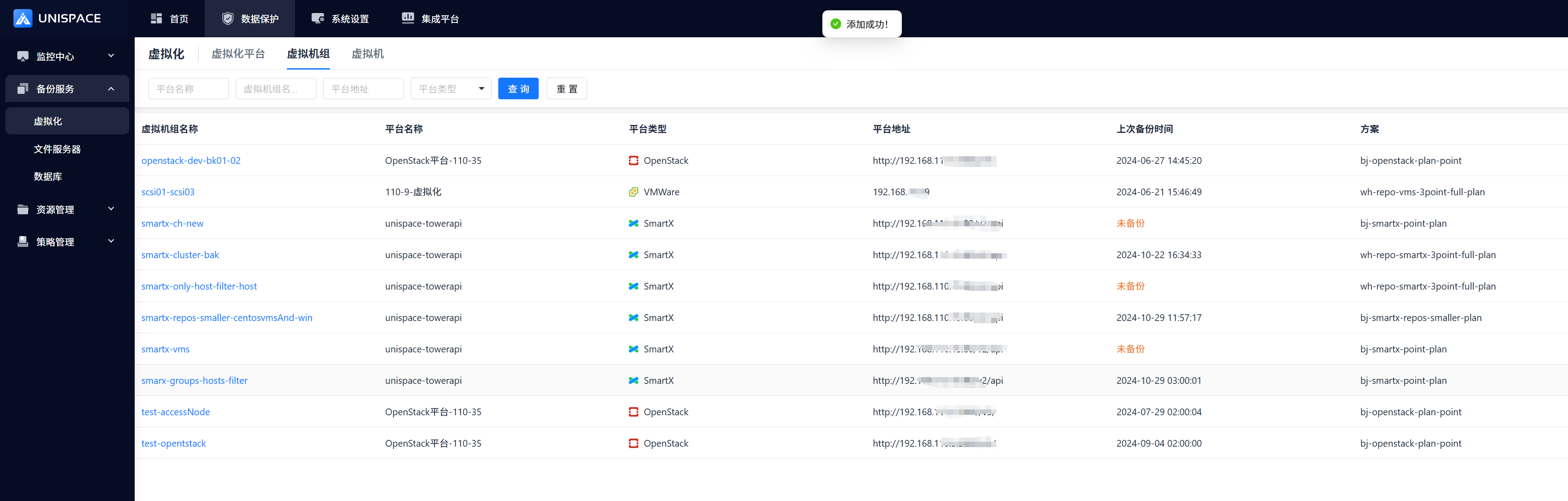
1.3 Virtual Machine Group Backup
Prerequisites
- A virtual machine group has been created.
Steps
Step 1: Click [Virtual Machine Group] - [Actions] - [Backup]. 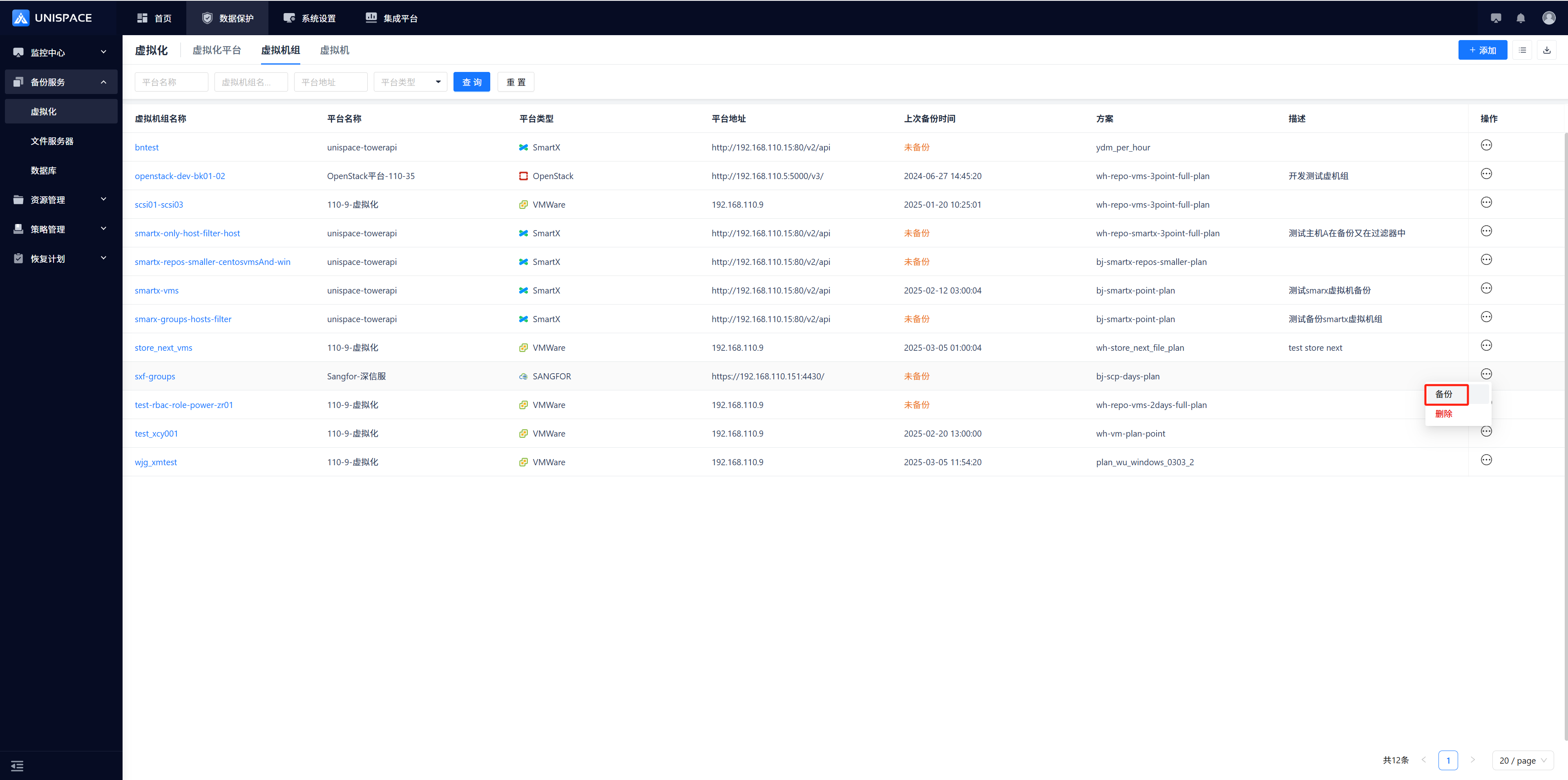 Choose Full or Incremental backup and click [Confirm].
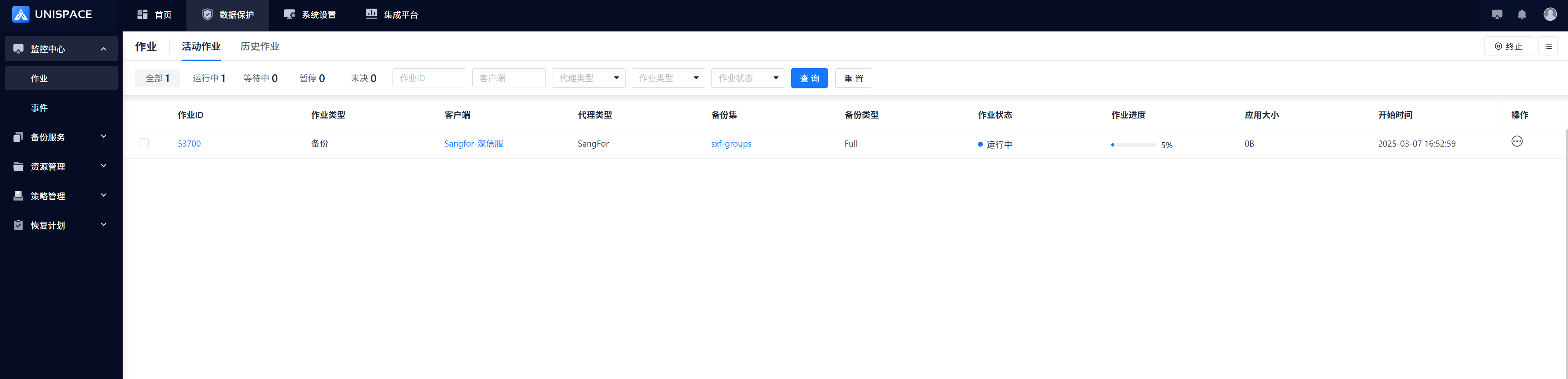
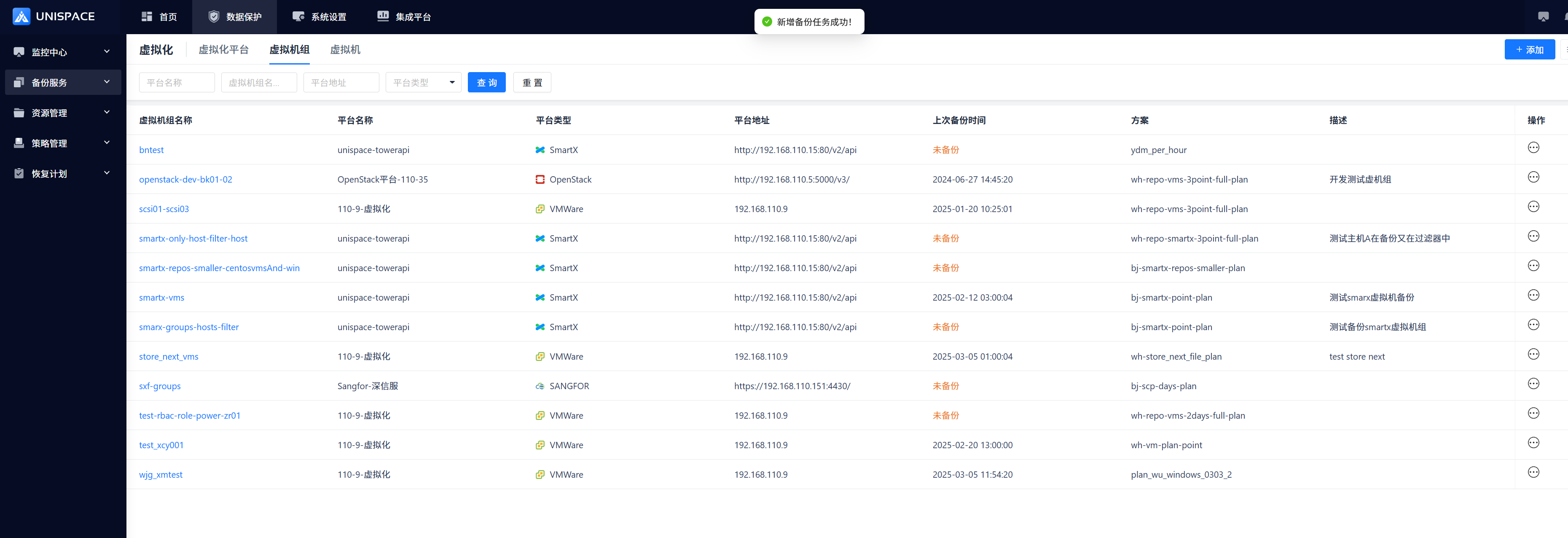 Step 2: Once the job starts successfully, go to [Monitoring] - [Job] - [Active Jobs] to view the running job.
 Step 3: After the backup is complete, go to [Monitoring] - [Job] - [Job History] to view the backup job with the status marked as "Completed".
1.4 Virtual Machine Recovery
Prerequisites
- A full or incremental backup of the virtual machine group has been performed.
Steps
Step 1: Click on the system menu [Backup Service] - [Virtualization] - [Virtual Machine].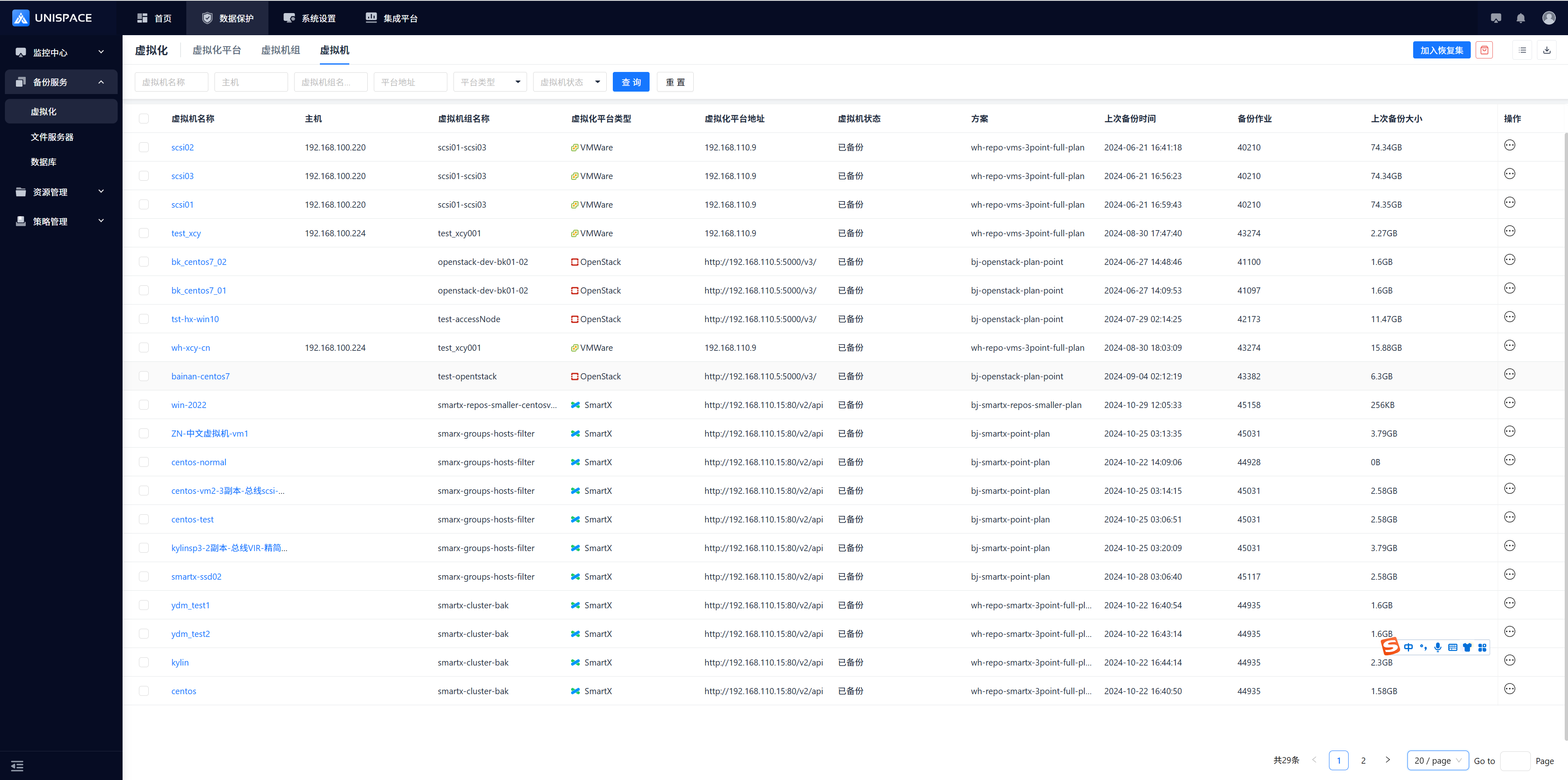 Step 2: Check the virtual machine(s) from the [Virtual Machine] list that you want to recover, click [Add to Recovery Set], and then click the adjacent logo.
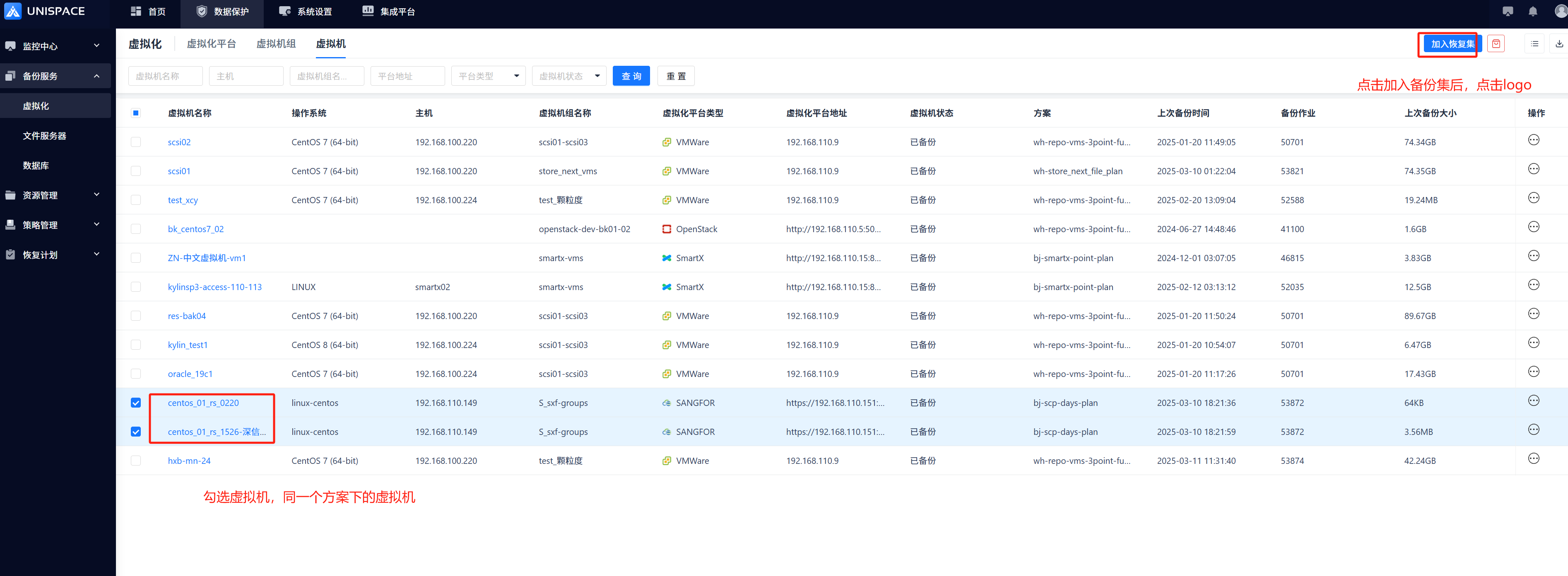 Step 3: A "Recovery Set" window will appear. Search for the recovery point based on a time range or the most recent recovery point, then click [Confirm].
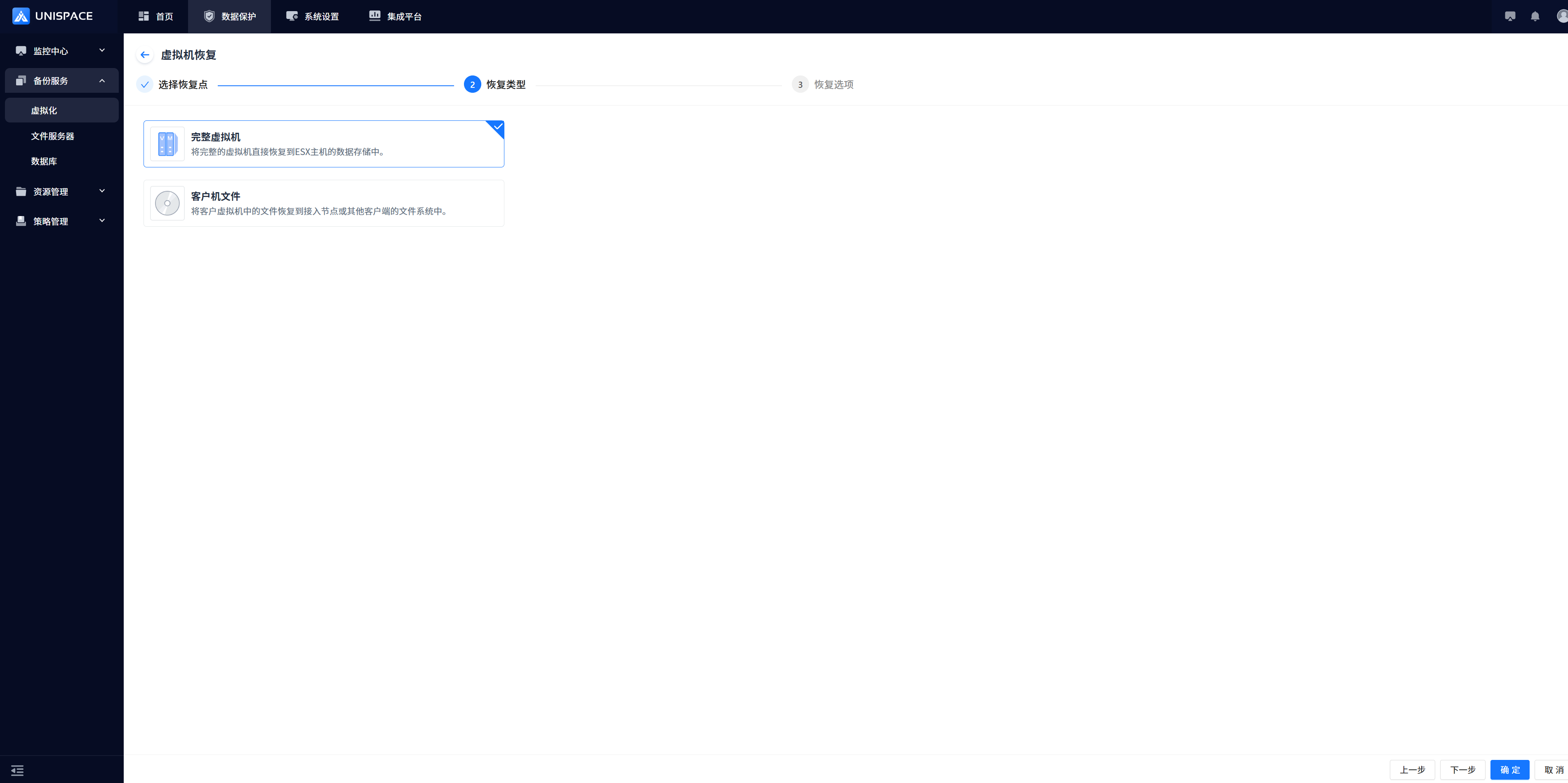
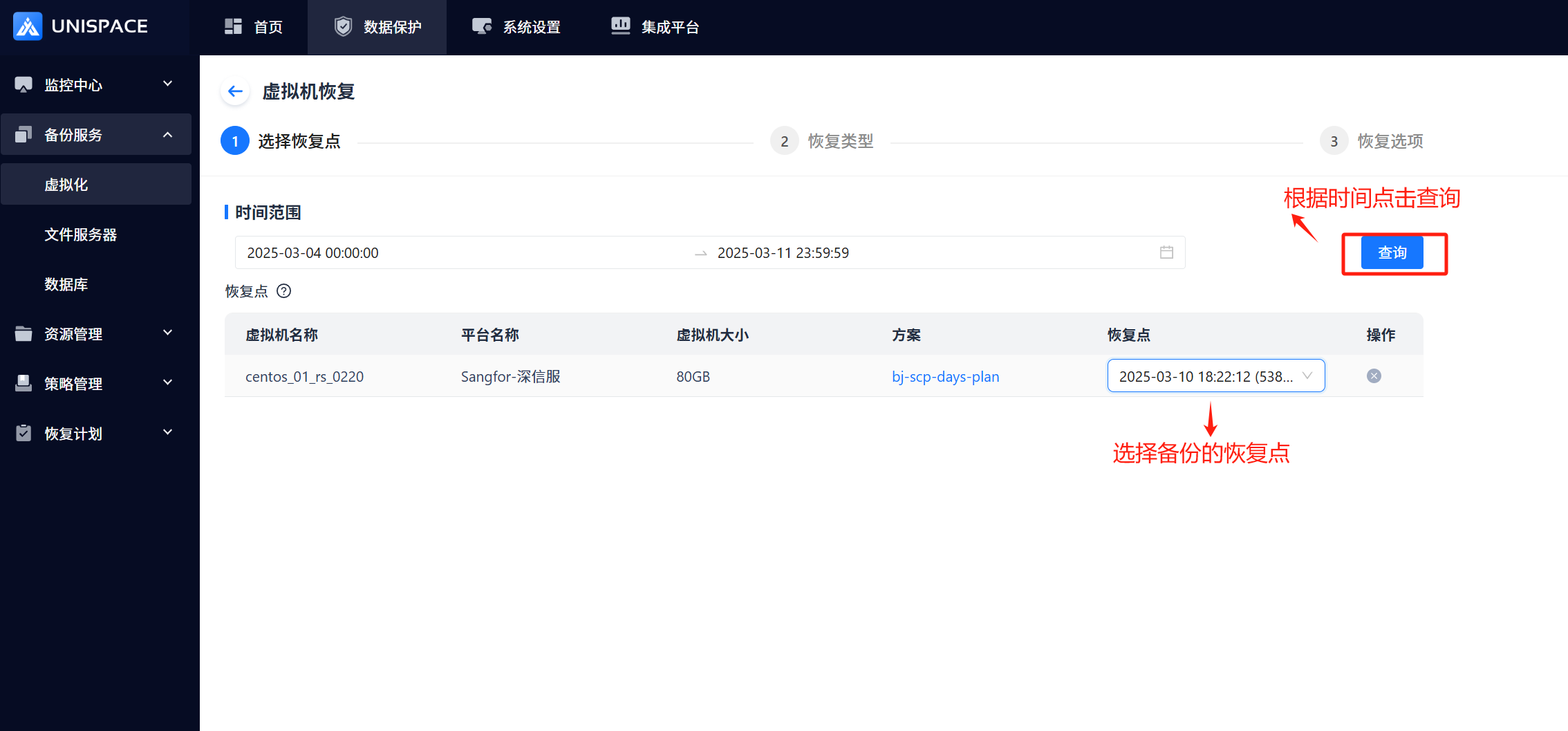 Step 4: Select the recovery point and the backup job ID you want to restore, then click [Next Step]. Choose Full Virtual Machine (client file recovery is currently not supported).
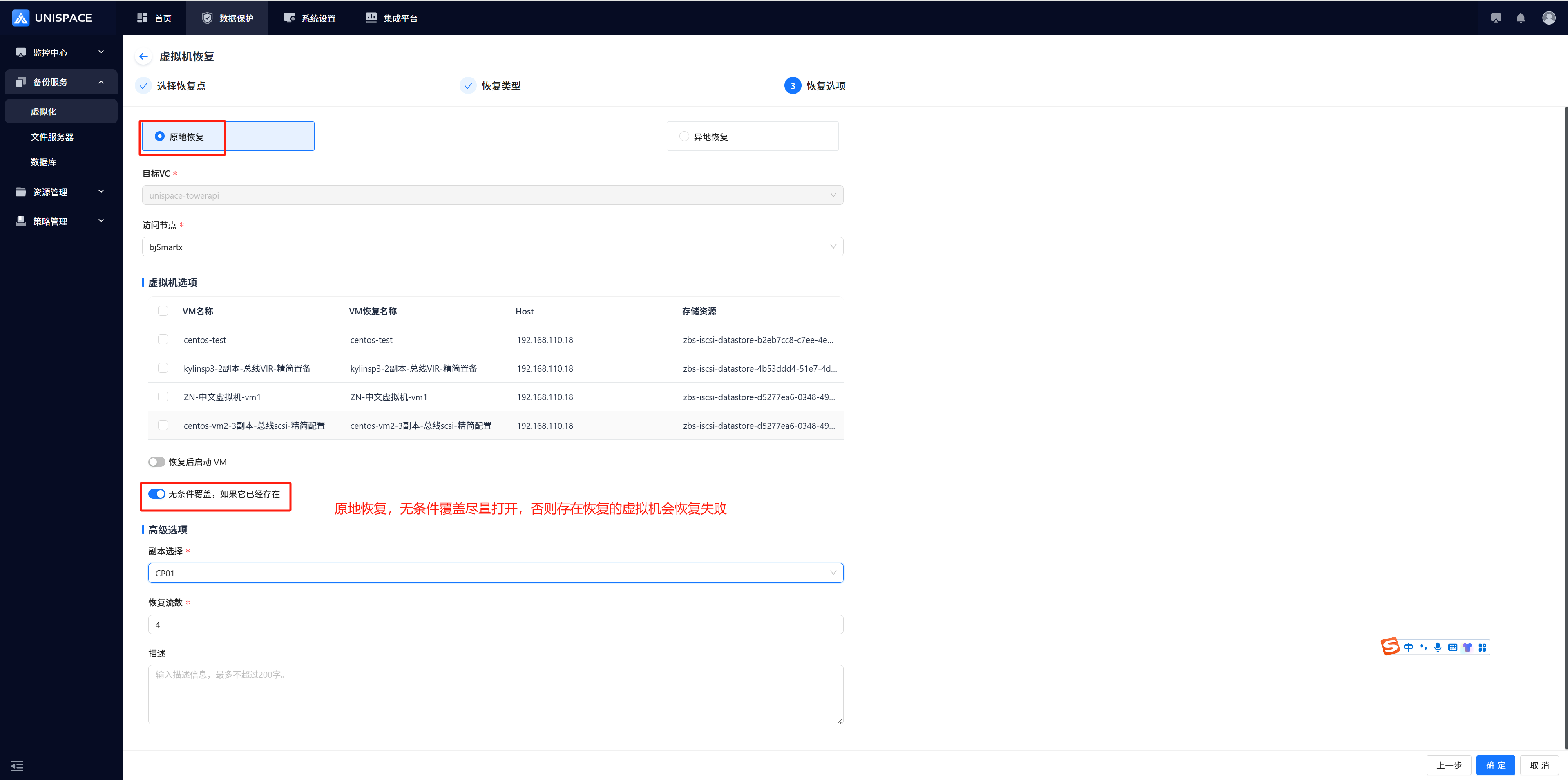
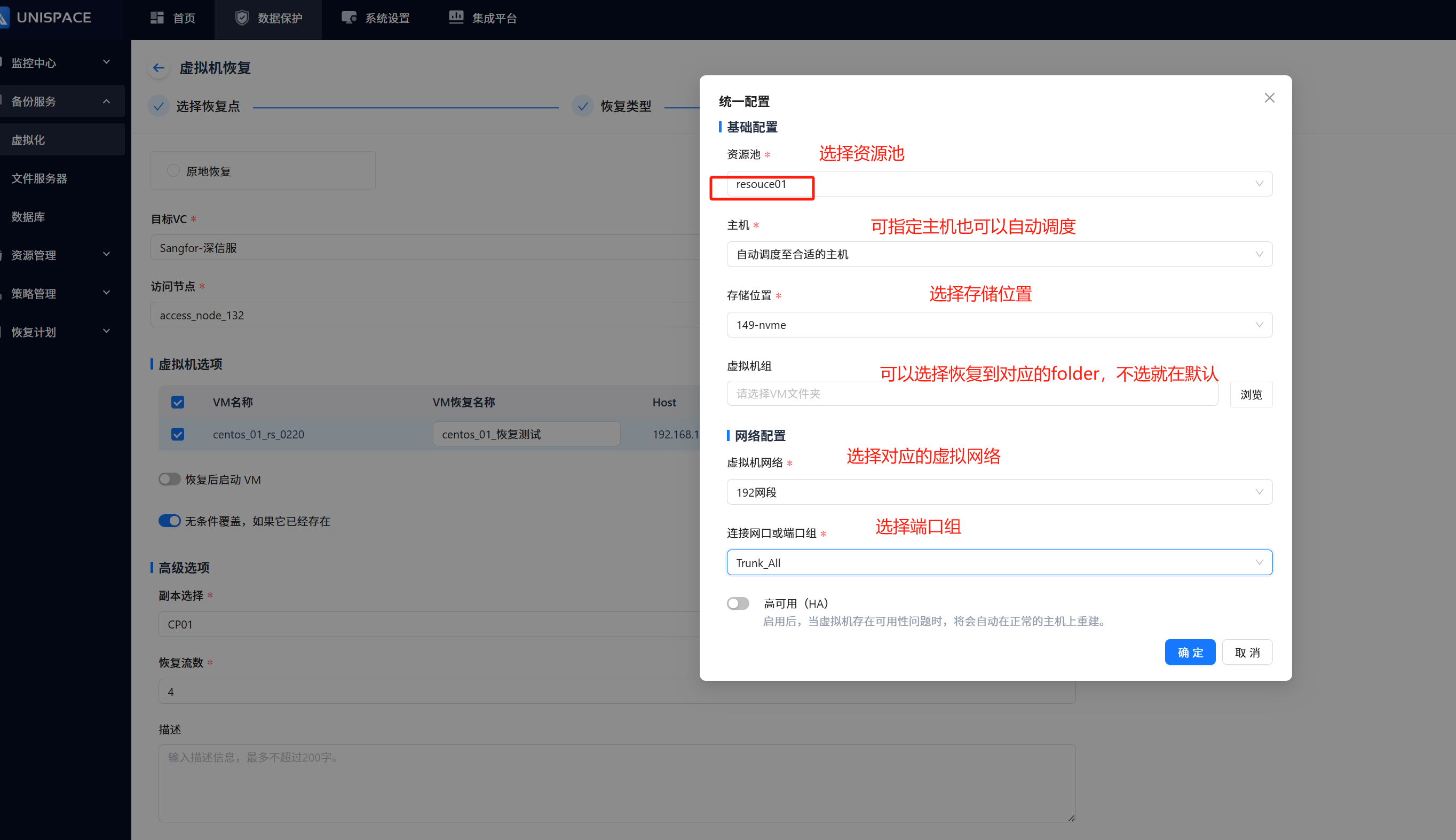
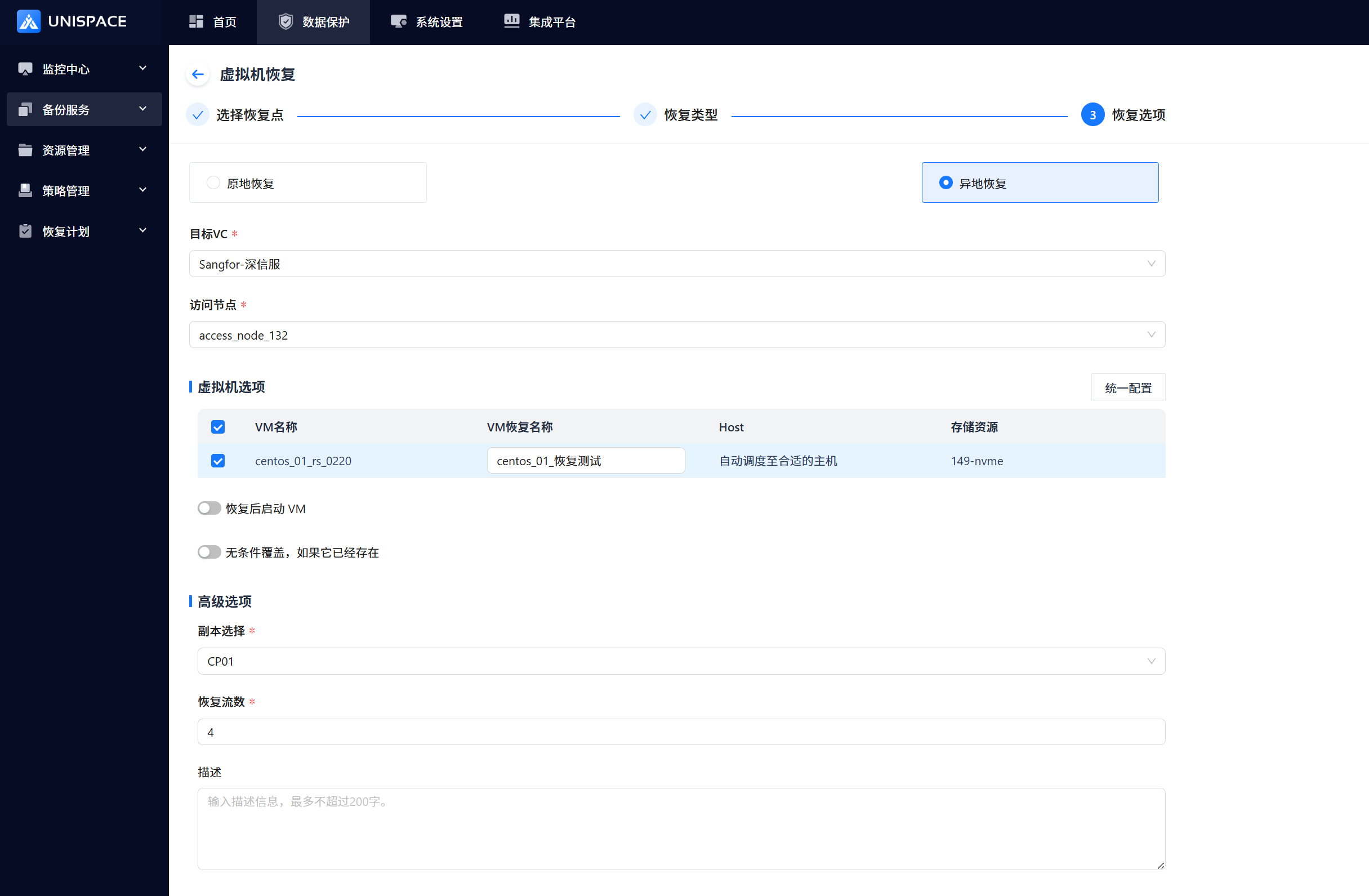
 Step 5: Choose In-Place Recovery. If the virtual machine already exists and needs to be overwritten, enable the "Unconditional Overwrite" option.
 Step 6: Alternatively, choose Remote Recovery, configure the settings, and click [Confirm].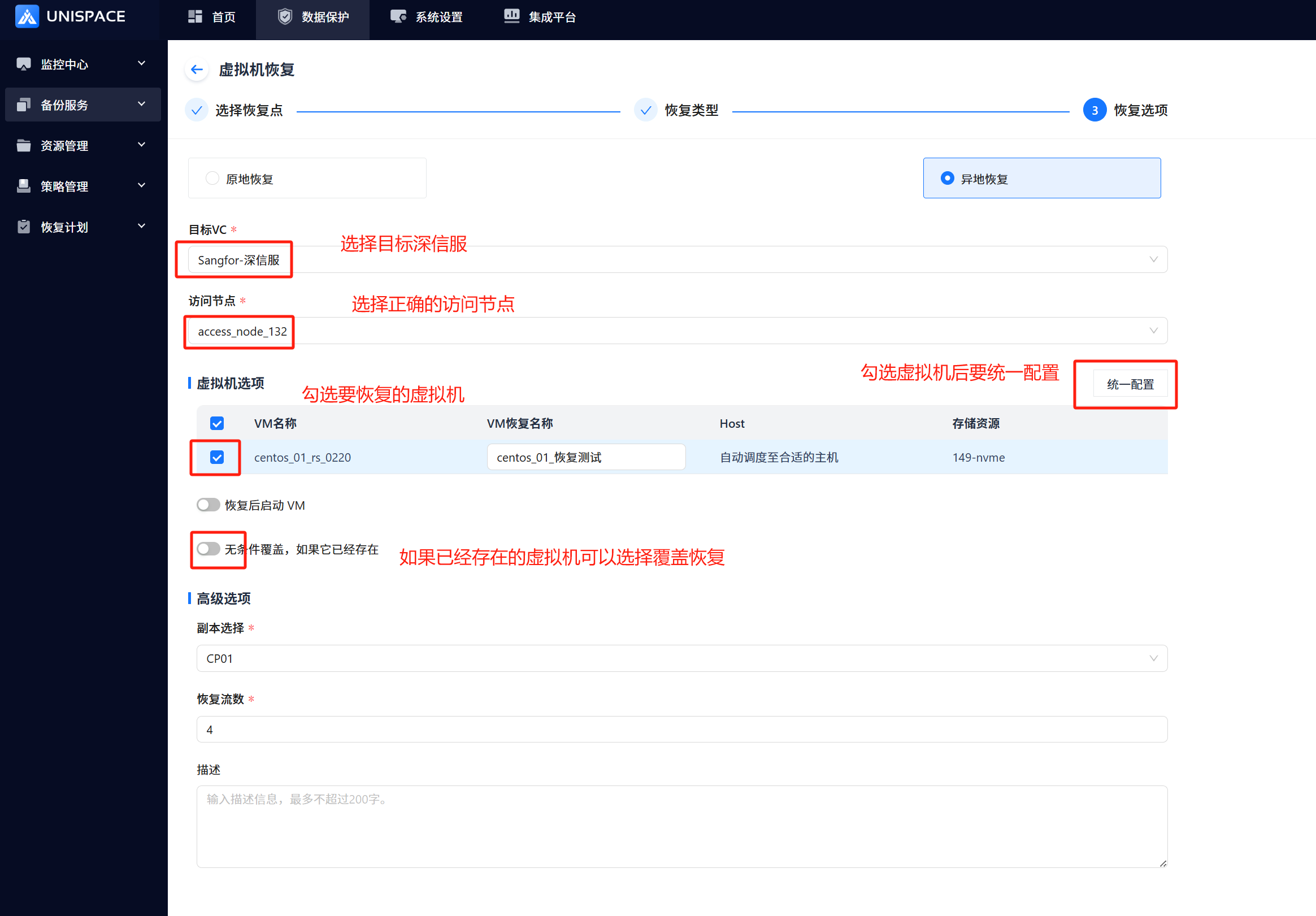
 Step 7: After the job starts successfully, go to [Monitoring] - [Job] - [Active Jobs] to view the running job.
 Step 8: Once the job is completed, go to [Monitoring] - [Job] - [Job History] to view the job and its status.