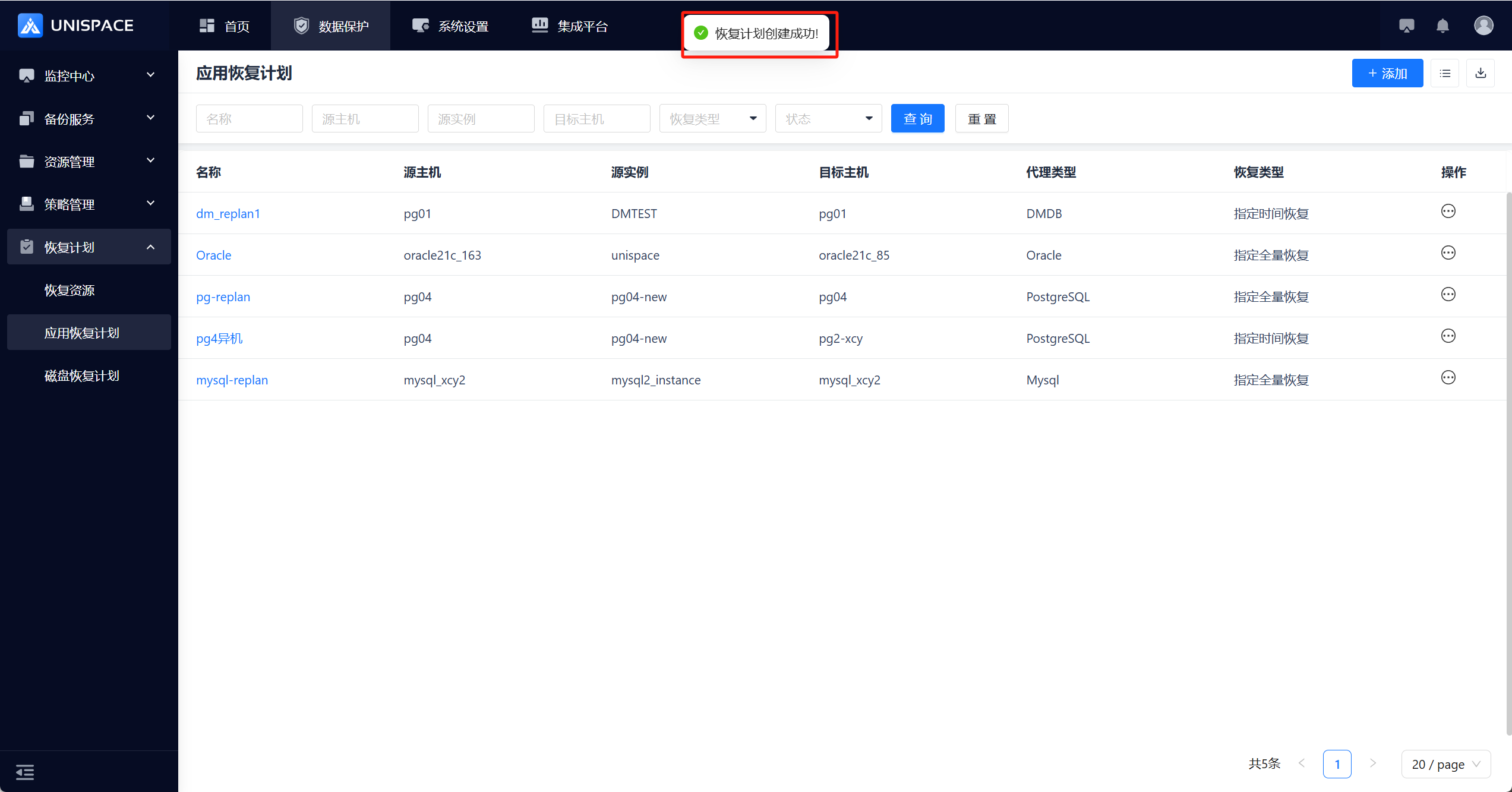
Application Recovery Plan
Application Recovery Plan
Creating an Application Recovery Plan
Prerequisites
- Recovery resources have been added.
- A registered database client (e.g., MySQL, PostgreSQL, etc.) exists.
- Backups have already been performed for the instance or database.
Steps
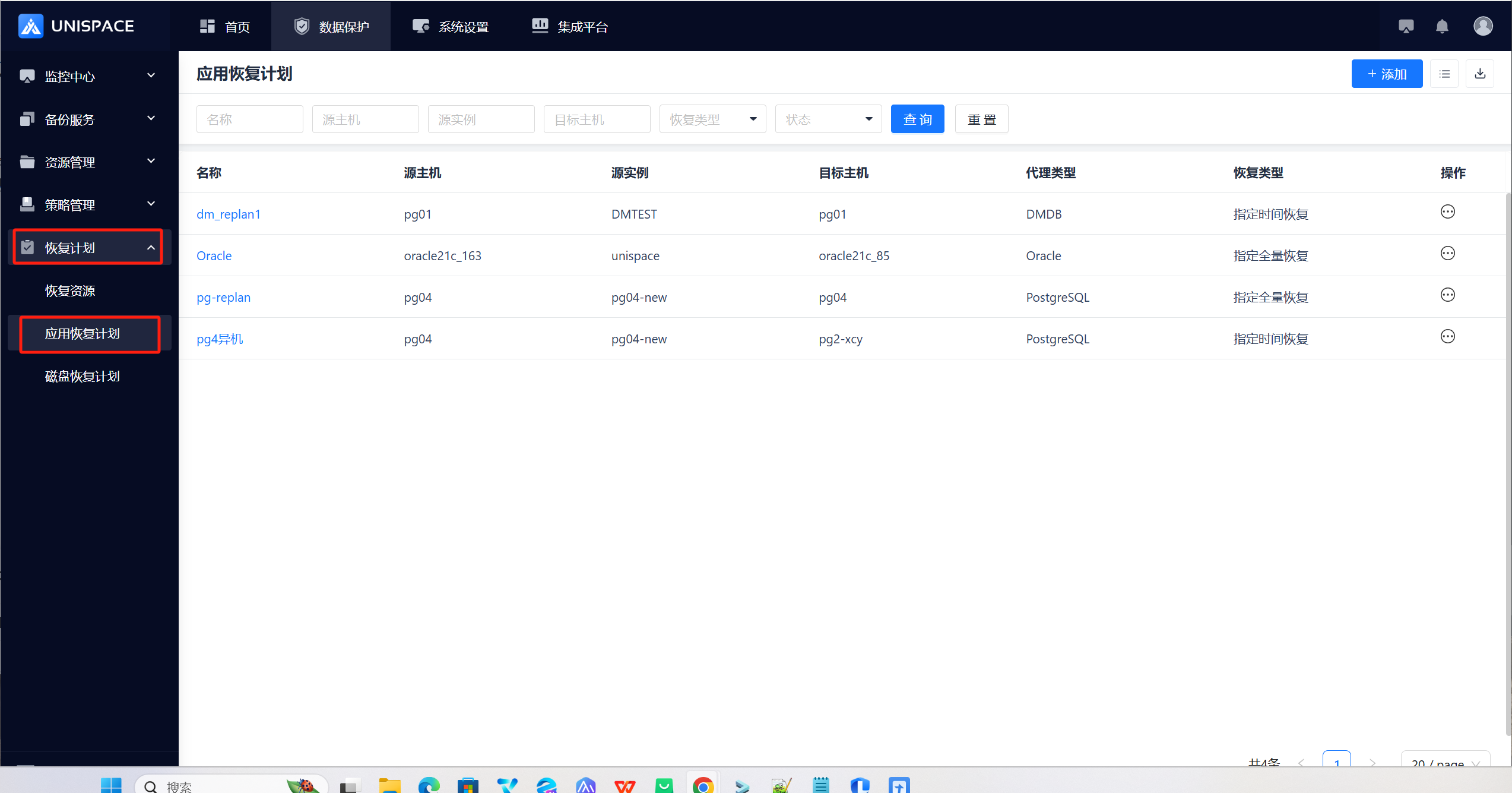
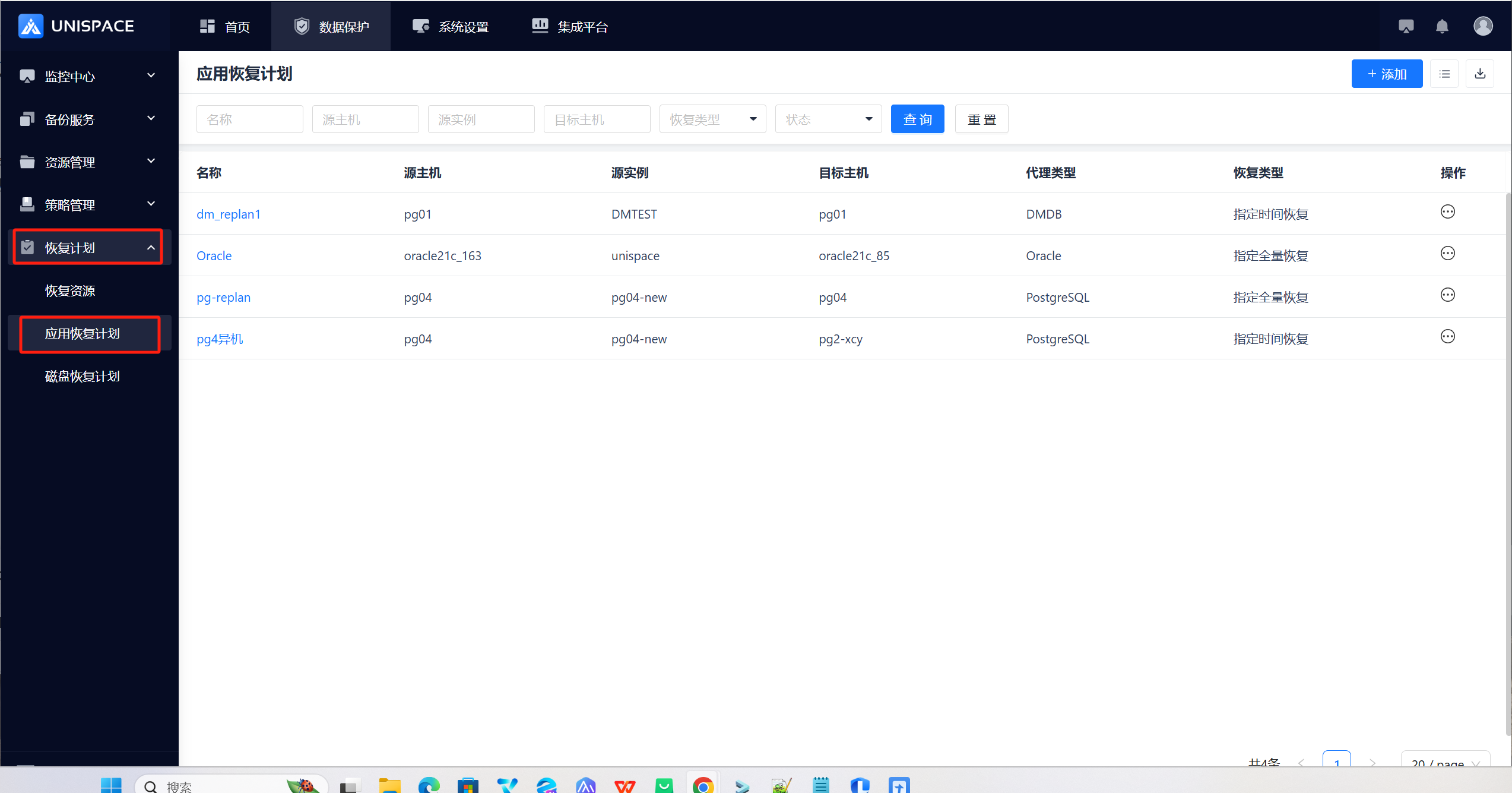
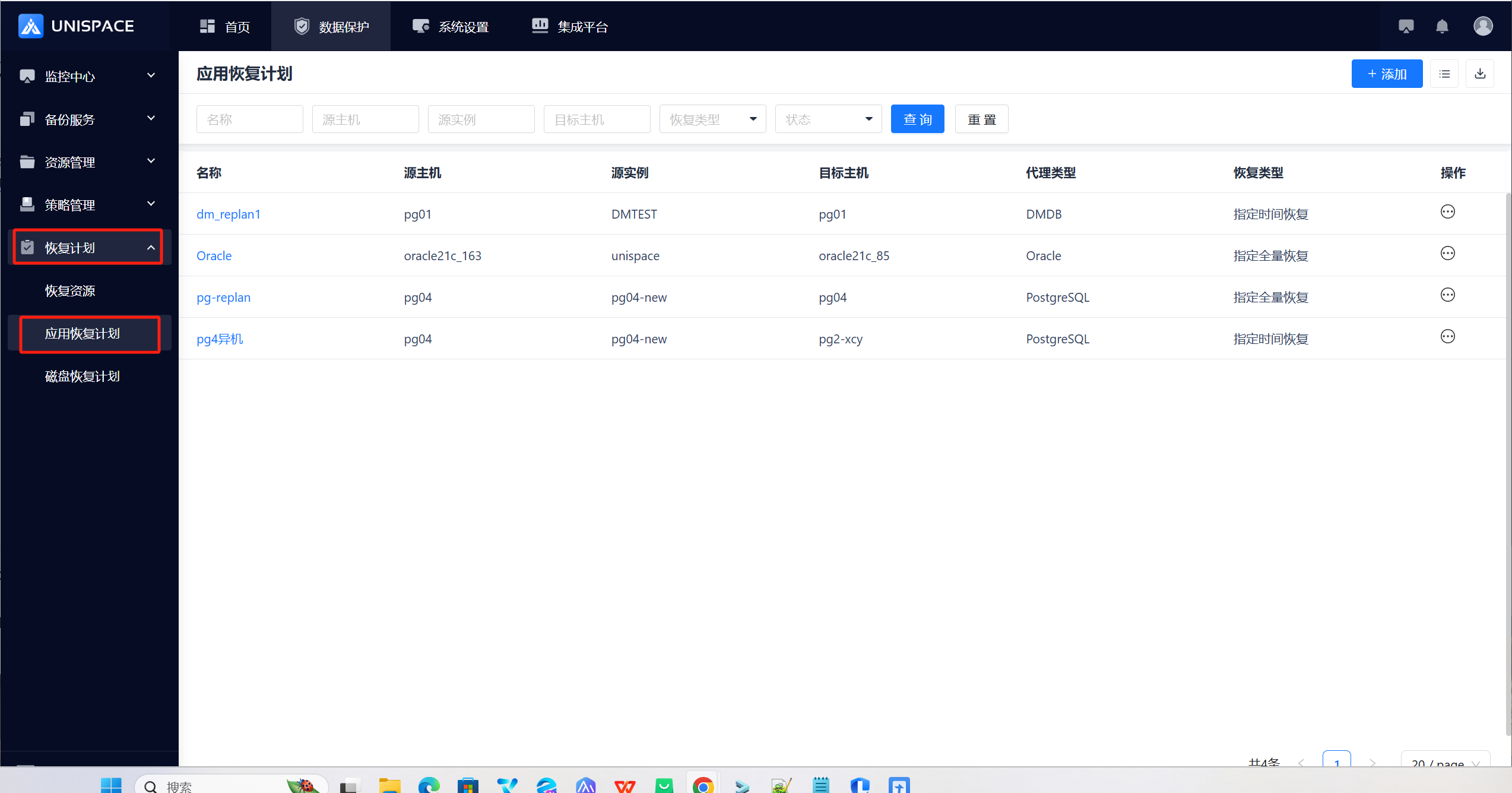
Step 1: In the left navigation pane, go to Recovery Plan - Disk Recovery Plan to enter the Disk Recovery Plan
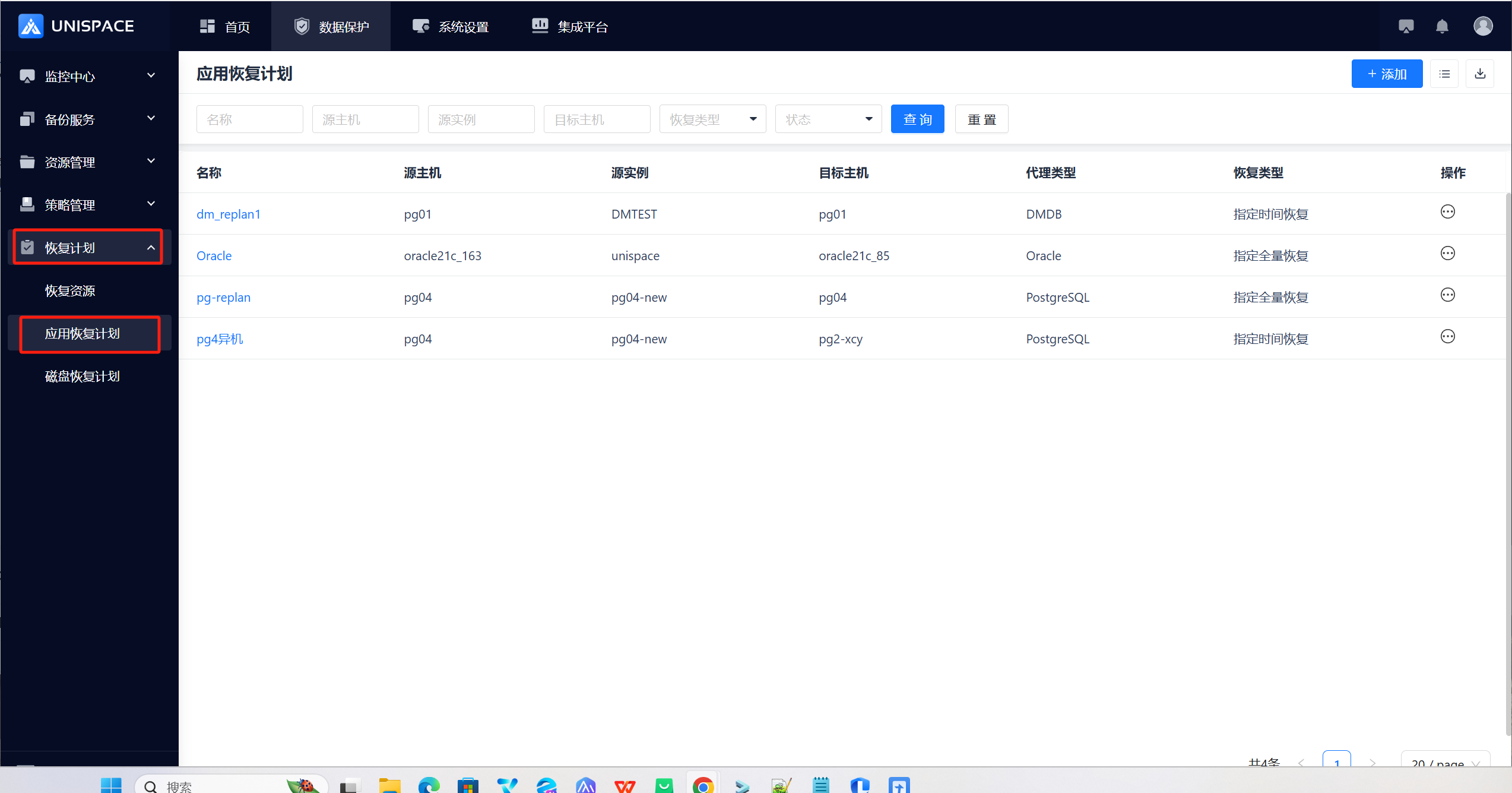
Step 2: Click the Add button in the upper right corner to enter the Add page. The default application type is MySQL. Click Next.
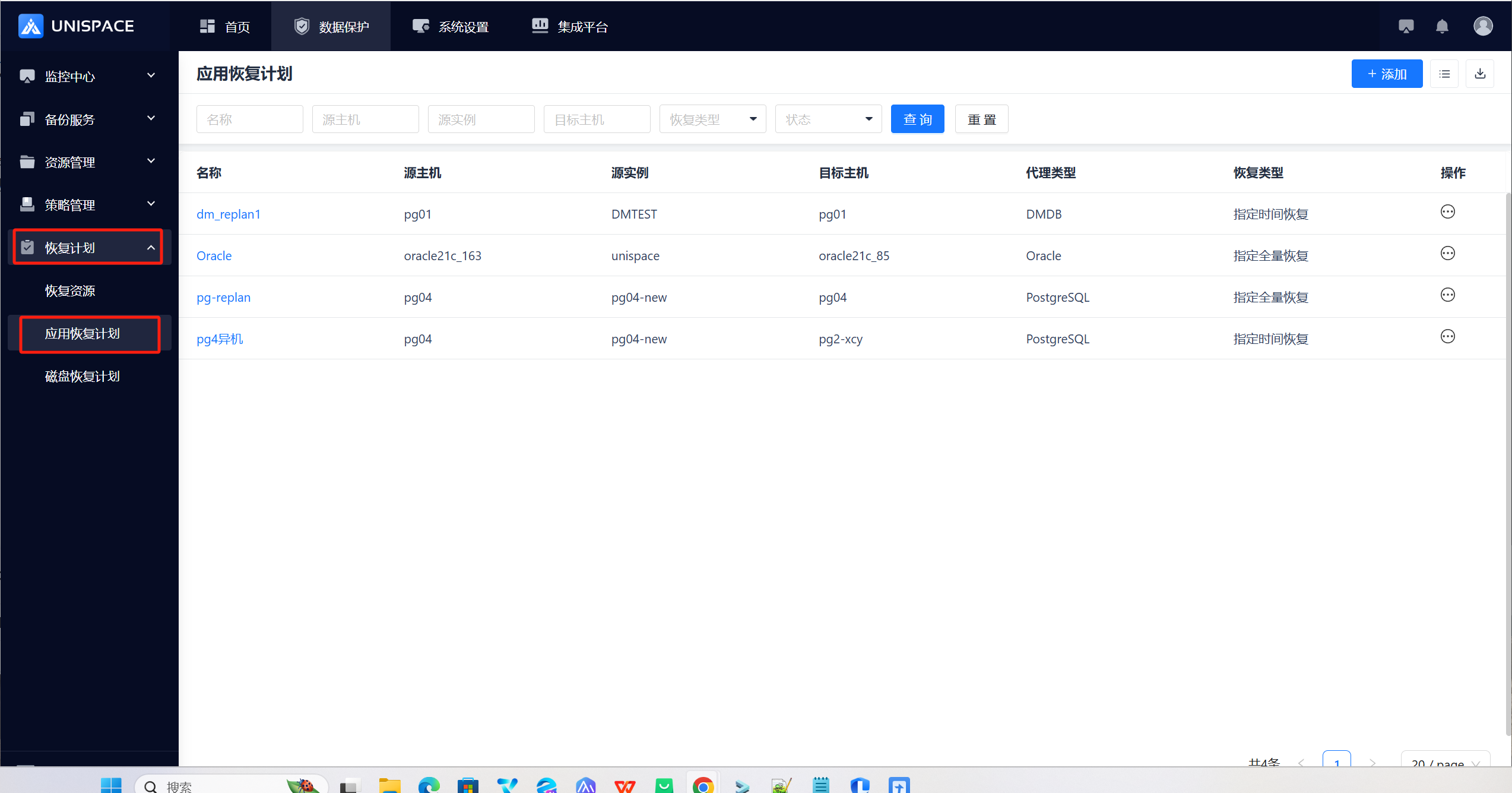
Step 3: Fill in the necessary parameters. See parameter descriptions below:
| Parameter Name | Description | Rule/Notes |
|---|---|---|
| Source Host | Displays corresponding hosts based on database type | Single select, required, dropdown. E.g., if "mysql" is selected, only MySQL clients are listed. |
| Source Instance | Displays instances under the selected source host | Single select, required, dropdown |
| Recovery Type | Instance recovery or database recovery | Single select, required. MySQL/PostgreSQL support single/multiple DBs (not cross-backup set); Dameng/Oracle support instance recovery only |
| Recovery Point | Backup completed, automatic recovery (currently not supported), specify full recovery or point-in-time recovery, and automatically select the recovery point based on the above rules. | Full: supports latest full daily/weekly/monthly or full at specified time; Specific time: supports latest daily/weekly/monthly or point-in-time recovery (with incremental if available) |
Step 4: Click Next to select the recovery target.
Step 5: Fill in the necessary target parameters:
| Parameter Name | Description | Rule/Notes |
|---|---|---|
| Target Host | Host where data will be recovered to (must be added as recovery resource) | Single select, required. Dropdown lists clients of the same type (e.g., mysql) that have been added. |
| Target Instance | List of instances under the selected target host | Single select, linked to selected target host |
| Temp Directory | Temporary path for recovered files (MySQL only) | Custom input |
| Recovery Streams | Number of data streams | Numeric, 1–200. Recommended: 4 |
Step 6: Click Next to add an execution plan.
Step 7: Fill in the execution plan parameters:
| Parameter Name | Description | Rule/Notes |
|---|---|---|
| Name | Name of the application recovery plan | Required. Input box. Custom name |
| Add Plan | Schedule for automatic recovery execution | See Step 8 |
| Custom Scripts | Pre-script: executed before recovery (failure will stop the job). Post-script: after recovery (failure doesn't affect job). Input full path on the target machine. | Scripts must be placed in a specified path on the target machine. Enter the full absolute path in the input field. |
Step 8: In the Add Plan pop-up window, fill in the following:
| Parameter Name | Description | Rule/Notes |
|---|---|---|
| Plan Name | Name of the execution plan | Required. Input box. Custom name |
| Schedule Type | One-time or recurring | One-time: run at any future time. Recurring: define start/end date, repeat frequency by day/week/month. |
| Time Zone | Default is UTC+8 |
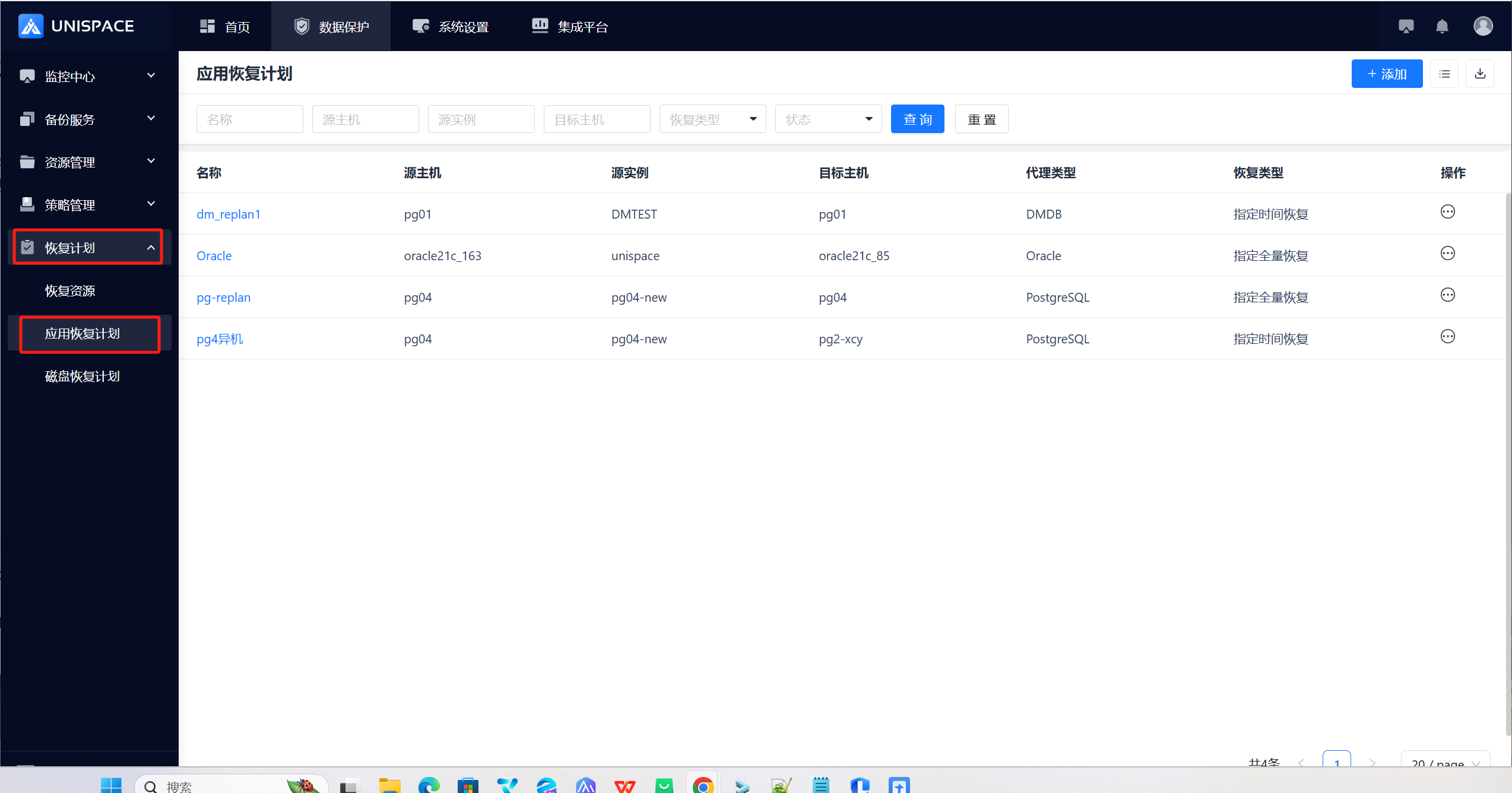
Step 9: Click Confirm. A success message will appear upon successful addition.
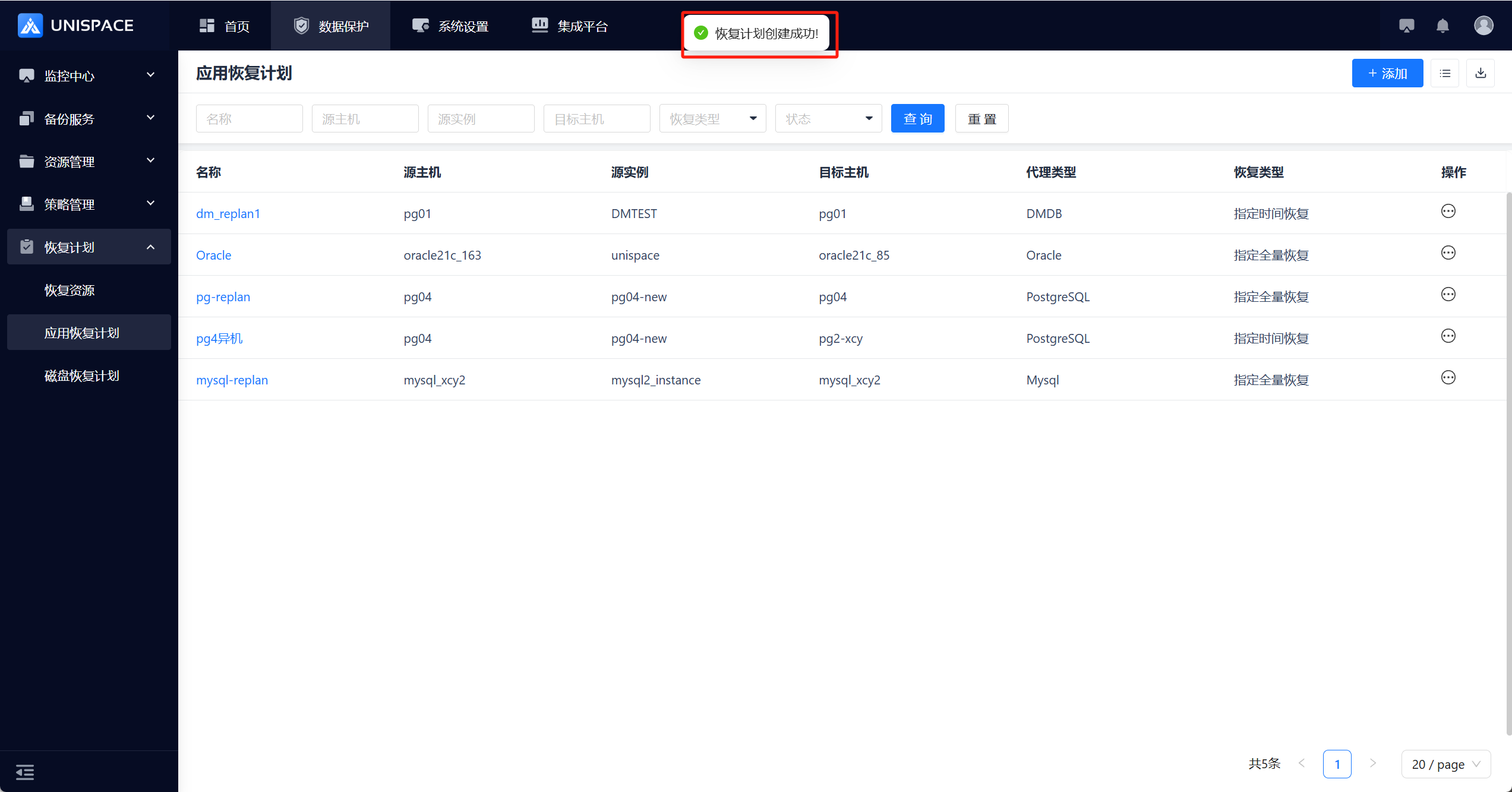
Step 10
The system will automatically trigger recovery tasks based on the execution plan's RPO. You can view the job in Monitoring Center - Jobs - Active Jobs.