Agent--Kingwow
1.1 Create Kingwow Cluster
Prerequisites
- Created a storage repository.
- Created a service plan.
- All Kingwow nodes are registered in the system.
Steps
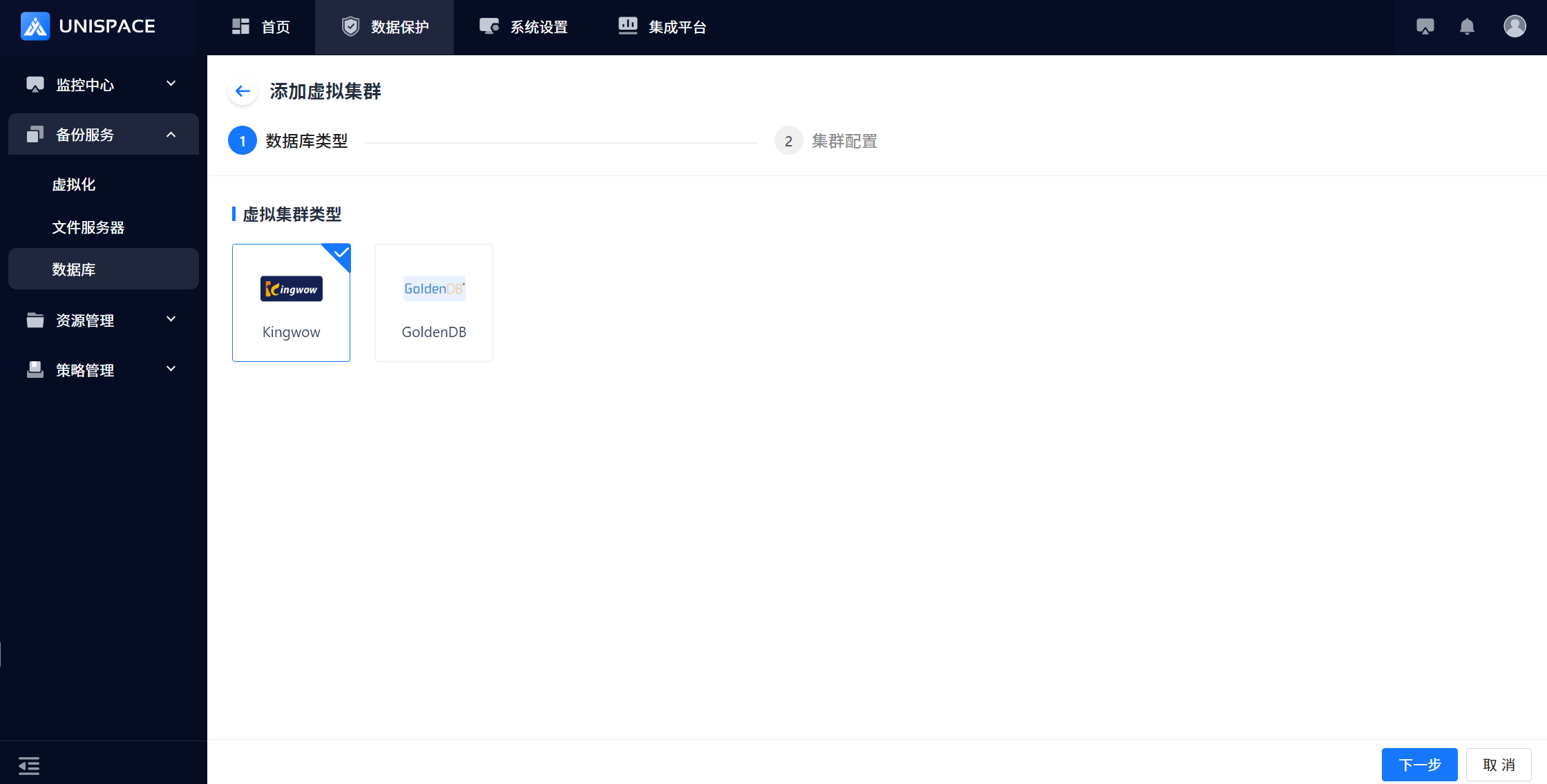
Step 1: Click [Database] - [Virtual Cluster] - [Add] button.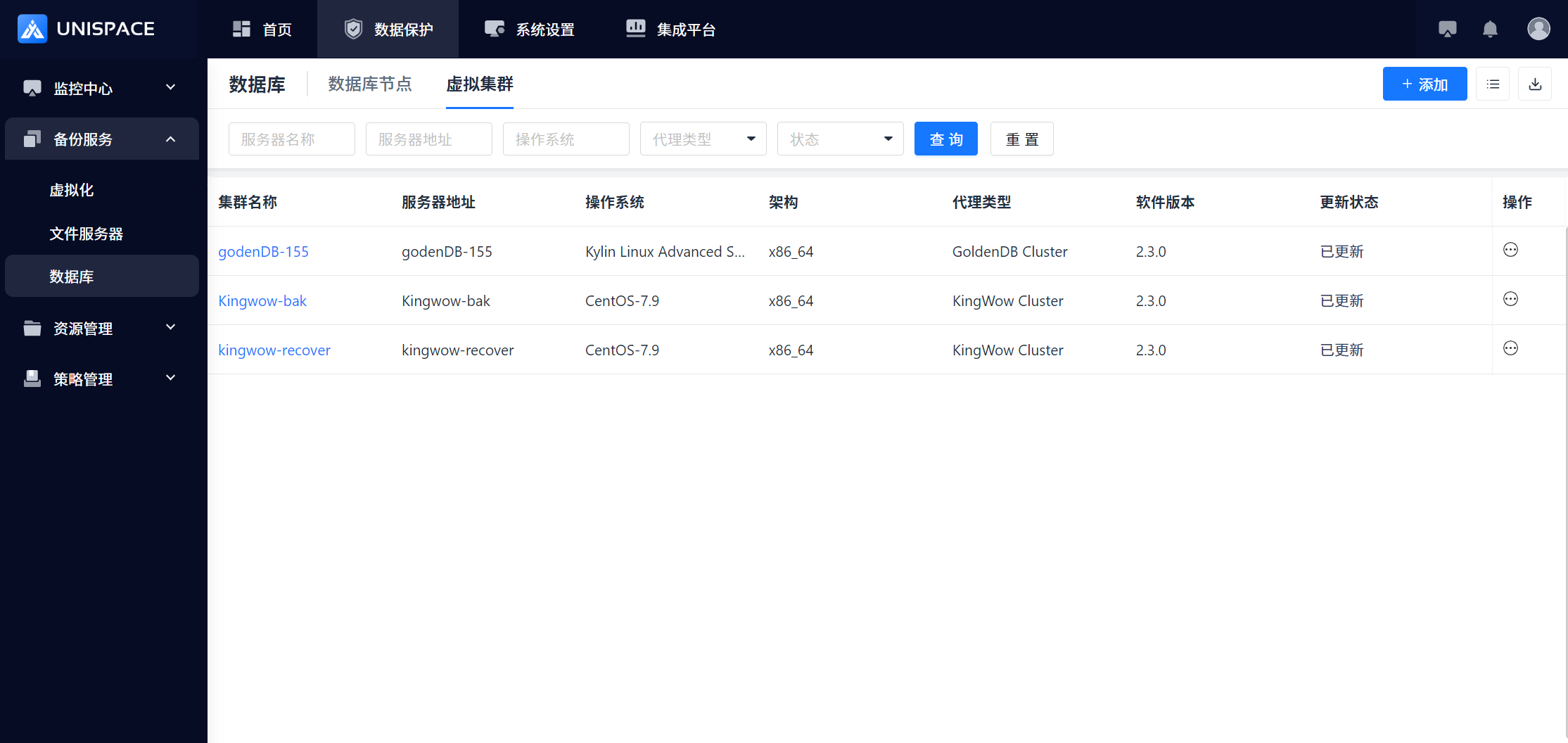 Step 2: Select the Kingwow icon and click [Next].
 Step 3: Fill in the [Add Virtual Cluster] form.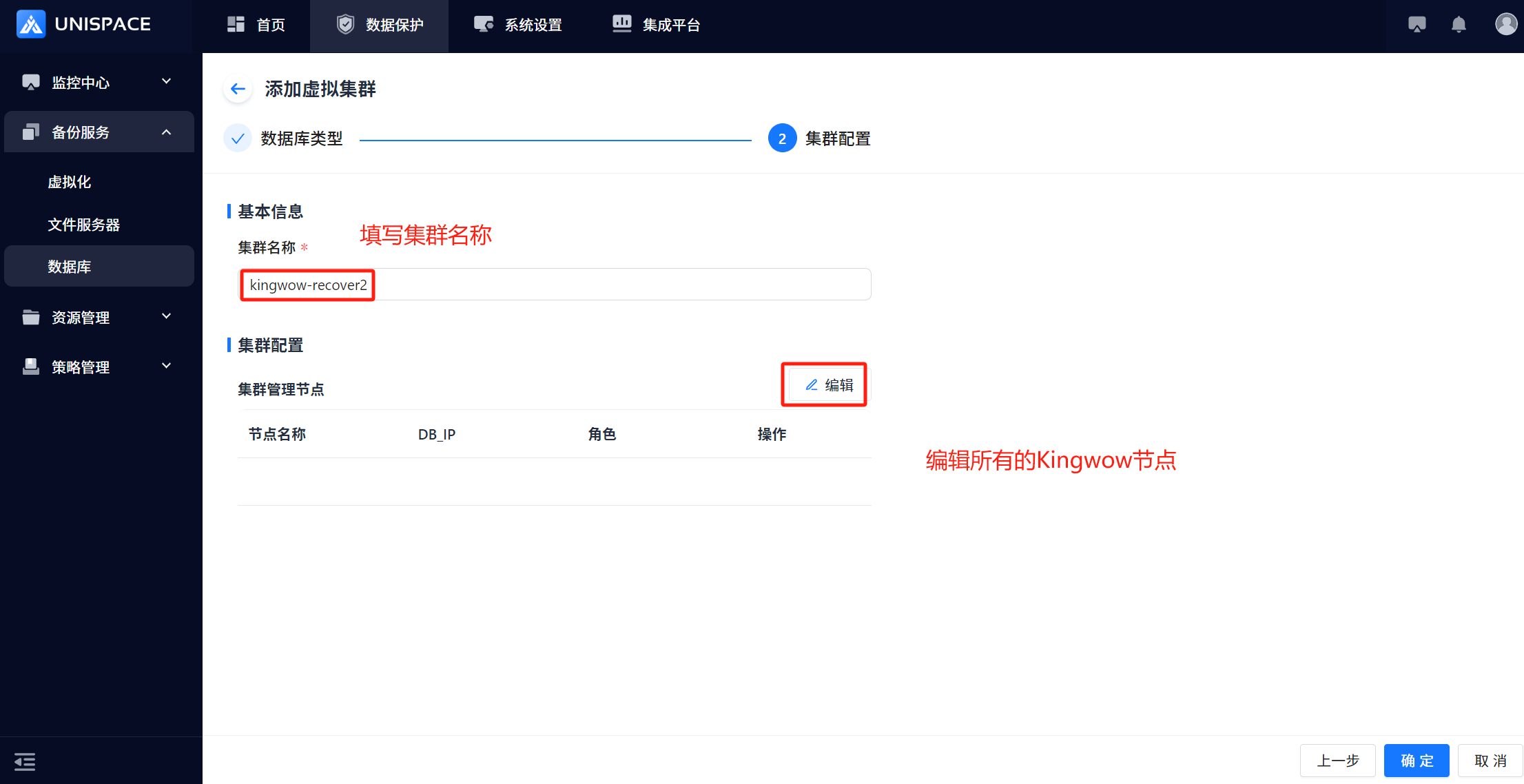
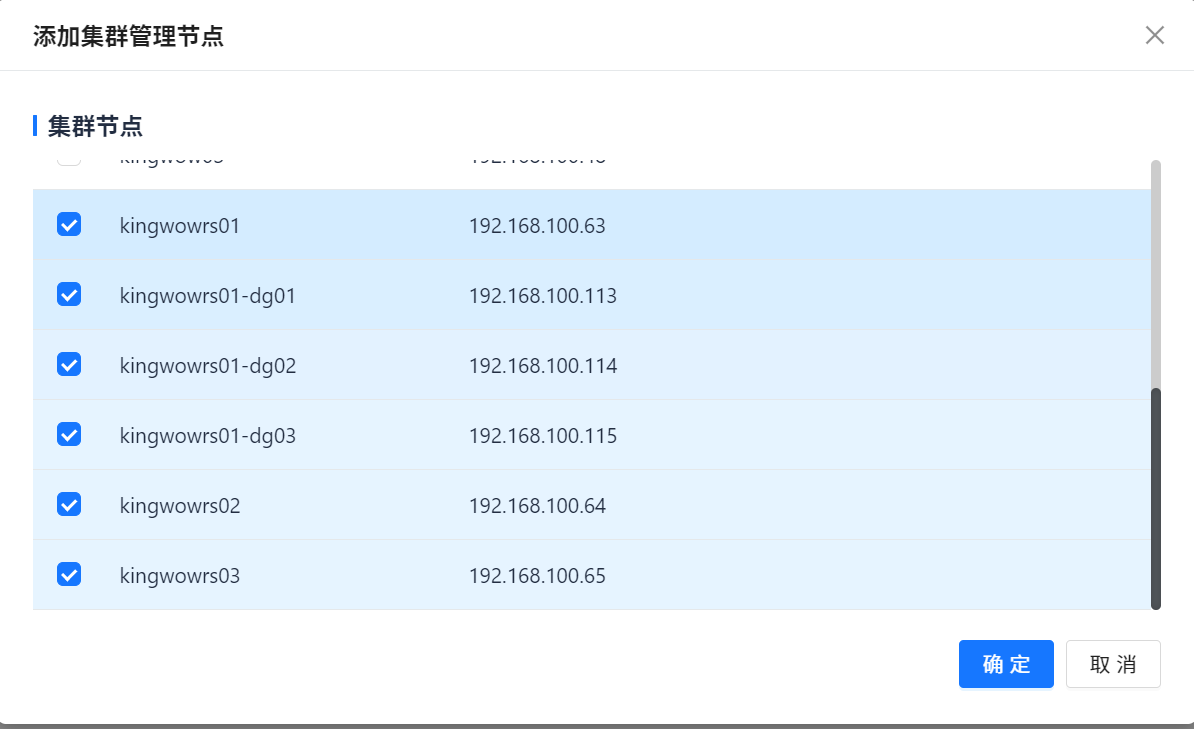
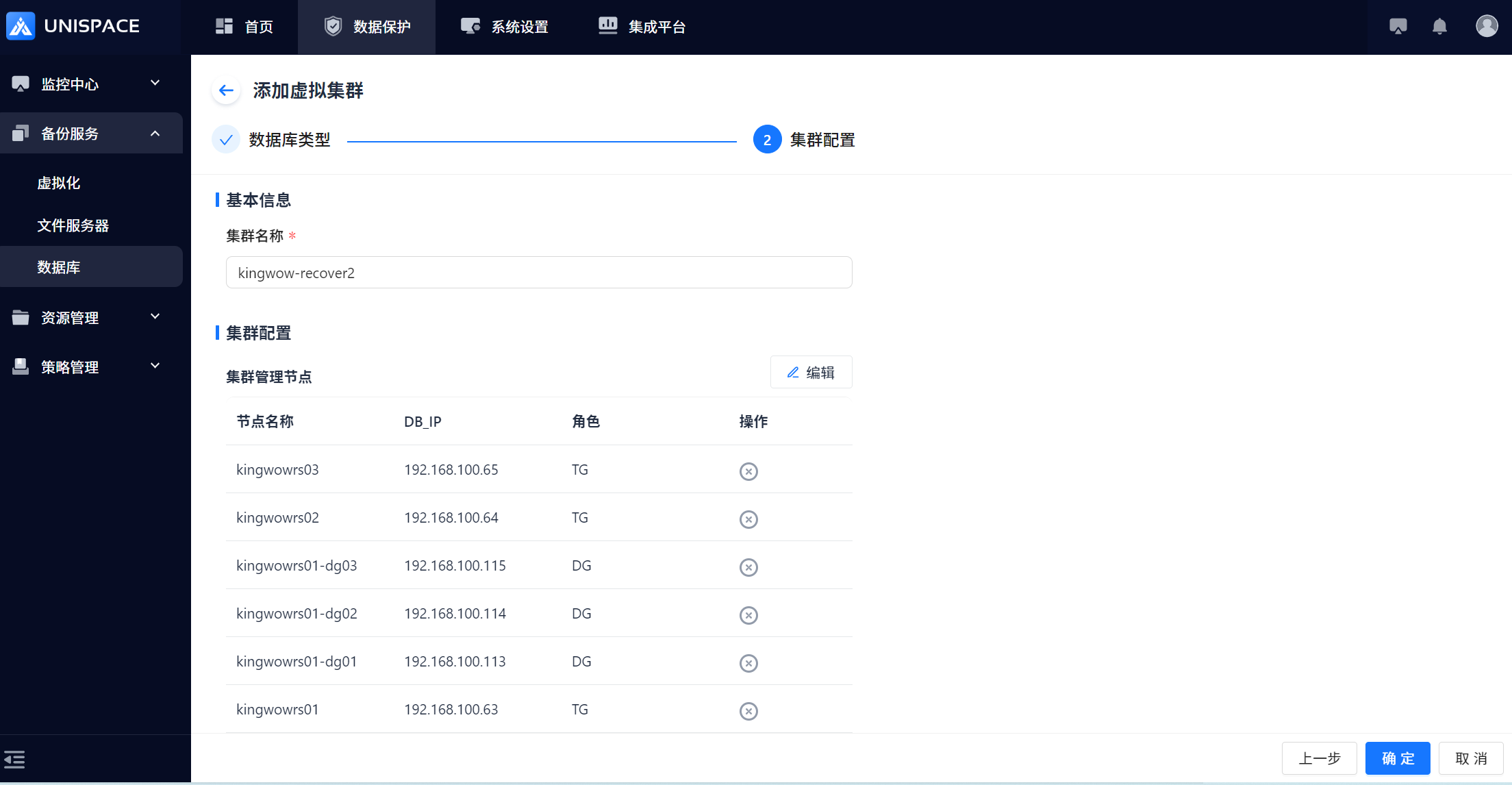 Step 4: After clicking [Confirm], the cluster is successfully added.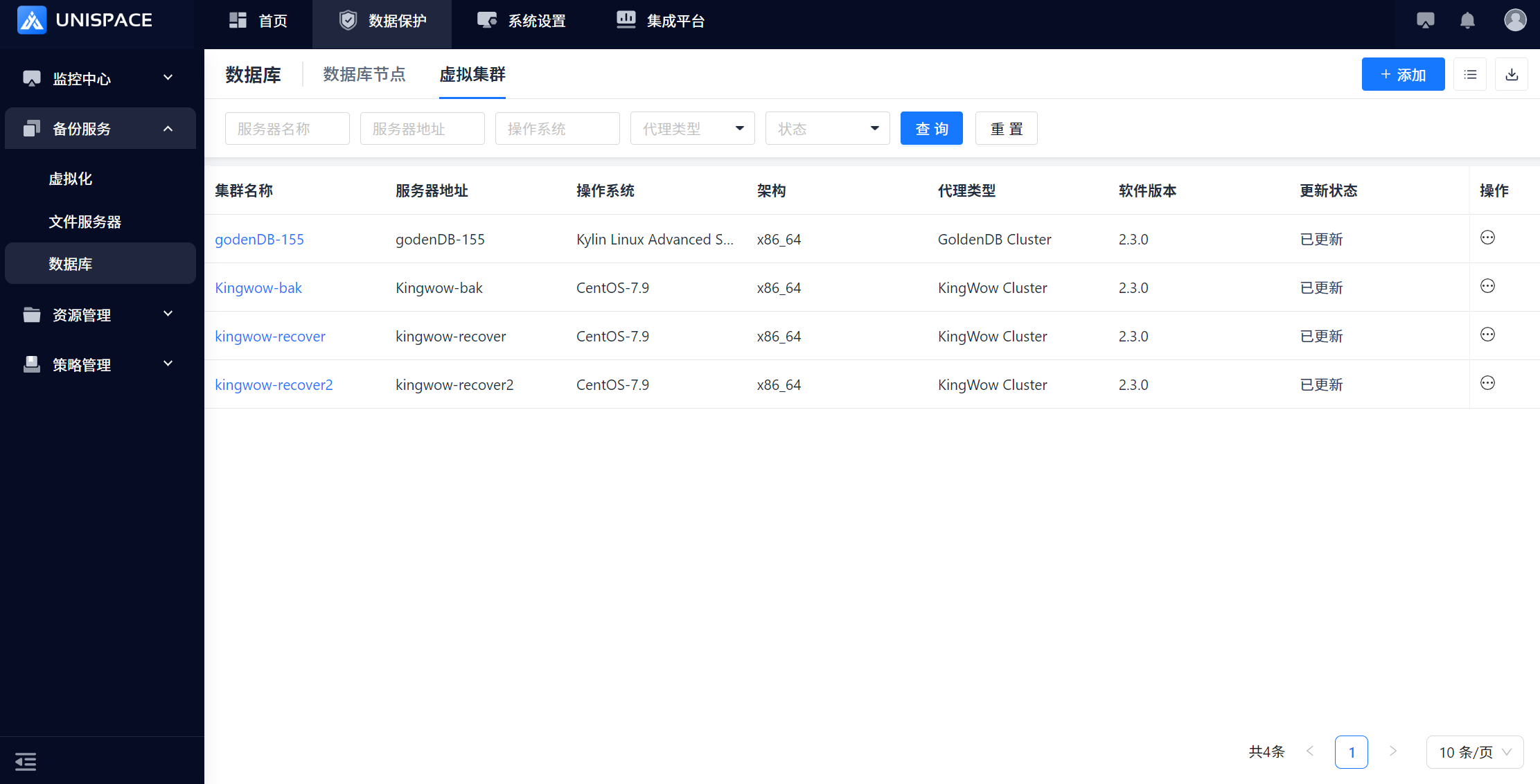
1.2 Create Kingwow Application
Prerequisites
- The Kingwow cluster has been added.
Steps
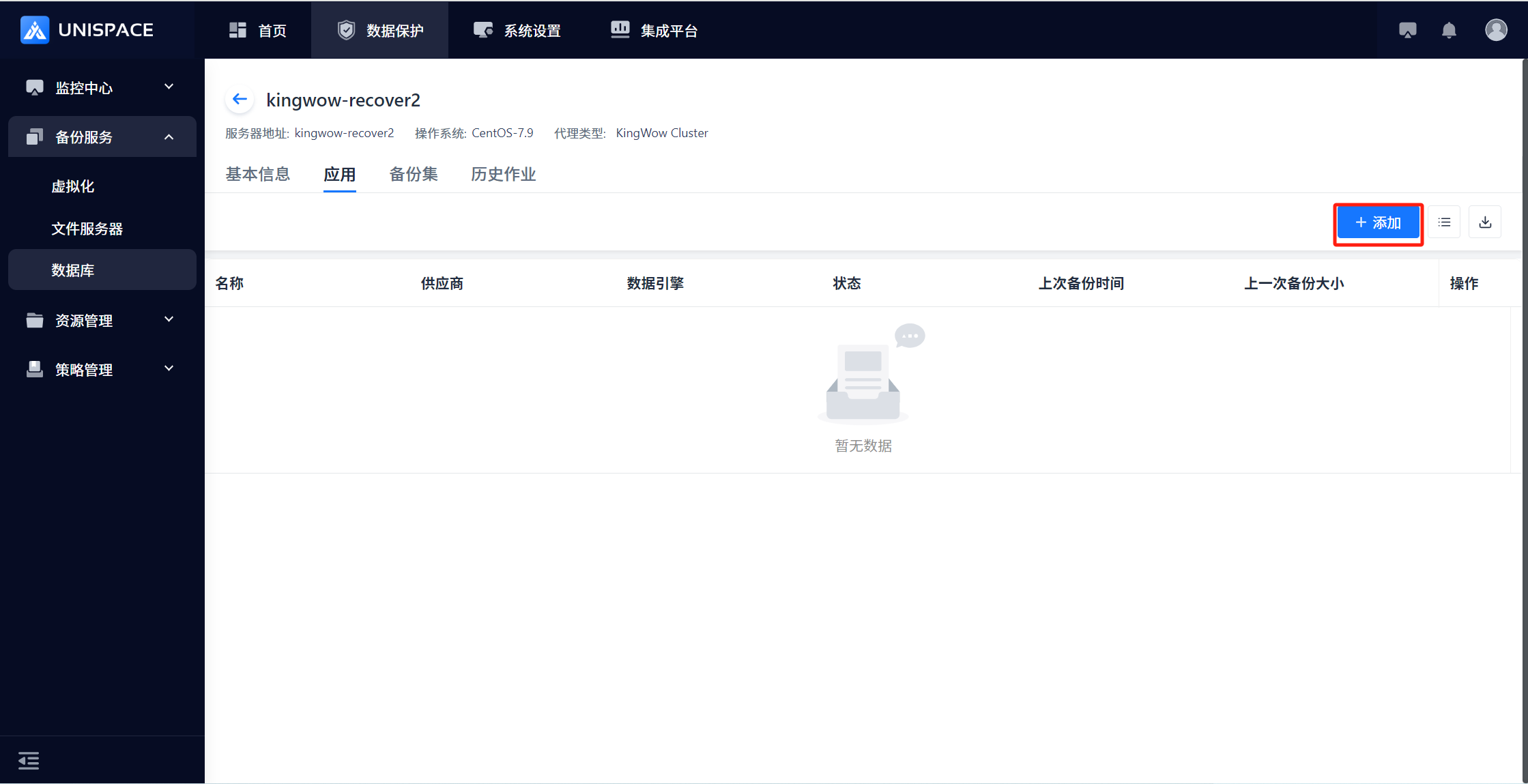
Step 1: Click [Database] - [Virtual Cluster] - [Cluster Name], then click the [Add] button at the top right of [Application].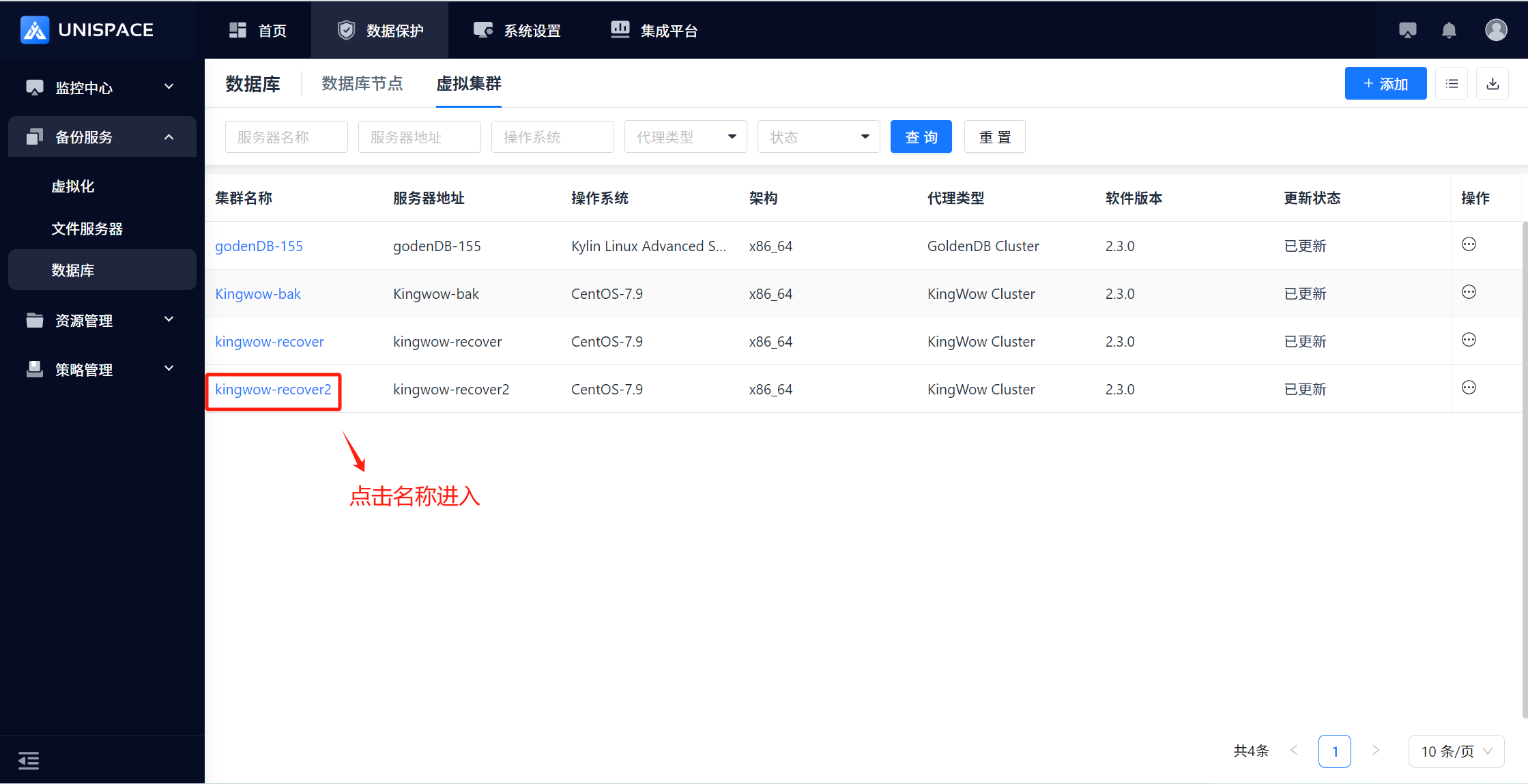
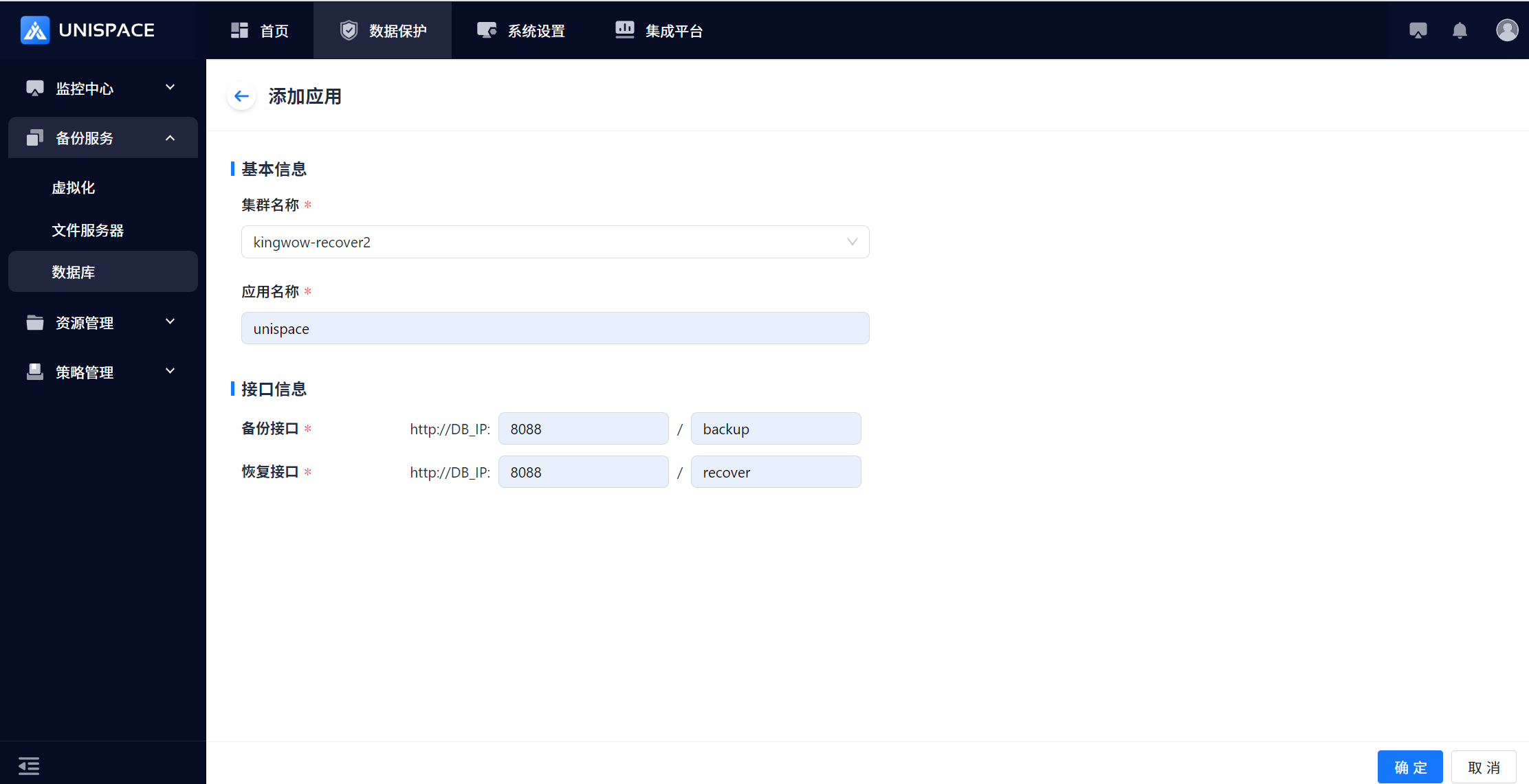
 Step 2: Fill in the [Add Application] form and click [Confirm].
 The Kingwow application is successfully created.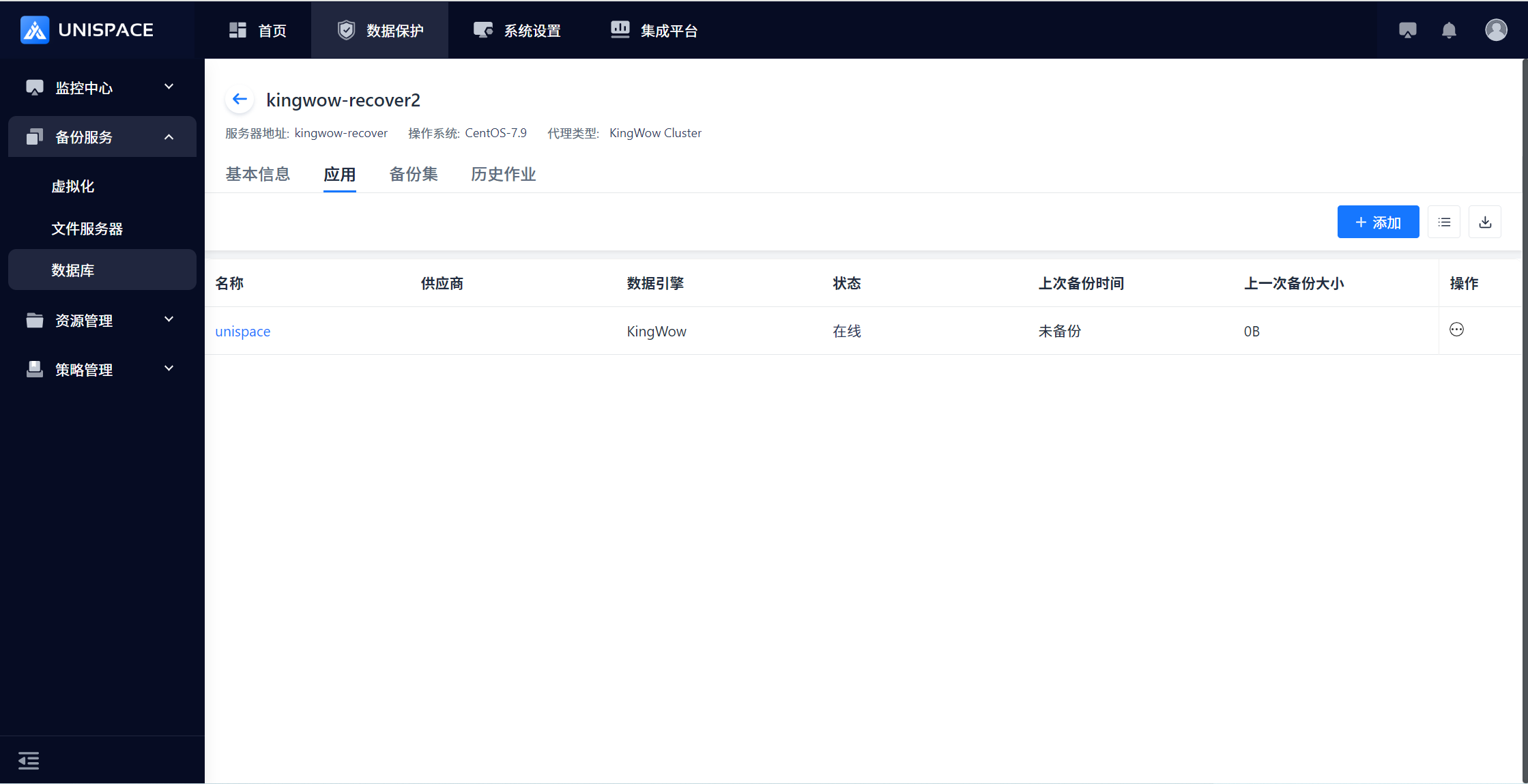
1.3 Create Kingwow Backup Set
Prerequisites
- A Kingwow instance has been created.
Steps
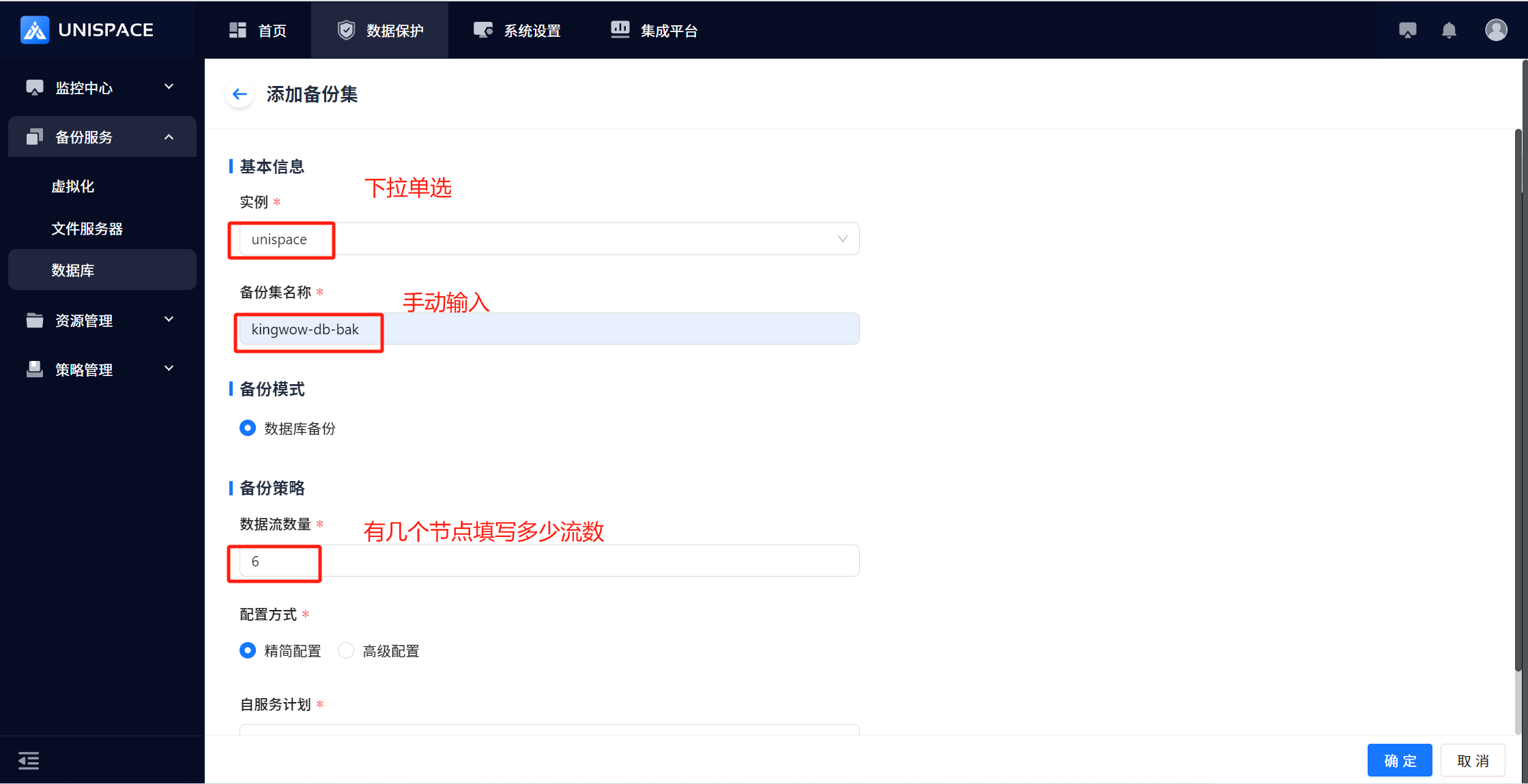
Step 1: Click [Database] - [Virtual Cluster] - [Cluster Name], then click the [Add] button at the top right of [Backup Set].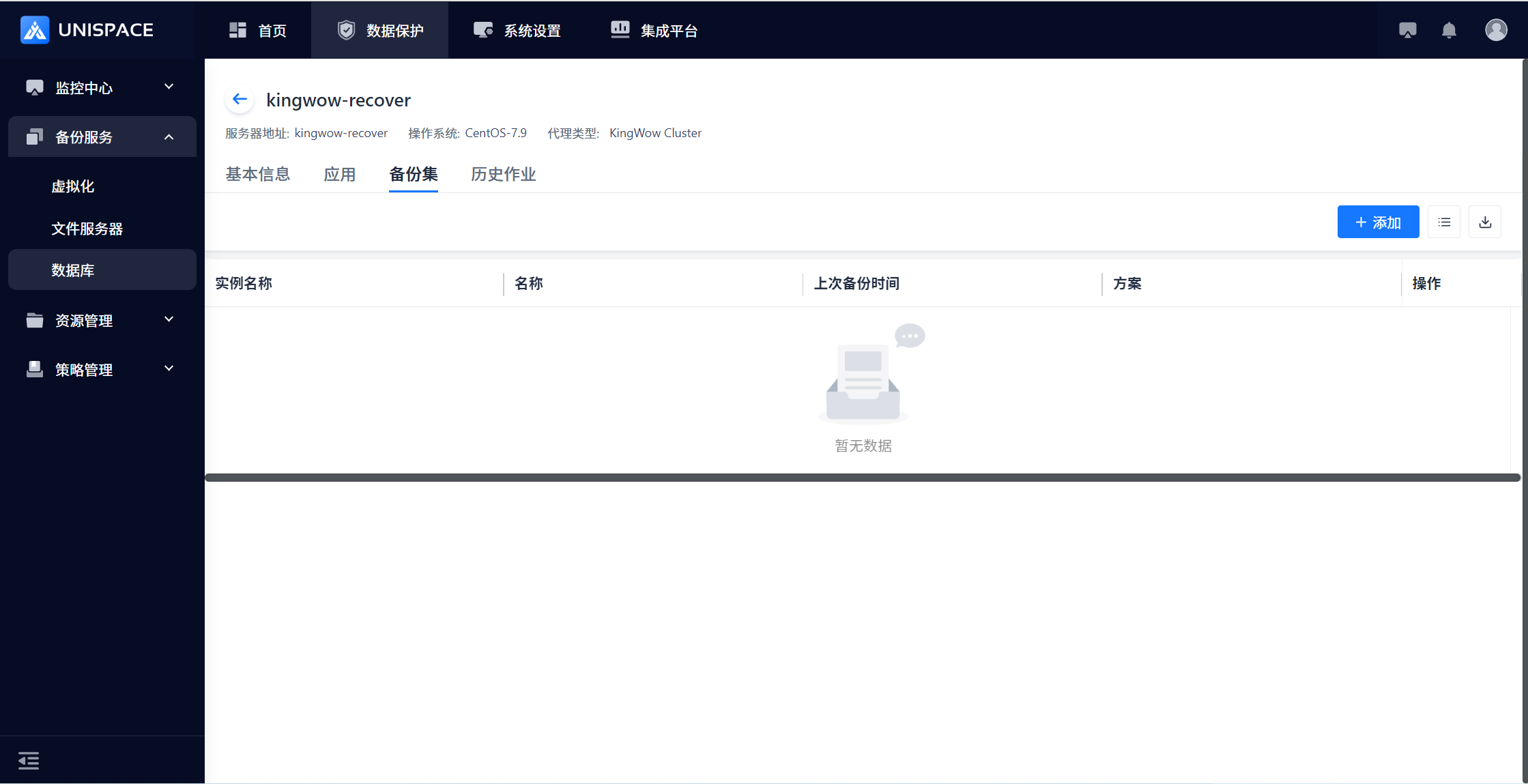 Step 2: The [Add Backup Set] form will appear. Complete the form.
 Step 3: After clicking [Confirm], the backup set is successfully added.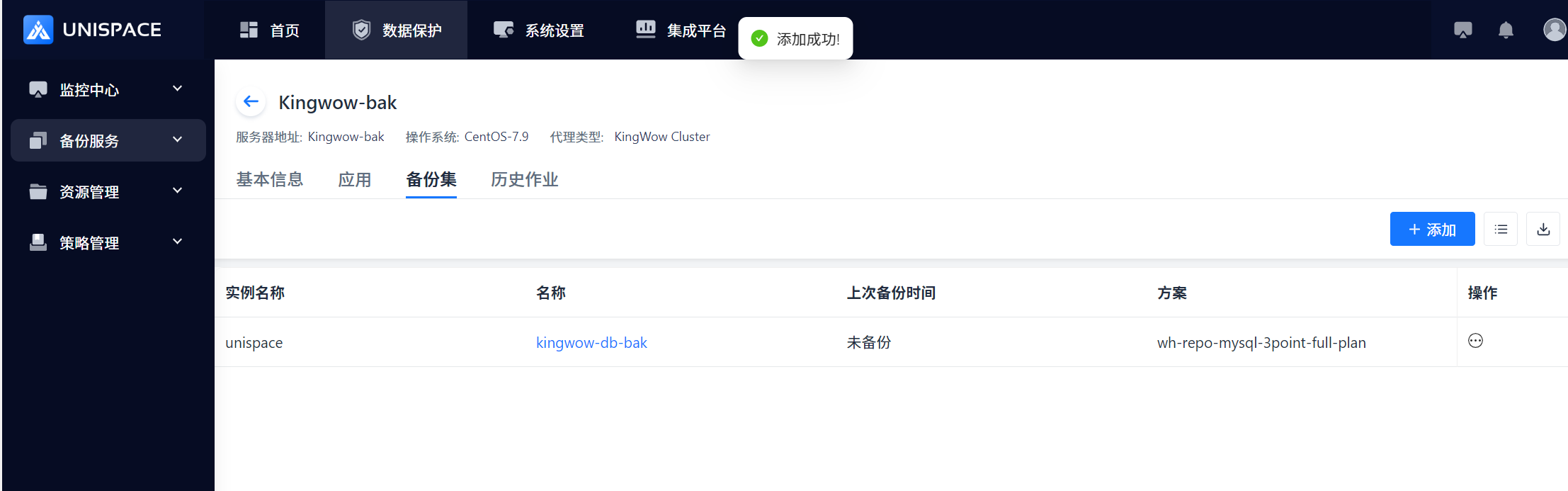
1.4 Start Kingwow Backup
Prerequisites
- A Kingwow backup set has been created.
Steps
Step 1: Click [Backup Set] - [Operation] - [Backup] to initiate a Full or Incremental backup.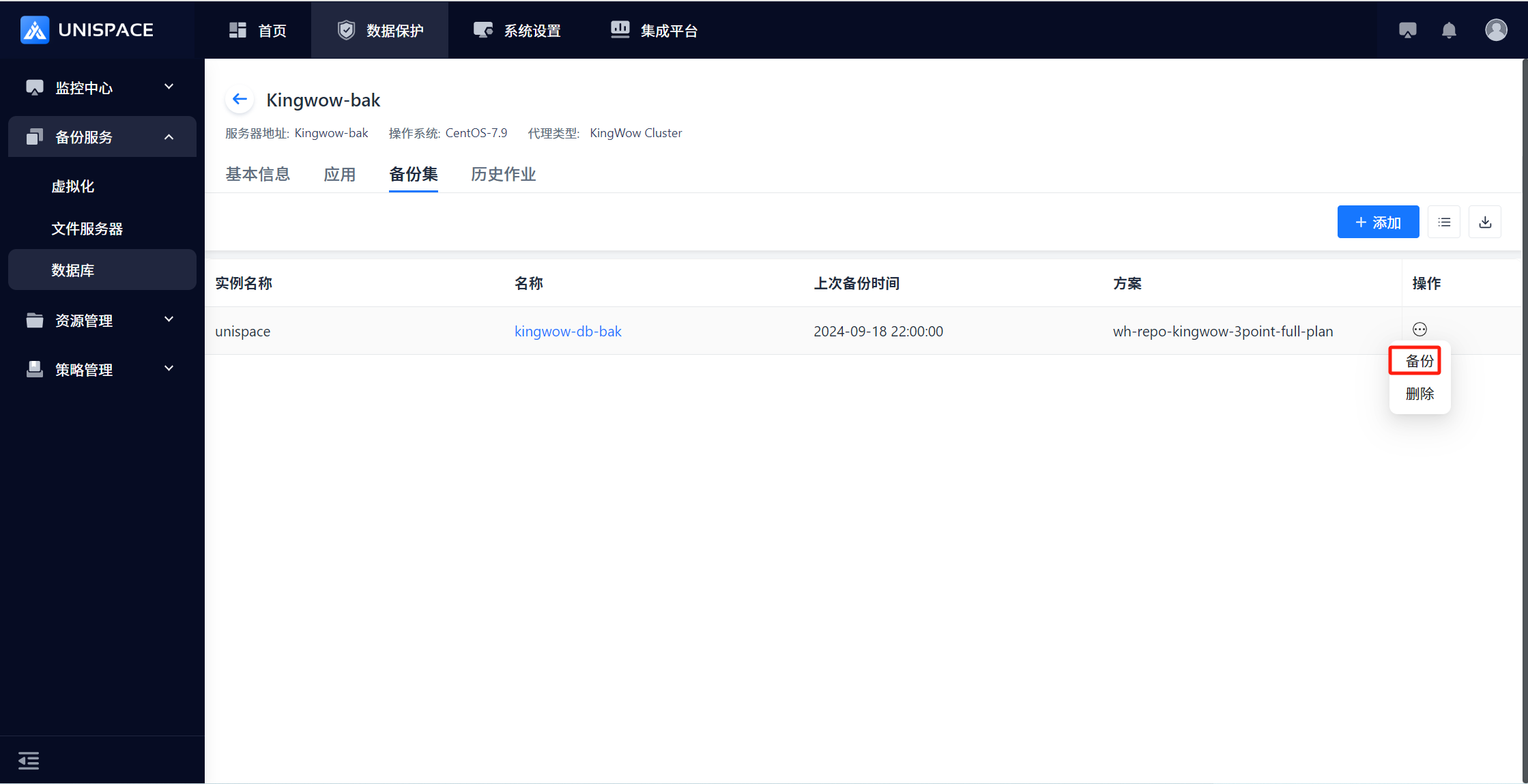
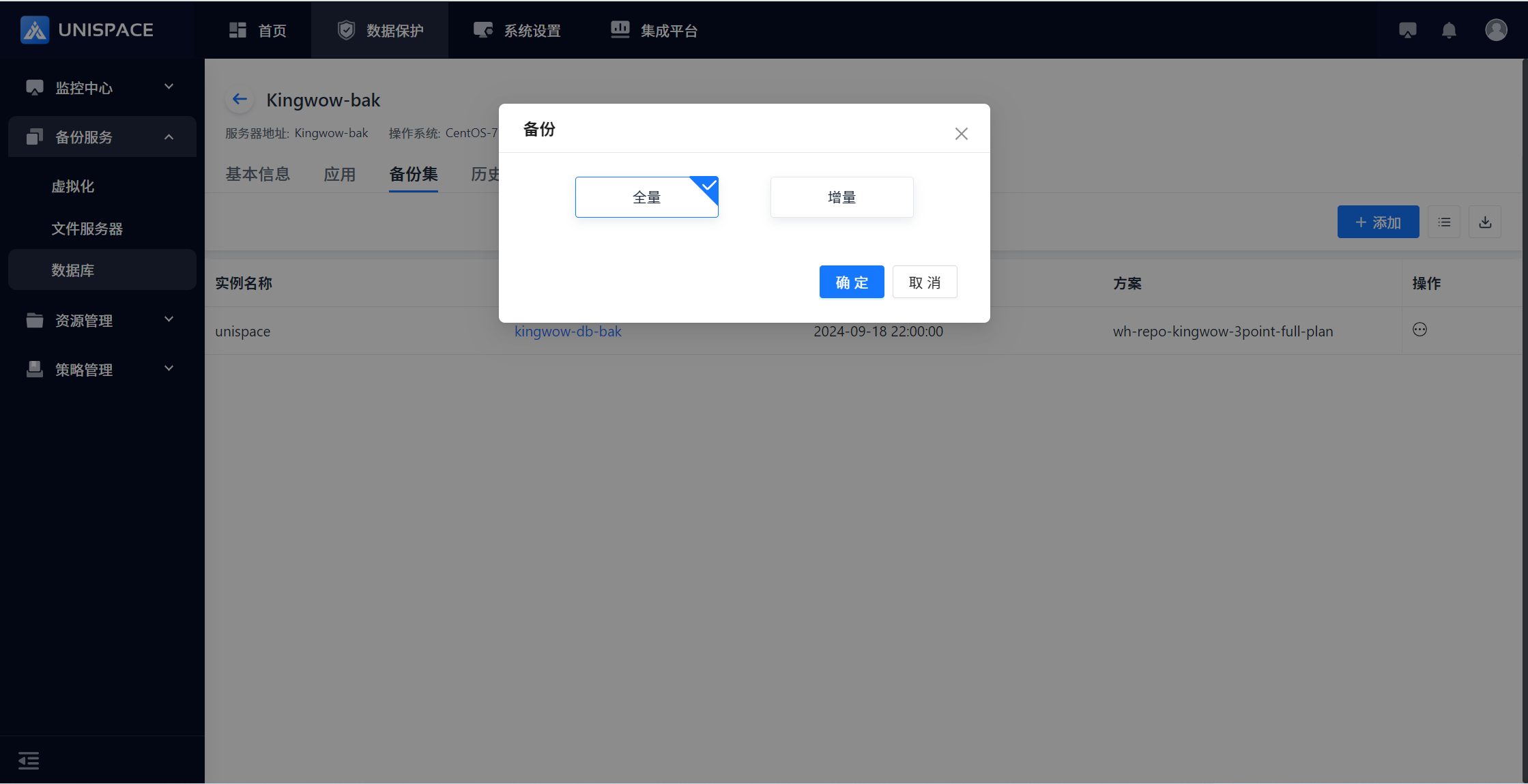
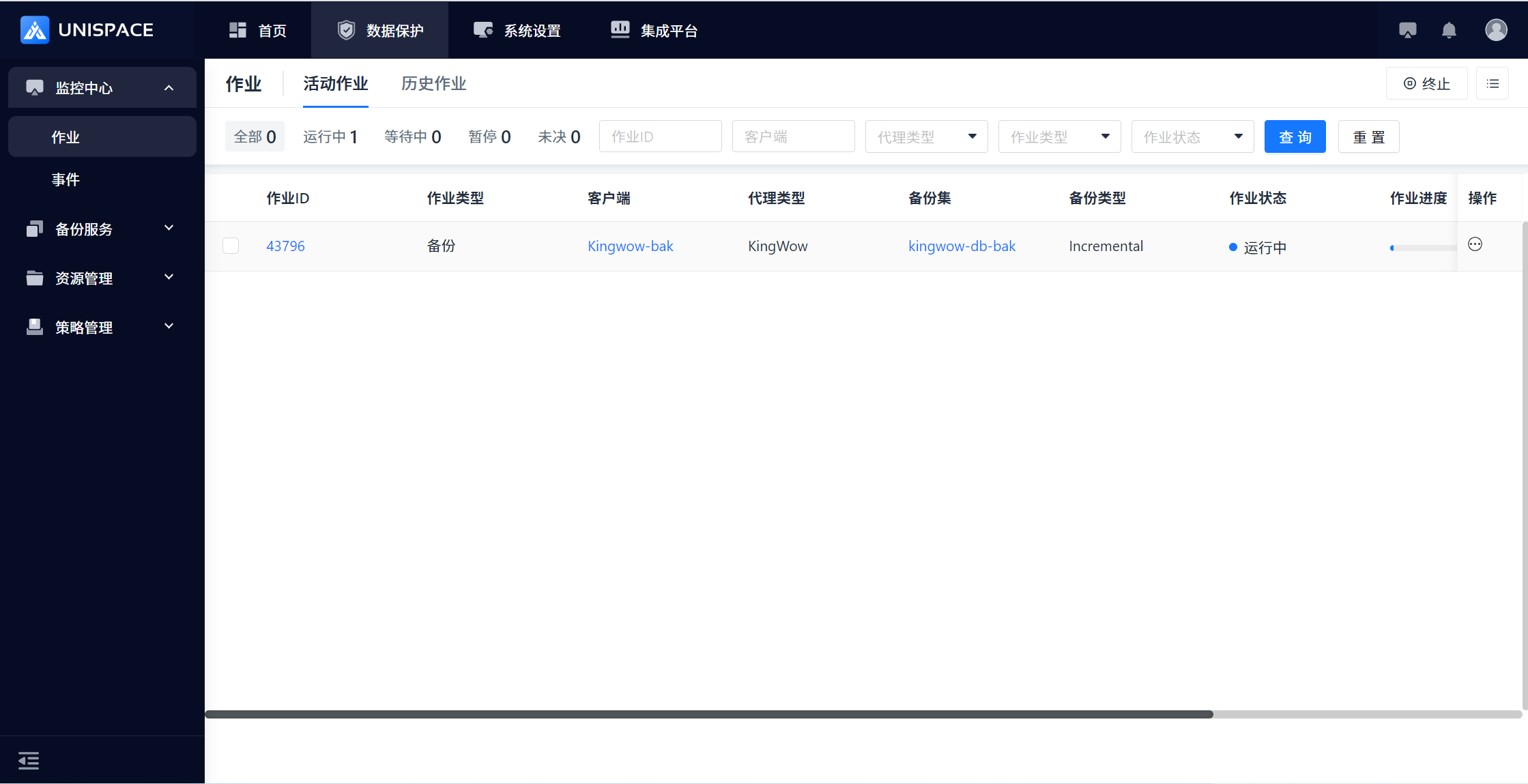
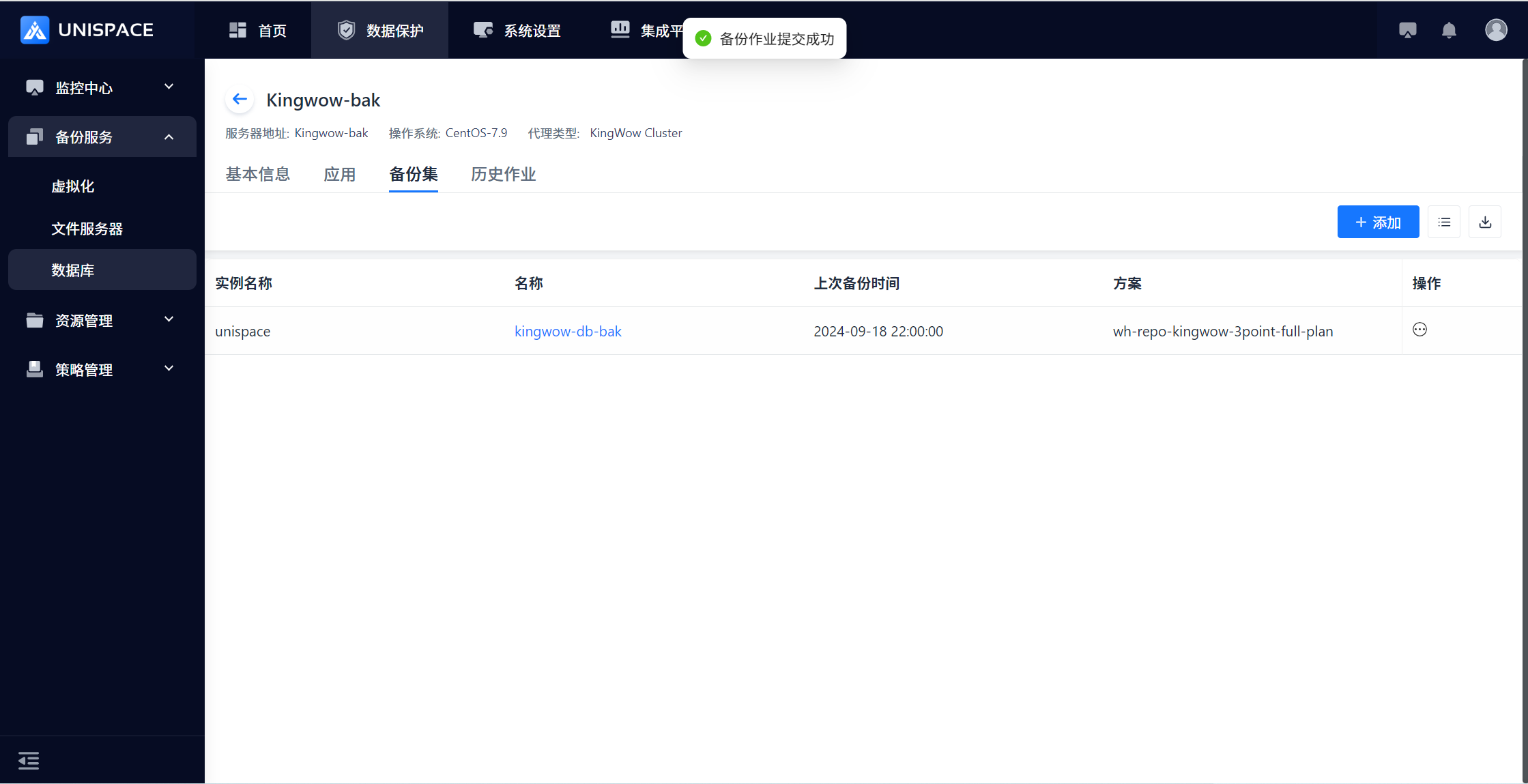 Step 2: After the job starts successfully, go to [Monitoring Center] - [Jobs] - [Active Jobs] to view the running job.
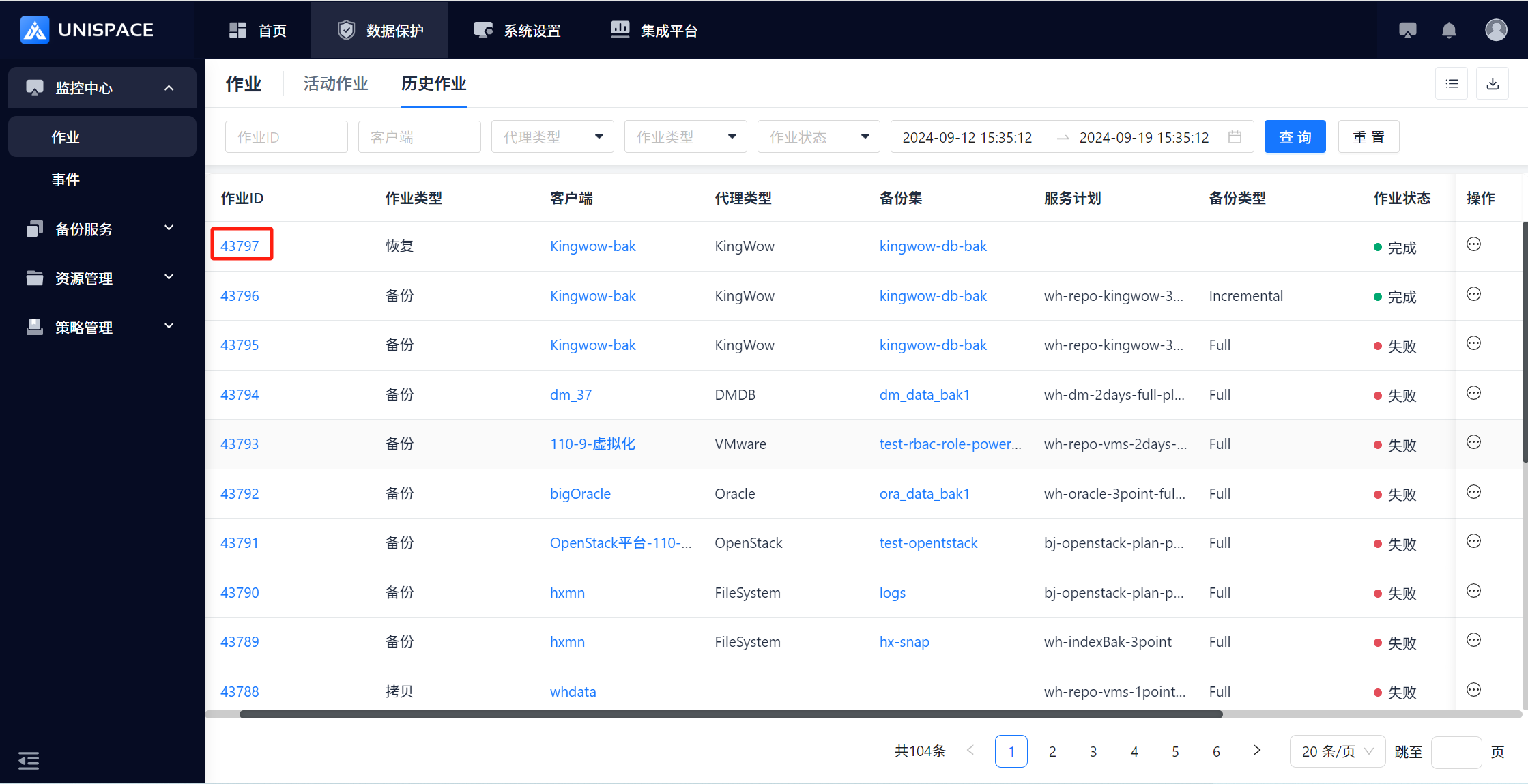
 Step 3: Once the job completes, go to [Monitoring Center] - [Jobs] - [Job History] to view the job and its status.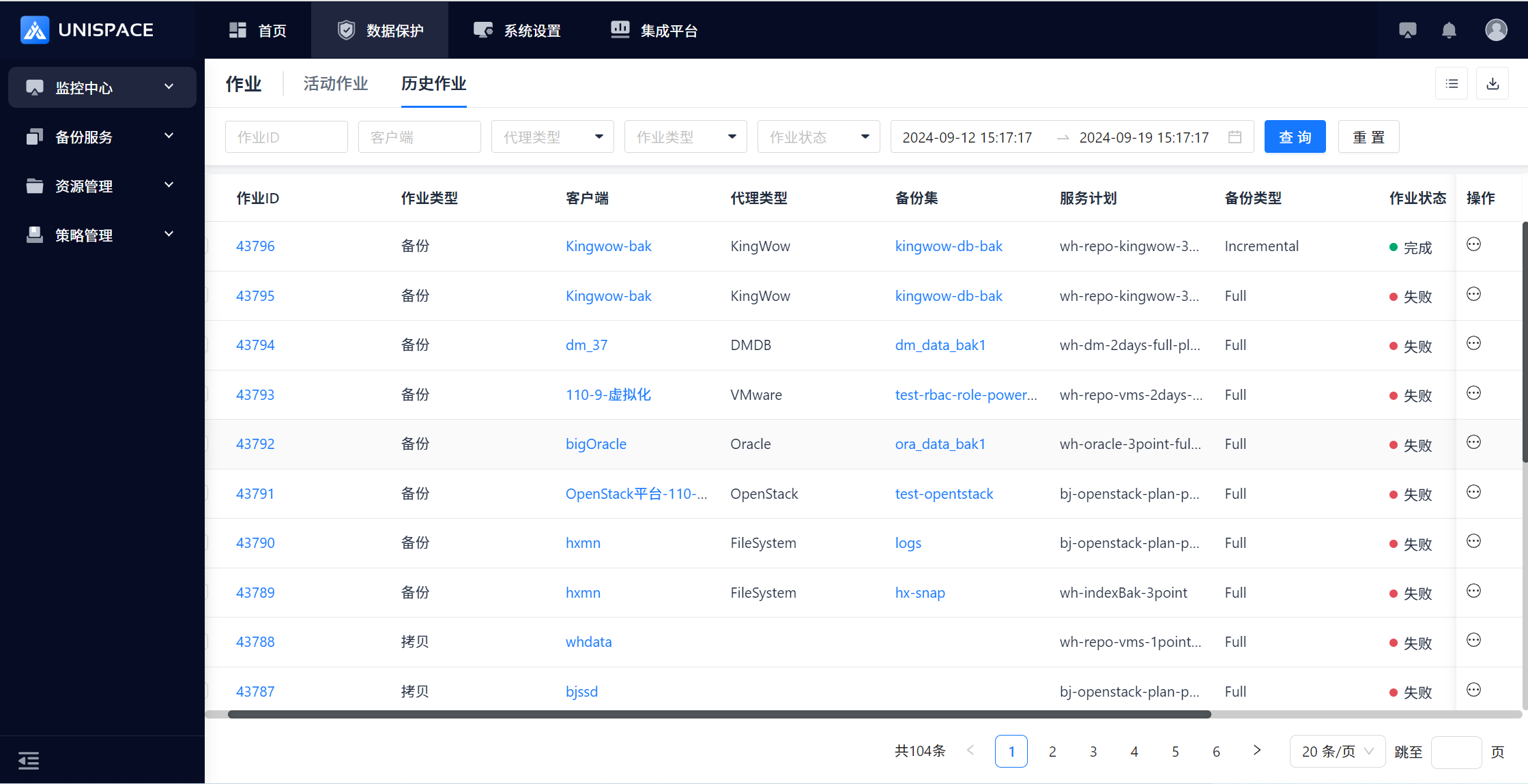
1.5 Kingwow Recovery
1.5.1 Kingwow Cross-Machine Recovery
Prerequisites
- The Kingwow backup set has been successfully backed up.
Steps
Step 1: Click [Application] - [Operation] - [Recovery].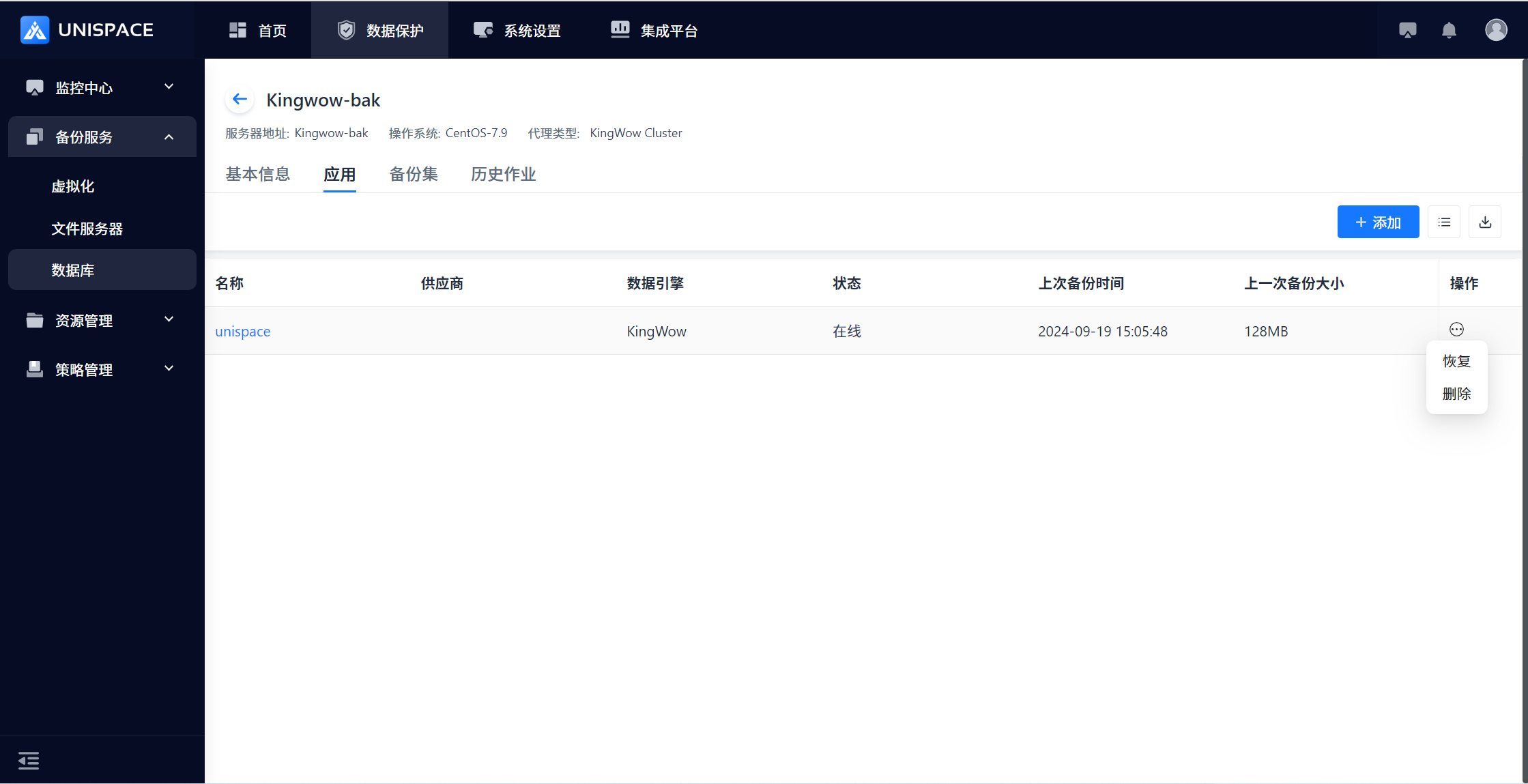 Step 2: Query the recovery point based on the time range, select the job ID to be restored. Selecting an incremental backup will automatically include the most recent full backup. Click [Next].
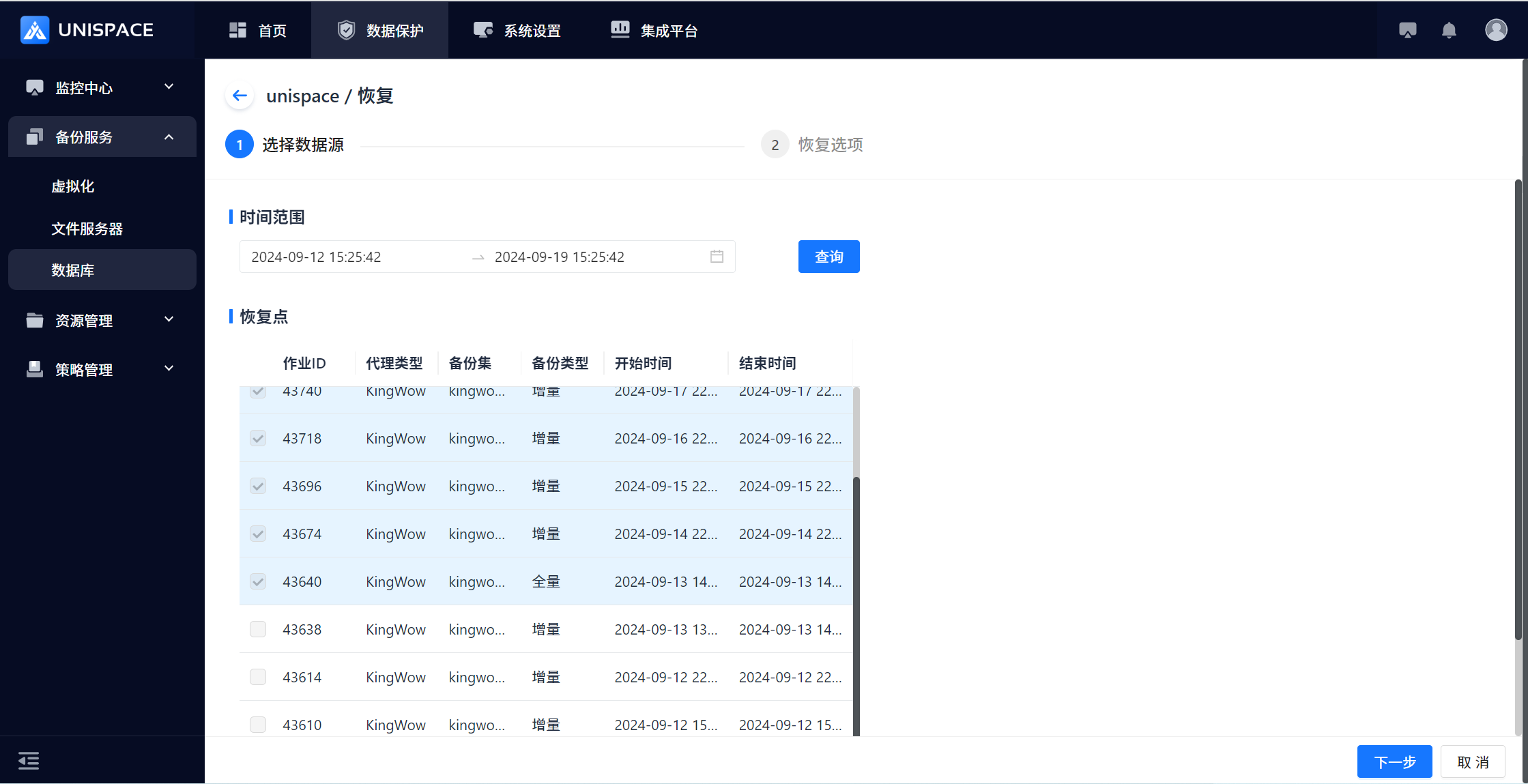 Step 3: Choose [Cross-Machine Recovery] as the recovery target. Select the target cluster. Choose the application name. Enter the number of recovery streams (should match the number of nodes). Leave recovery options as default and click [Confirm].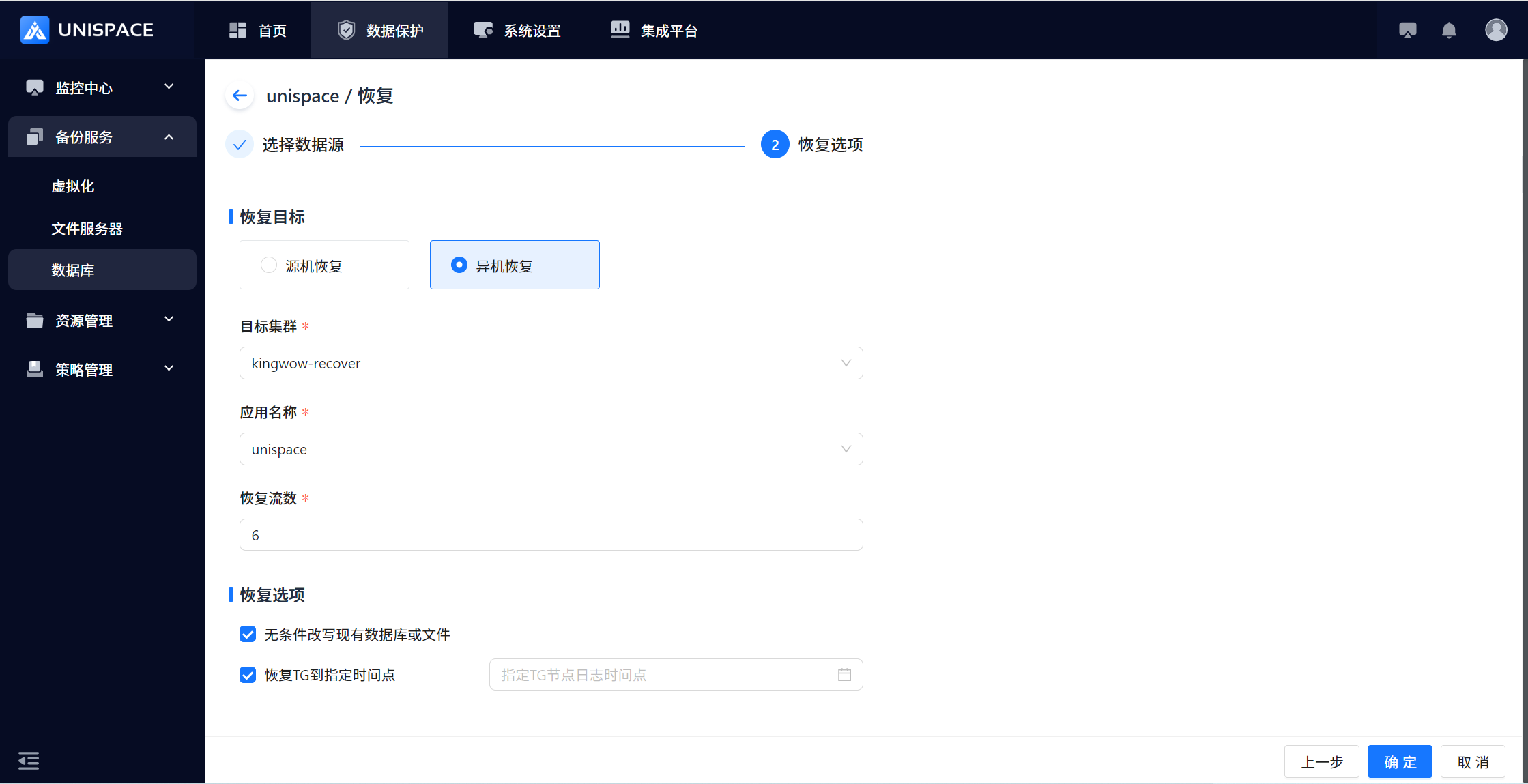
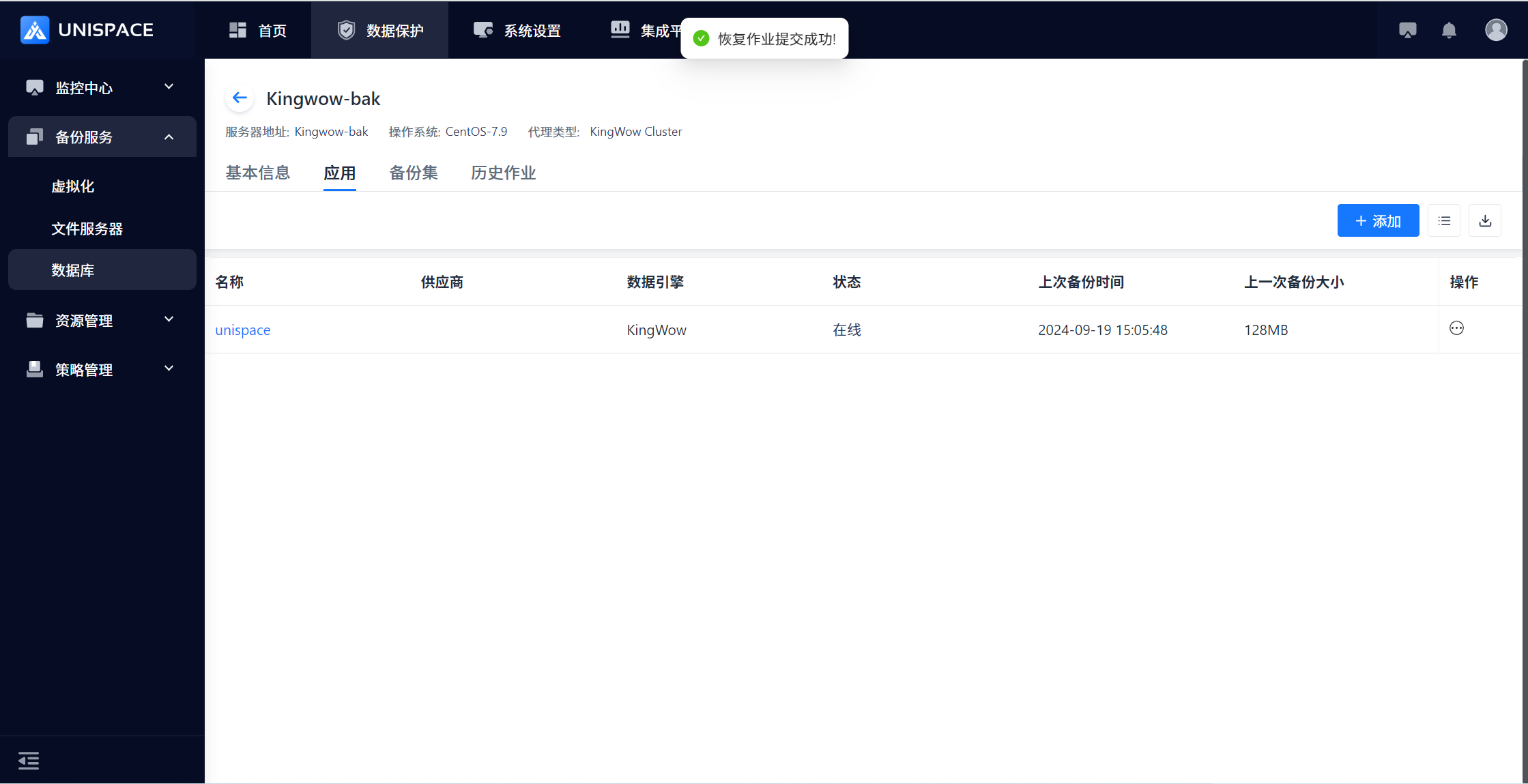 Step 4: Once the job starts successfully, go to [Monitoring Center] - [Jobs] - [Active Jobs] to view the running job.
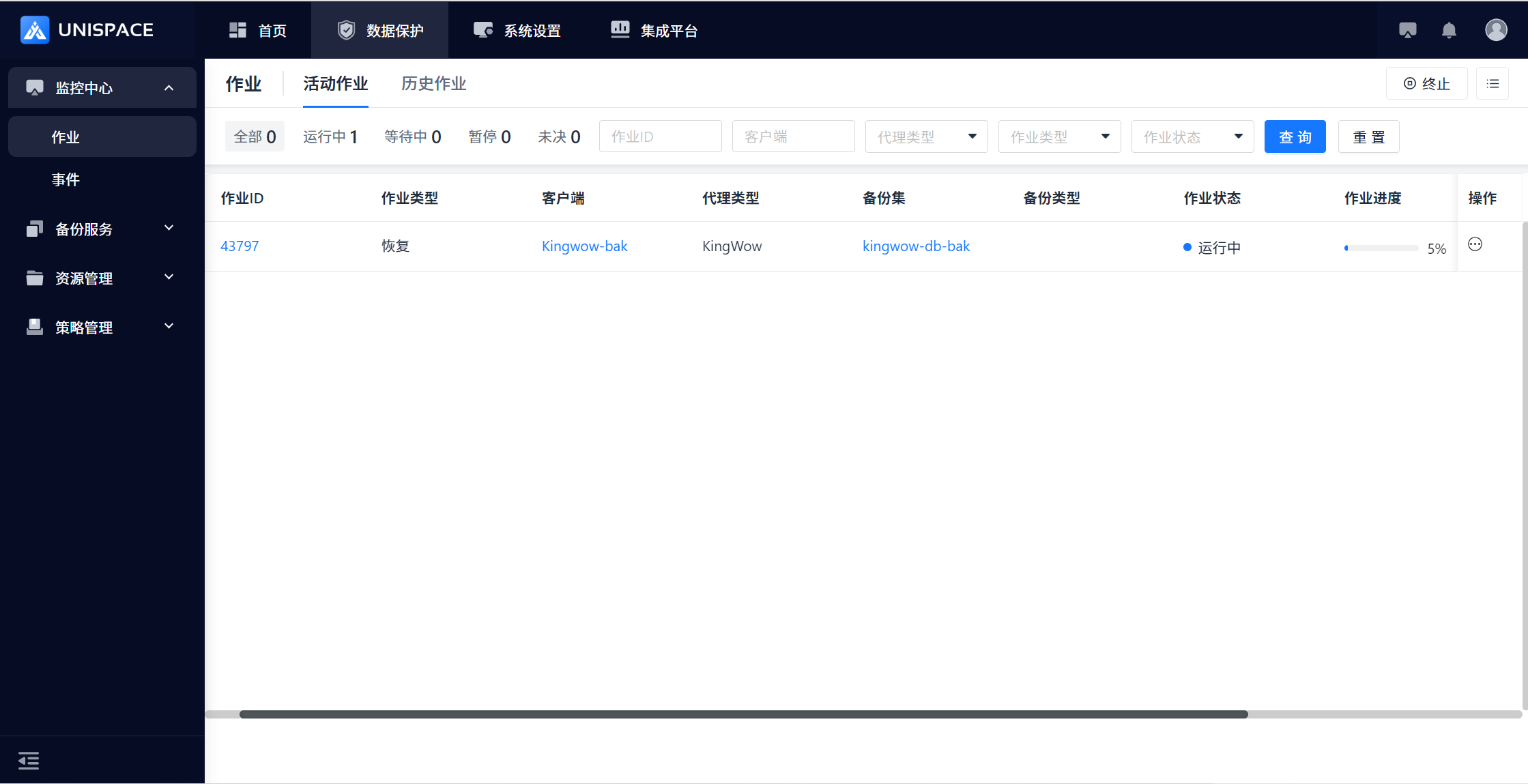 Step 5: After the job completes, go to [Monitoring Center] - [Jobs] - [Job History] to view the job and its status.