Agent-H3C
Agent-H3C
1.1 Create a Virtualization Platform
Prerequisites
- Create a storage repository.
- Create a service plan.
Steps
Step 1: Click the system menu [Backup Service] - [Virtualization].
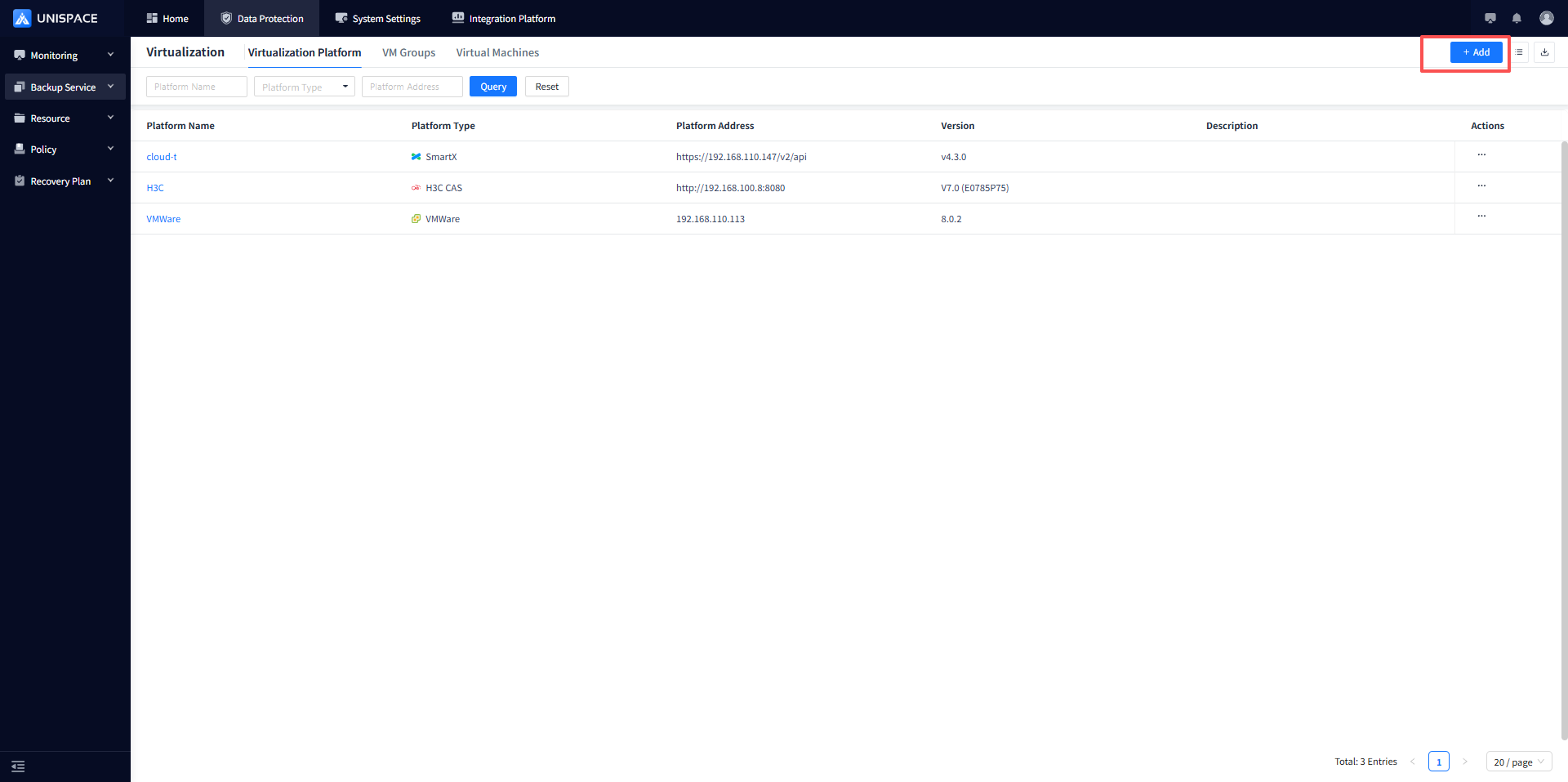
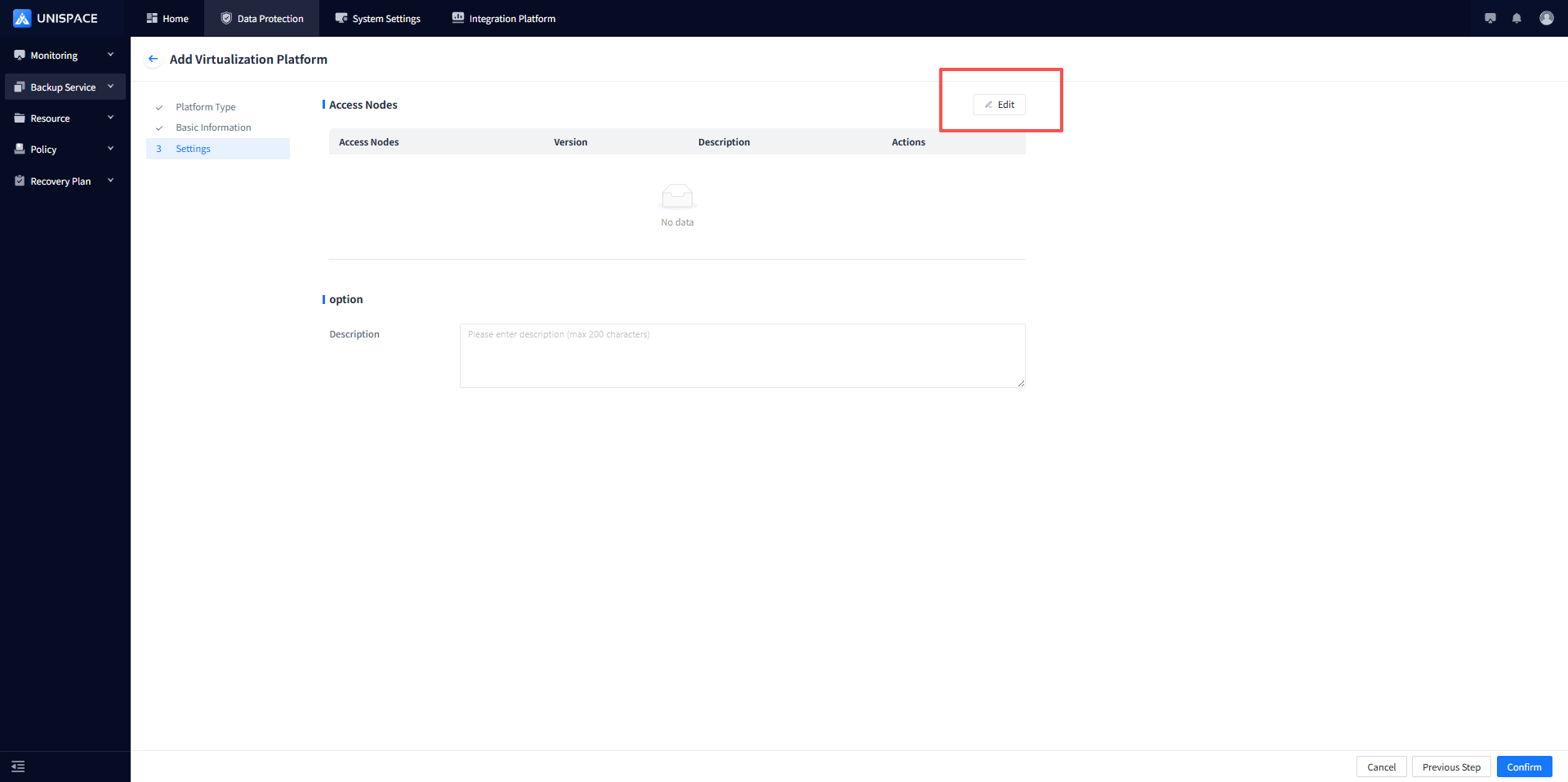
Step 2: Click the [Add] button in [Virtualization Platform]. A pop-up window will appear as shown below:
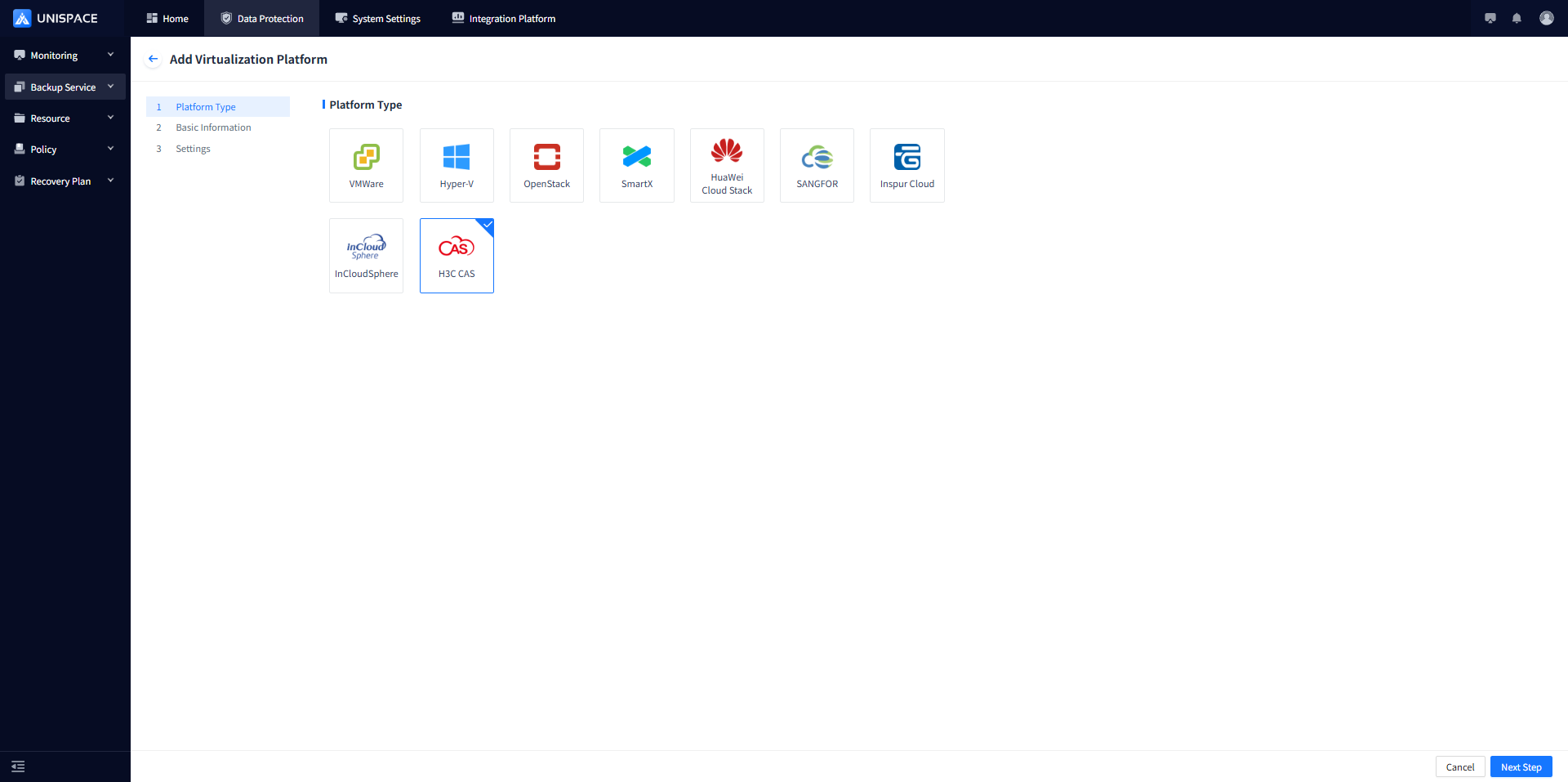
Step 3: Select the H3C icon and click [Next Step] to enter the page for adding a virtualization platform.
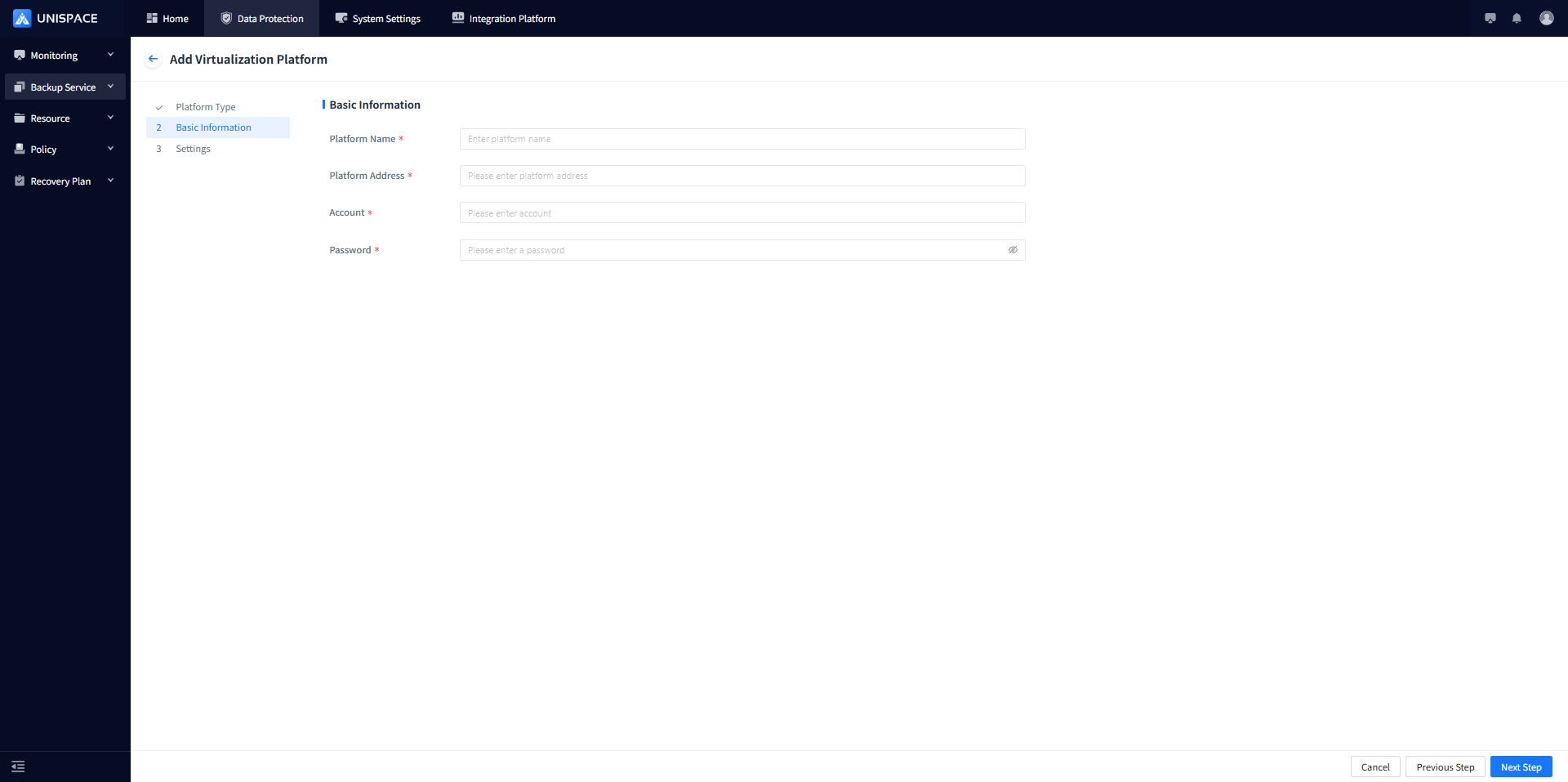
Fill in the parameters as follows:
| Parameter Name | Description | Setting Principle |
|---|---|---|
| Platform Name | Text input, required | Up to 50 characters; special characters are not supported |
| Platform Address | Text input, required, HTTP or HTTPS | Enter a valid address |
| Account | Text input, required | Enter the correct username |
| Password | Password type, required, entered manually | Enter the correct password |
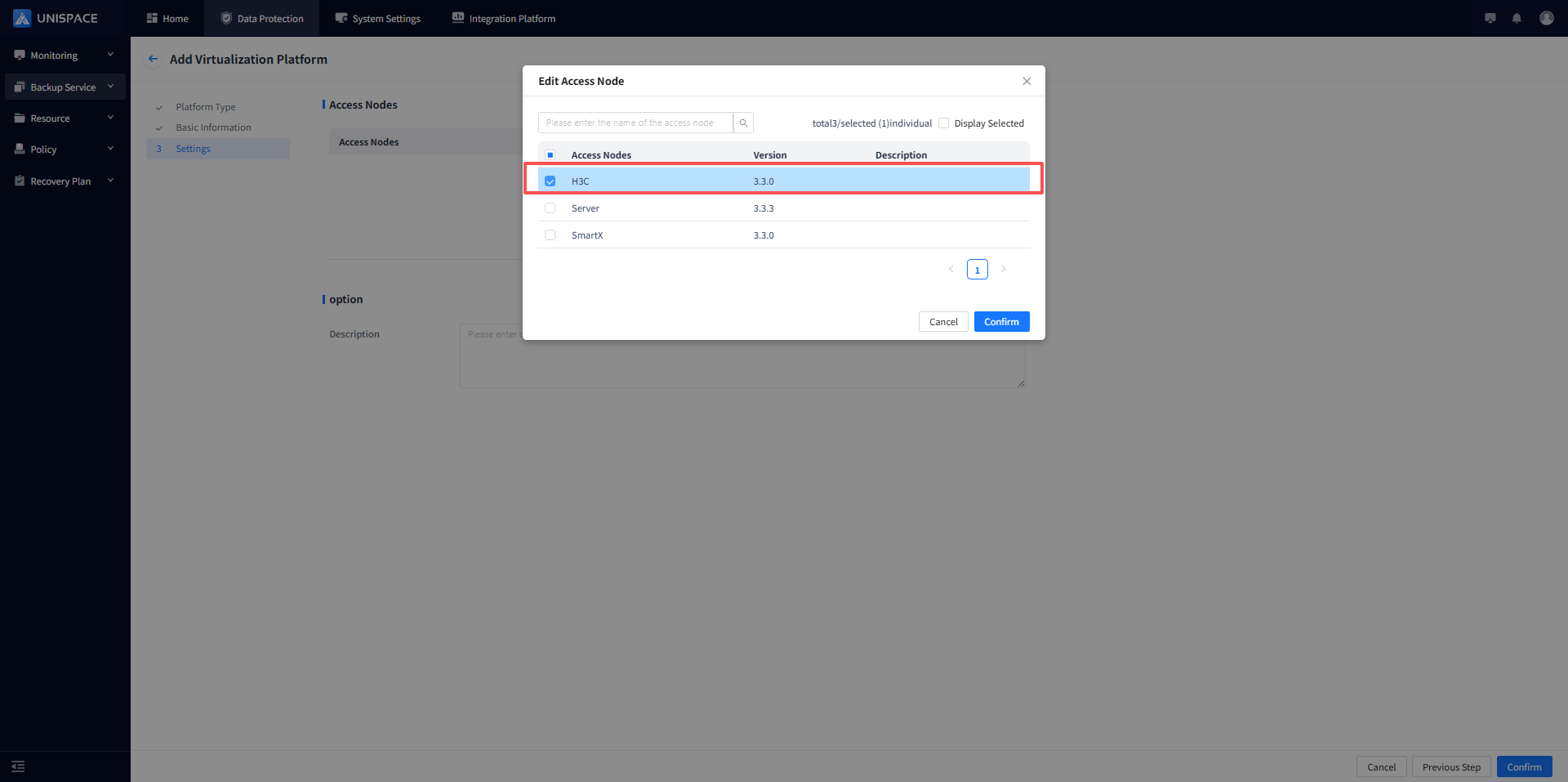
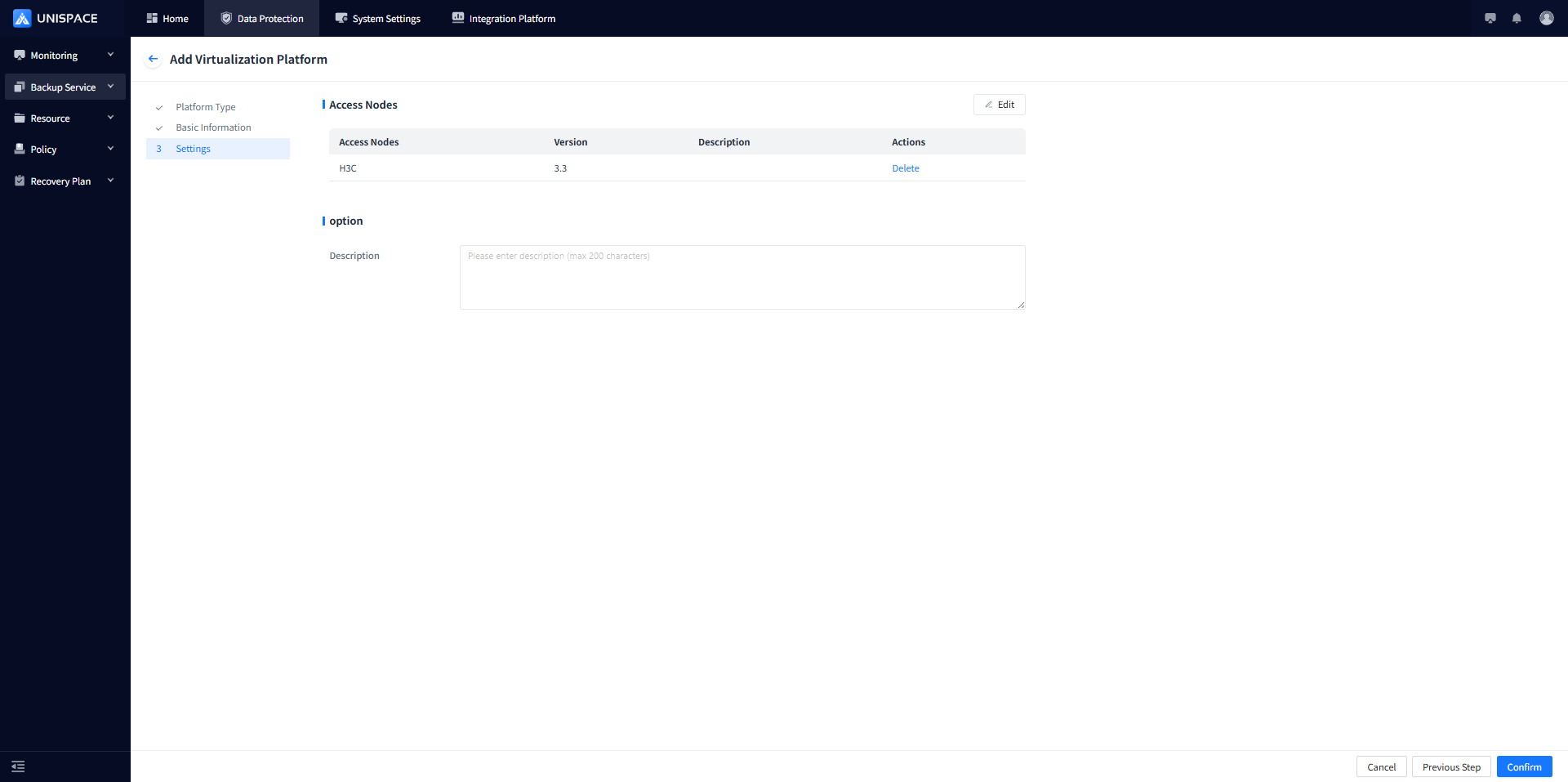
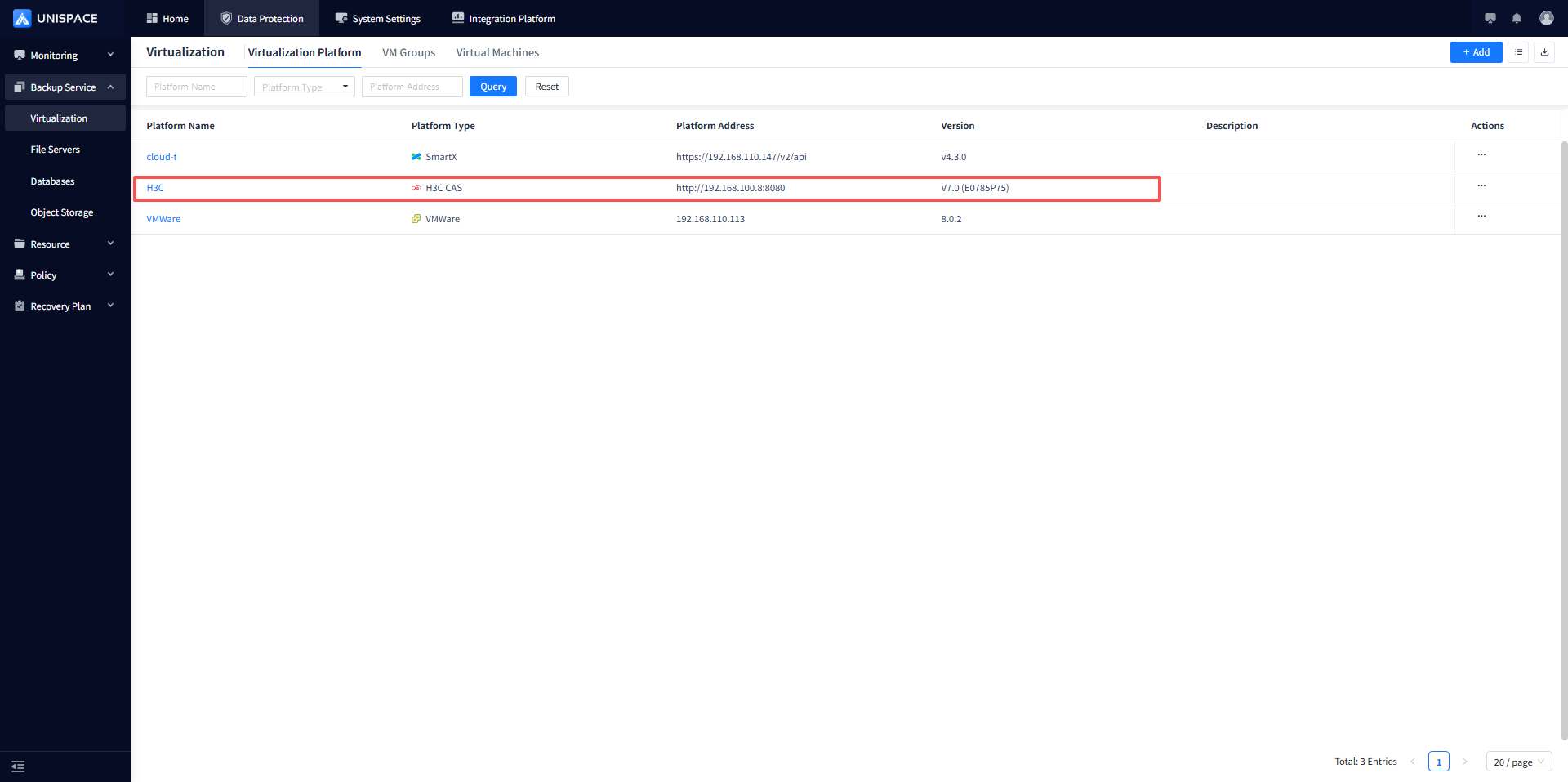
Step 4: After completing the form, click [Next Step], select the access node, click [Confirm], and the frontend will display a success message.
1.2 Create a Virtual Machine Group
Prerequisites
- Create a virtualization platform.
Steps
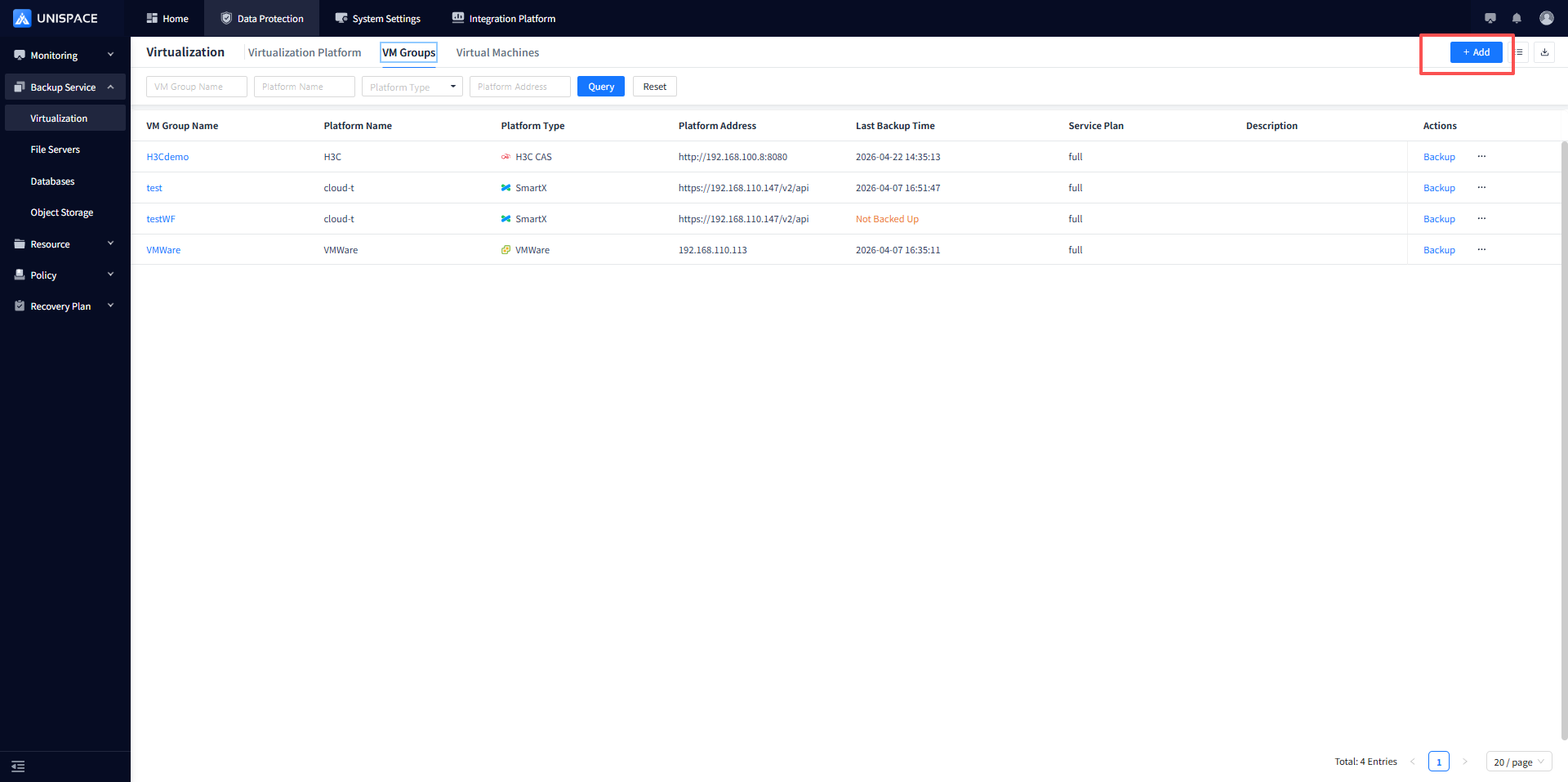
Step 1: Click the [Add] button in [Virtual Machine Group] to open the [Add Virtual Machine Group] page.
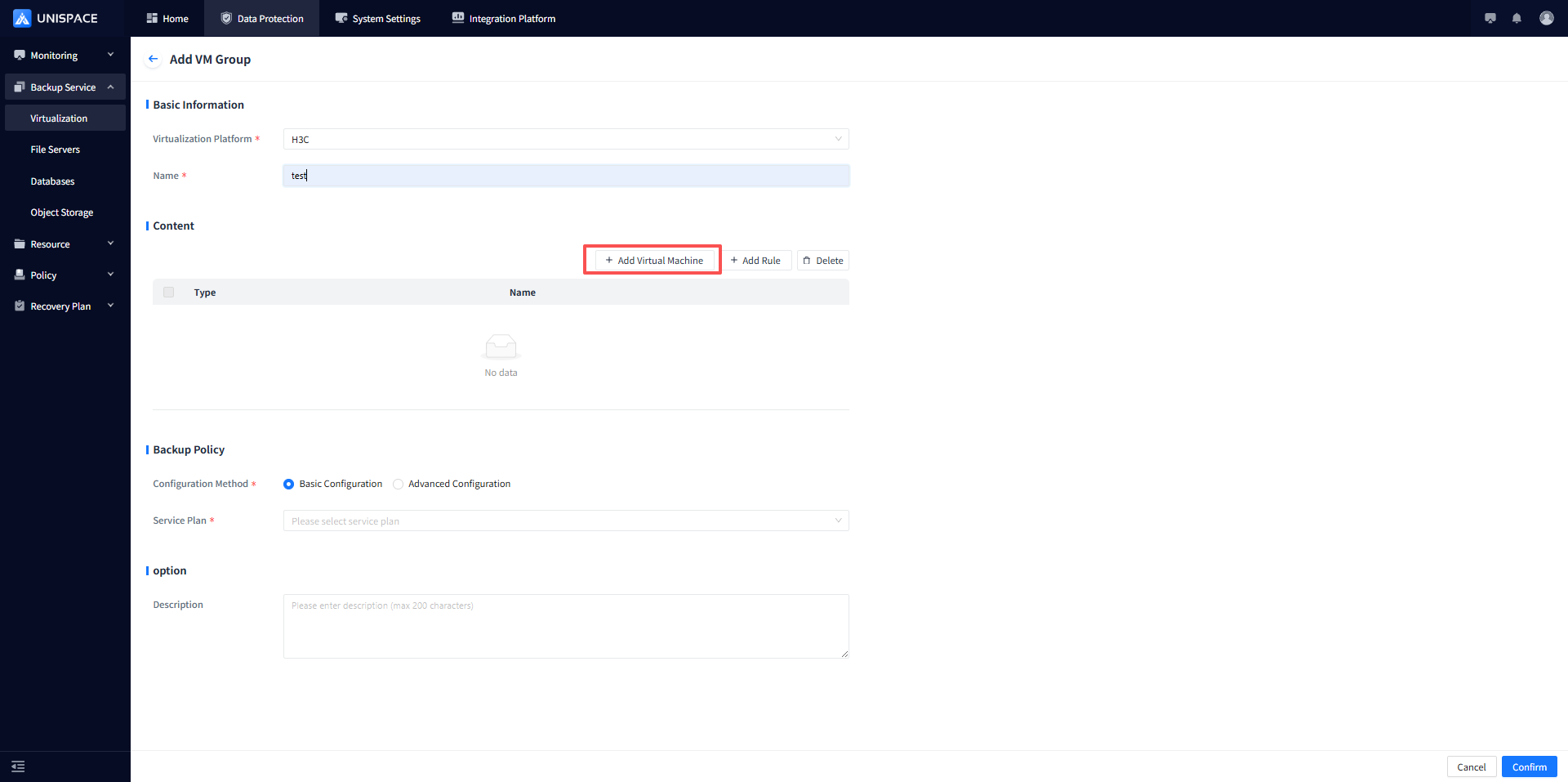
Step 2: Fill in the parameters for the virtual machine group, add the virtual machines to be backed up, and use filters to exclude virtual machines that should not be backed up.
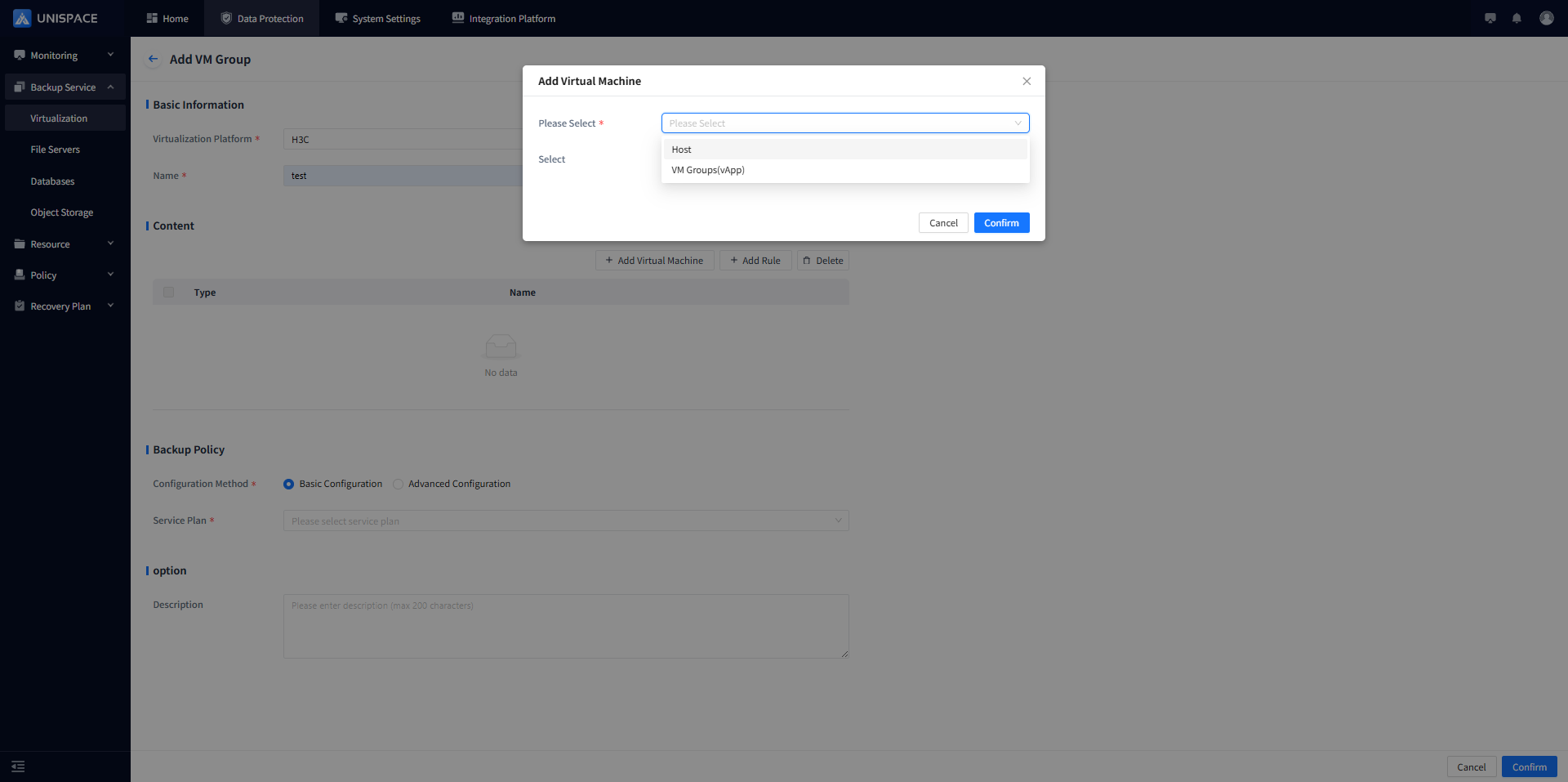
Step 3: Select the virtual machines to be backed up and click [Confirm].
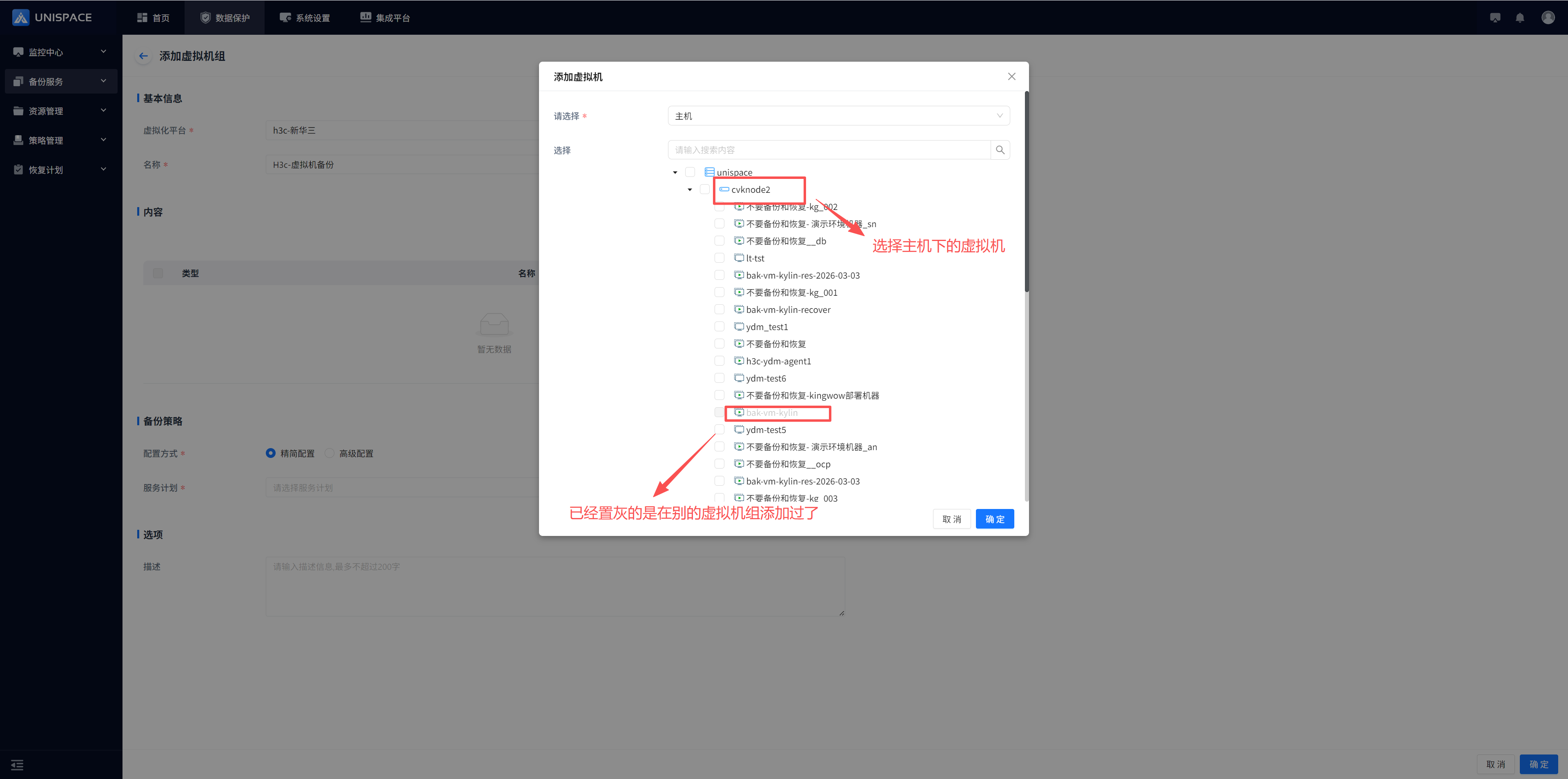
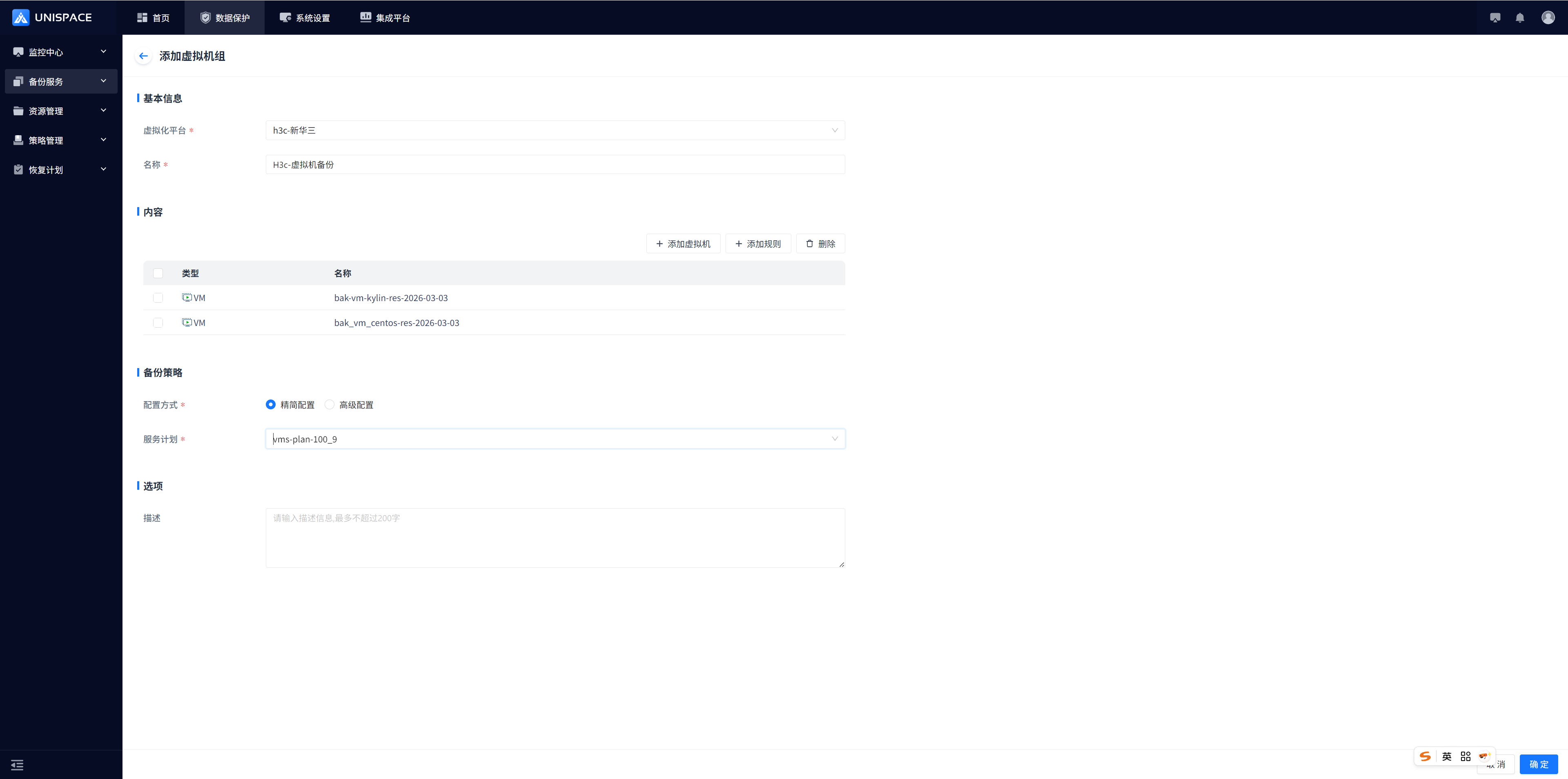
Step 4: Click [Confirm] again, and the page will display a success message.
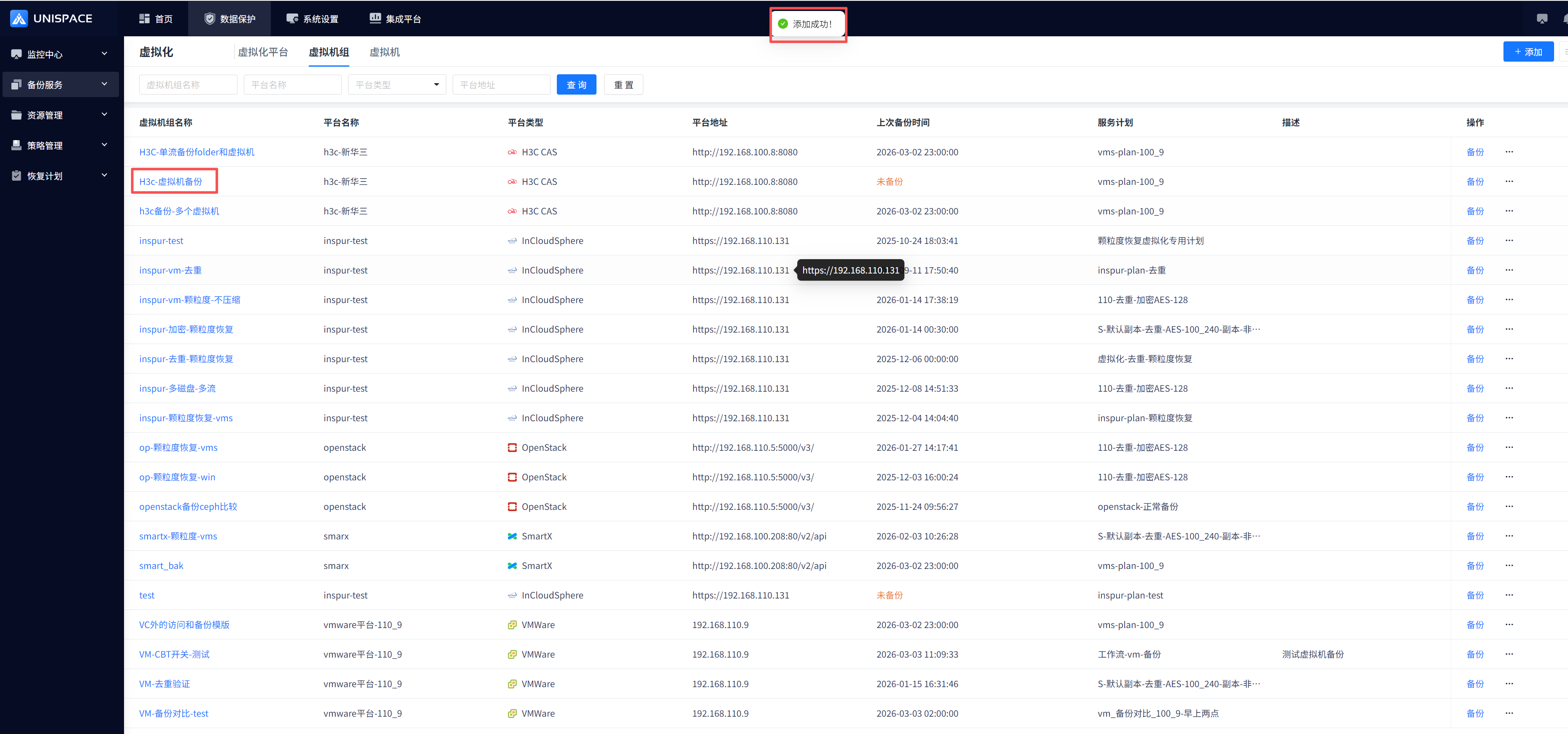
1.3 Back Up a Virtual Machine Group
Prerequisites
- A virtual machine group has already been created.
Steps
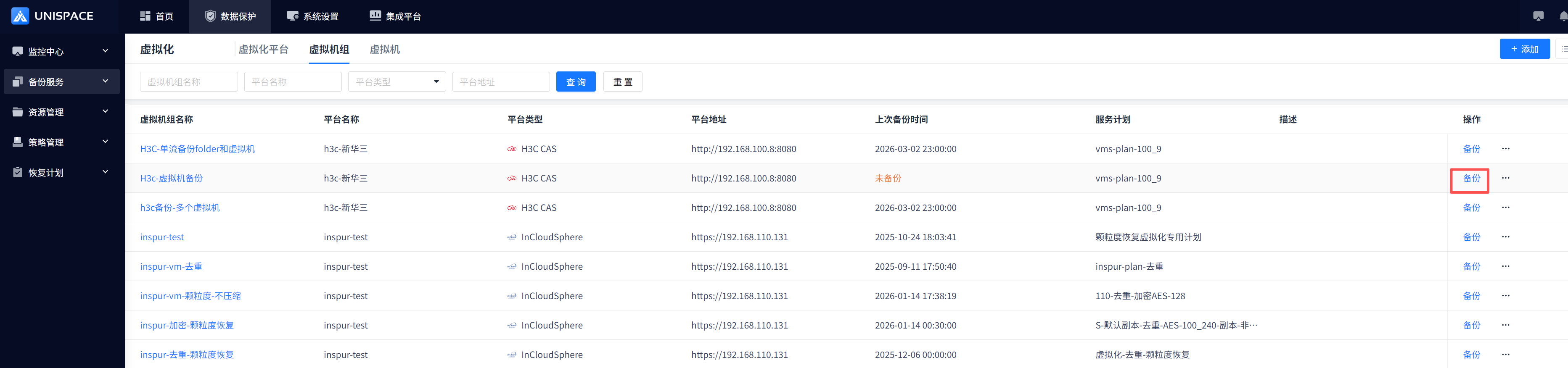
Step 1: Click [Virtual Machine Group] - [Actions] - [Backup], select Full or Incremental, and then click [Confirm].

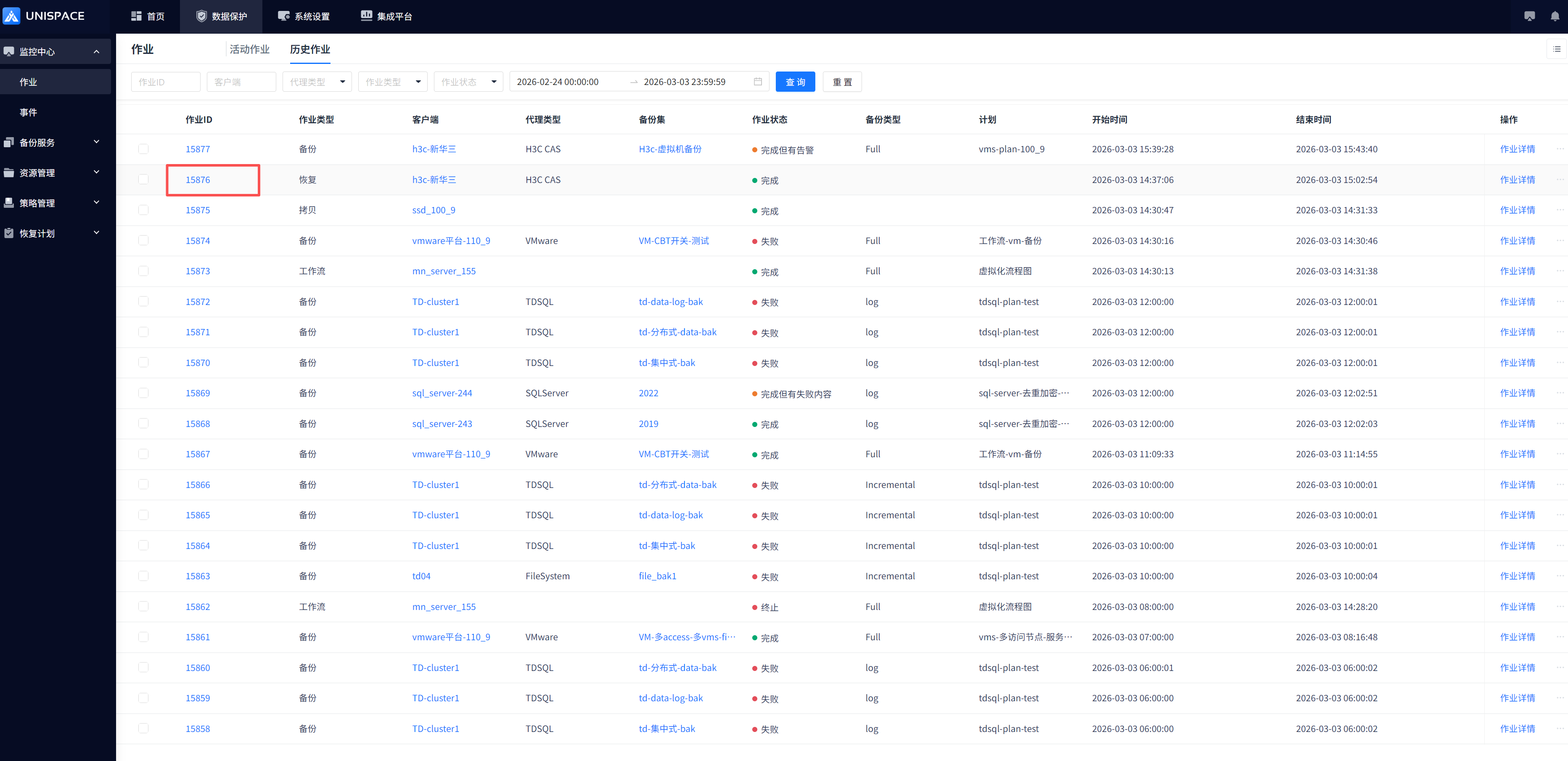
Step 2: After the job starts successfully, click [Monitoring Center] - [Job] - [Active Jobs] to view the job.
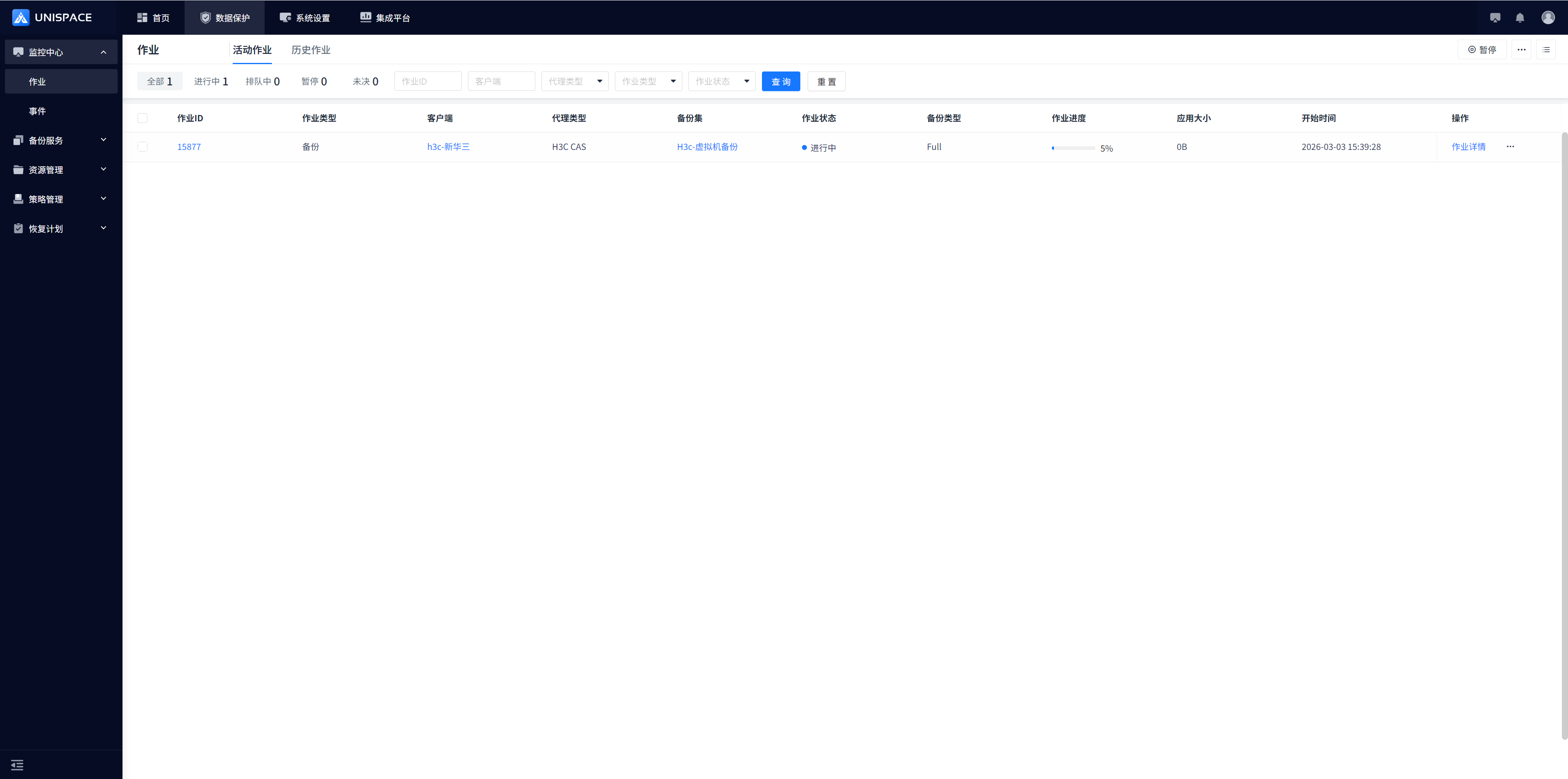
Step 3: After the backup is complete, click [Monitoring Center] - [Job] - [History Jobs] to view the backup-set job. When the job status is "Completed", the backup has finished successfully.

1.4 Restore a Virtual Machine
Prerequisites
- A full or incremental backup has been performed for the group where the virtual machine resides.
Steps
Step 1: Click the system menu [Backup Service] - [Virtualization] - [Virtual Machine].
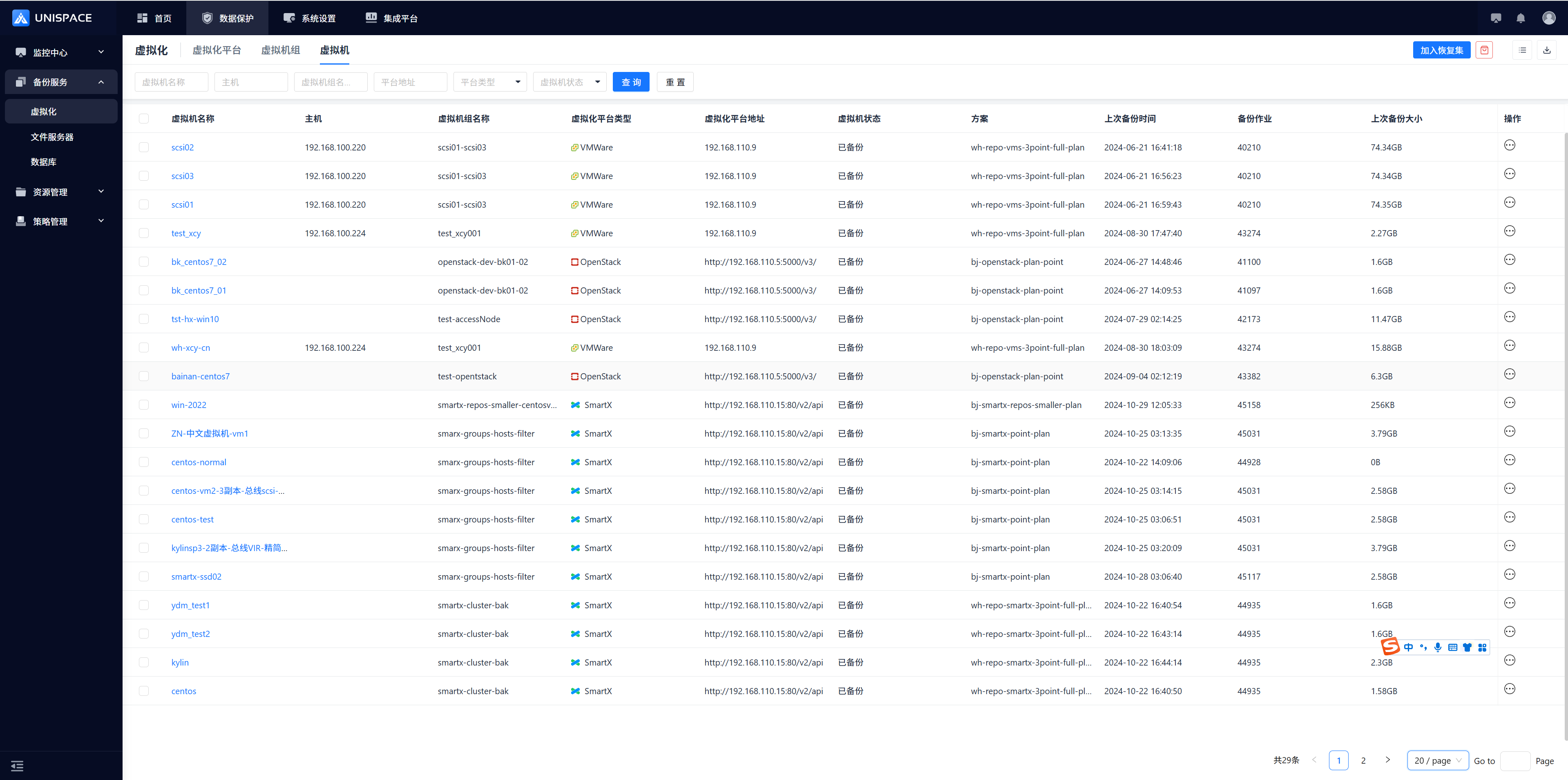
Step 2: Select the virtual machine to be restored from the [Virtual Machine] list, click [Add to Recovery Set], and then click the icon next to it.
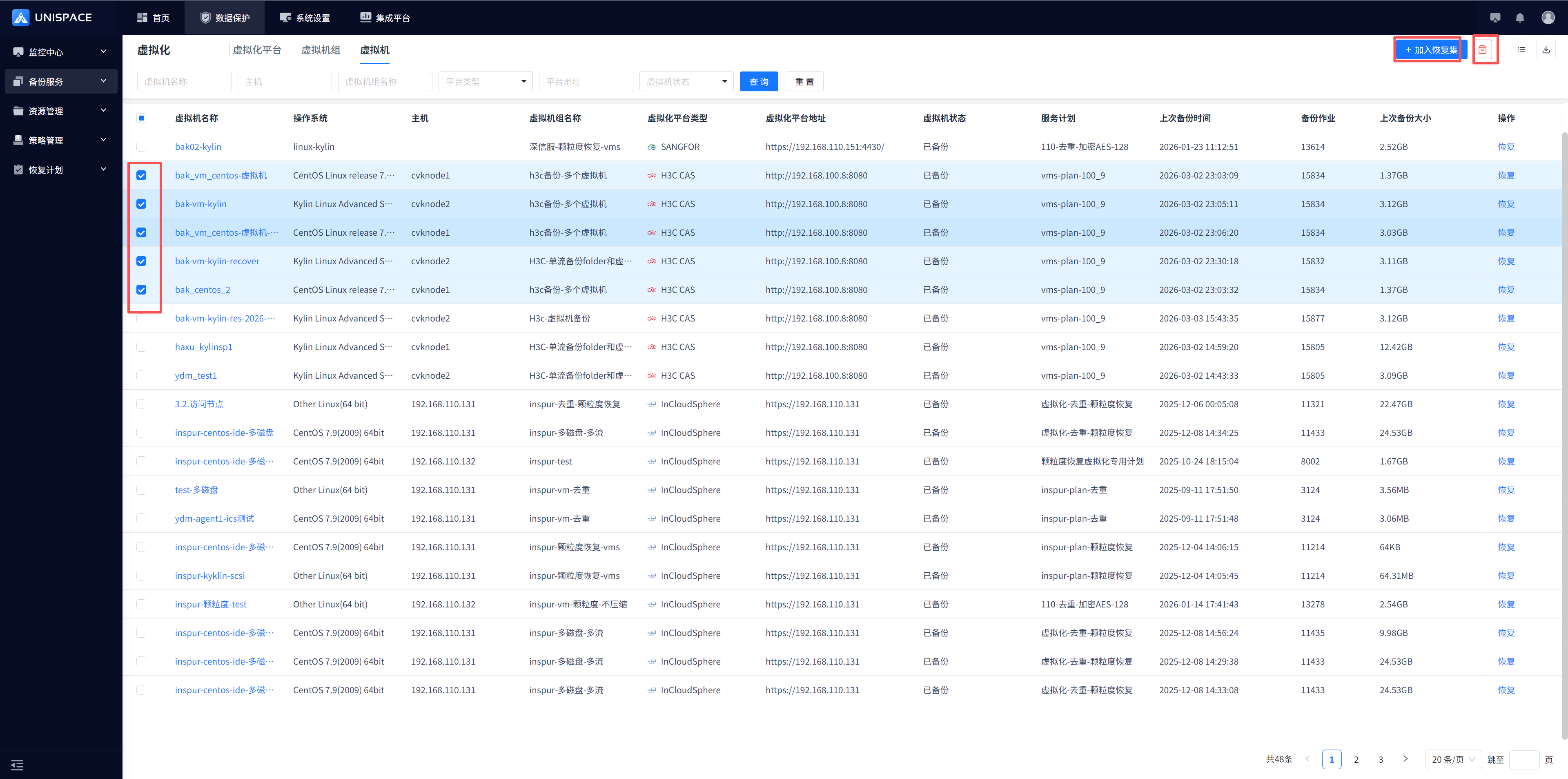
Select Full Virtual Machine as the recovery type.
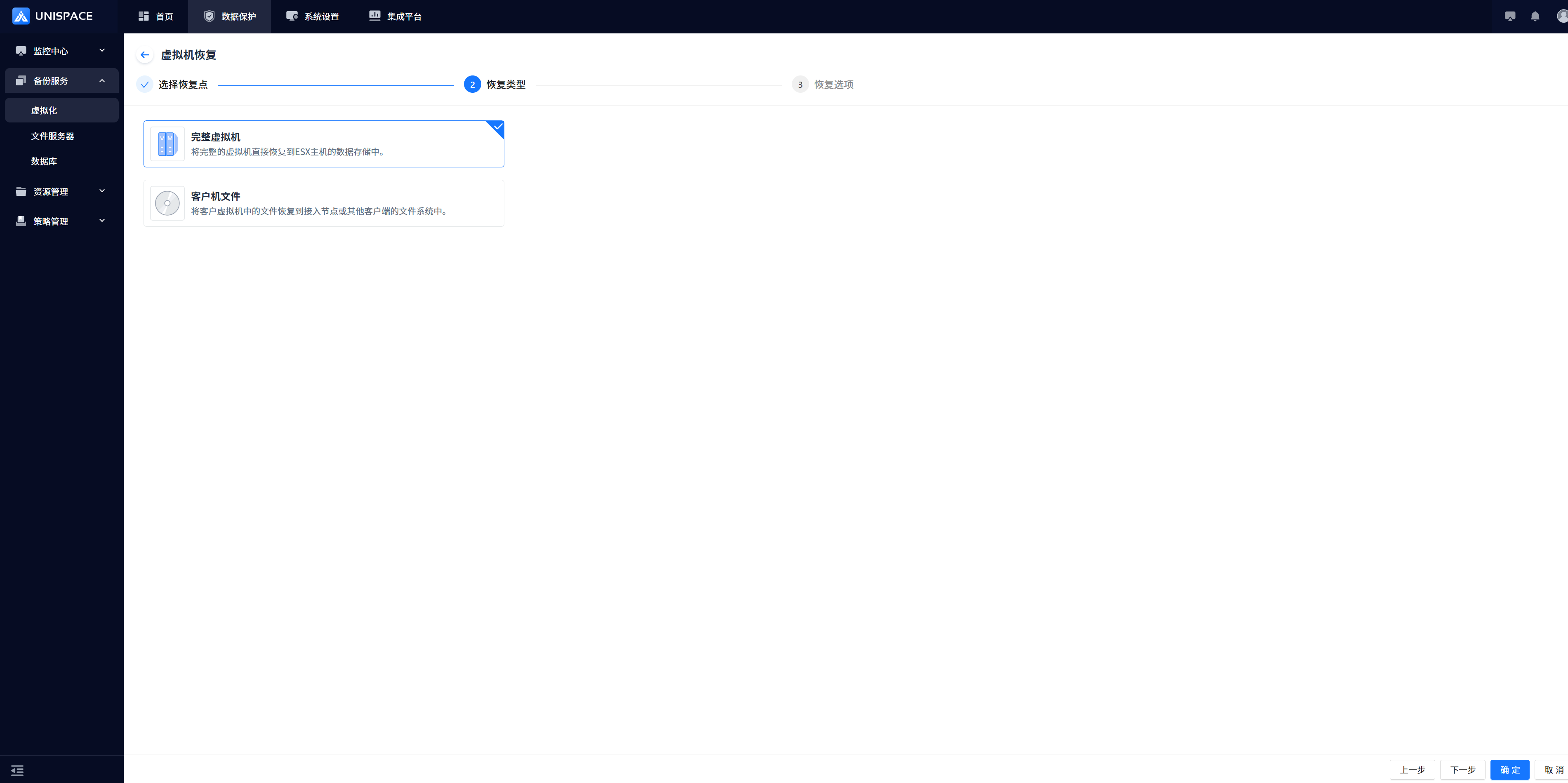
Step 3: Select a recovery point. You can query recovery points by time range or by the most recent recovery point, then click [Confirm] to search.
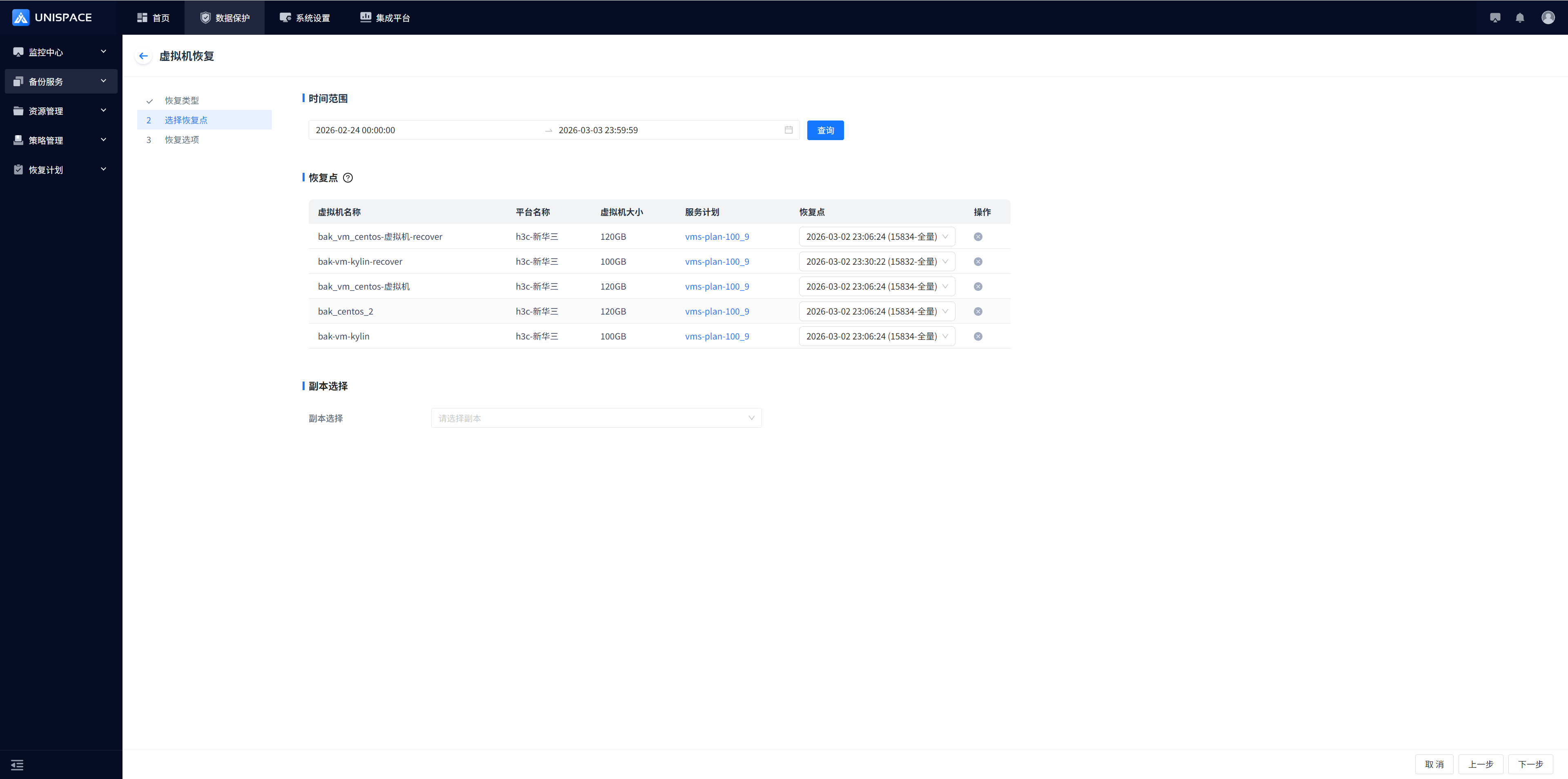
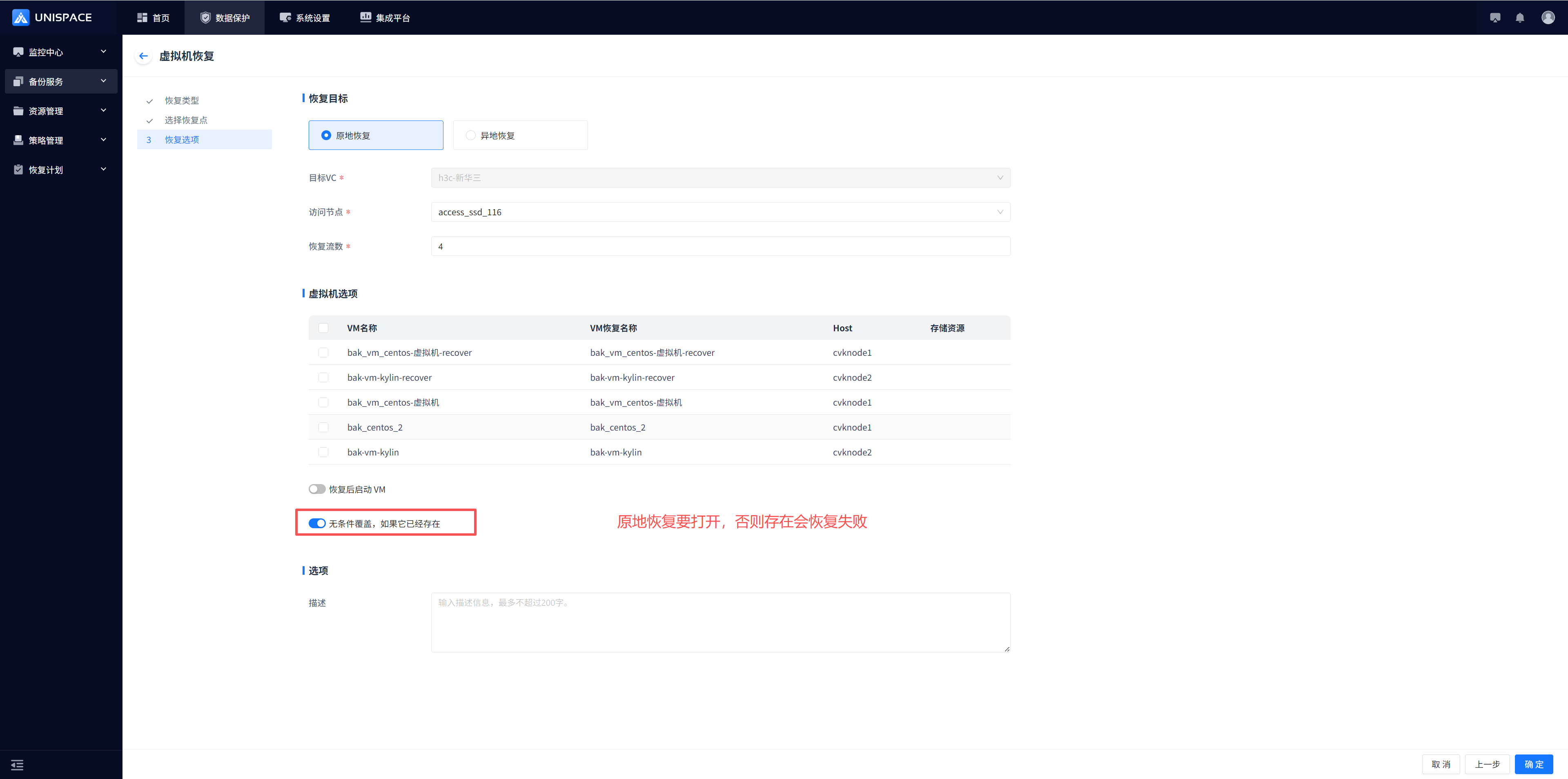
Step 4: Select In-Place Recovery. If the virtual machine already exists and needs to be overwritten, enable the "Unconditional Overwrite" switch.
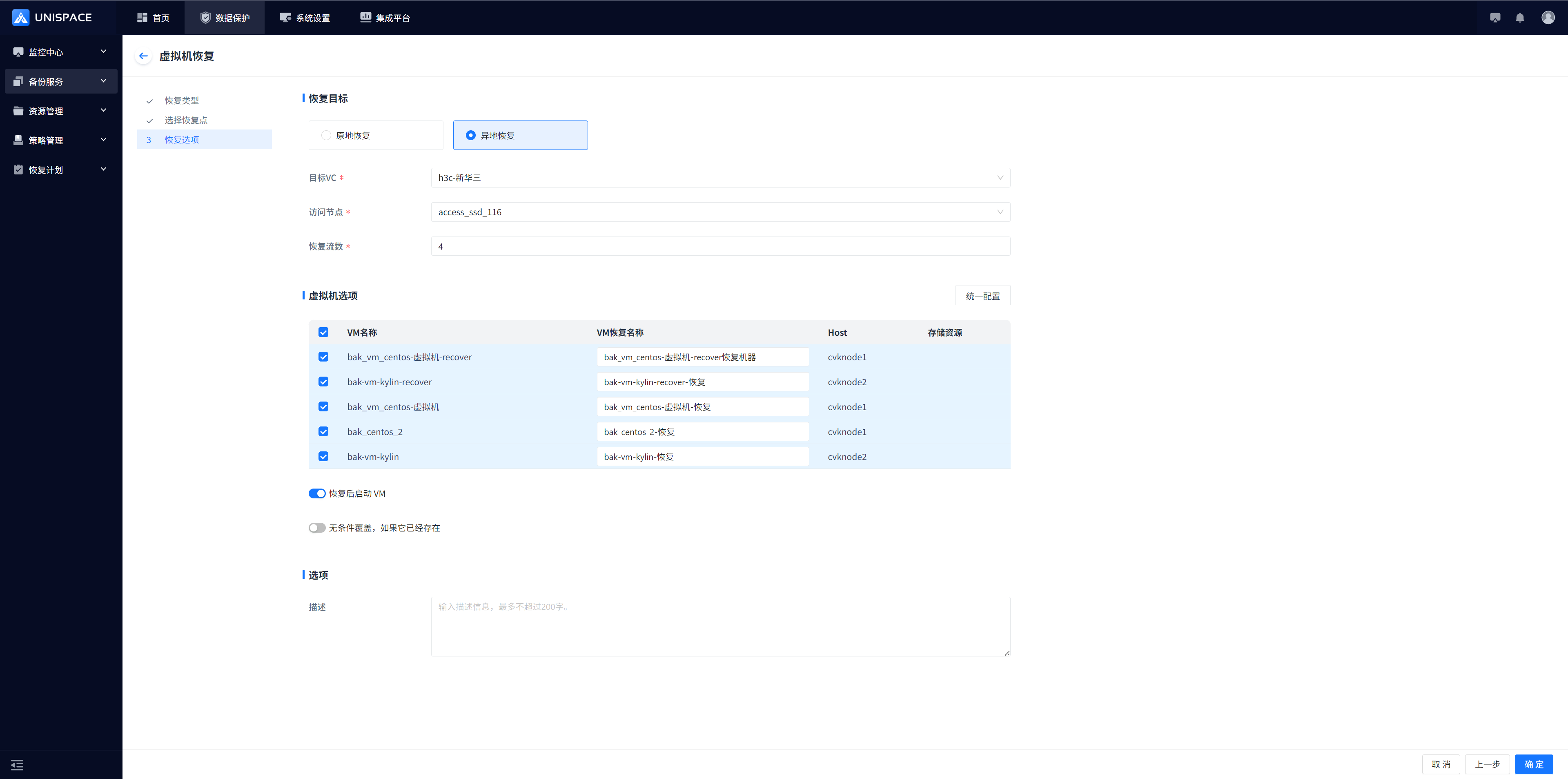
Step 5: Or select Cross-Location Recovery, optionally apply unified settings, and click [Confirm].
Step 6: After the restore succeeds, you can view the job in History Jobs.