
Agent--Mysql Cluster
1.1 Create a New MySQL Cluster
Prerequisites
- Create a storage repository.
- Create a service plan.
- A MySQL slave service is installed and accessible.
Steps
Step 1: Click [Backup Service] - [Database] - [Virtual Cluster] in the system menu to enter the Virtual Cluster page.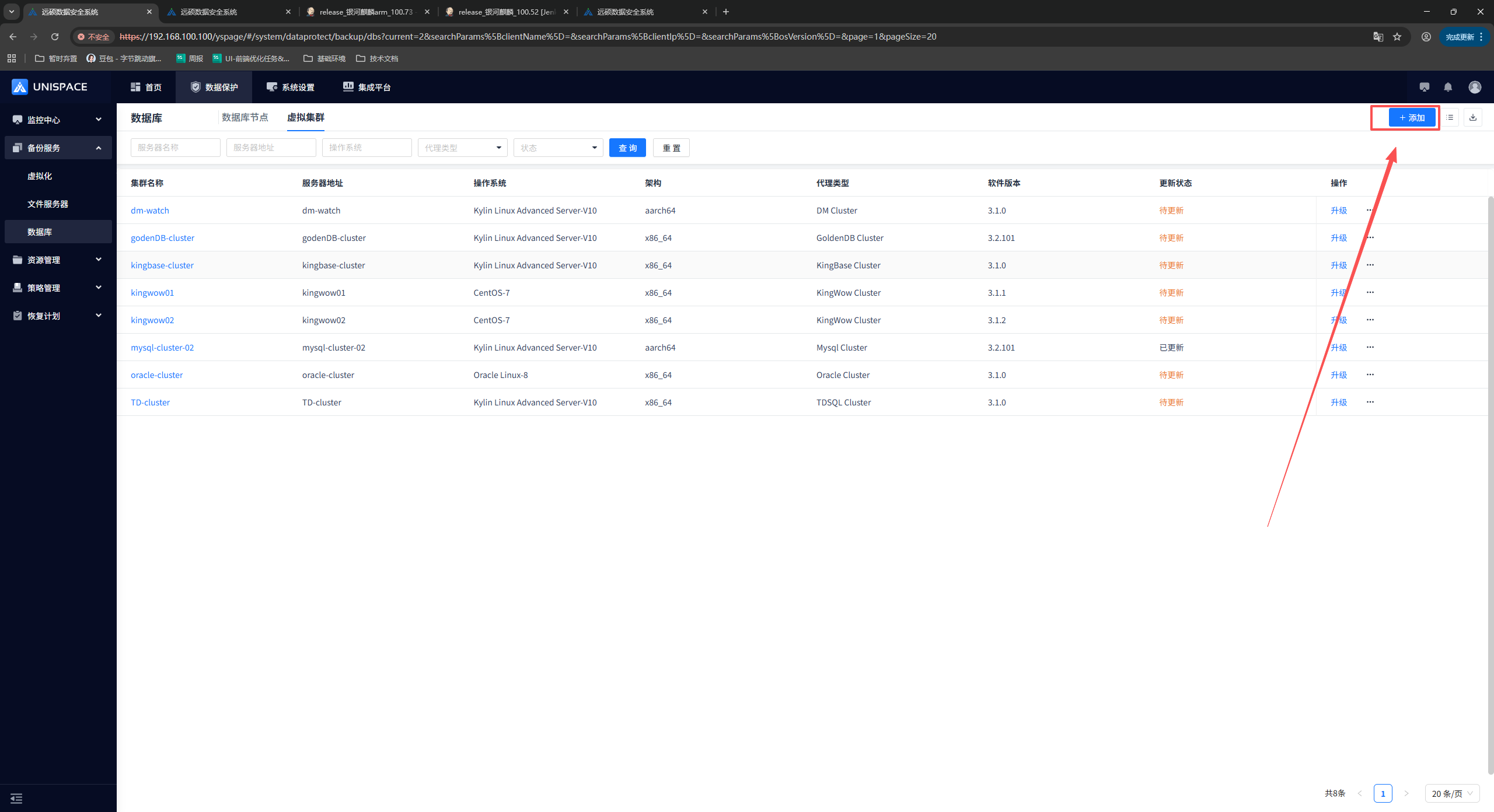
Step 2: Click the [Add] button in the upper right corner of [Instance]. A pop-up window is displayed as follows: 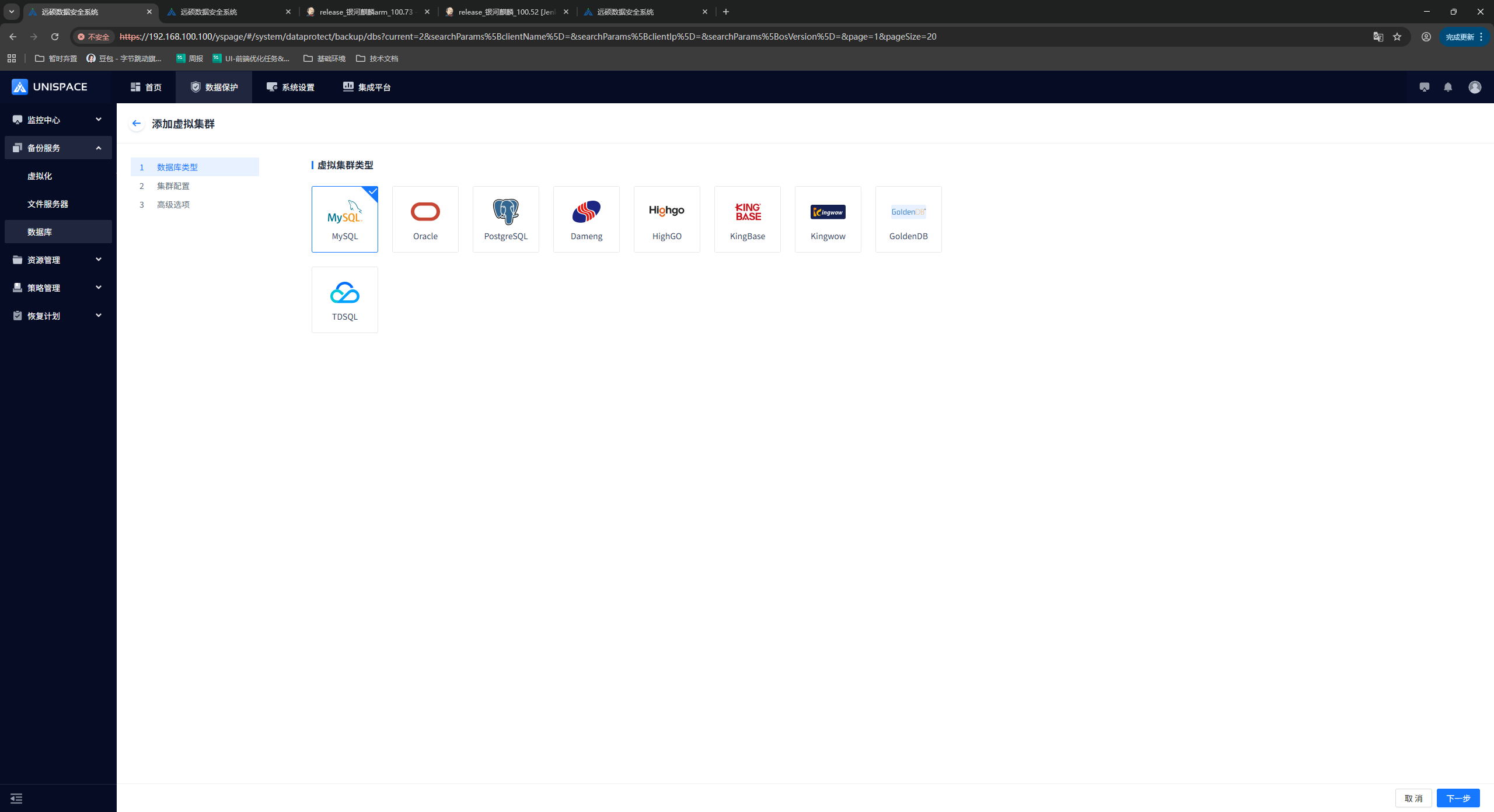
Step 3: Select [MySQL], click [Next Step], and enter the cluster name.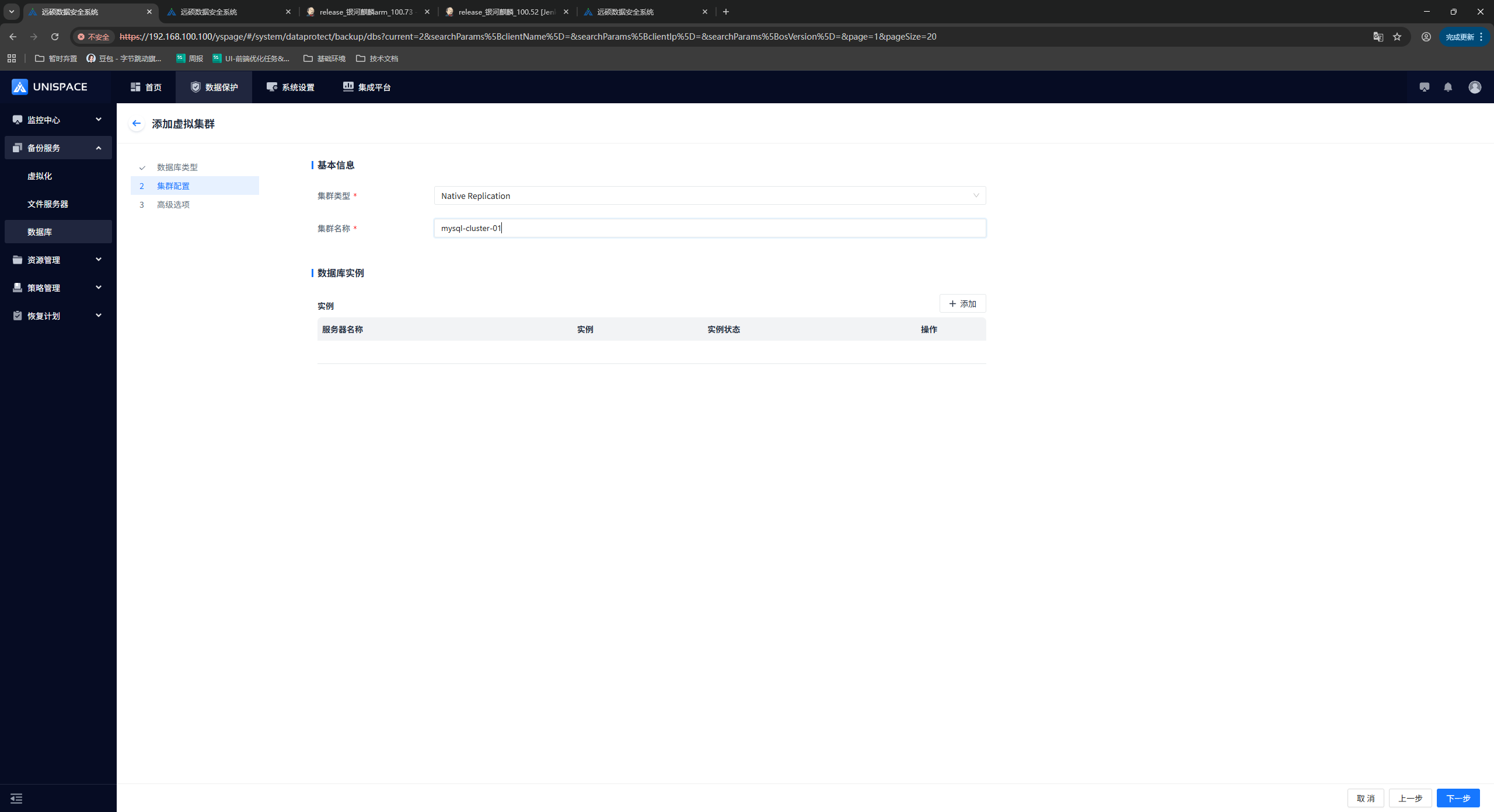
Step 4: Add instances (one or more instances can be added based on the number of cluster nodes), and fill in the required parameters. The parameter descriptions are shown below.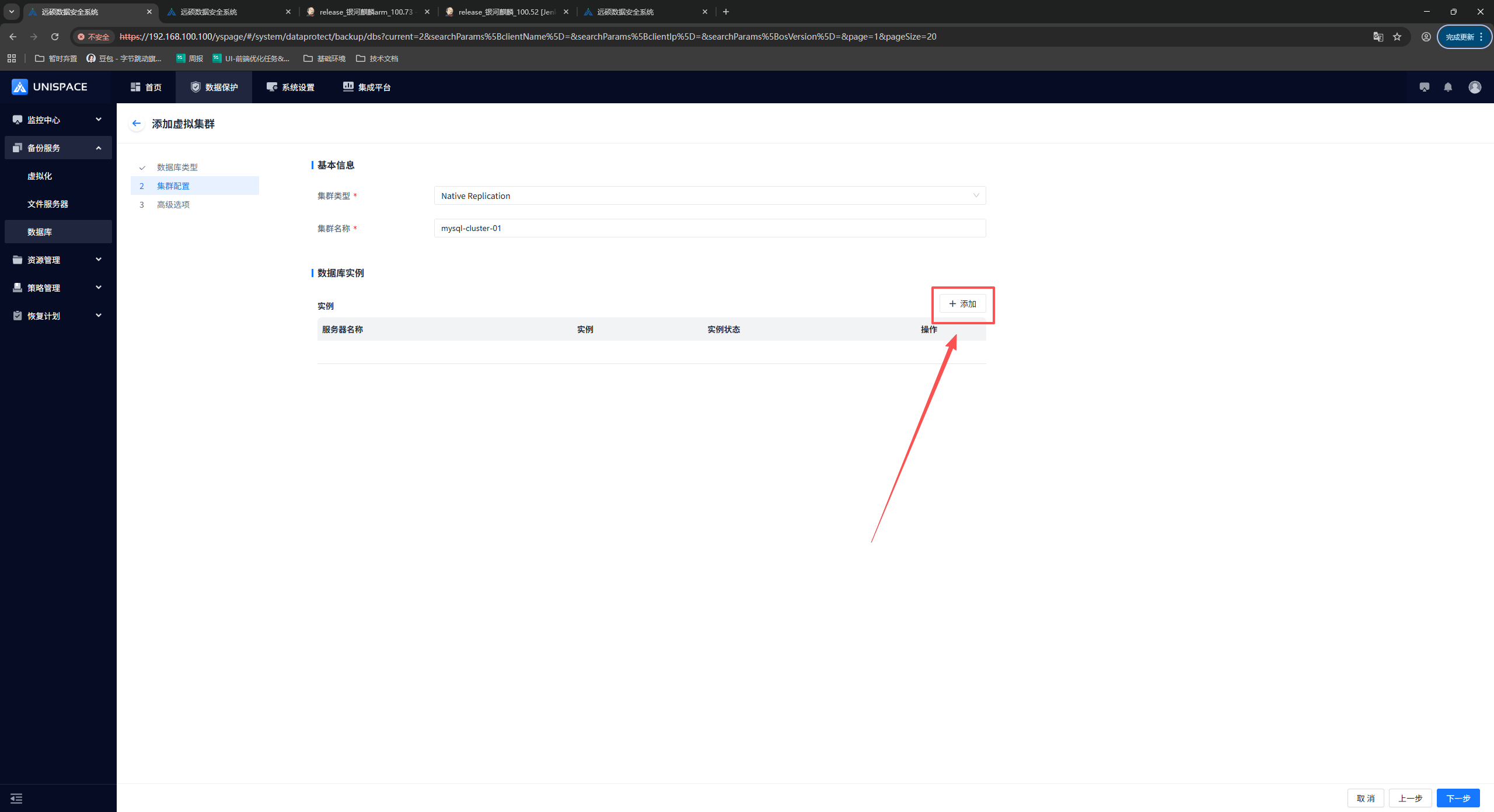
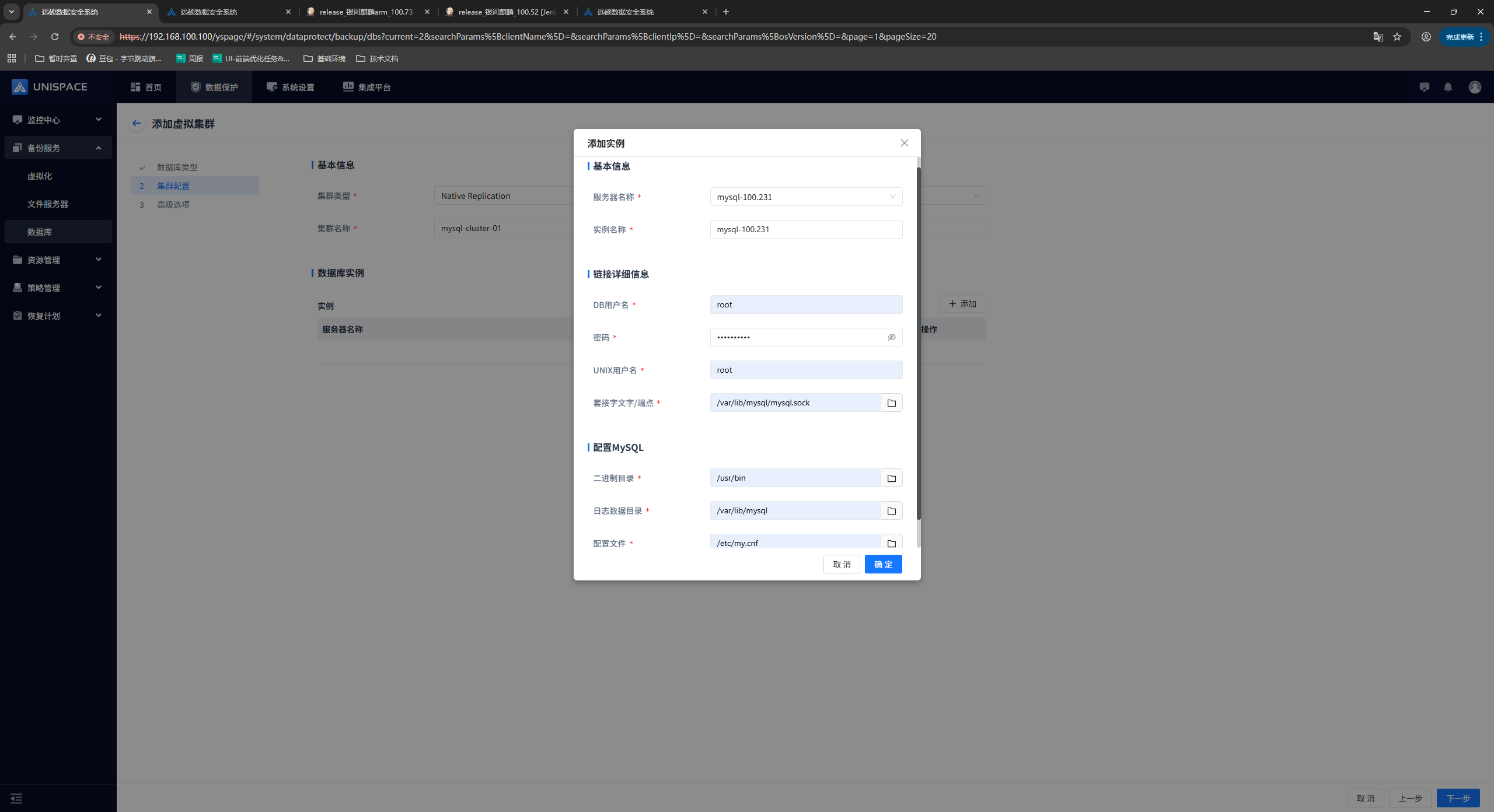
| Parameter Name | Parameter Description | Setting Principle |
|---|---|---|
| Server Name | Single selection, required. The options are the servers where MySQL is located. | Select the MySQL server name. |
| Instance Name | Text input box, required. | There are currently no length or special character restrictions. |
| DB Username | Text input box, required. | Enter the MySQL username. |
| Password | Password input box, required. | Enter the MySQL password. |
| UNIX Username | Text input box, required. | Enter the UNIX username, such as root. |
| Socket/Endpoint | Text input box, required. | Enter the path to mysql.sock. |
| Binary Directory | Text input box, required. | Enter the correct MySQL binary directory. |
| Log Data Directory | Text input box, required. | Enter the correct directory containing the MySQL logs. |
| Configuration File | Text input box, required. | Enter the path to the mysql.cnf file. |
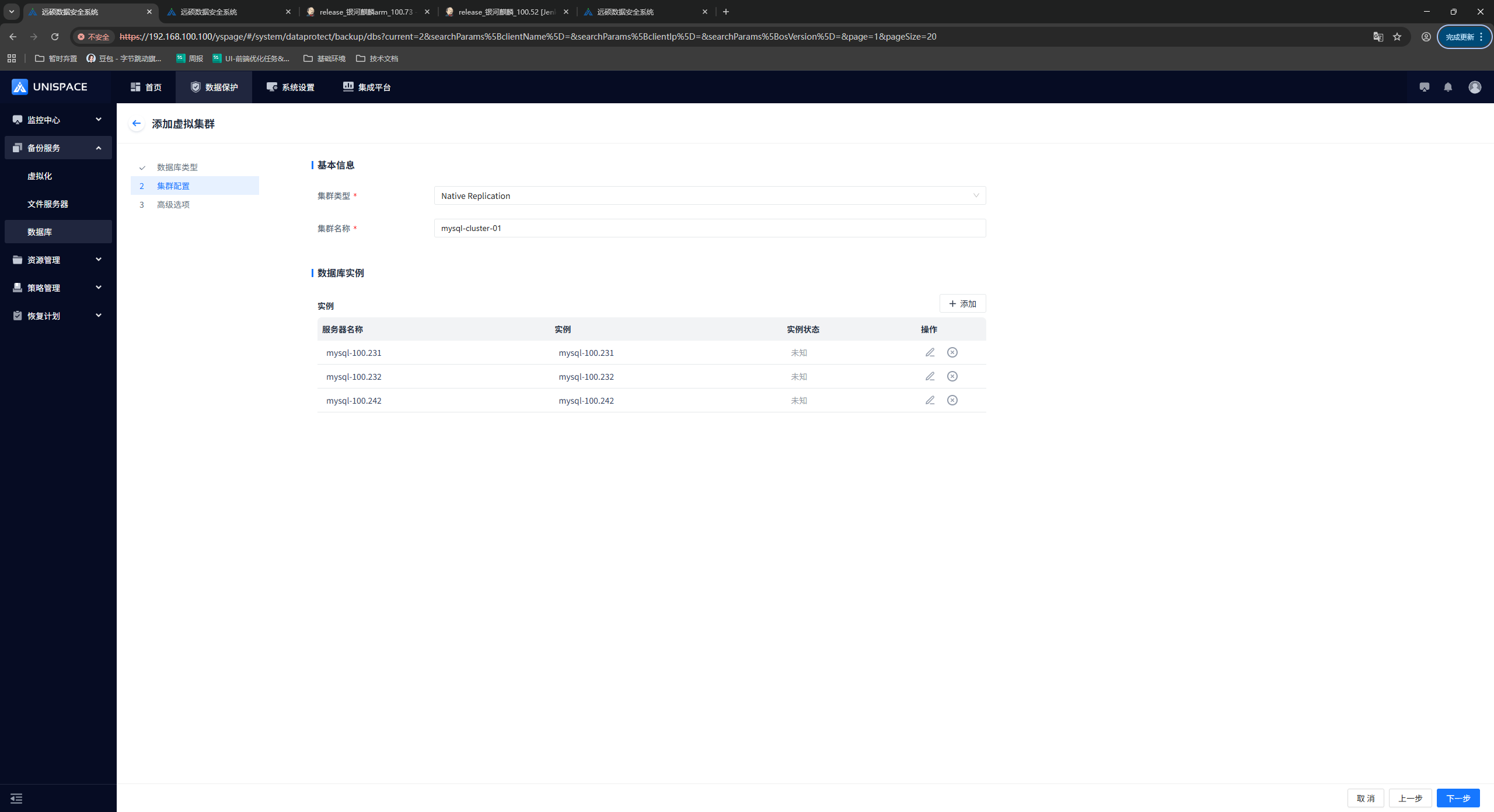
Step 5: One or more instances can be added based on the number of cluster nodes. After adding the instances, click [Confirm].
Step 6: Set the XtraBackup path.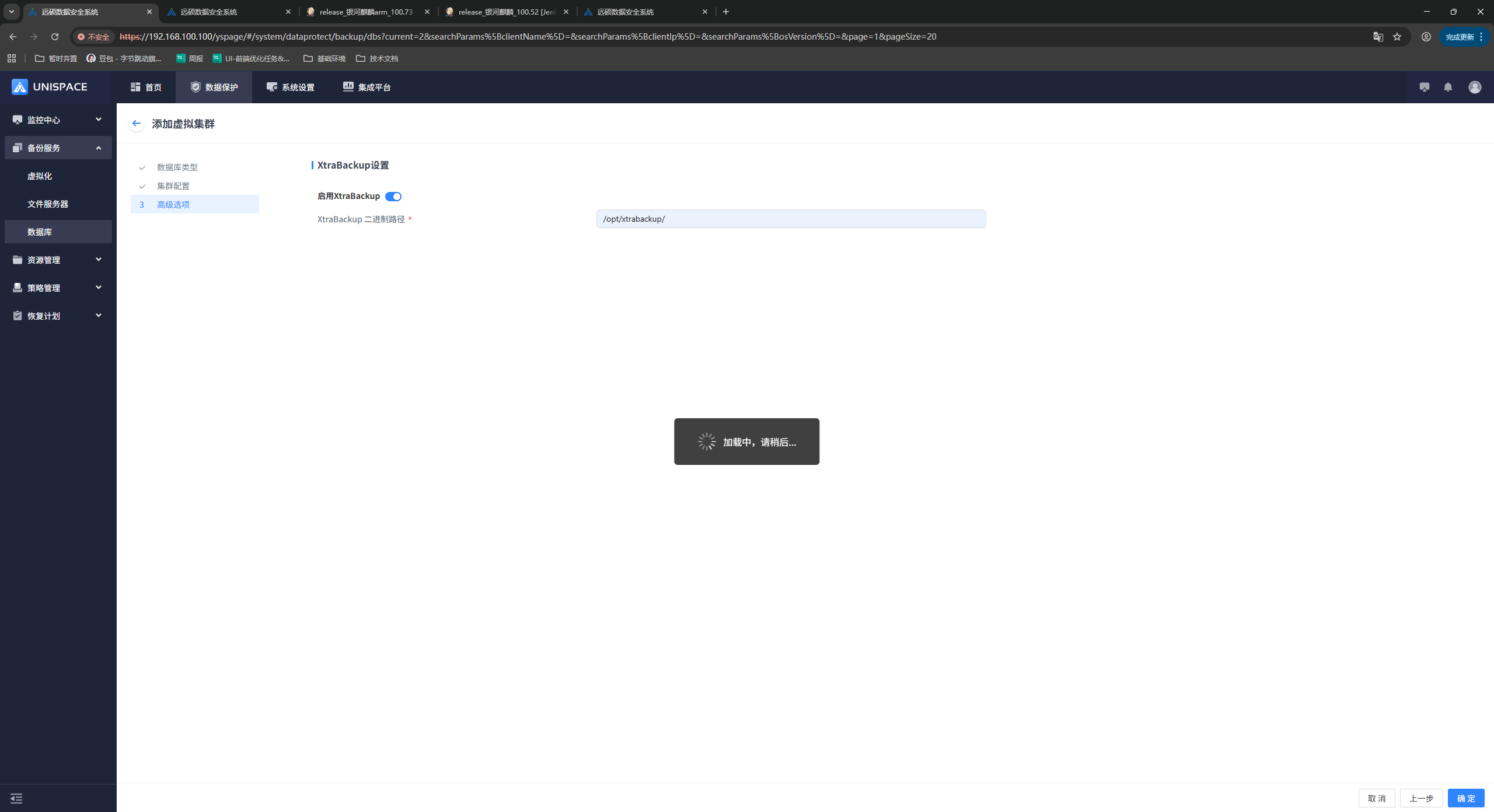
Step 7: After the cluster is added successfully, it is displayed in the Virtual Cluster list.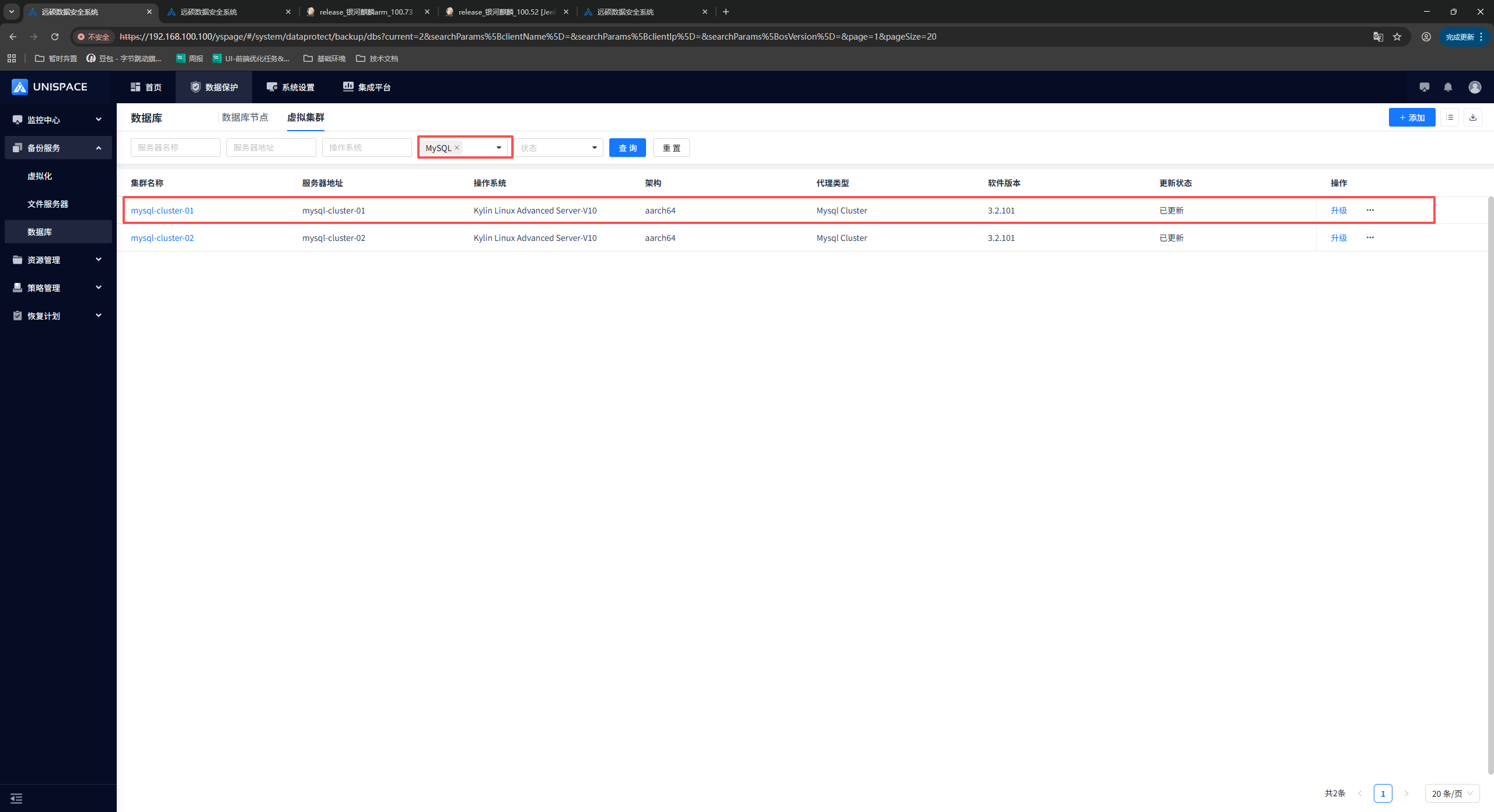
1.2 Create a New MySQL Backup Set
Prerequisites
- A MySQL cluster has been added.
Steps
Step 1: On the Virtual Cluster list page, select a cluster, click the [Cluster Name] to enter the cluster details page, and click [Backup Set].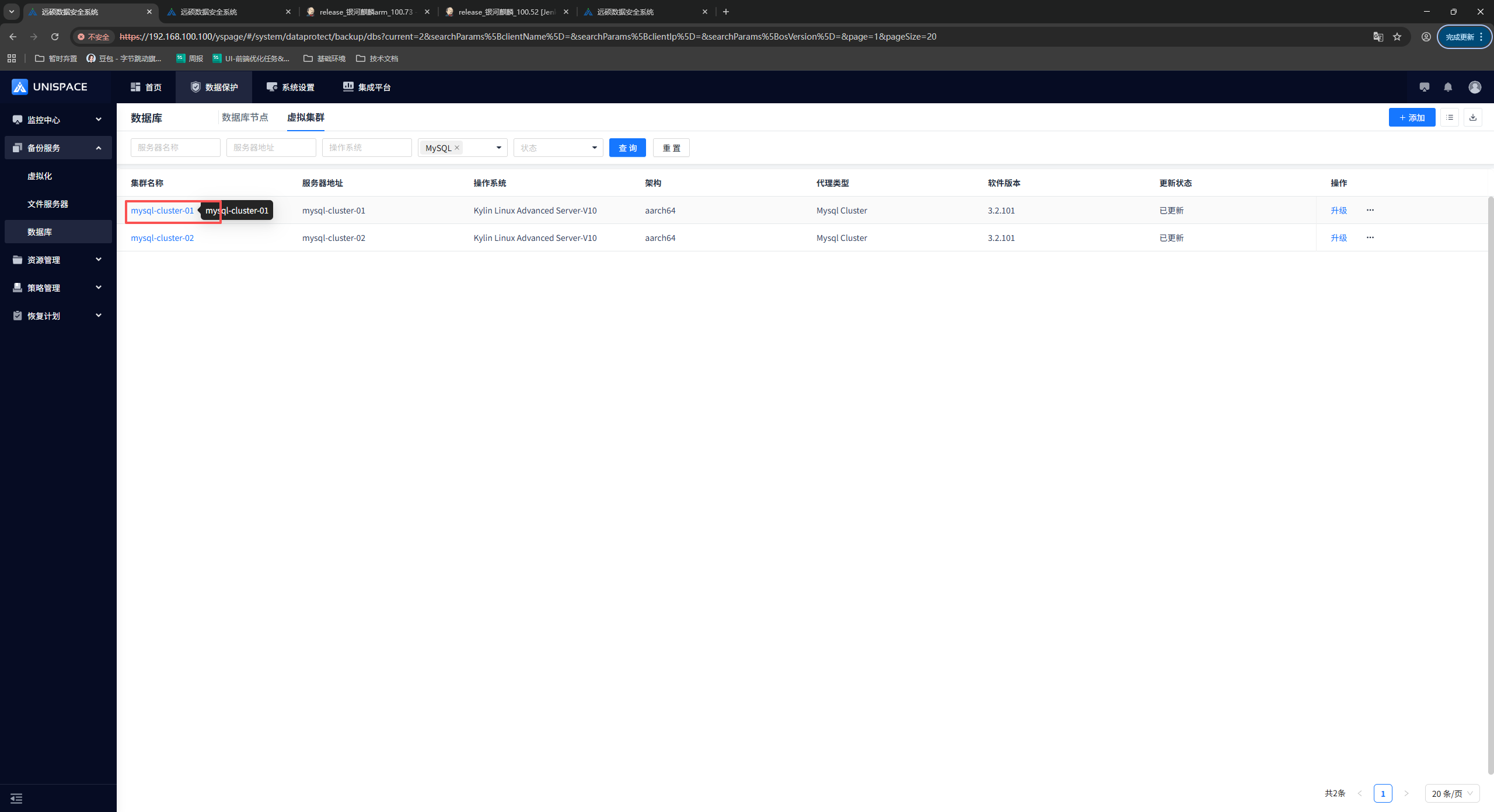
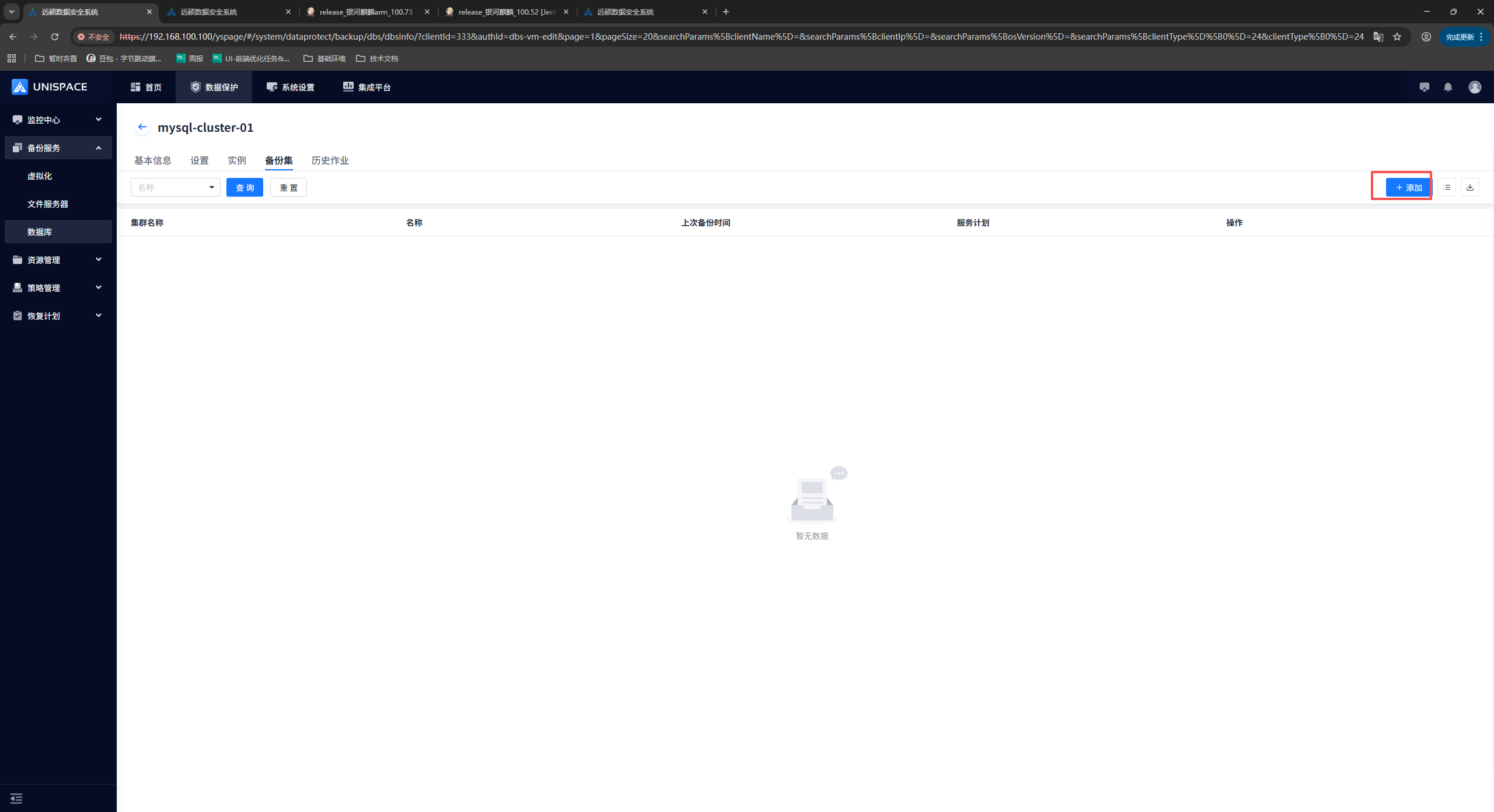
Step 2: Click the [Add] button in the upper right corner of [Backup Set]. A pop-up window is displayed as follows: 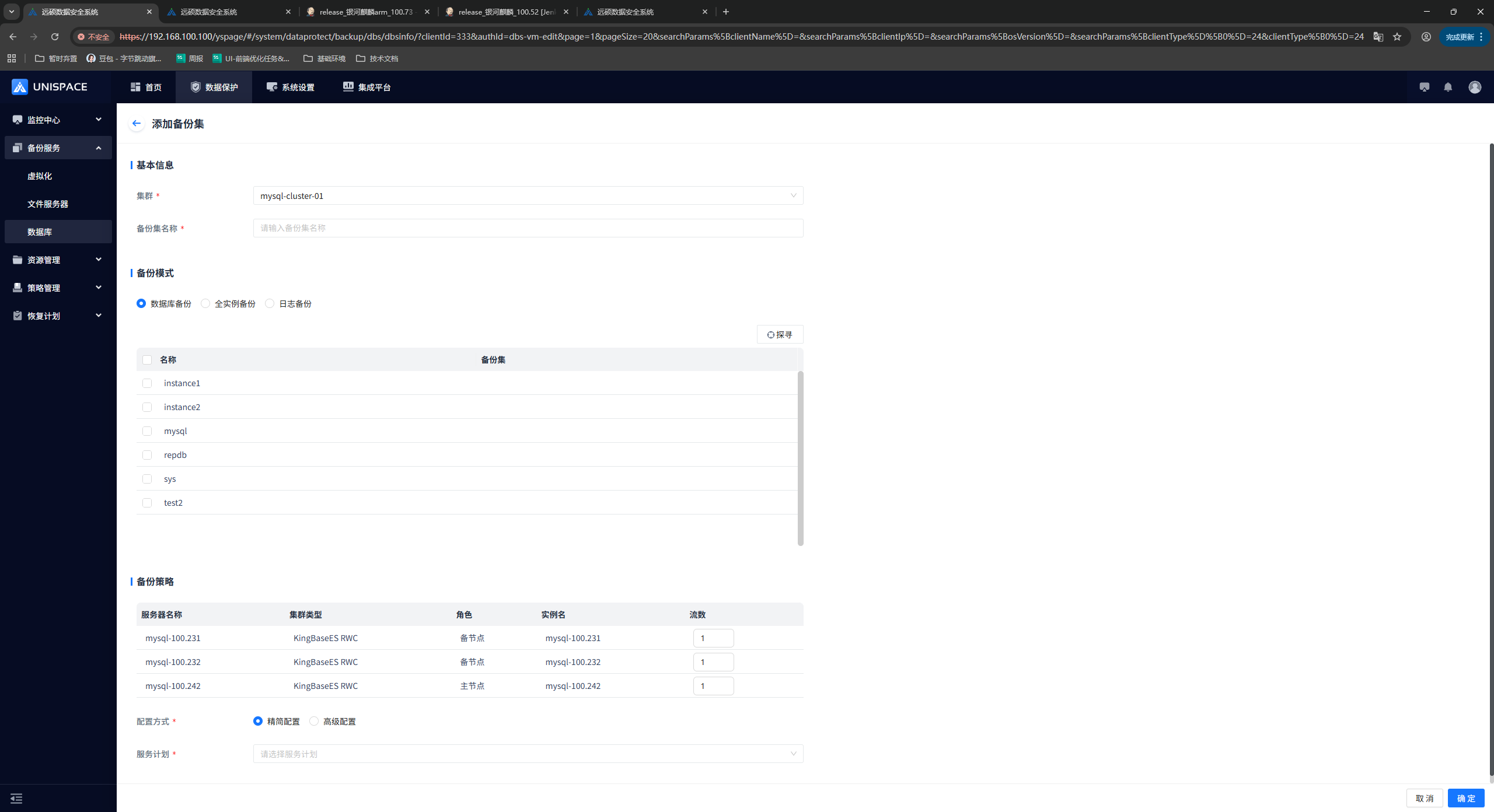
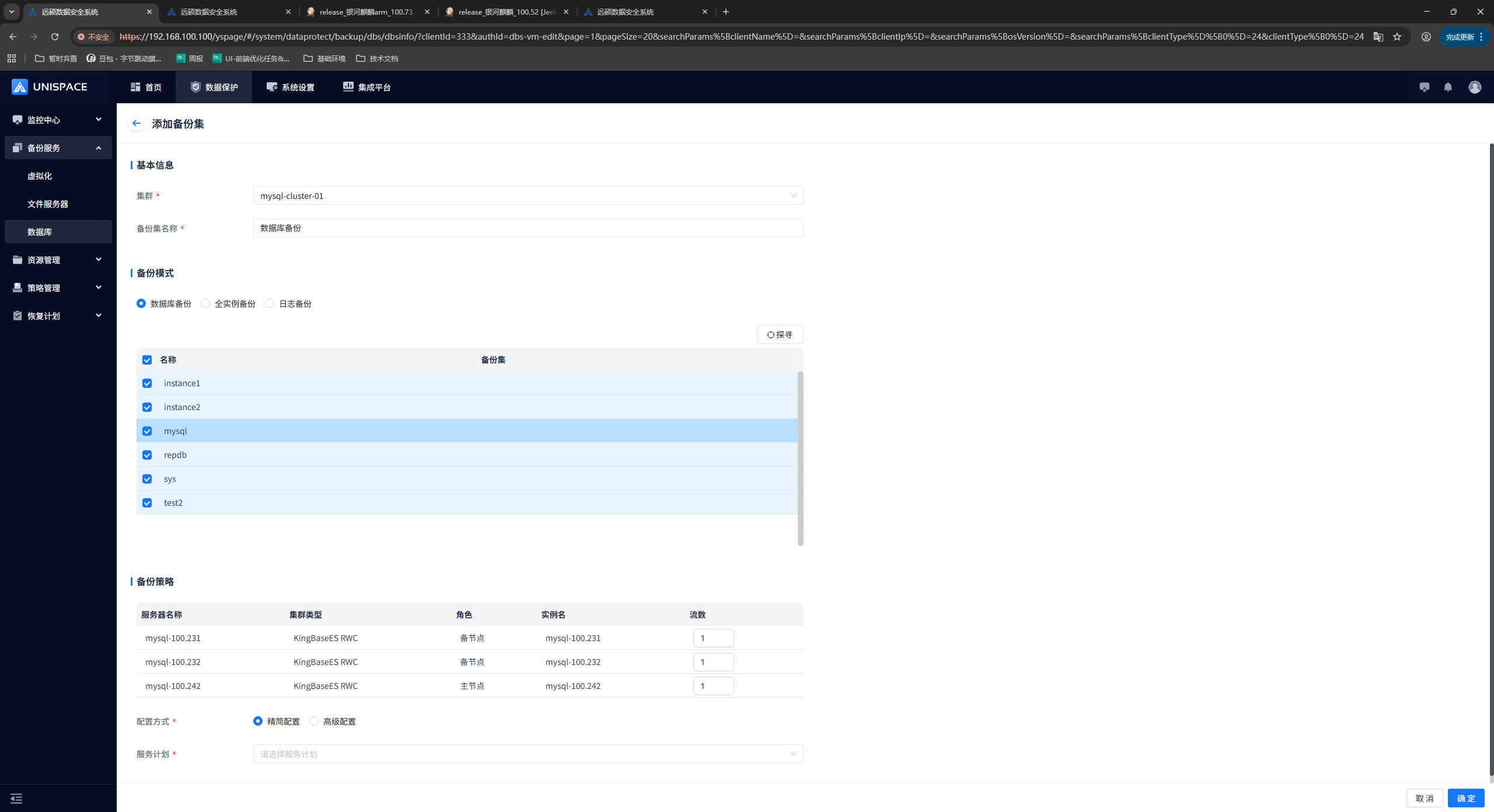
Step 3: Fill in the required parameters. The parameter descriptions are shown below.
| Parameter Name | Parameter Description | Setting Principle |
|---|---|---|
| Cluster | Cluster name. | The cluster name is populated by default and does not need to be set. |
| Backup Set Name | Text input box, required. | No more than 50 characters; special symbols are not supported. |
| Backup Mode | Single selection; database backup is selected by default. | Database backup; full instance backup; log backup. |
| Backup Policy | Displays information about each node and allows the number of streams to be configured. | A single stream or multiple streams can be configured. The number cannot exceed 200, and each node can be configured separately. |
| Configuration Method | Single selection, required. | Basic Configuration or Advanced Configuration. |
| Service Plan | Single selection, required. | Select an appropriate plan. |
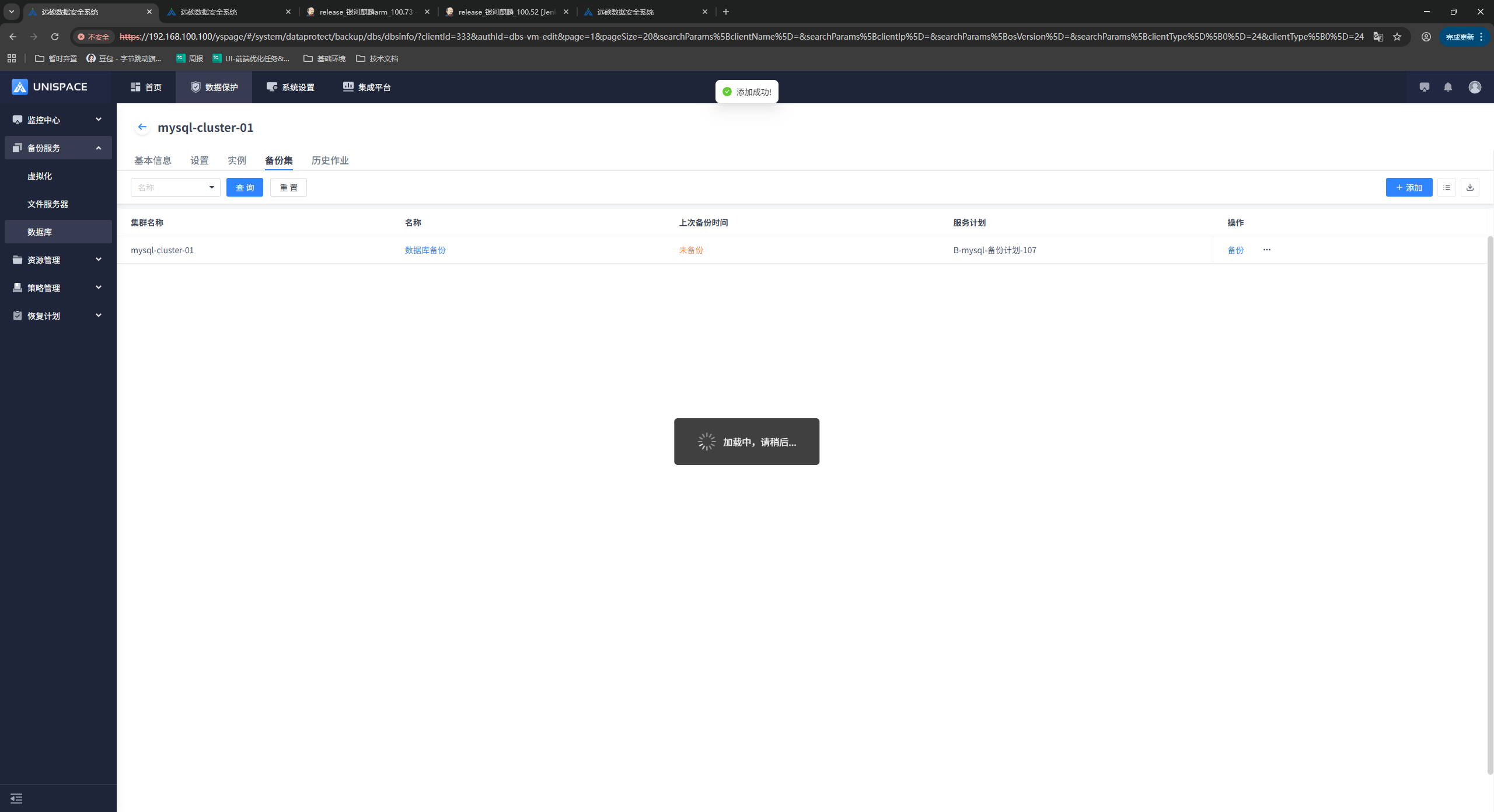
Step 4: Click the [Confirm] button. The frontend displays a message indicating that the addition was successful.
1.3 MySQL Log Backup
Prerequisites
- A MySQL cluster has been configured and added.
Steps
Step 1: On the Virtual Cluster list page, select a cluster, click the [Cluster Name] to enter the cluster details page, and click [Backup Set].
Step 2: Click the [Add] button in the upper right corner of [Backup Set]. A pop-up window is displayed as follows:
Step 3: Fill in the required parameters.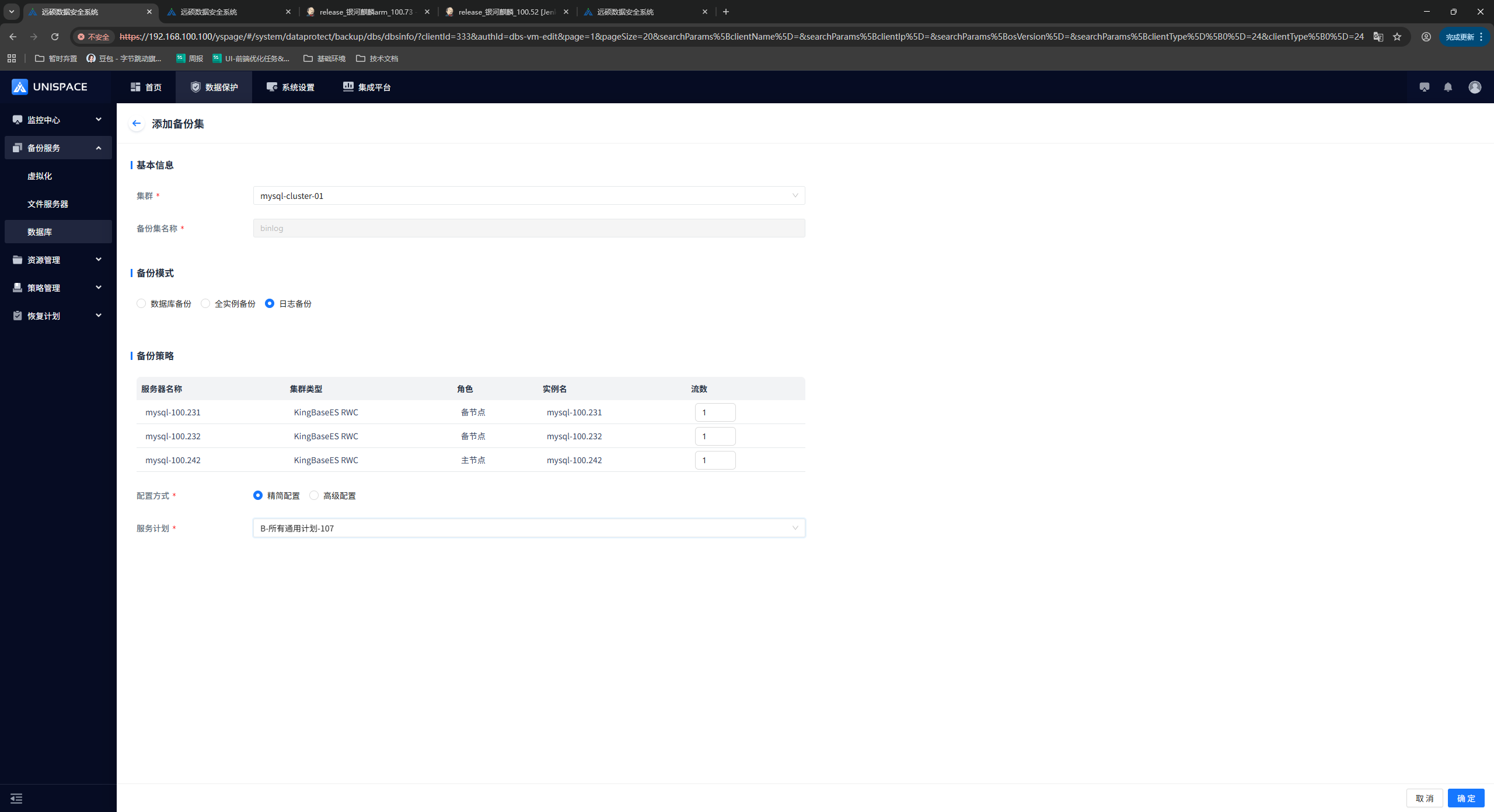
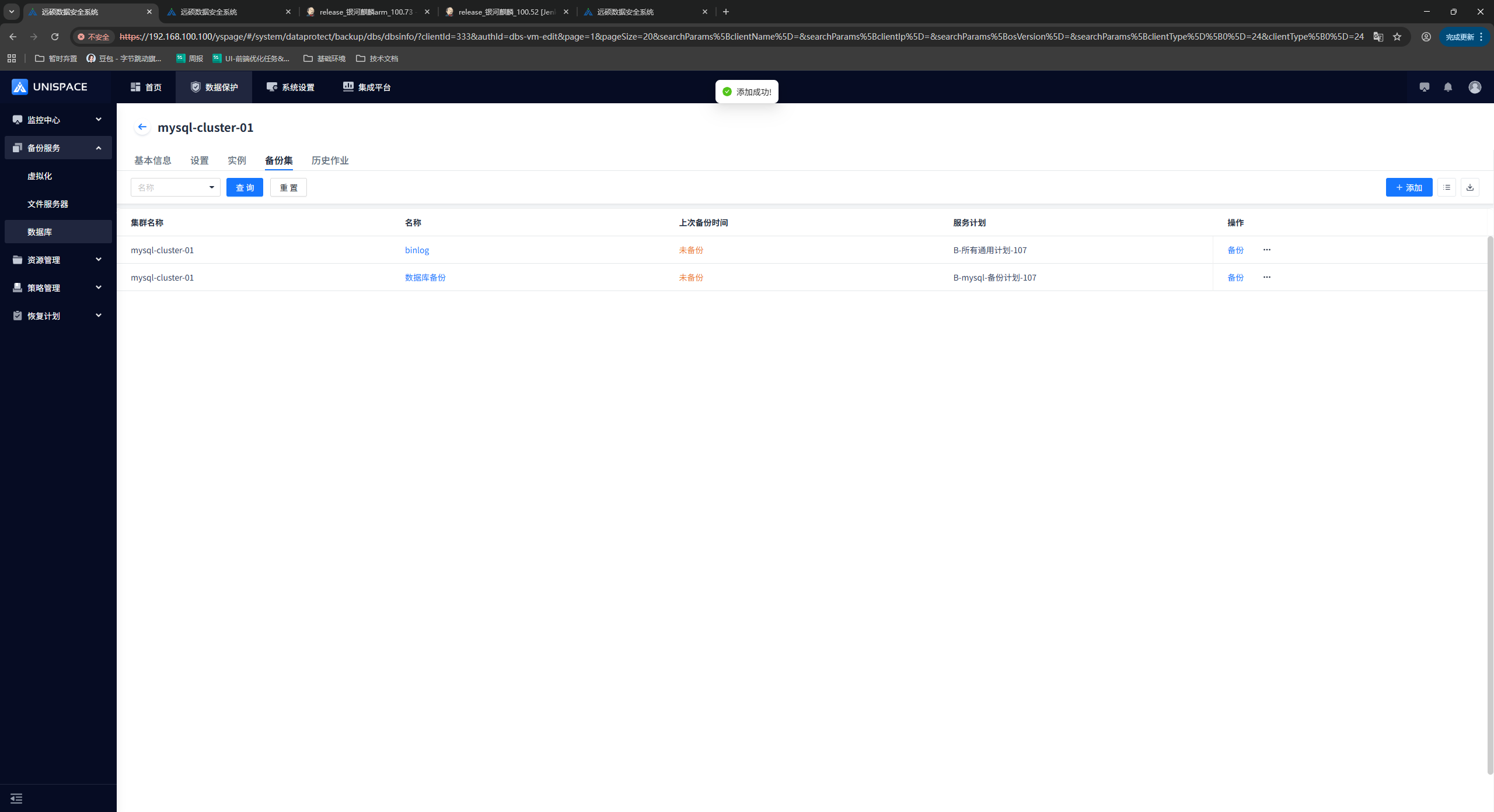
Step 4: Click the [Confirm] button. The frontend displays a message indicating that the addition was successful.
1.4 MySQL Instance Backup
Prerequisites
- A MySQL cluster has been configured and added.
Steps
Step 1: On the Virtual Cluster list page, select a cluster, click the [Cluster Name] to enter the cluster details page, and click [Backup Set].
Step 2: Click the [Add] button in the upper right corner of [Backup Set]. A pop-up window is displayed as follows:
Step 3: Fill in the required parameters.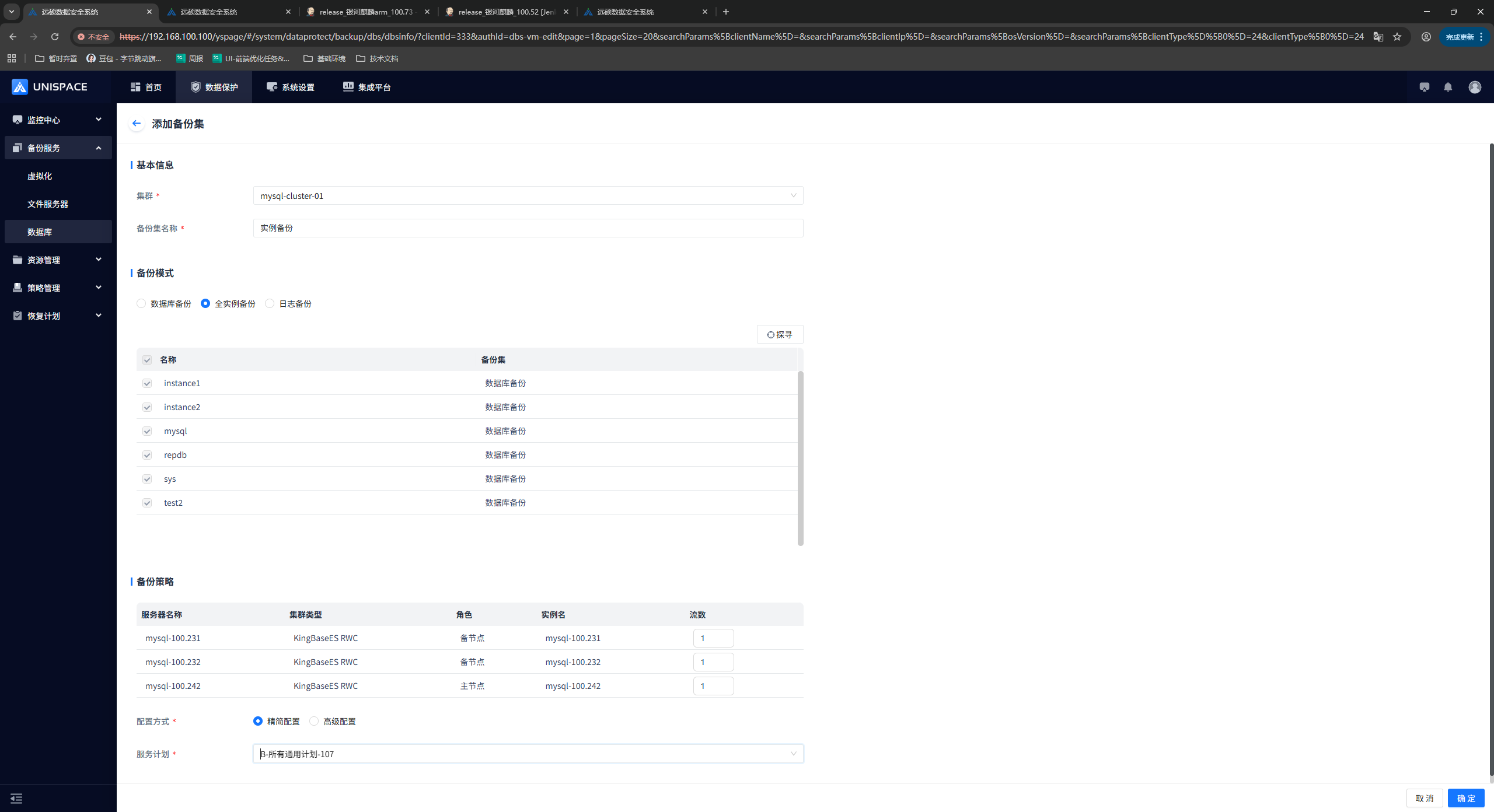
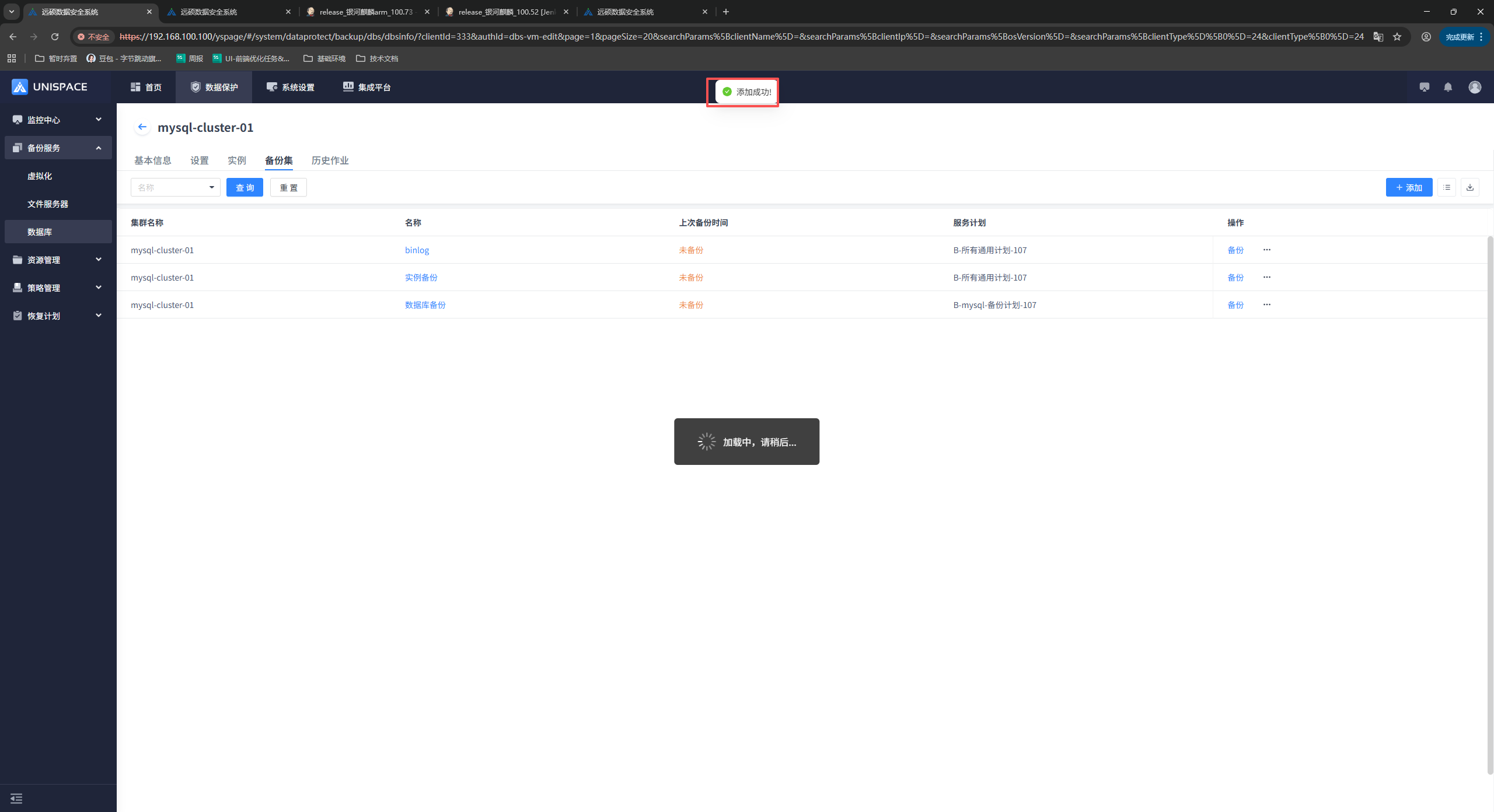
Step 4: Click the [Confirm] button. The frontend displays a message indicating that the addition was successful.
1.4 MySQL Log Backup
Prerequisites
- A MySQL log backup set has been configured.
Steps
Step 1: Select the log backup set and click [Backup] under [Actions].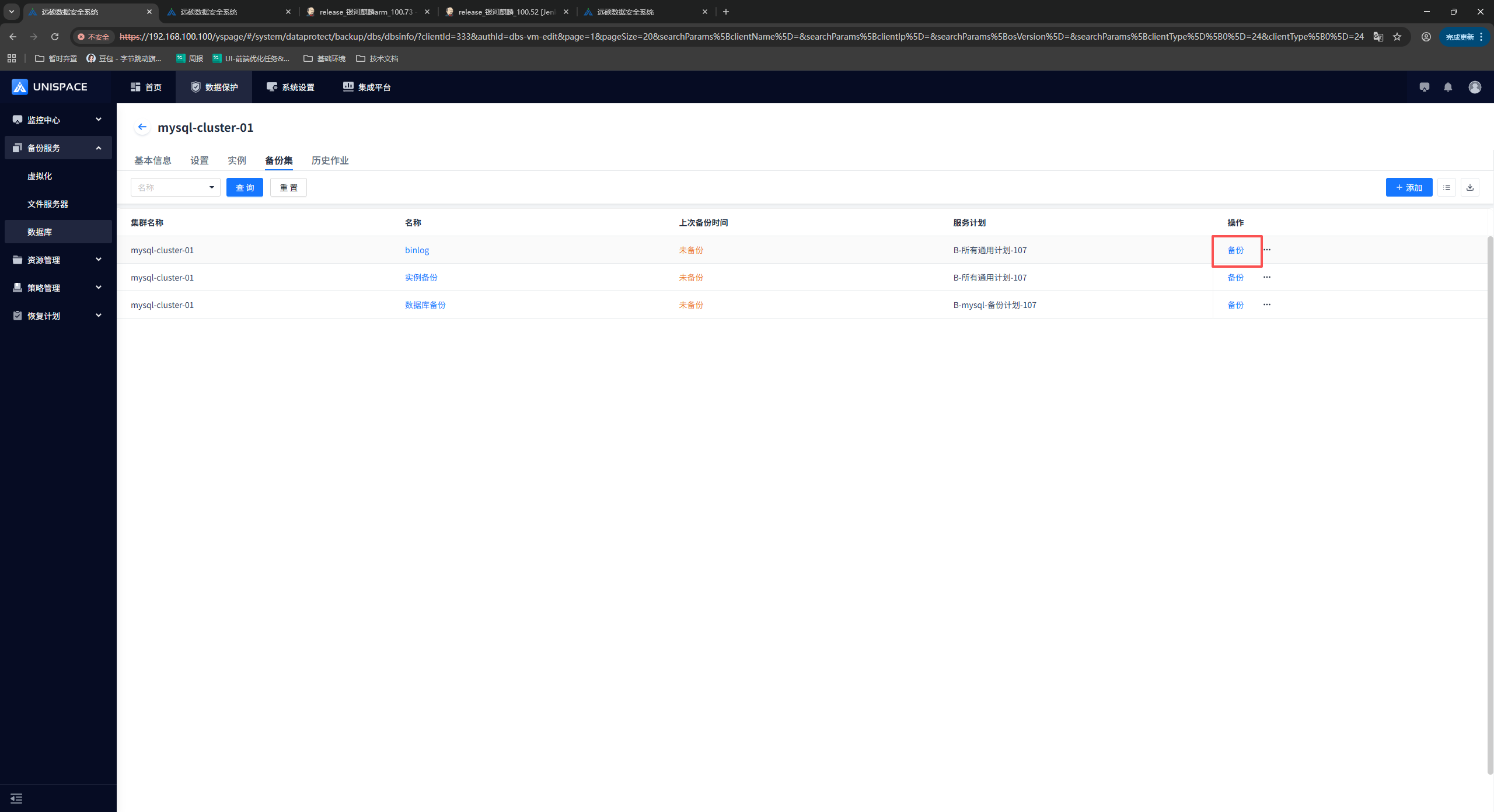
Step 2: Select the log in the pop-up window and click [Confirm].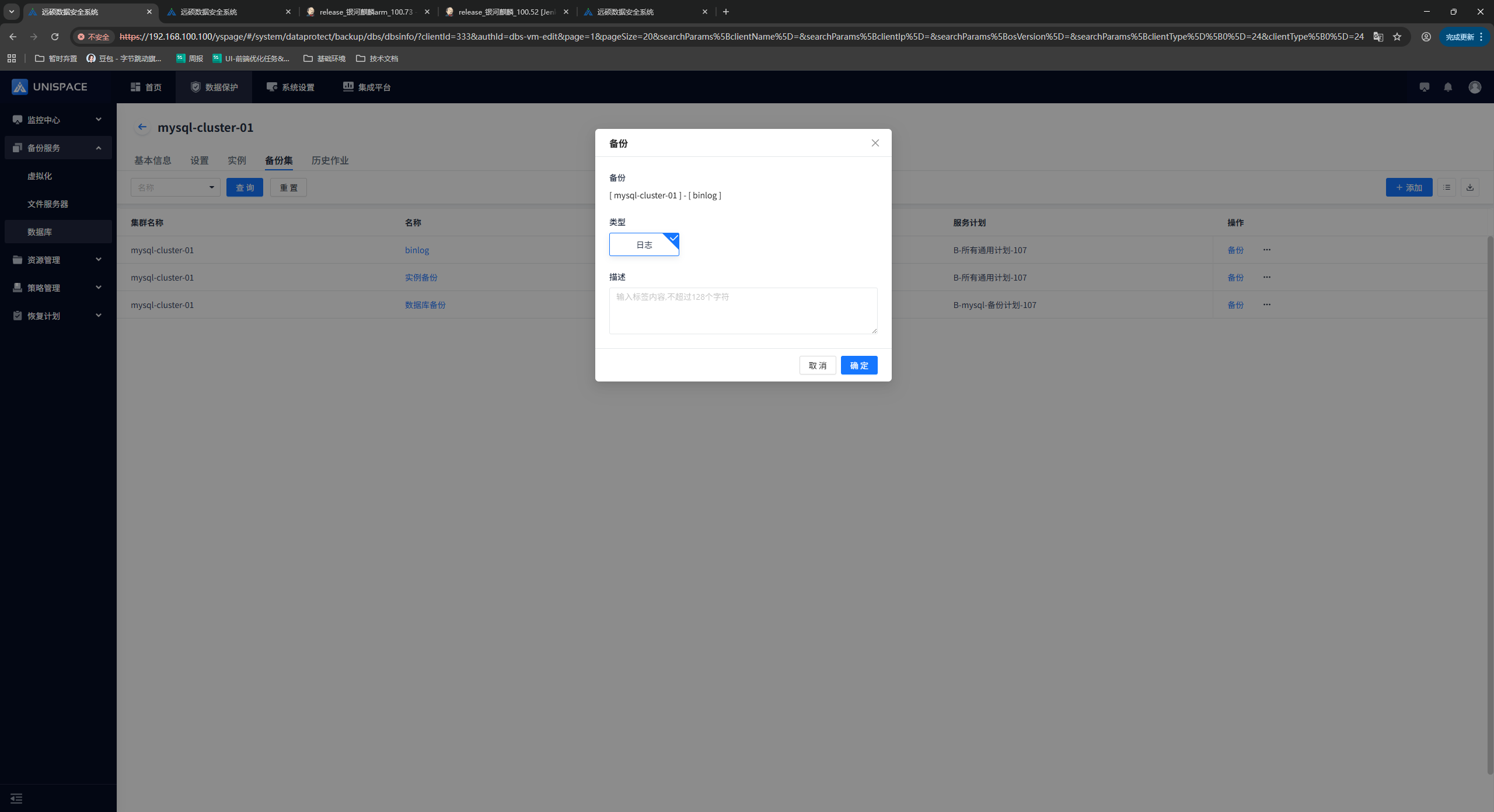
Step 3: The page displays “Backup job submitted successfully”.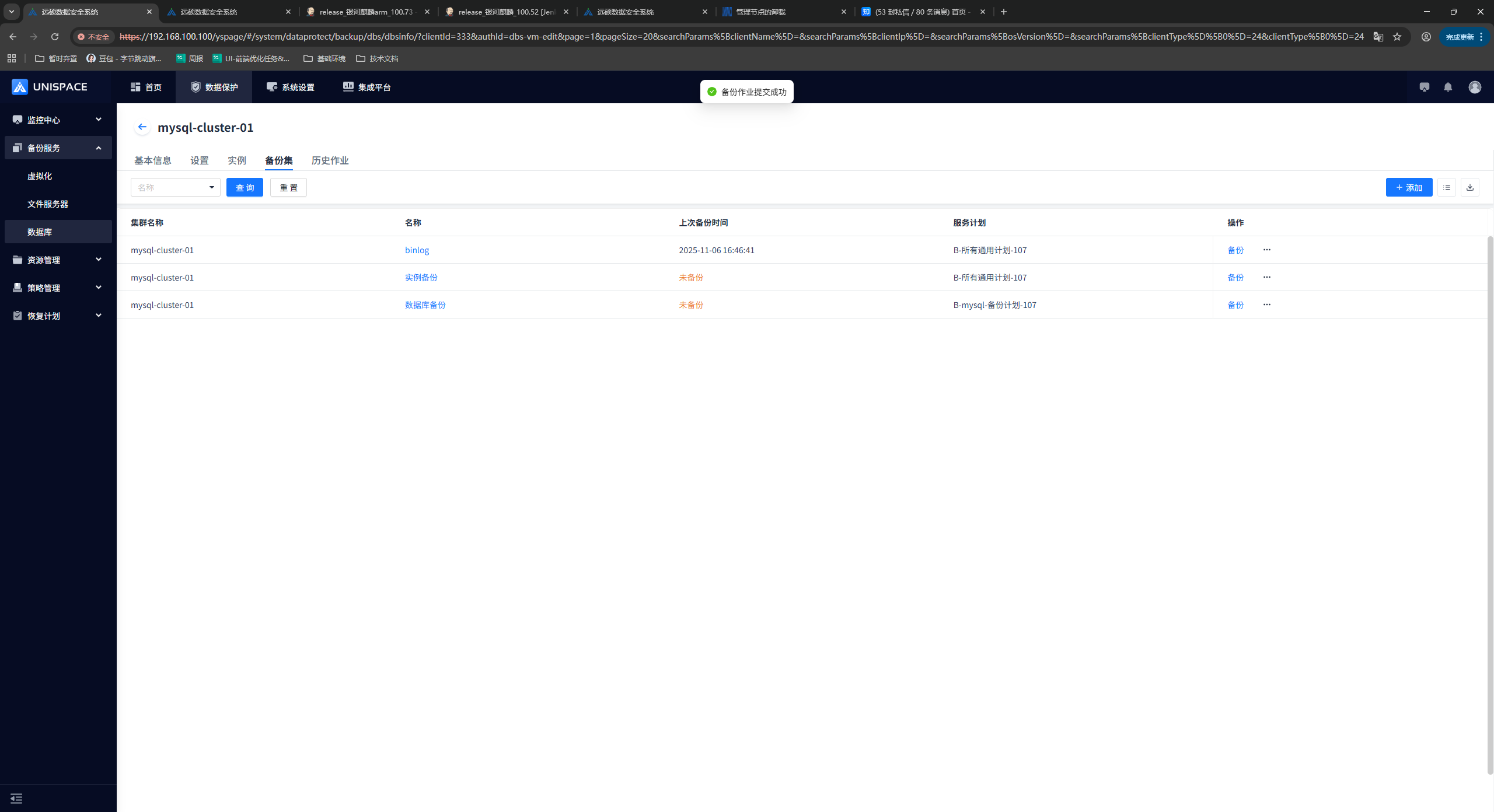
Step 4: After the backup job starts successfully, go to [Monitoring Center] - [Jobs] - [Active Jobs] to view the backup set job.
Step 5: After the backup is completed, go to [Monitoring Center] - [Jobs] - [Job History] to view the backup set job. When the job status is “Completed”, the backup is complete.
1.5 MySQL Instance Backup
Prerequisites
- A MySQL log backup set has been configured.
Steps
Step 1: Select the instance backup set and click [Backup] under [Actions].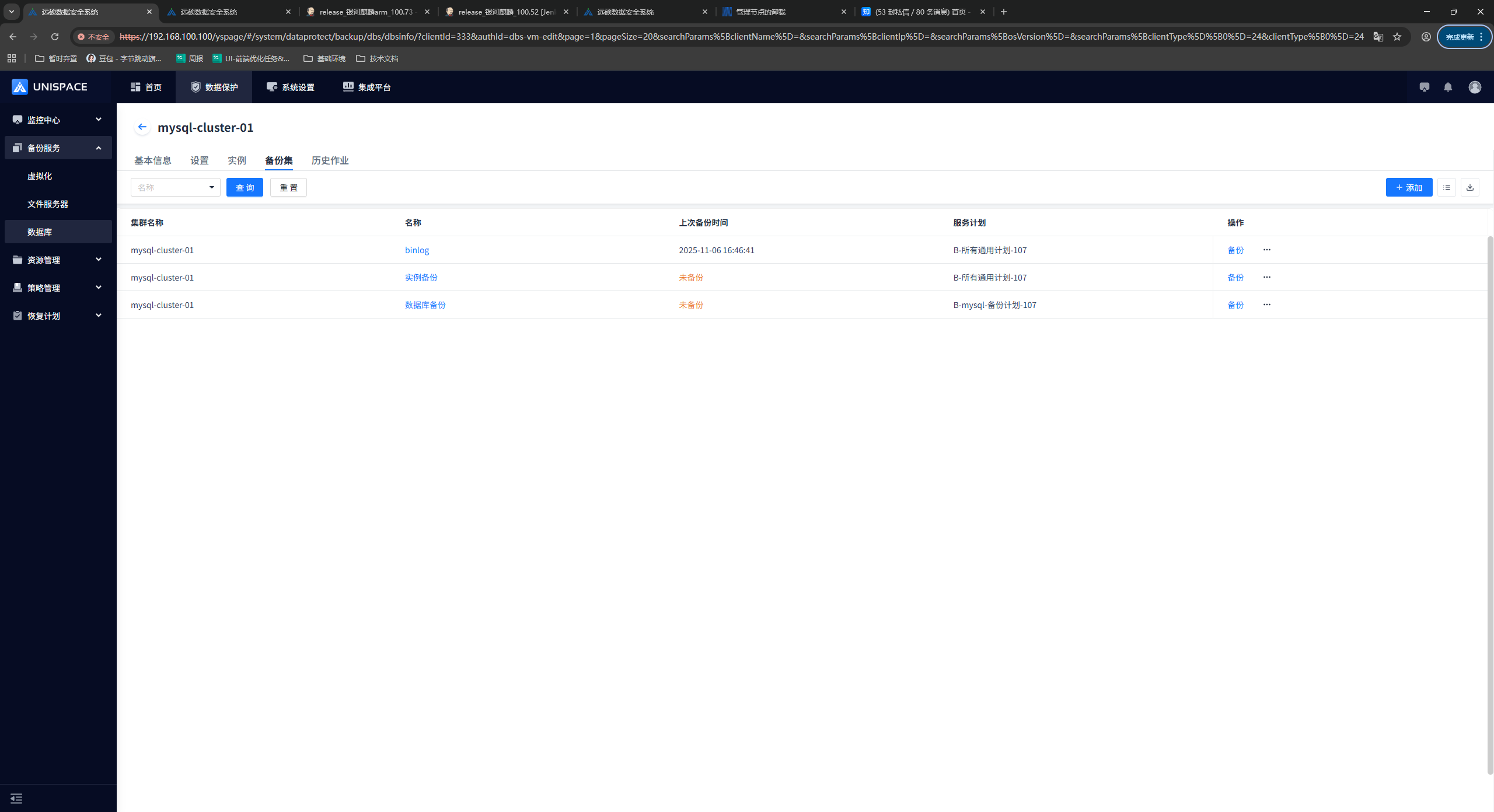
Step 2: Select Incremental or Full in the pop-up window and click [Confirm].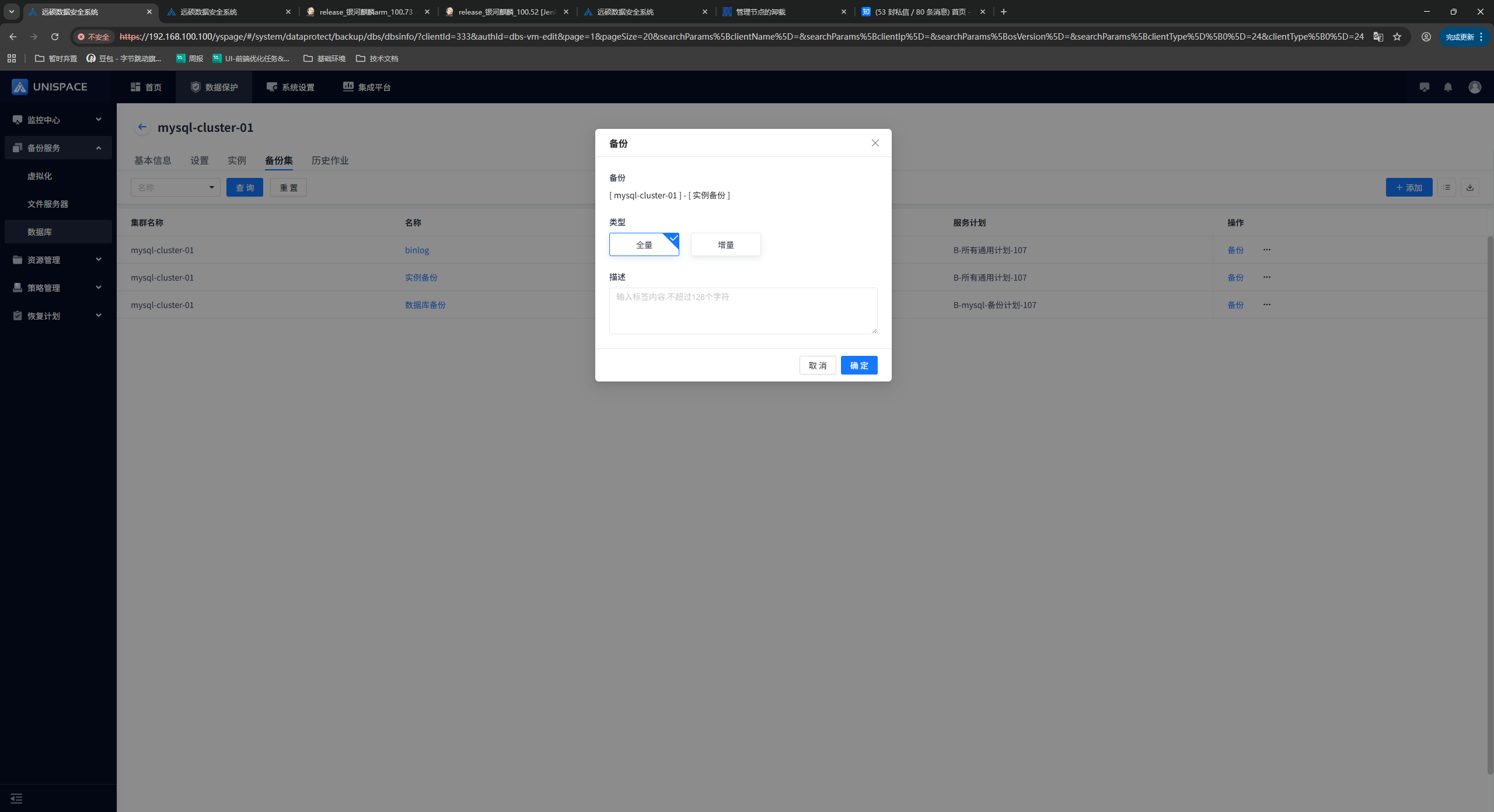
Step 3: The page displays “Backup job submitted successfully”.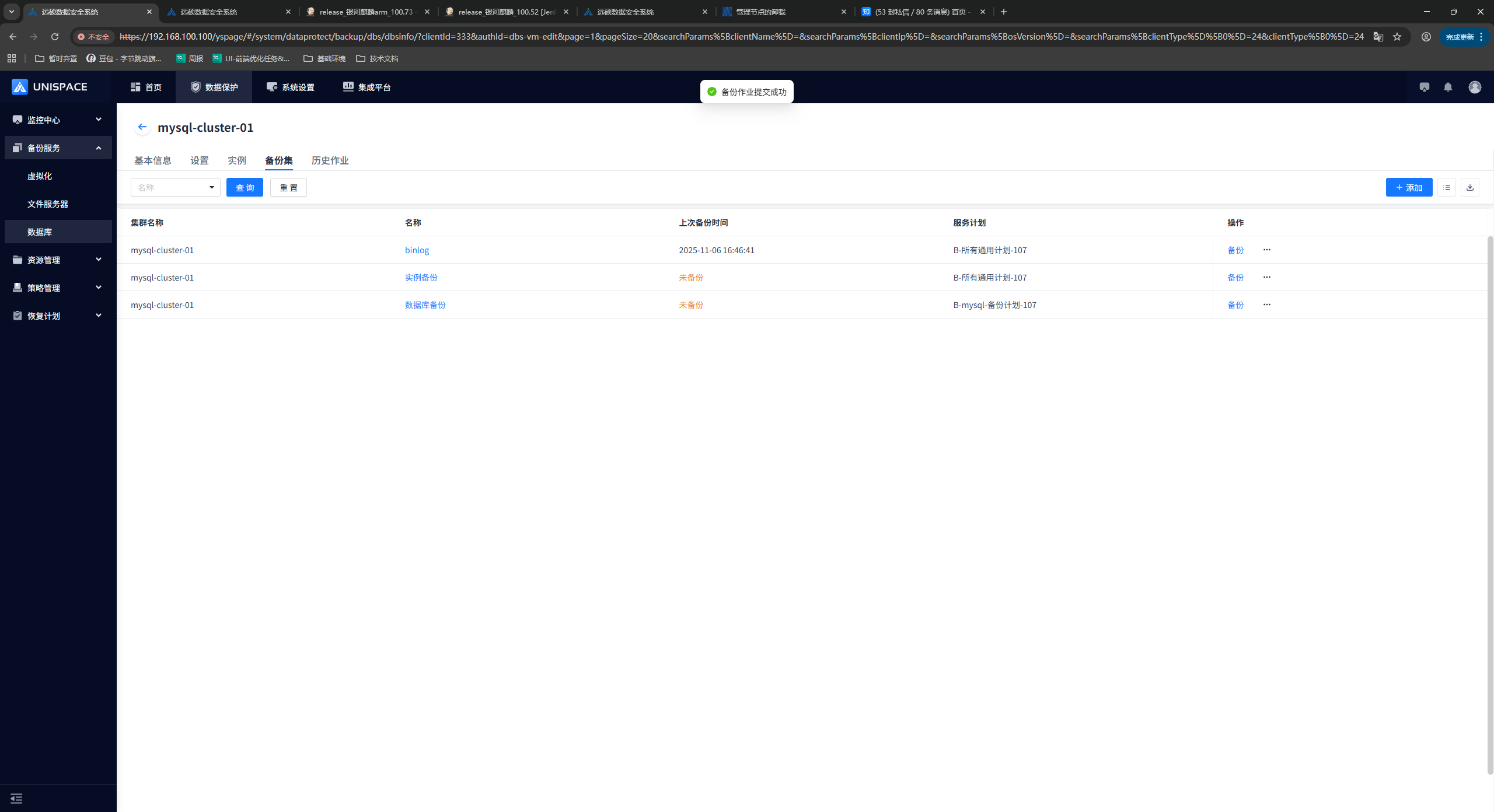
Step 4: After the backup job starts successfully, go to [Monitoring Center] - [Jobs] - [Active Jobs] to view the backup set job.
Step 5: After the backup is completed, go to [Monitoring Center] - [Jobs] - [Job History] to view the backup set job. When the job status is “Completed”, the backup is complete.
1.6 MySQL Database Backup
Prerequisites
- A MySQL log backup set has been configured.
Steps
Step 1: Select the database backup set and click [Backup] under [Actions].
Step 2: Select Full in the pop-up window and click [Confirm].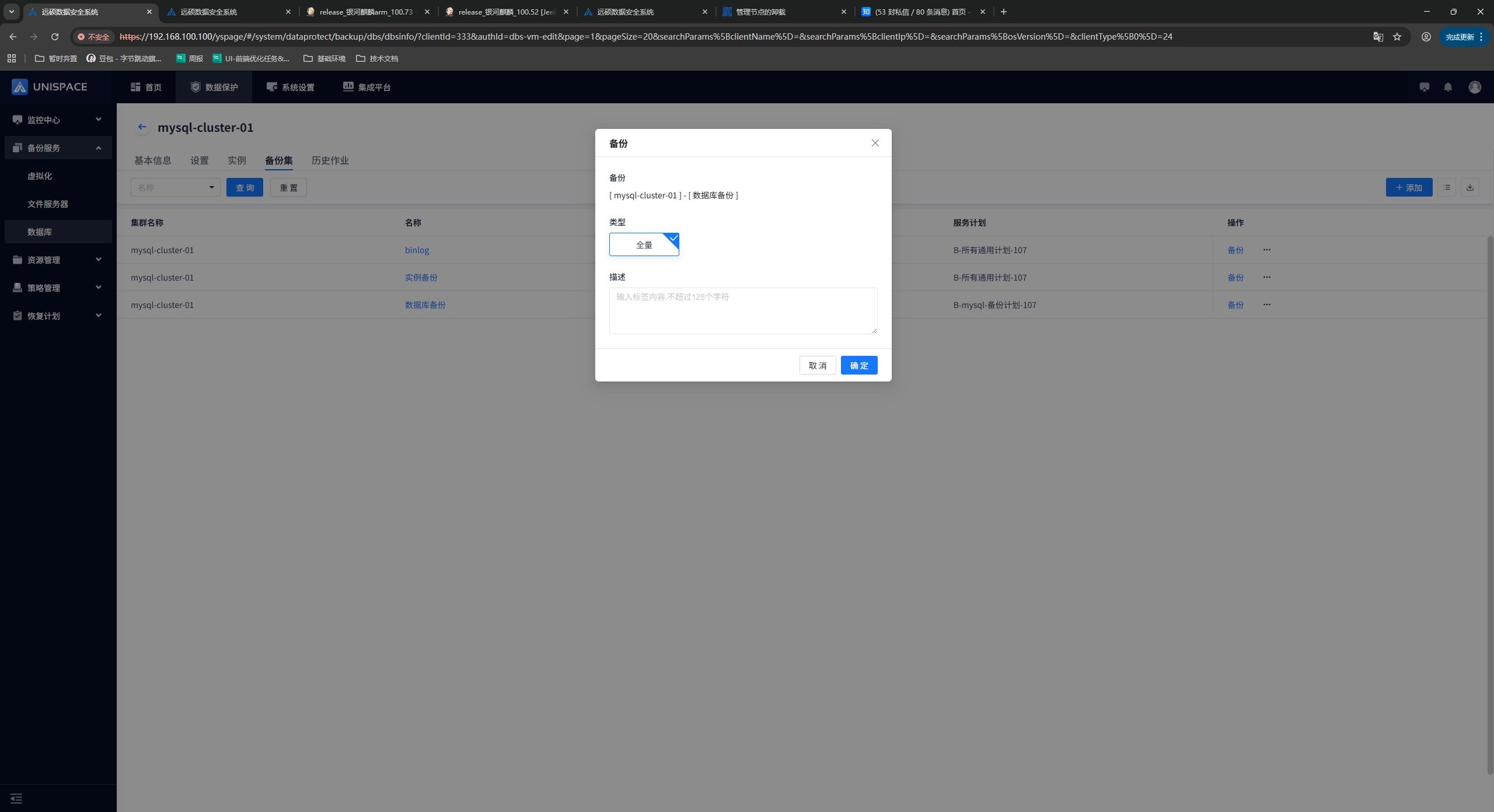
Step 3: The page displays “Backup job submitted successfully”.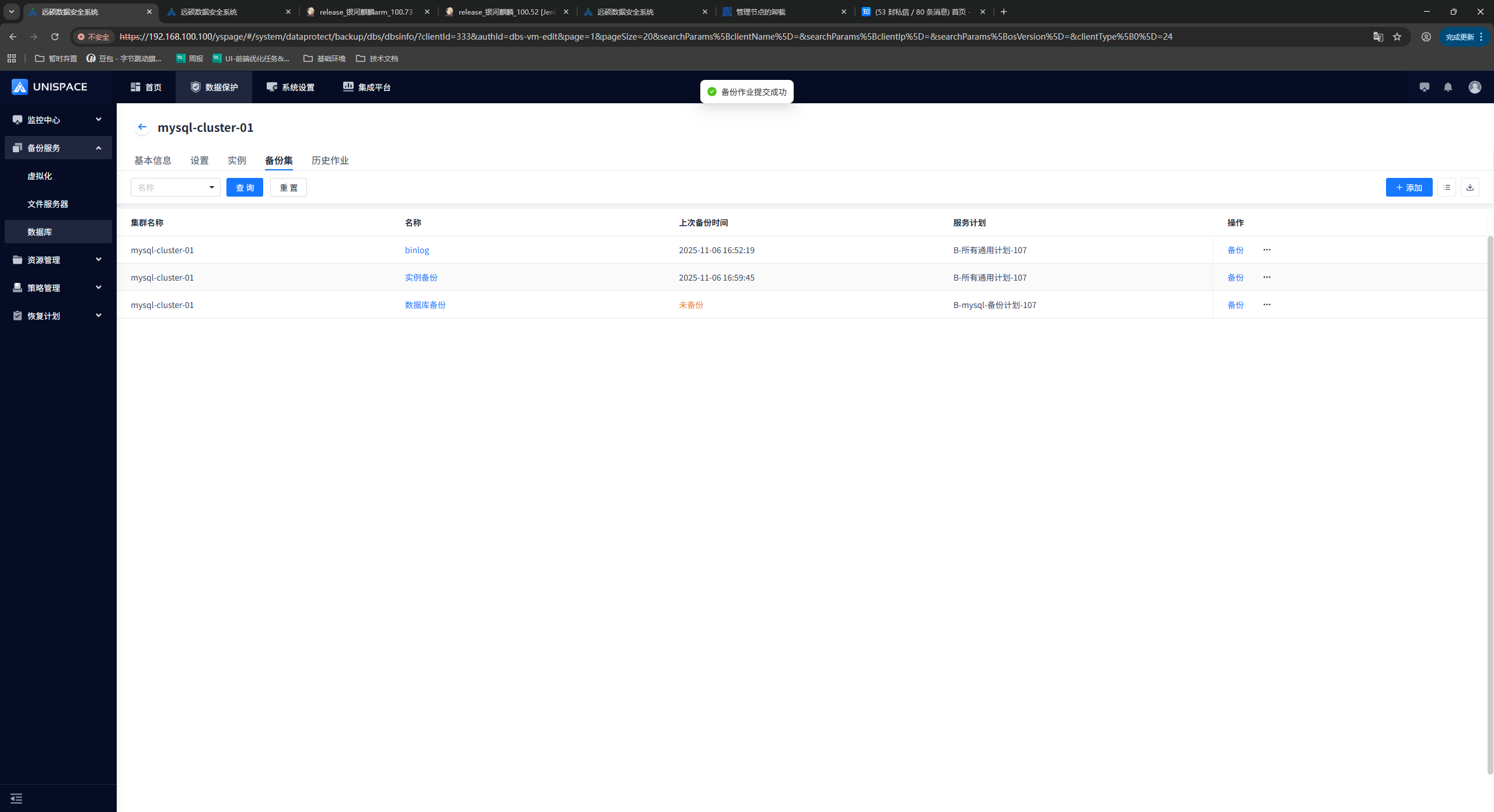
Step 4: After the backup job starts successfully, go to [Monitoring Center] - [Jobs] - [Active Jobs] to view the backup set job.
Step 5: After the backup is completed, go to [Monitoring Center] - [Jobs] - [Job History] to view the backup set job. When the job status is “Completed”, the backup is complete.
1.6 MySQL Database Recovery
Prerequisites
- The MySQL database has been backed up.
Steps
Step 1: On the [Virtual Cluster] page, select a cluster and click [Actions] - [Restore].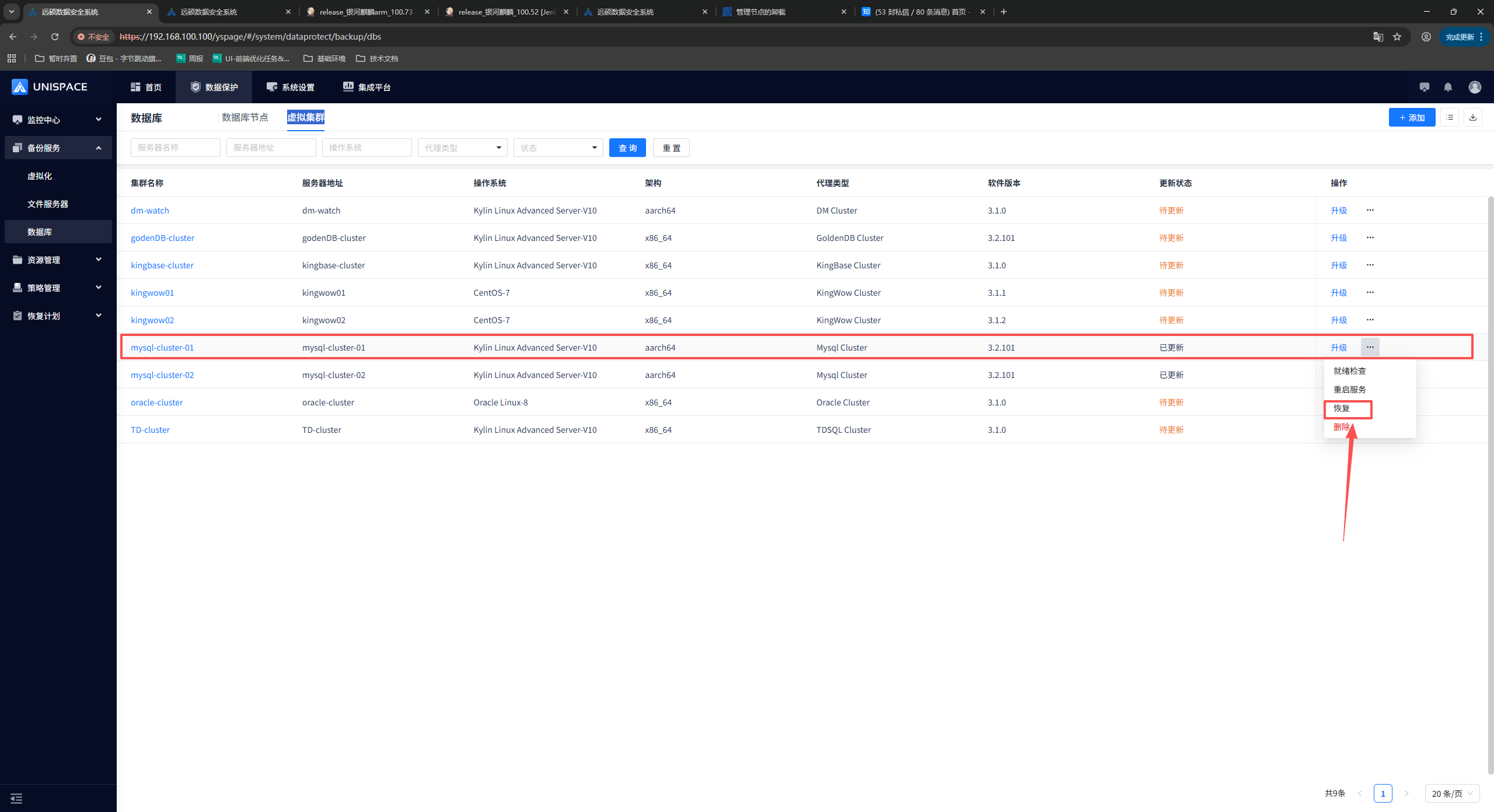
Step 2: In the restore window, select [Database Recovery] and click [Next].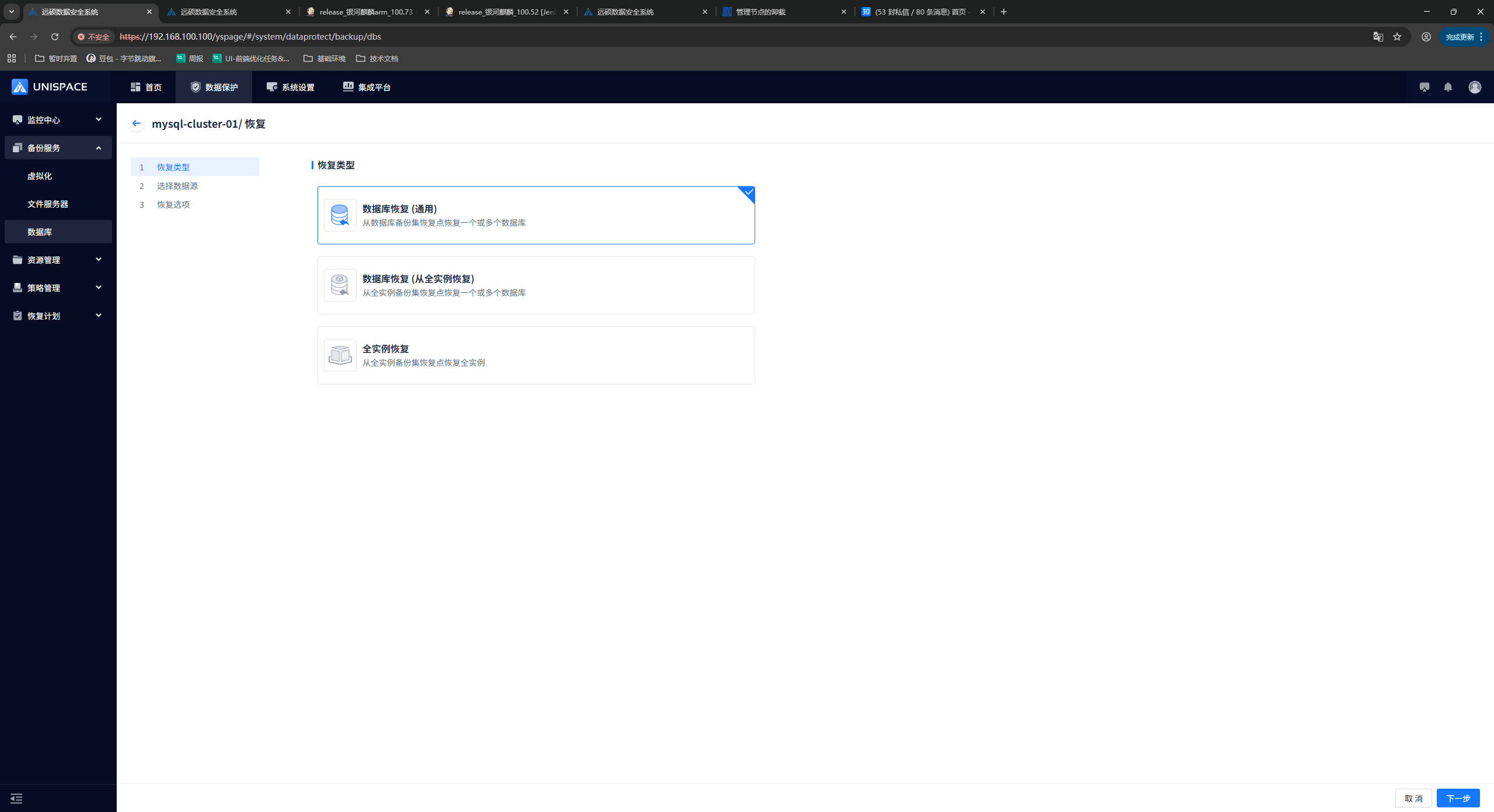
Step 3: Select the data source. You can query recovery points by time range, select the corresponding database backup job, and click [Next].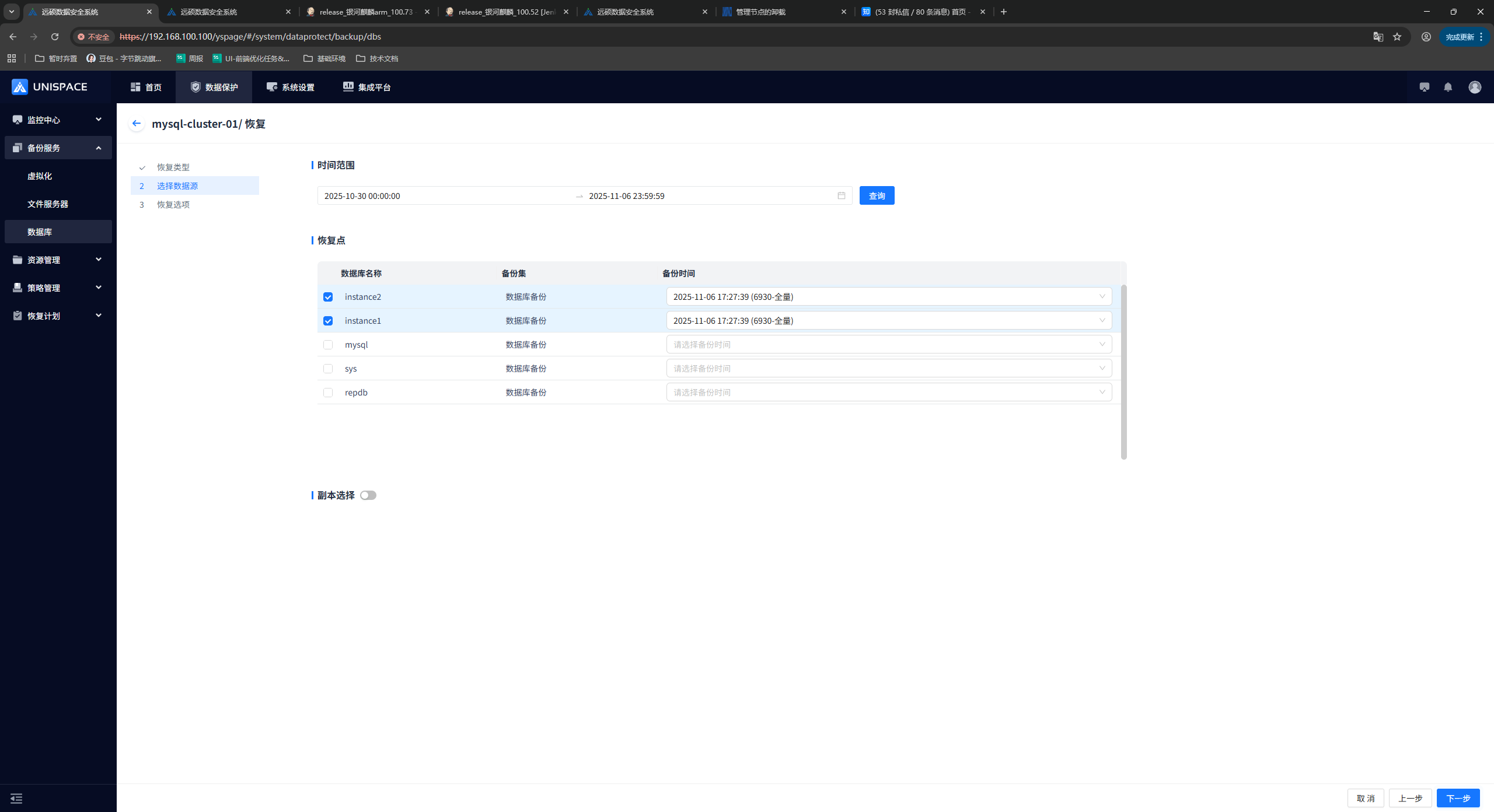
Step 4: Fill in the required parameters and click [Confirm].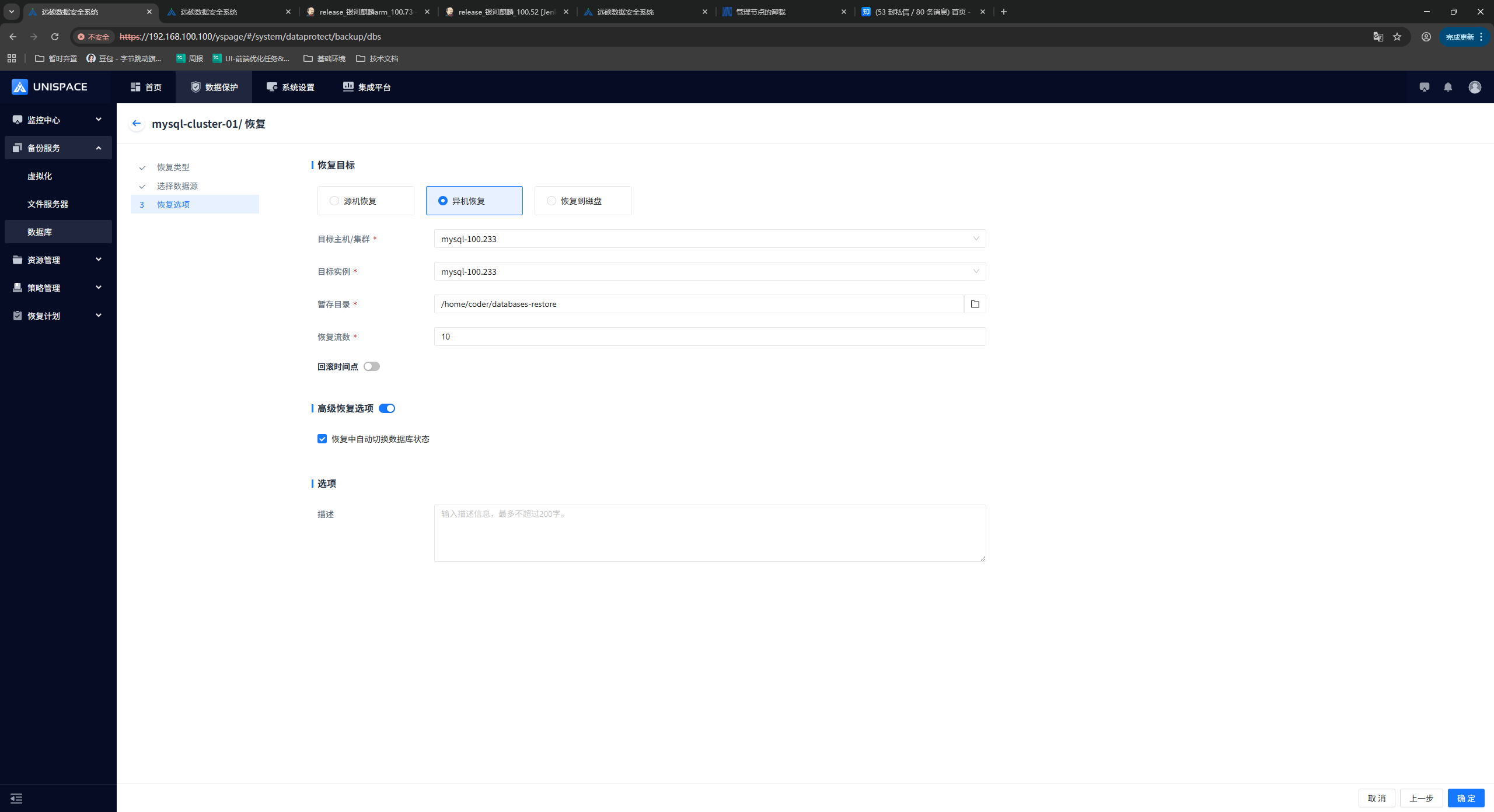
| Parameter Name | Parameter Description | Setting Principle |
|---|---|---|
| Recovery Target | Single selection; cross-machine recovery is selected by default. | Original machine recovery (all nodes in the original cluster); cross-machine recovery (a registered standalone MySQL client node or cluster); recovery to disk. |
| Target Instance | Select the MySQL instance on the target host to which the data will be recovered. | Original machine: select one of the multiple instances in the original cluster. Cross-machine: select one of one or more instances in a standalone machine or cluster. |
| Staging Directory | Temporary file path on the target host. | Required. |
| Recovery Stream Count | Numeric type; the number of concurrent streams during the job. | 1-200; 4 streams are recommended. |
| Rollback Point in Time | Toggle. | Disabled by default. |
| Select Rollback Point in Time | Select a time point before the data backup and log backup for point-in-time recovery. | |
| Advanced Recovery Options | When enabled for instance recovery, the target instance is restarted after the instance recovery is complete. | Enabled by default. |
Step 5: Click [Confirm].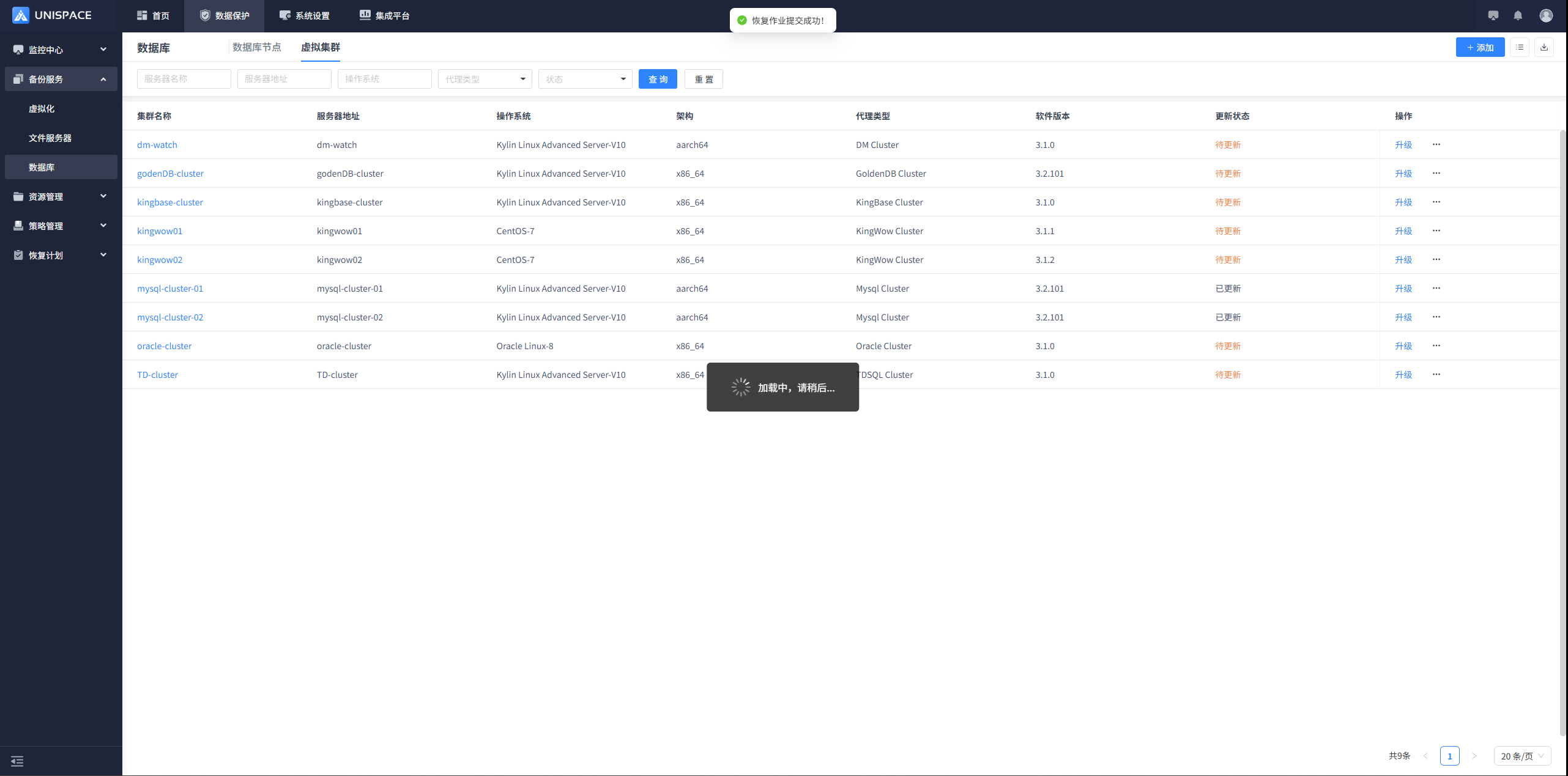
Step 6: After the job starts successfully, go to [Monitoring Center] - [Jobs] - [Active Jobs] to view the job.
Step 7: After the job ends, go to [Monitoring Center] - [Jobs] - [Job History] to view the job and its status.
1.6 MySQL Database Recovery (from an Instance)
Prerequisites
- The MySQL database has been backed up.
Steps
Step 1: On the [Virtual Cluster] page, select a cluster and click [Actions] - [Restore].
Step 2: In the restore window, select [Database Recovery (from Full Instance Recovery)] and click [Next Step].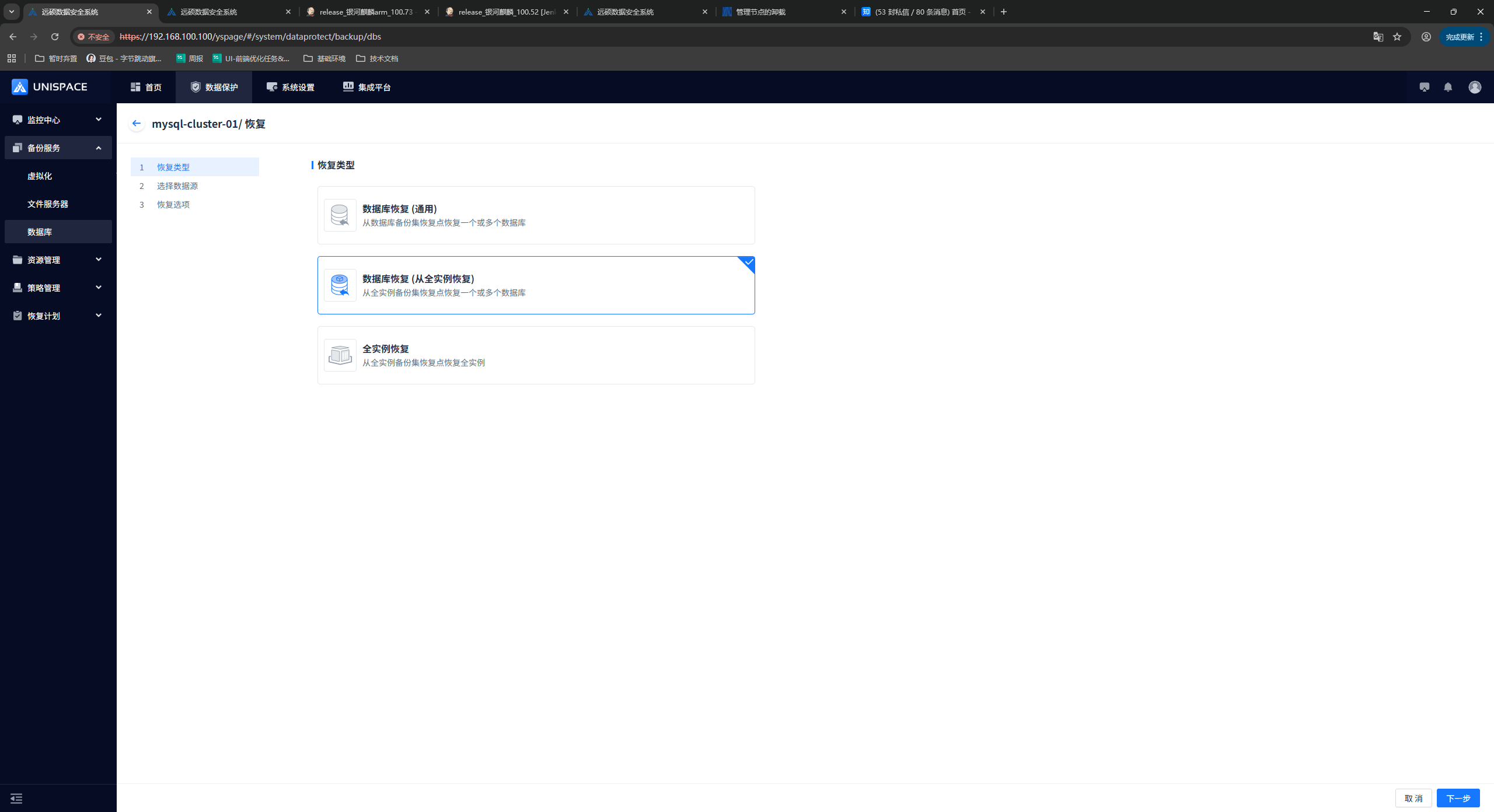
Step 3: Select the data source. You can query the corresponding backup jobs by time range, select a job, click the job ID to select a database, and click [Next Step].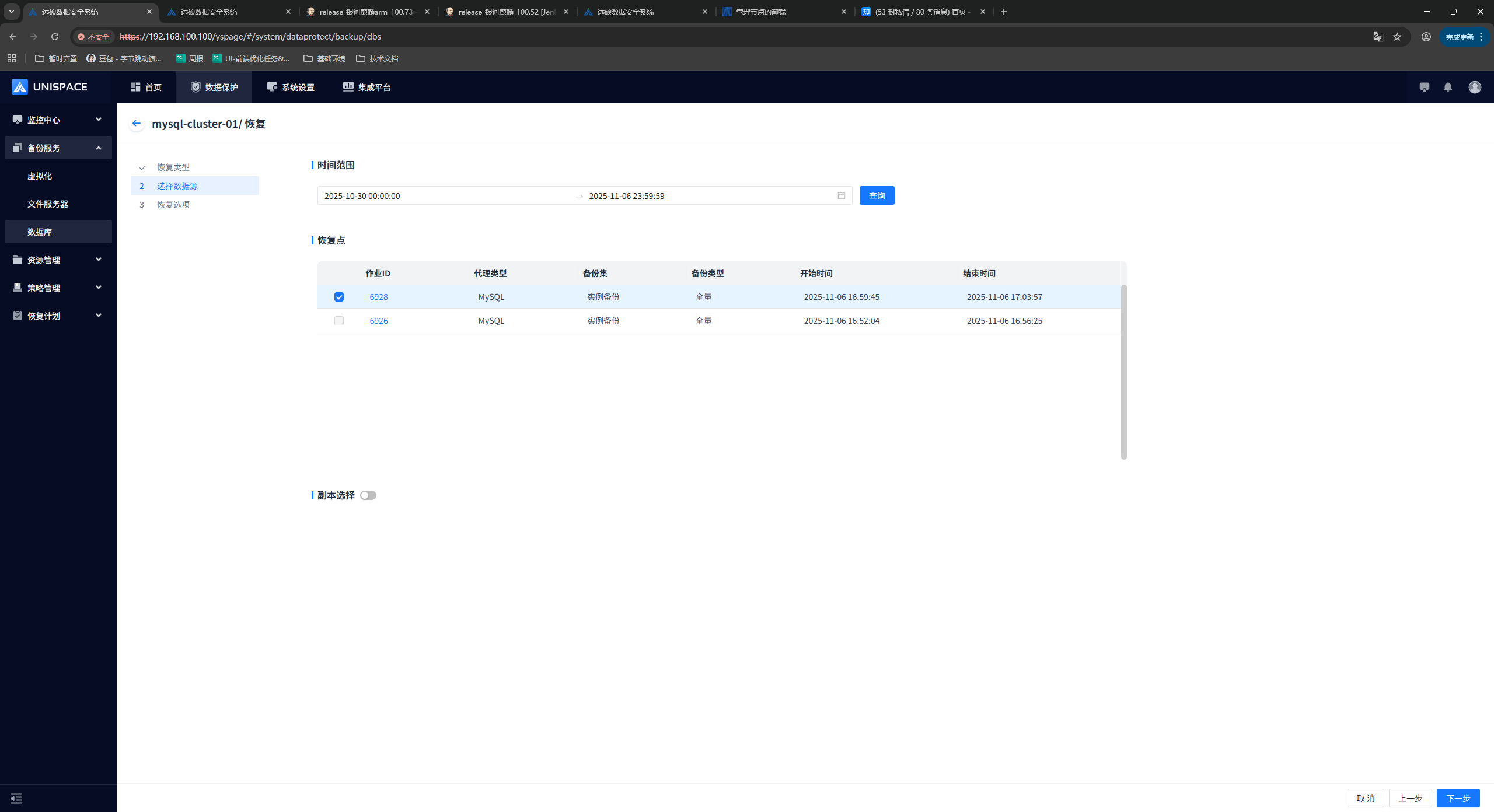
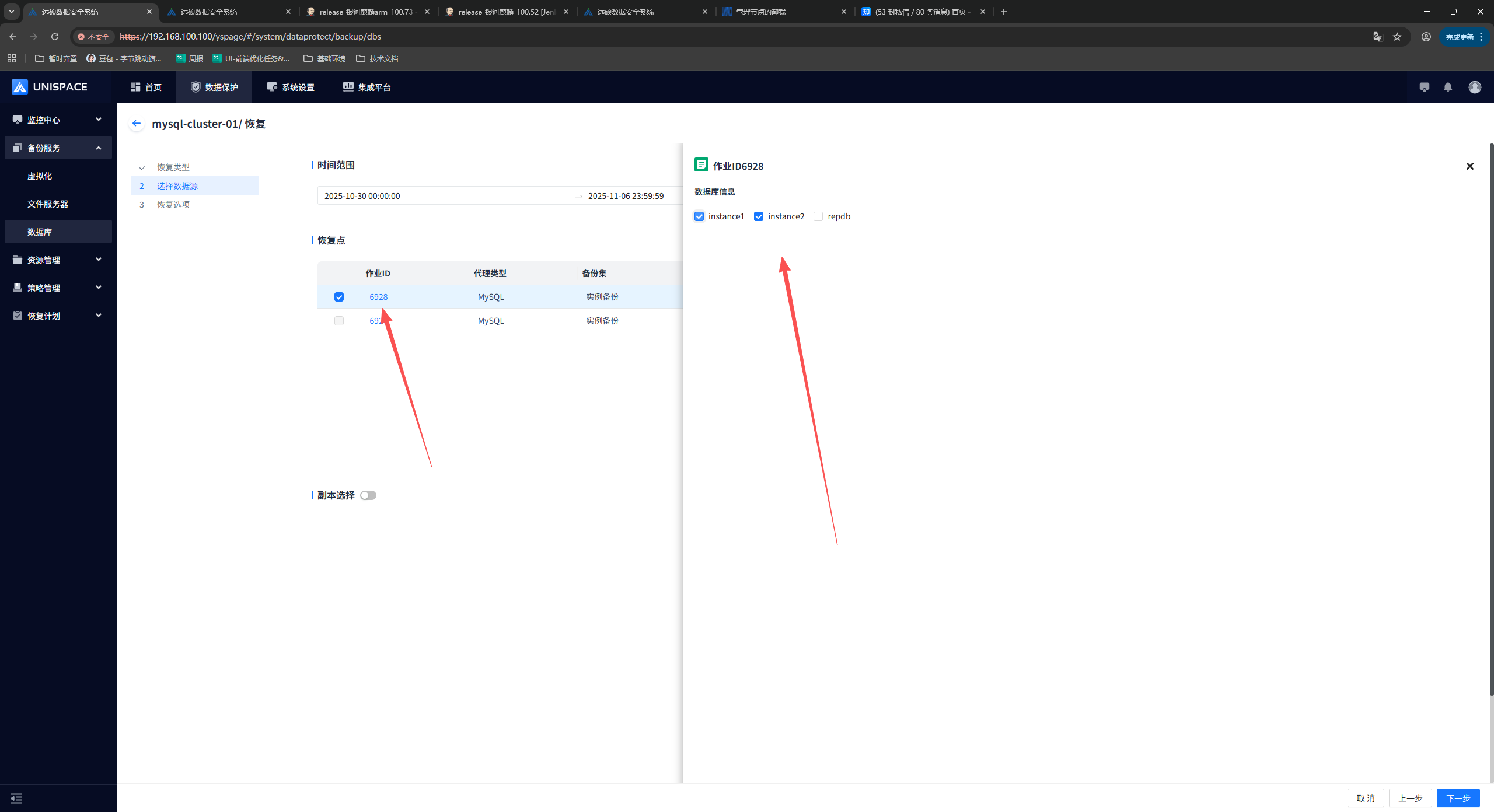
Step 4: Fill in the required parameters and click [Confirm].
Step 5: Click [Confirm].
Step 6: After the job starts successfully, go to [Monitoring Center] - [Jobs] - [Active Jobs] to view the job.
Step 7: After the job ends, go to [Monitoring Center] - [Jobs] - [Job History] to view the job and its status.
1.6 MySQL Instance Recovery
Prerequisites
- The MySQL database has been backed up.
Steps
Step 1: On the [Virtual Cluster] page, select a cluster and click [Actions] - [Restore].
Step 2: In the restore window, select [Database Recovery (from Full Instance Recovery)] and click [Next].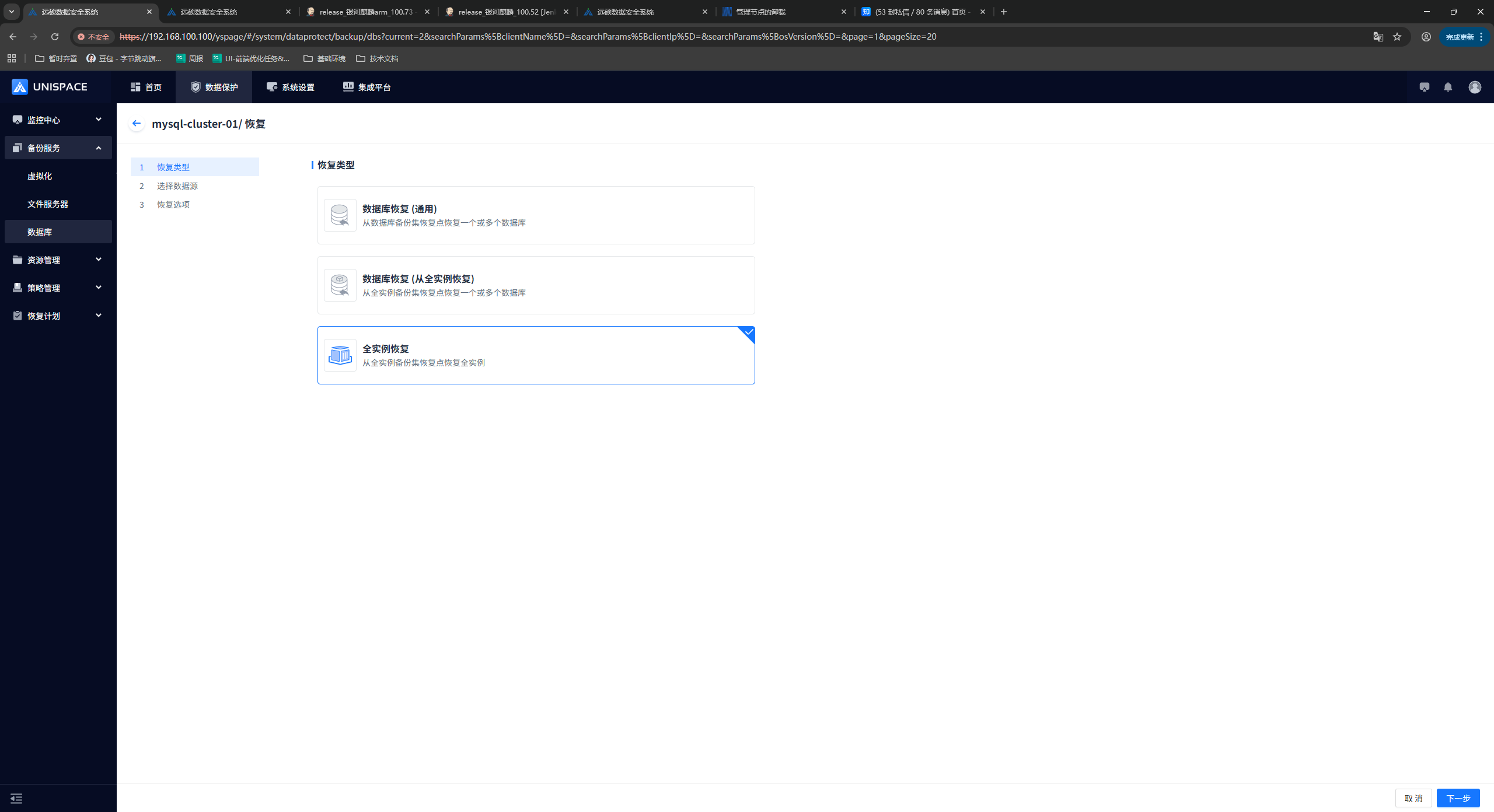
Step 3: Select the data source. You can query the corresponding backup jobs by time range, select the required job, and click [Next].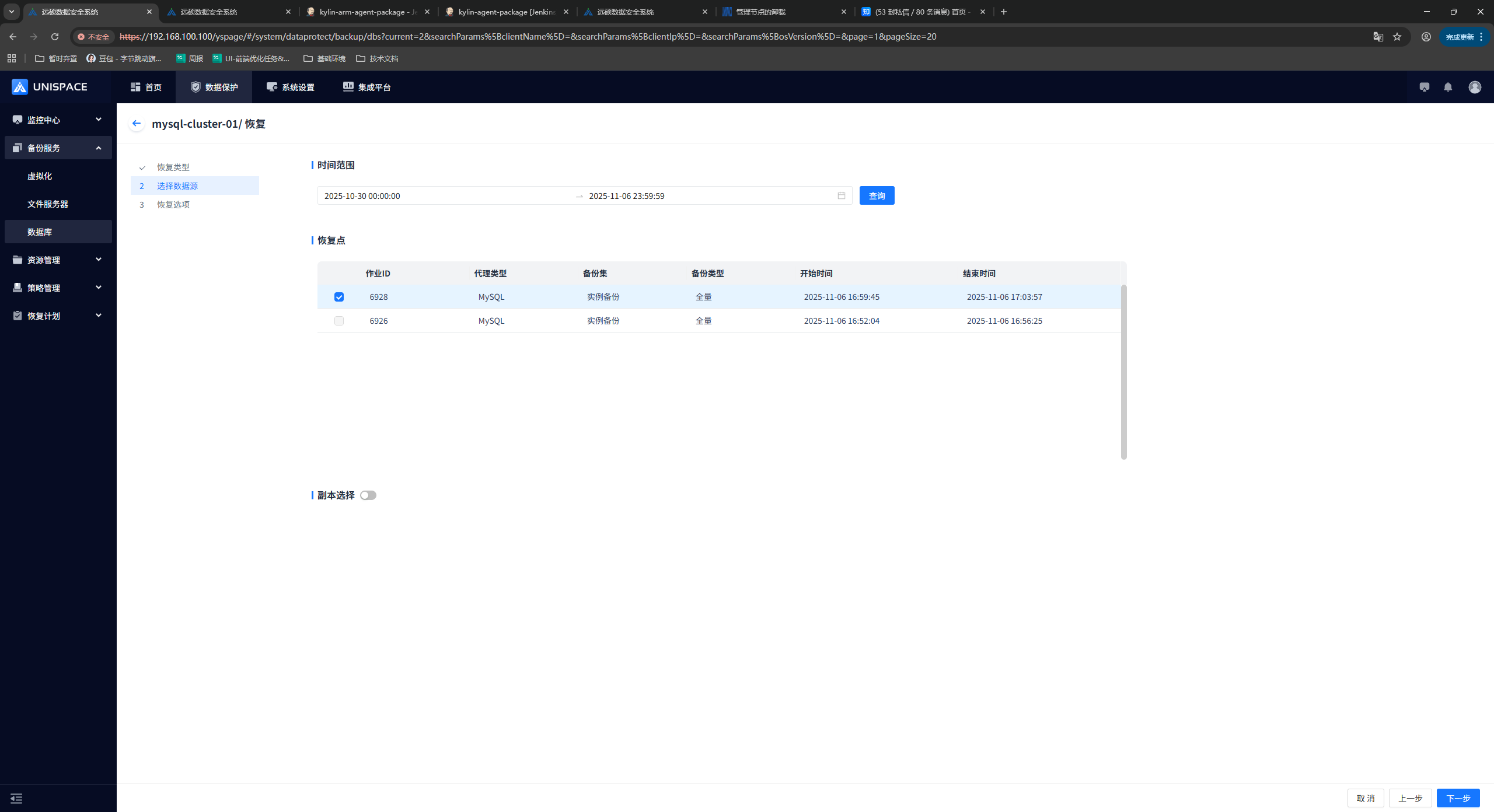
Step 4: Fill in the required parameters and click [Confirm].
Step 5: Click [Confirm].
Step 6: After the job starts successfully, go to [Monitoring Center] - [Jobs] - [Active Jobs] to view the job.
Step 7: After the job ends, go to [Monitoring Center] - [Jobs] - [Job History] to view the job and its status.
1.6 MySQL Data Recovery to Disk
Prerequisites
- The Oracle database has been backed up.
Steps
Step 1: On the [Virtual Cluster] page, select a cluster and click [Actions] - [Restore].
Step 2: In the restore window, select any recovery type and click [Next].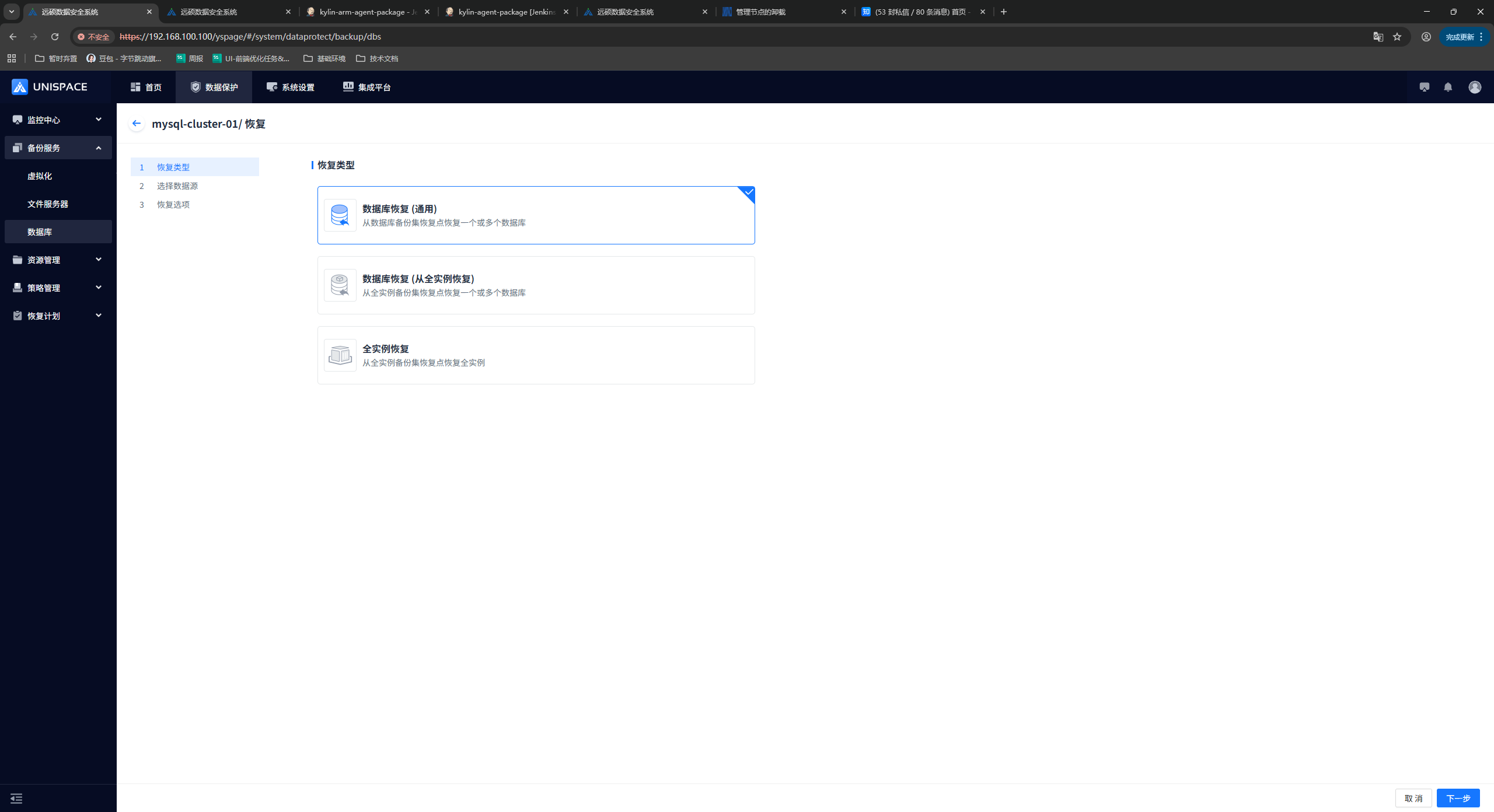
Step 3: Select a recovery point and click [Next].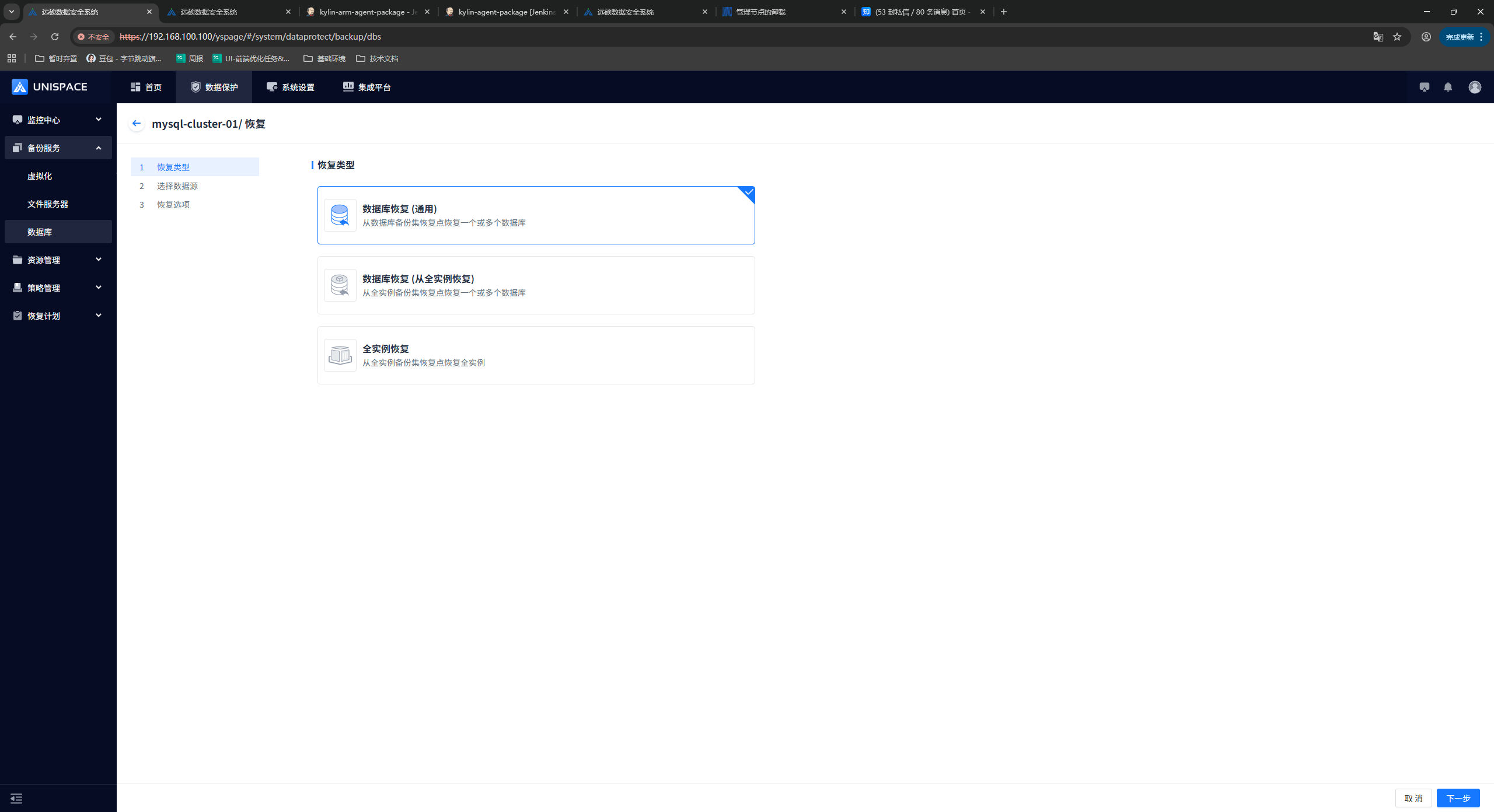
Step 4: Select “Recover to Disk”, select the data in the recovery options, fill in the other required parameters, and click [Confirm].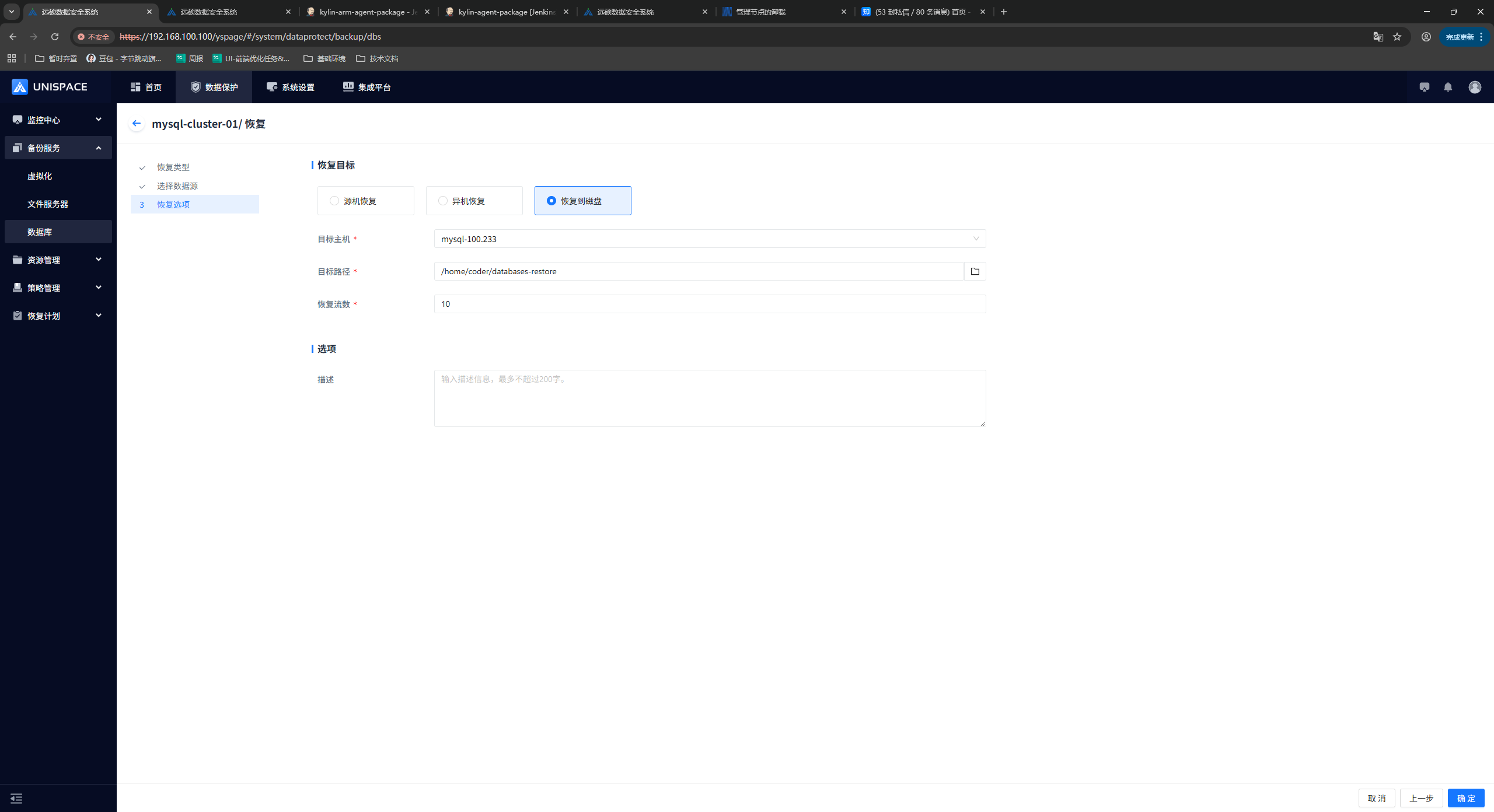
Step 5: After the job starts successfully, go to [Monitoring Center] - [Jobs] - [Active Jobs] to view the job.
Step 6: After the job ends, go to [Monitoring Center] - [Jobs] - [Job History] to view the job and its status.